


Failure to deploy or upgrade a database version
If the following error occurs when updating a database:
System.ComponentModel.Win32Exception (0x80004005): The system cannot find the file specified
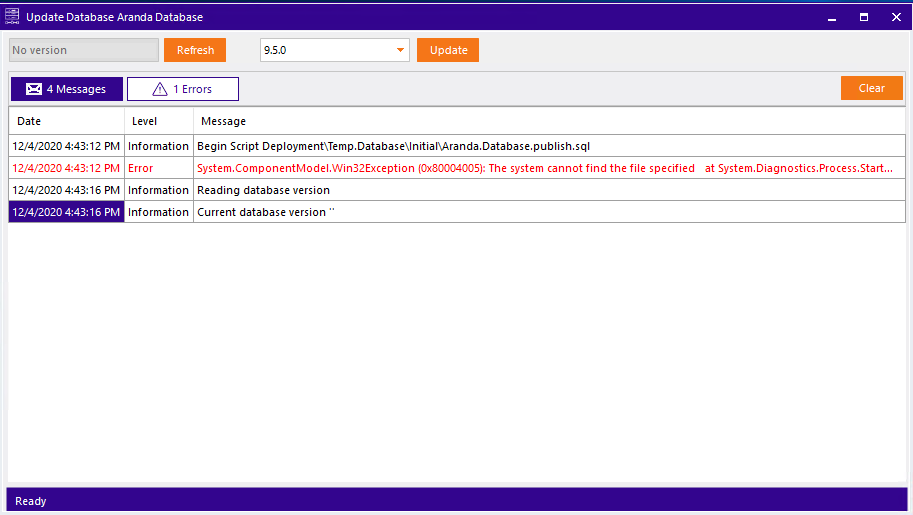
This error can occur if the SQLCommandLine on the machine. To resolve it:
- Go to the Installation Requirements.
- Install the necessary programs.
- Restart Aranda DB Tools.
Script execution failed
If an error occurs during execution and the system throws the following exception:
Aranda.ADBT.Exceptions.DatabaseToolsException: ScriptFail
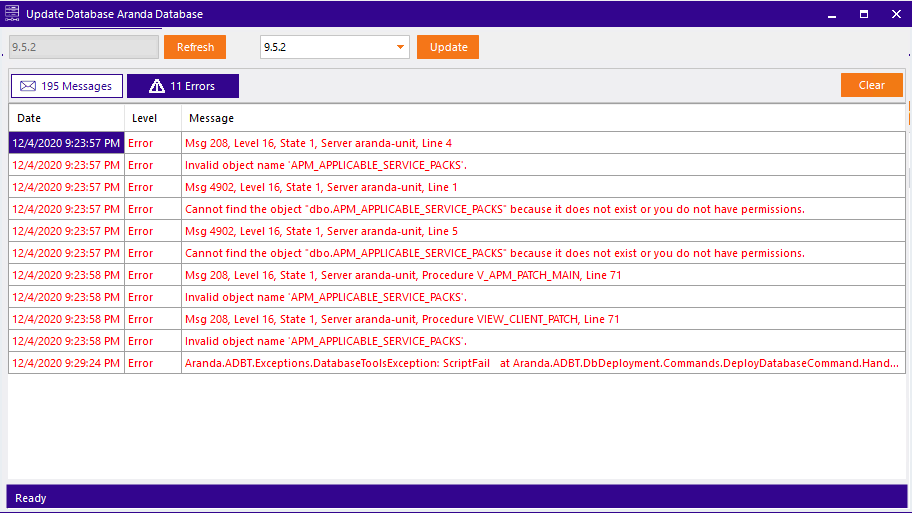
Before proceeding, verify that the Database structure match the version you’re trying to update.
Missing Packages
If you are upgrading the database (for example, from 9.5.0 to 9.5.6) and you encounter the following error:
Aranda.ADBT.Exceptions.DatabaseToolsException: InvalidUpdate
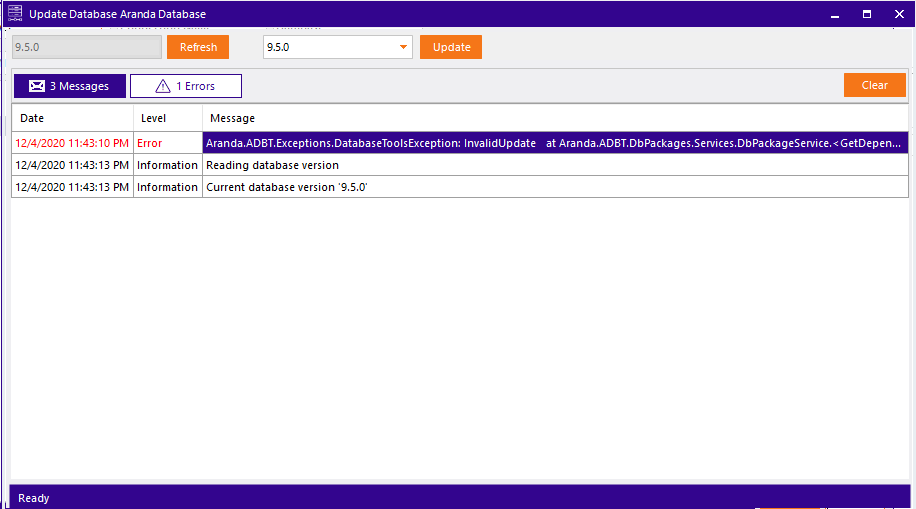
Remember that you need the intermediate versions to complete the update. Verify that the intermediate versions exist in the corresponding folder. If they are not present, please go to the Packages and follow the steps to download them.
Package not found
If you encounter the following error:
Aranda.ADBT.Exceptions.DatabaseToolsException: PackageNotFound —> System.IO.FileNotFoundException: Could not find file ‘…\Packages\SqlServer\9.X.X.zip’.
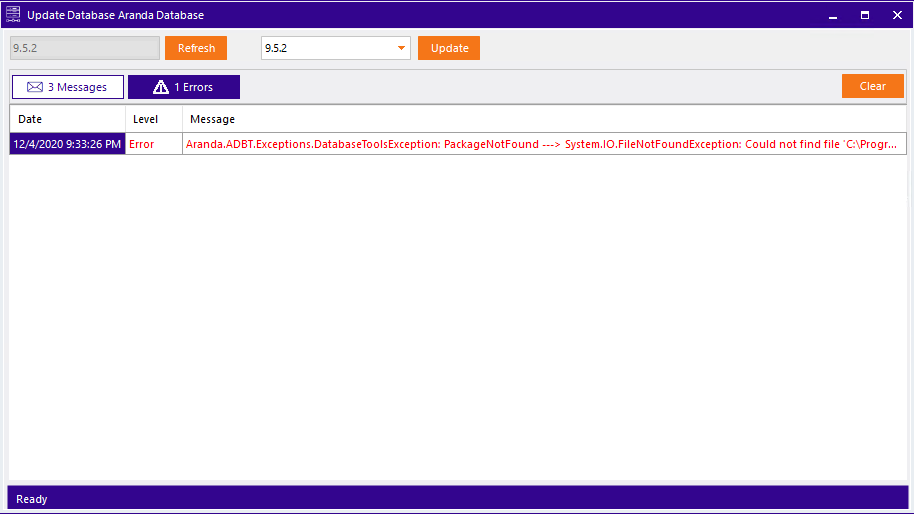
Verify that in the Packages packages have the status Ok. If not, head over to the Packages and follow the steps to fix it.
SSL Certificate Error Deploying (ODBC Driver 18)
If you experience the following error when running a script:
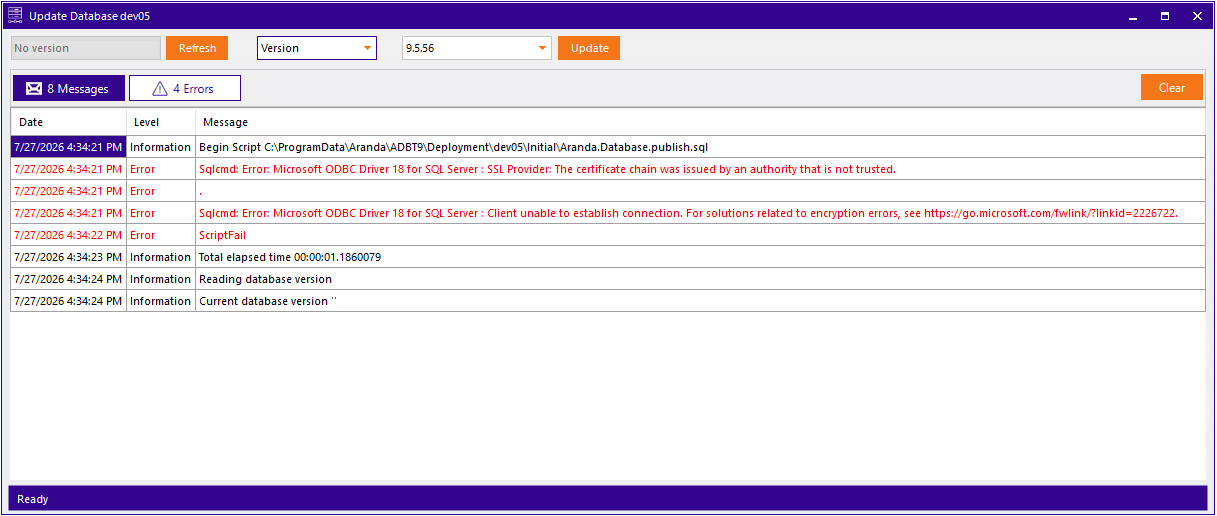
Sqlcmd: Error: Microsoft ODBC Driver 18 for SQL Server: SSL Provider: The certificate chain was issued by an authority that is not trusted.
This error occurs because, from ODBC Driver 18, the default security behavior changed from ODBC Driver 17: The connection is now encrypted (Encrypt) and the server’s certificate chain is strictly validated. If the database server uses a certificate self-signed or issued by an untrusted entity (common in test environments or QA), the connection is rejected.
To fix this, instruct the application to trust the server certificate:
- Go to the Connection chains.
- Select the affected connection string.
- Enable the Trust server certificate.
- Click the Save (save).
- Try deployment again.
⚐ Note:
The options Encrypt and Trust server certificate only apply to the supplier SqlServer.Encryptindicates whether the connection should be encrypted;Trust server certificateIndicates whether the server’s certificate should be trusted without validating the CA. YesEncryptis enabled andTrust server certificateNo, the connection will attempt to validate the certificate and fail against an untrusted certificate.