


In the per-module insights view, you will have information management and organization actions, the filter column, and the Smart Search icon available, the latter of which is only available if you previously configured the AI and AI Actions endpoints. For more information, see AI Configuration.
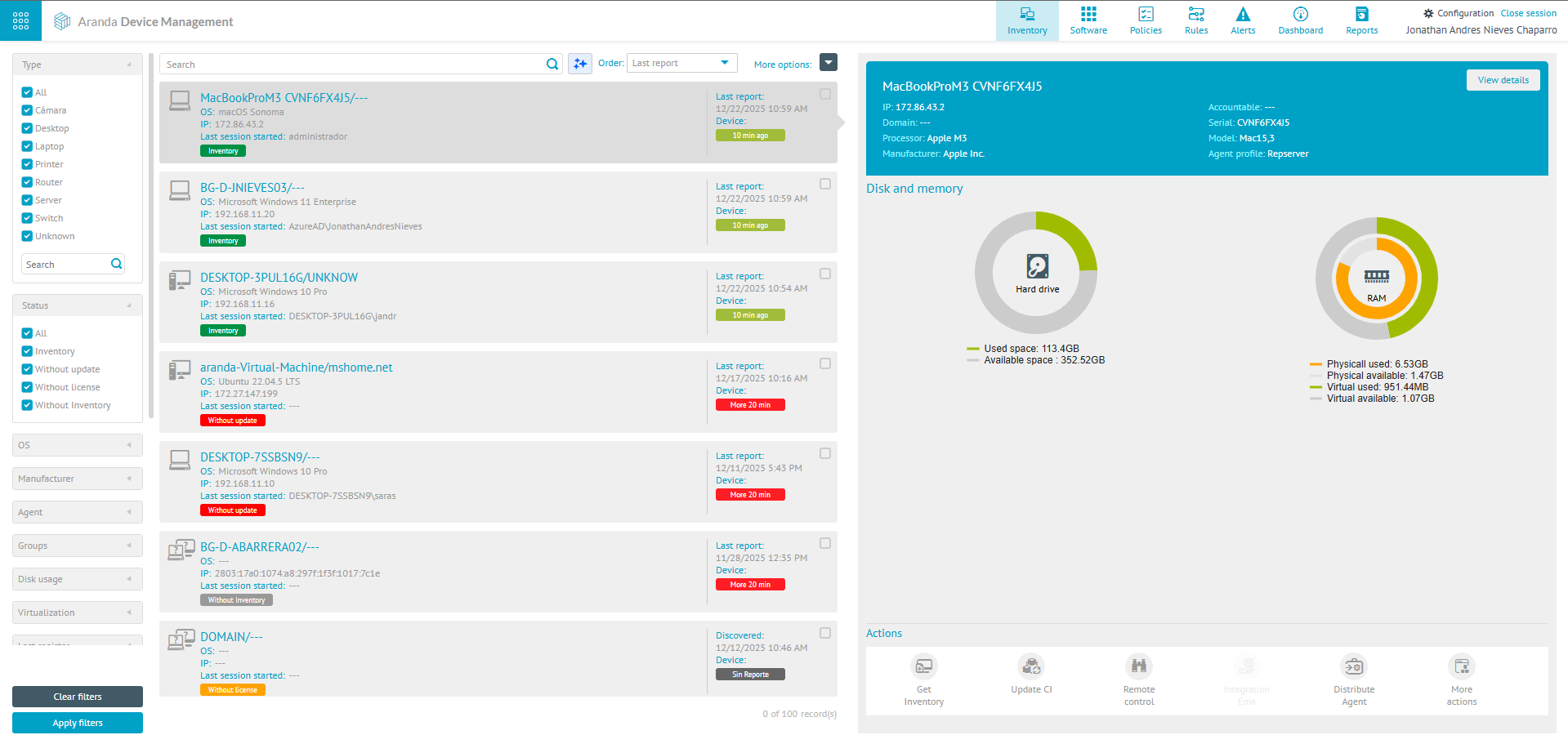
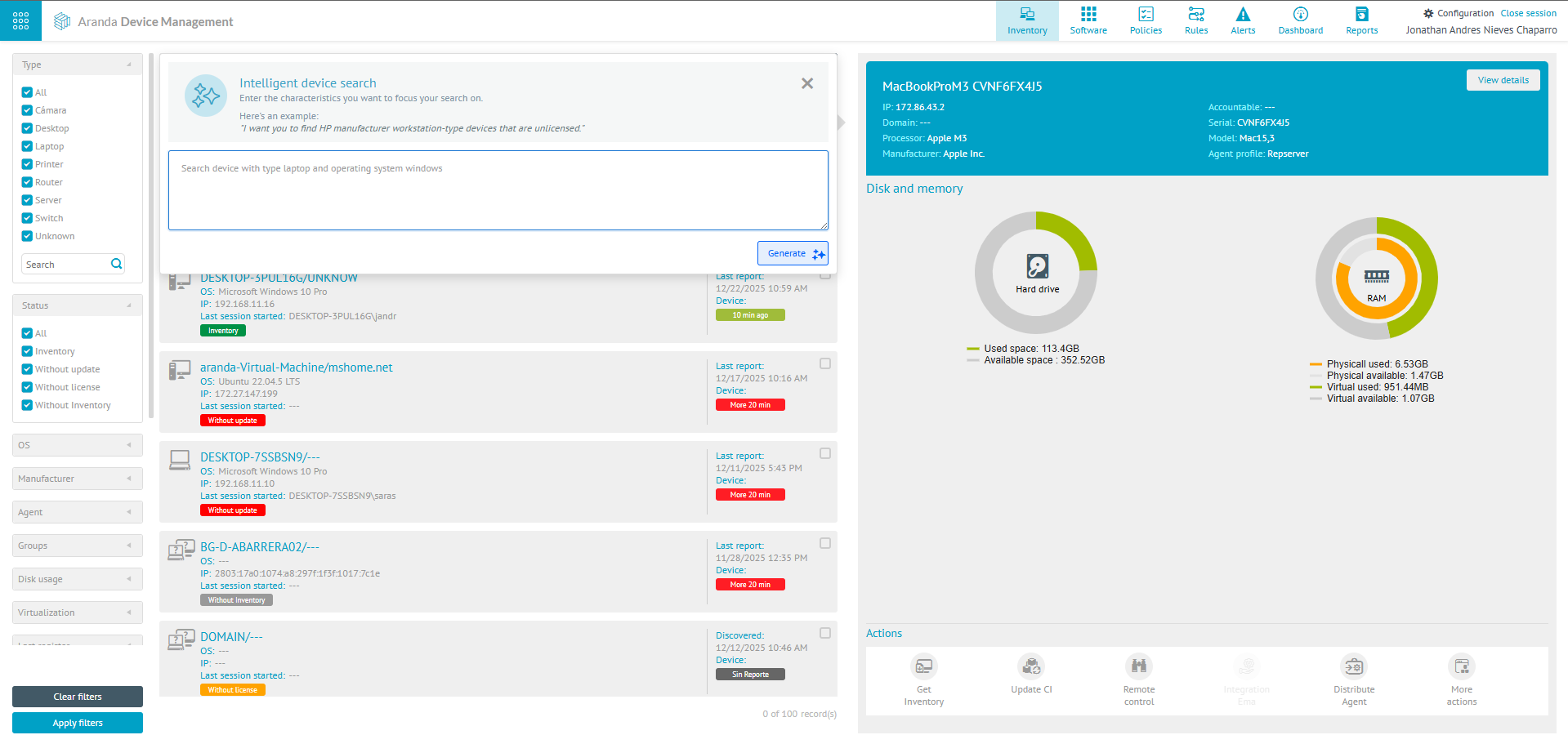
By clicking on the Smart Search, the chat-type option is enabled where you can enter a search instruction in natural language. Example: “Find me the portable type devices with an unupdated state”. The devices will be searched according to the filters available in the tool:
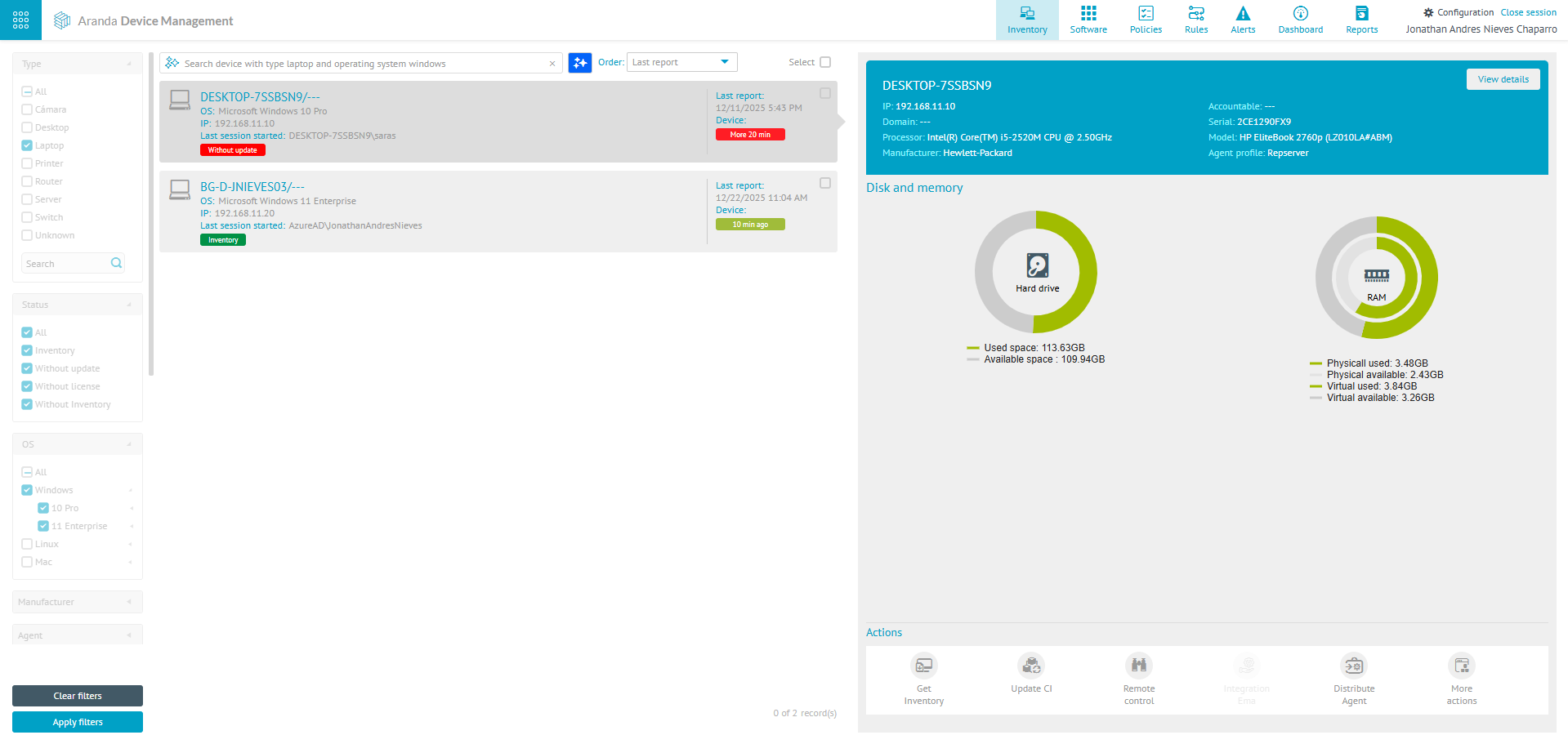
Filters that can be used in Smart Search instructions
| Categories | Filters |
|---|---|
| Guy | All - Station - Laptop - Server - Printers - Switch - Router - Personal Computer - Unknown - Custom Type. |
| State | All - Inventory - Not Updated - No License - No Inventory. |
| Operating system | All - Windows - Linux - Mac. |
| Maker | All - Microsoft - Dell - HP. |
| Agent | All - No Agent - Search. |
| Groups | All - Administrators - Location. |
| Disk usage | Hard drive 0% to 100% Usage. |
| Virtualization | All - No virtualization - Hyper-V. |
| Last Registration | All - 10 min ago - 20 min ago - More 20 min. |
| Fault logging | All - No Conflict - Identification Conflict. |
| vPro | All - With vPro - Without vPro. |
| EMA | All - EMA - No EMA. |
| IaaS | All - Azure - No IaaS. |