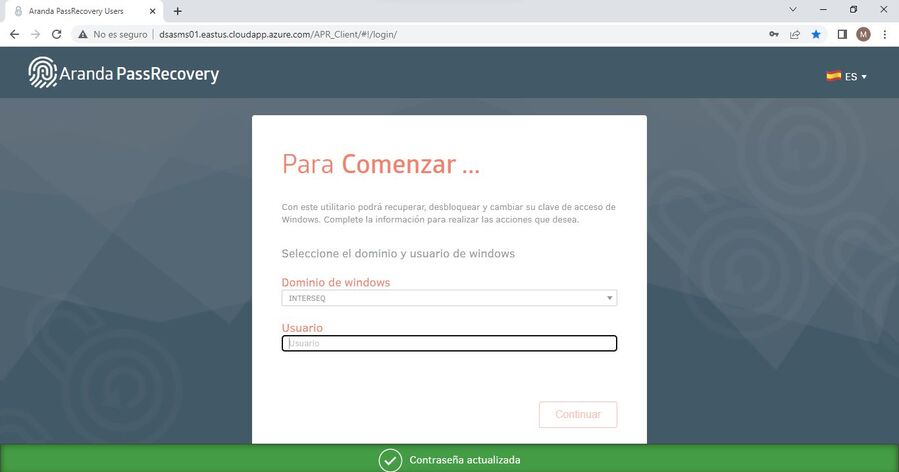
Password reset.
In case the User does not remember his/her password, when entering the console (APRUsers), he/she will be able to reset it:
For this, the following must be taken into account:
- Security questions must be configured beforehand.
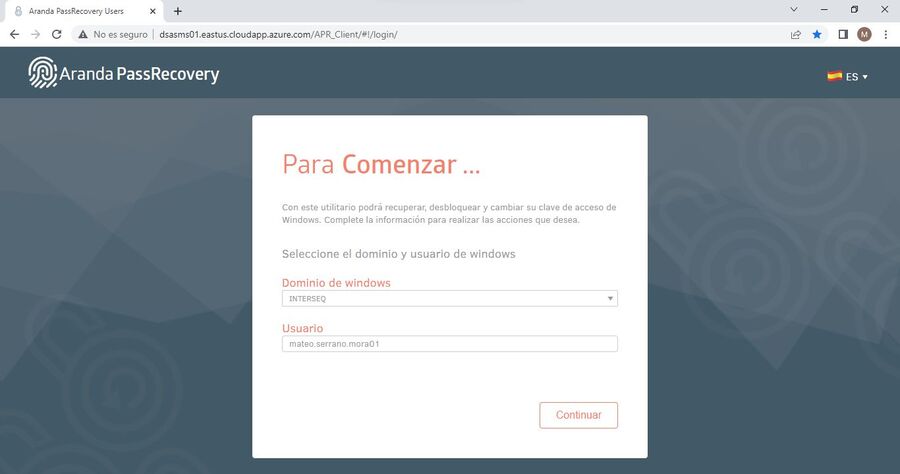
- Enter the Domain User whose password will be reset and click Continue.
- Click on the link you received in the mail.
- The console will prompt you to resolve previously configured security questions.
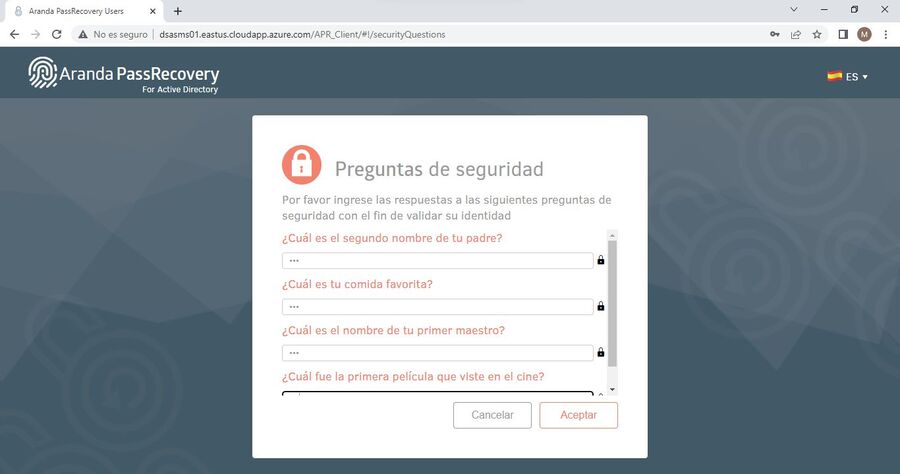
- Once the answers have been filled in and click on “Accept”, the console will validate if they are correct and allow the User to enter.
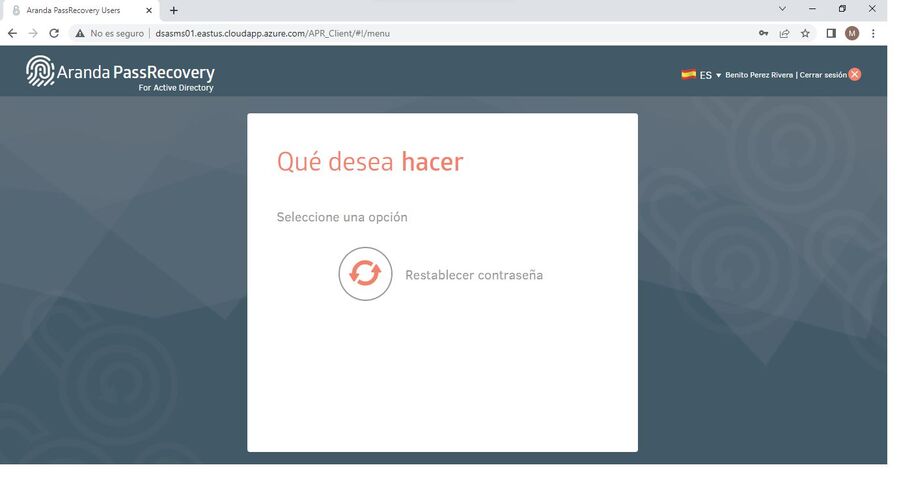
- The “Reset password” option will be displayed, you must click on the title to make the change.
⚐ Note:
- If the user exceeds the number of attempts previously configured in the console APRAdmin, in the Configuration, you will be blocked and receive an email notification with the subject line Attempts Exceeded in Responses to Security Questions.
- The blocked user will be able to try again after the block time set in APRAdmin, in the Configuration. See Configuration of Number of Attempts and Block Time
- If the blocked user tries to log in again before the configured time is up, a message will be displayed stating: Attempts exceeded, retry later

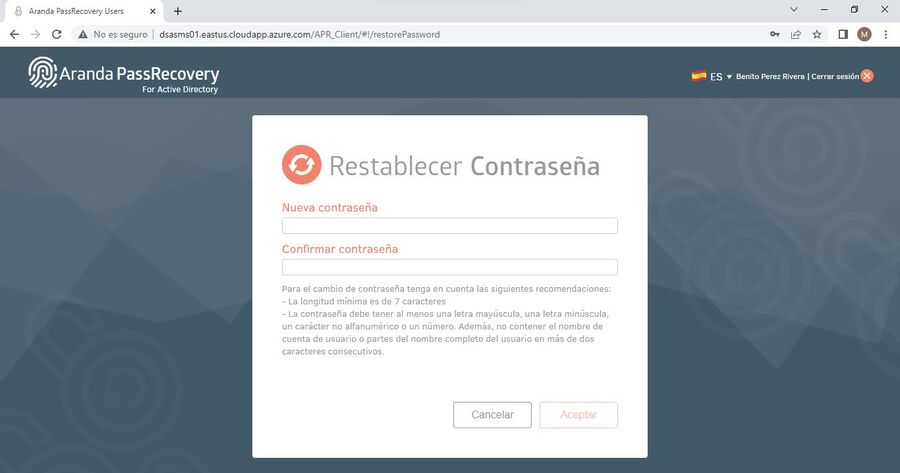
- The console will prompt the user to enter the new password and confirmation.
- At the bottom you will see the recommendations to take into account for resetting the password.
⚐ Note:
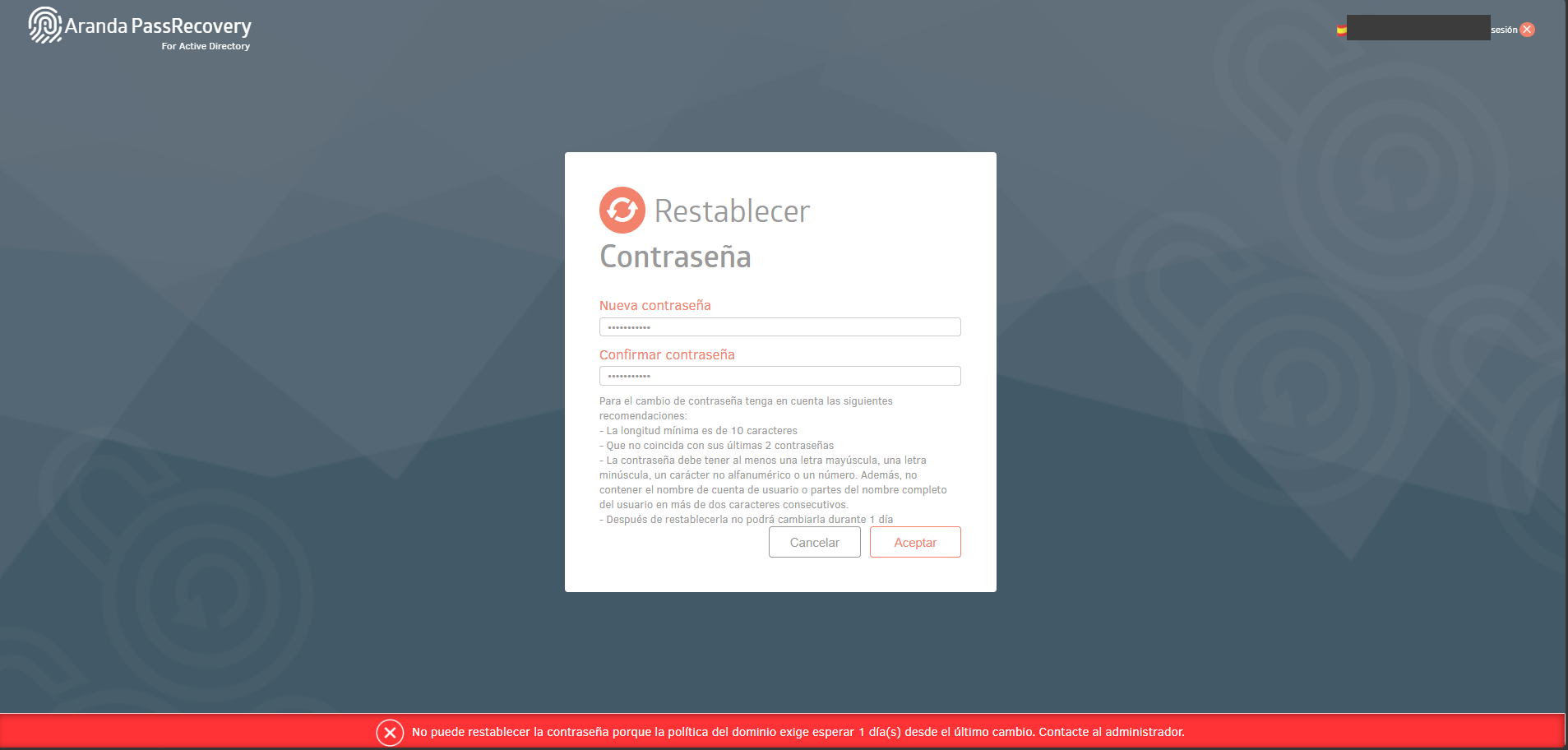
- If your administrator has enabled the Domain Policy Validation, available on console APRAdminsection Configuration View Settings, the recommendations will also include that the new password does not match the last passwords used by the user and the number of days that must elapse, after the reset, before it can be changed again (minimum term).
- If the user tries to reset the password before the minimum validity configured in the Active Directory has elapsed, the system will instruct him to wait the indicated number of days and contact the administrator.
- Once you have entered your new password, and your confirmation, click on the button (Accept), the console will update this information in the (Active Directory).