


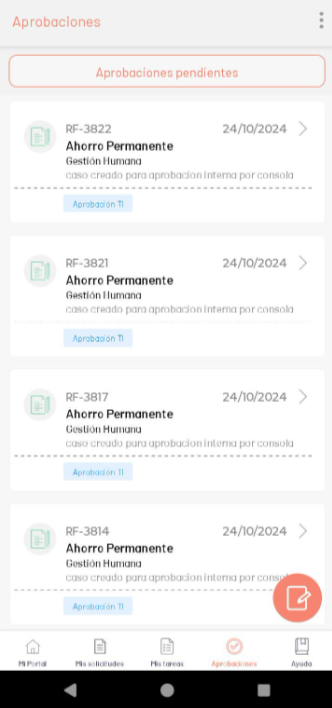
The tab Approvals shows the specialist in session all the cases with which he is associated and that require his Vote or approval. This includes cases such as:
- Changes
- Service Requirements
- Release
- Incidents
In this hearing, the specialist will be able to validate the list of cases pending voting and access the details of each one to cast their vote.
Main behavior
- Case List: Each item displays a summary with ID, title, area or category, a brief description, and the date.
- Visible states: They allow you to identify the status of the case using a tag.
- Access to the detail: Selecting a case enables the detail screen where you can review more information and vote.
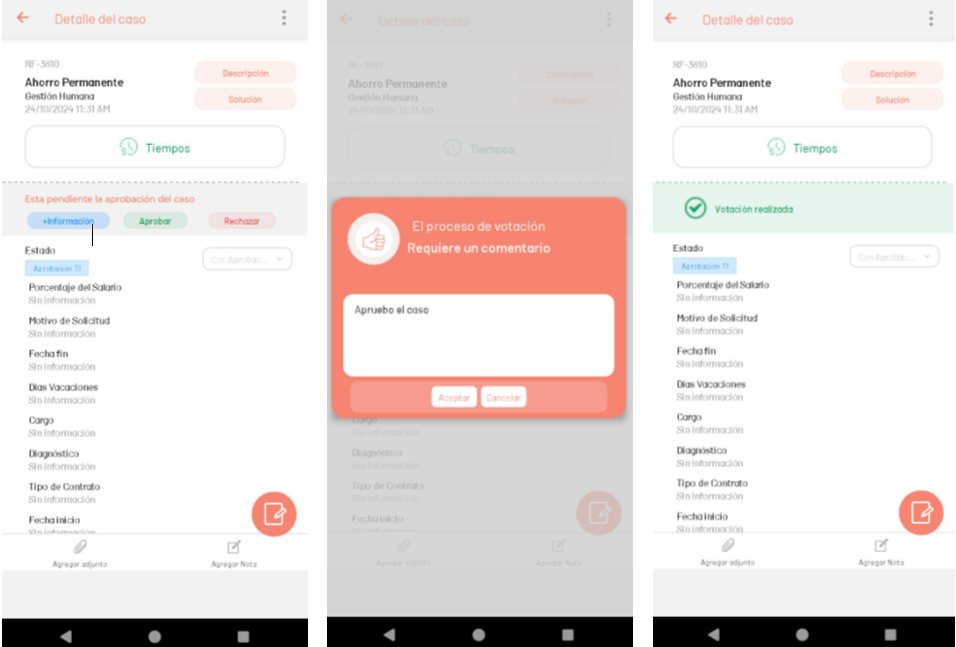
- Voting: The specialist will be able to select options such as “Approve,” “Reject,” or “Request More Information.”
Steps to Perform Approvals
- Select a case to view its detail (description, history, attachments).
- In the detail view, review the case information and check the Approval options.
- Cast the vote: Choose Approve, Reject or More information and add a comment.
- Confirm the action: Once the vote is recorded, the case displays a confirmation message.
⚐ Note:
- Once the case has been approved, it will no longer be available on the list of Approvals.
- If the case is in the process of being executed Background rules, approval actions will not be available.