


⚐ Note: Before installing the agent, please check with the utility of Self-diagnosis that it meets all the requirements for the proper functioning of the same, For more information consult Agent self-diagnosis.
The third executable file is Aranda.Agent.Windows.x86\_x64 which corresponds to the installer of the ADM Agent for Windows. This file is responsible for the creation and configuration of the services required for the operation of the ADM Agent for Windows.
The installer automatically detects the system language, currently supporting English, Spanish and Portuguese. If the configuration is in a different language, the installer defaults to Spanish.
⚐ Note: The ADM agent installation must be run with system privileges (System/root/administrator) on Windows, Linux, and macOS, as these permissions are required to properly register services, initialize components, modify operating system configurations, and ensure automatic booting; Without elevated privileges, the installation can fail to register services and apply configurations, affecting the proper functioning of the agent.
⚐ Note: The agent can be installed unattended and automatically through the Agent Distribution, or manually.
⚐ Note: The installers of the Aranda applications are designed to operate under the Windows access control model and not assign additional permissions on the installation directory. Under standard conditions, effective permissions come from the discretionary access control list (DACL) defined on the destination path, for example,
C:\Program Files (x86)\orC:\Program Files\.These system paths maintain a Windows-managed security configuration, in which access control entries (ACEs) can be explicit or inherited from the parent container. In general, the expected permissions are as follows:
- Standard Users: Users with Read and Execute permissions, which allows them to launch and use installed applications, but not to modify, replace, or delete files within the protected directory.
- Administrators: users with higher-level permissions, including full control. Install, modify, or delete operations require increased privileges using the User Account Control (UAC) mechanism.
- SYSTEM / TrustedInstaller: Specific permissions on system components and protected files, in accordance with the security scheme defined by Windows for system directories.
As a result, installers retain and respect the existing permission settings in the installation path, inheriting the applicable ACEs according to the propagation rules defined by Windows.
If additional permissions, entries for other users or groups, or differences from the default settings are identified, this indicates that the path ACL was previously modified and that the installer inherited those security conditions from the parent container.
It is not recommended that applications or their installers directly alter installation directory permissions when they are already defined by the operating system, because Windows manages ACE inheritance and effective permission enforcement using the object’s DACL.
If your environment requires more restrictive settings, they should be enforced in an administrator-controlled manner, either manually or through corporate policies, ensuring that inheritance and permissions propagation rules remain consistent.
⎘ Related Links: [ACE Inheritance - Win32 apps Microsoft Learn](https://learn.microsoft.com/en-us/windows/win32/secauthz/ace-inheritance), [ACE Inheritance Rules - Win32 apps Microsoft Learn](https://learn.microsoft.com/en-us/windows/win32/secauthz/ace-inheritance-rules)
Manual Agent Installation
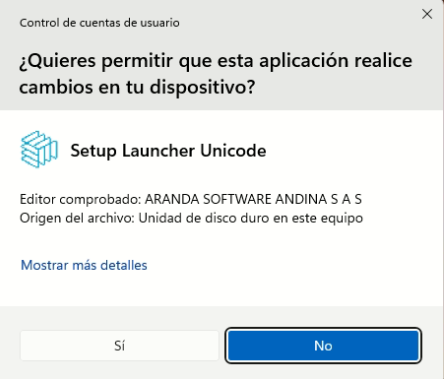
1. Click on the Aranda Agent installer executable. When it starts, the system will display a window requesting authorization to make changes to the device. Select the option Yes to continue with the installation process.
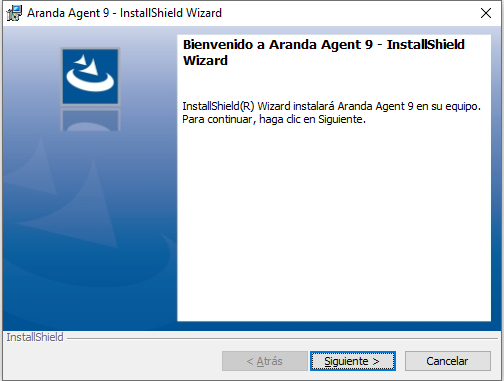
2.The wizard will start. Click Following.
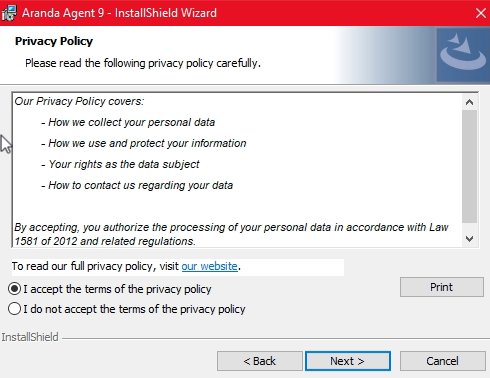
3. To view the privacy policy, click Our Website. To proceed with the installation process, please accept the terms of the privacy policy and select the option Following.
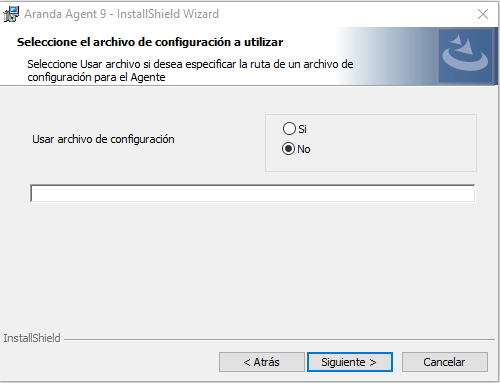
4. If you have a configuration file, select the Yes and indicate the corresponding route. Otherwise, select No and click Following to continue with the installation process.
5 Enter the profile identifier, entering 0 downloads the profile that is configured by default. Enter the address of Conserver or Repserver according to the pointing configured in the MQTT broker MQTT Broker Configuration. By entering the ADM console you can obtain the communication route. Configuration > ADM > Communications
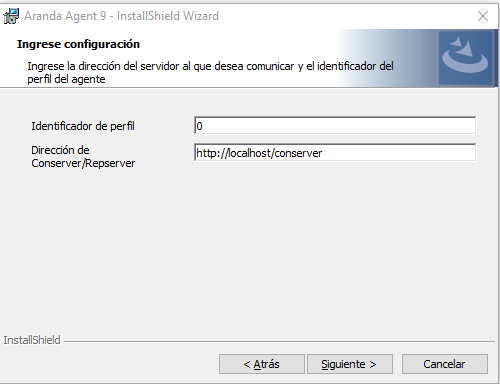
⚐ Note: Agent addressing when repserver only works with an agent version since 9.13.
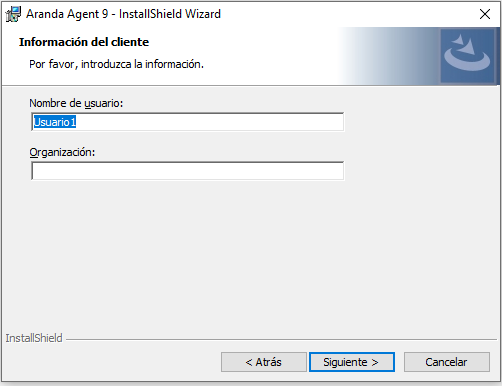
6. Enter the username and organization where the agent will be installed.
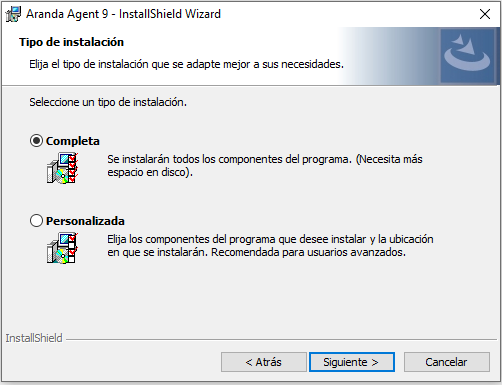
7. Select the type of installation you want to perform (complete or customized)) and click Following.
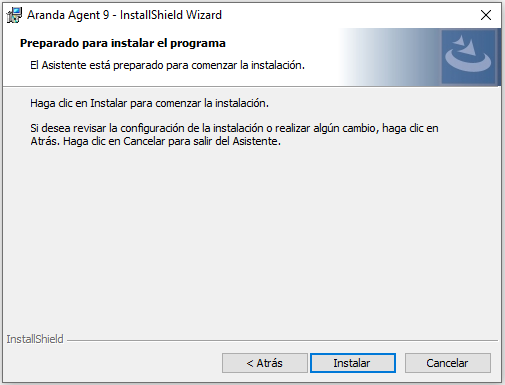
8. Click Install to start the installation of the agent.
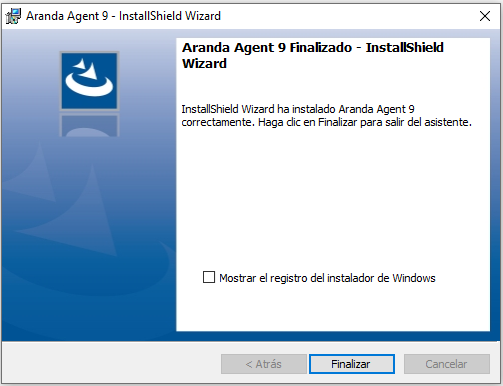
9. When the agent installation is complete, click End
—
Manual Agent Installation by Command Line
To install the ADM Agent by command line, you can execute the following statement from the command promt of Windows:
Aranda.Agent.Windows.x86_x64.9.xx.xxxx.xxxx.exe /S /V"/norestart /qn AGENT_SERVER_ADDRESS=http://localhost/Conserver AGENT_PROFILE_ID=0"
AGENT_PROFILE_ID=[UNIT] |
Identifier of the profile to be installed, 0 is a profile selected in the application as the default profile. |
AGENT_SERVER_ADDRESS=[STRING] |
Path of the Server. |