


This functionality allows a diagnosis of the ADM modules, required for the operation of the agent; it includes communication tests to the ADM site, site and local communication ports, verification of permits and status of the services required in the equipment, for the operation of the modules. To perform the self-diagnosis process, perform the following steps:
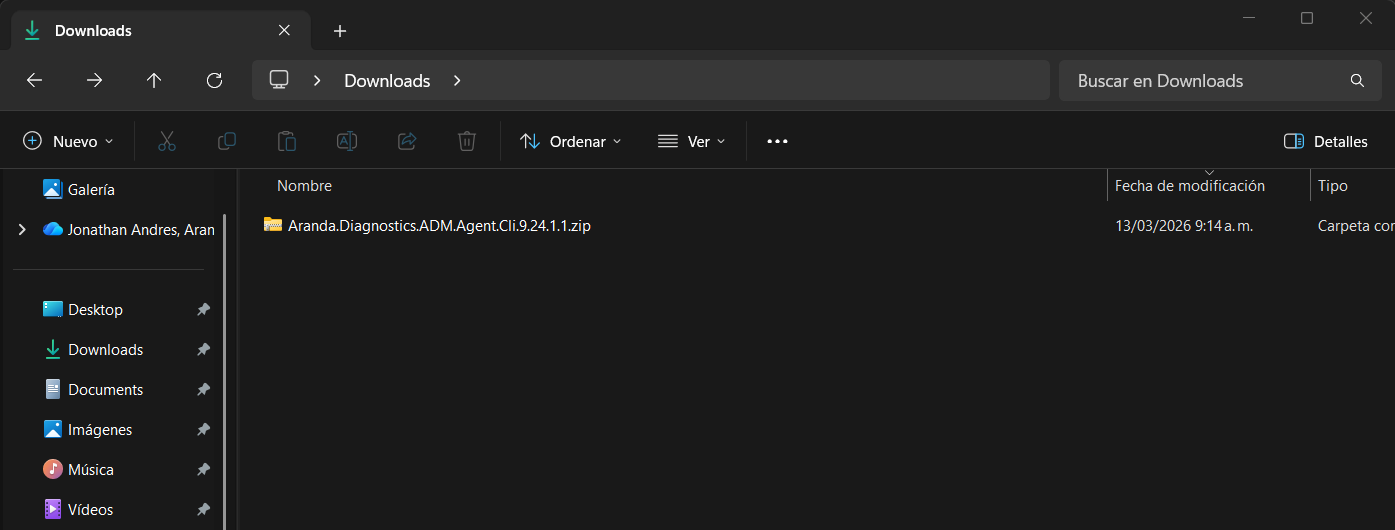
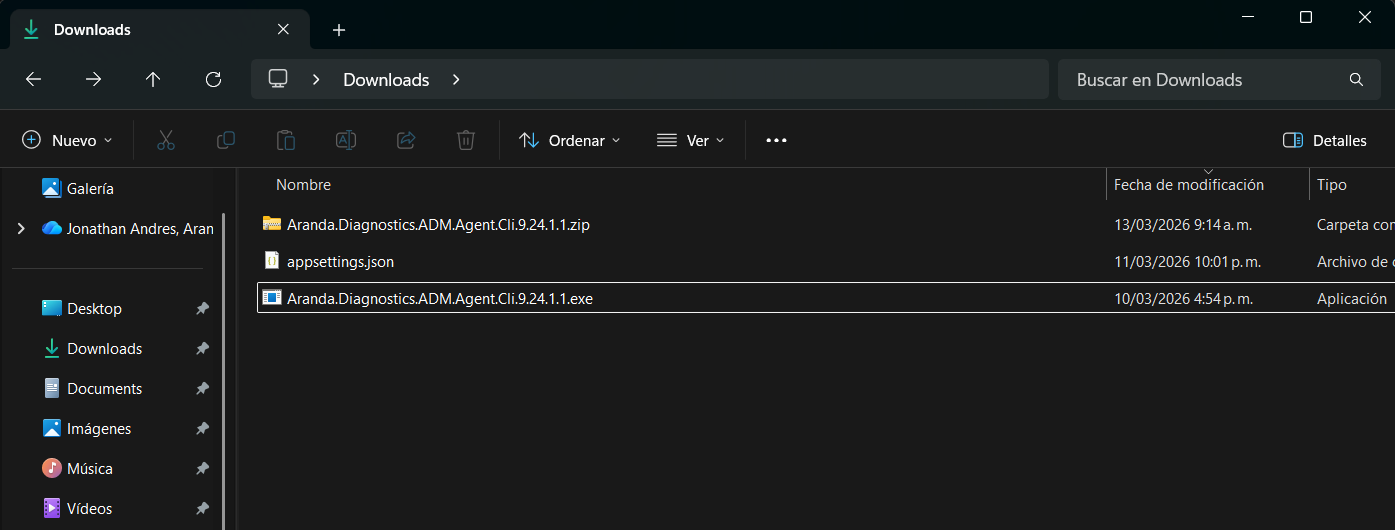
1. Download and save the package Aranda.Diagnostics.ADM.Agent.9.x.x.x.zip on a specific route, unzip it. You will be able to view the files: appsettings.json and Aranda.Diagnostics.ADM.Agent.9.x.x.x.exe.
2. Below is the scope of each section of the file appsettings.json For better operation of the self-diagnostic agent:
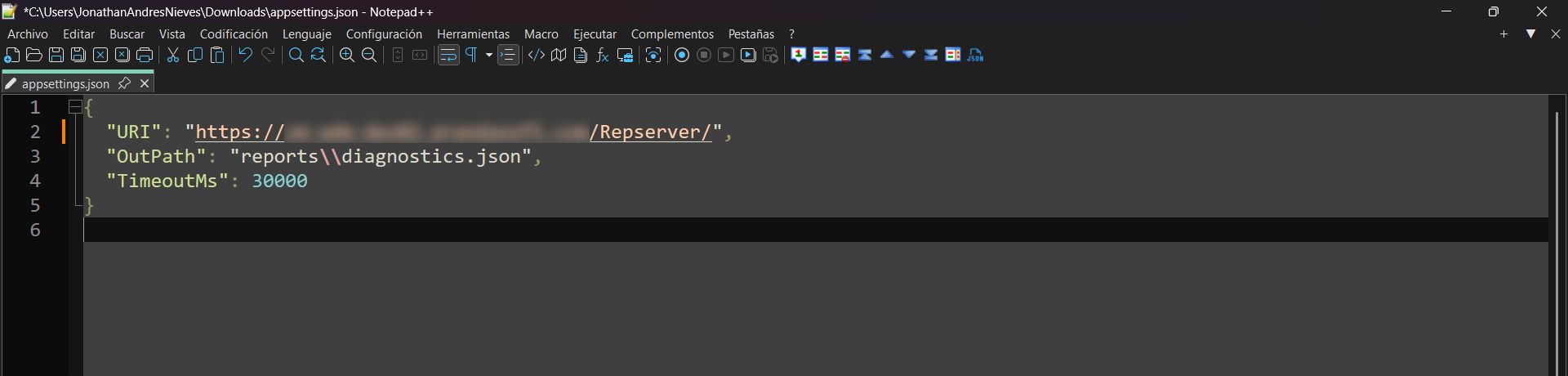
- UseInstalledAgentConfiguration: If this parameter is changed to true, the self-diagnostic agent will take the modules that have the profile configured in the ADM agent active, in case it is previously installed. If the value is set to true and the agent is not installed, the active modules will be taken in the Modules.
- URI: In this parameter enter the URL or IP of the server and the node to where you want to perform the self-diagnostic test.
- OutPath: This parameter indicates the path of the file with the results of the tests performed by the self-diagnostic agent. If required, you can change it to a different path than the one that comes by default.
- OverwriteOutputFile: This parameter controls whether the file resulting from each run by the self-diagnostic agent will be overwritten. By default, it comes in True, if changed to False A file is generated for each run of the self-diagnostic agent with the execution date in the file name.
- TimeoutMs: This parameter controls the time in milliseconds that the self-diagnostic agent waits before generating a timeout error on requests that are made to the server.
- Modules: This parameter controls the number of tests to be performed on the different modules that ADM has by the self-diagnostic agent. The Inventory by default it comes in True.
- RemoteControlConnection: This section defines the parameters related to the Turn Server configuration of the ARC remote control:
- IP: IP or DNS configured in the Turn Server service.
- Port: Configured port of the Turn Server service.
- UseSsl: If the Turn Server service uses SSL it must be changed to True.
⚐ Note: For Cloud environments that are within Aranda’s infrastructure, the following information must be used:
- PI: turn.arandasoft.com
- Port: 3478
- UseSsl: false
⚐ Note: The modules of Delivery and Policies They are not available for version 9.25.0 of the Self-Diagnostic Agent.
⚐ Note: Starting with Self-Diagnostic Agent Version 9.25.0, only tests are performed for ARC remote control, no tests are run for file transfer functionality, or remote control via Gateway or the old LAN remote control.
⚐ Note: Starting with console version 9.25.1, a task has been implemented that will be responsible for deleting test devices created with the agent, this task will run every 24 hours.
3. Run the file as administrator Aranda.Diagnostics.ADM.Agent.Cli.exe; Once executed, the utility vehicle performs the tests of architecture, services, accesses, permits and communication ports.
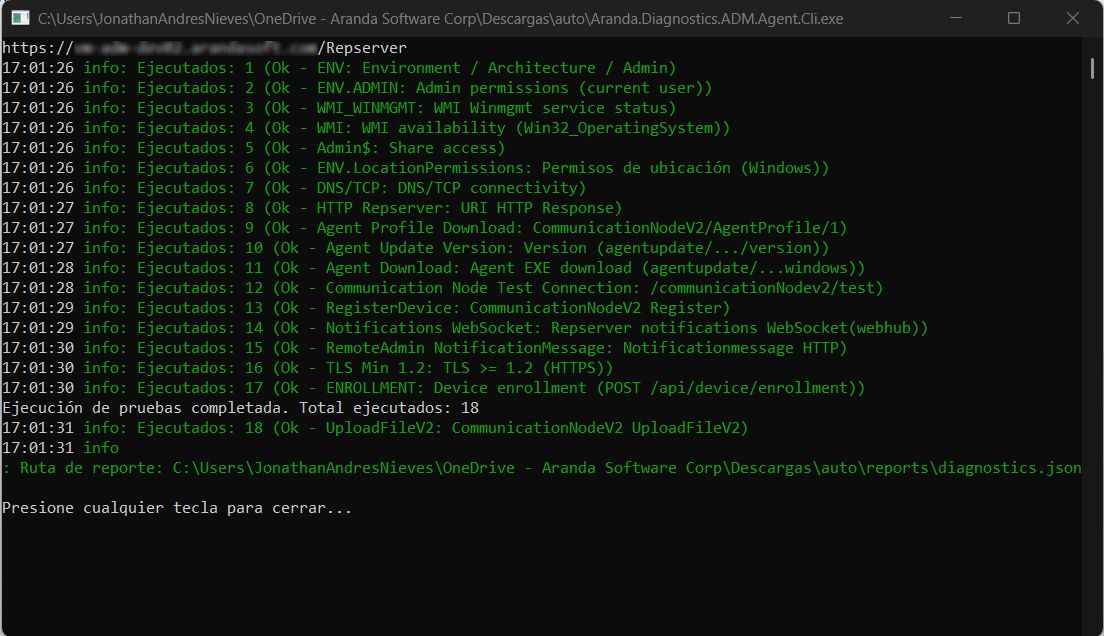
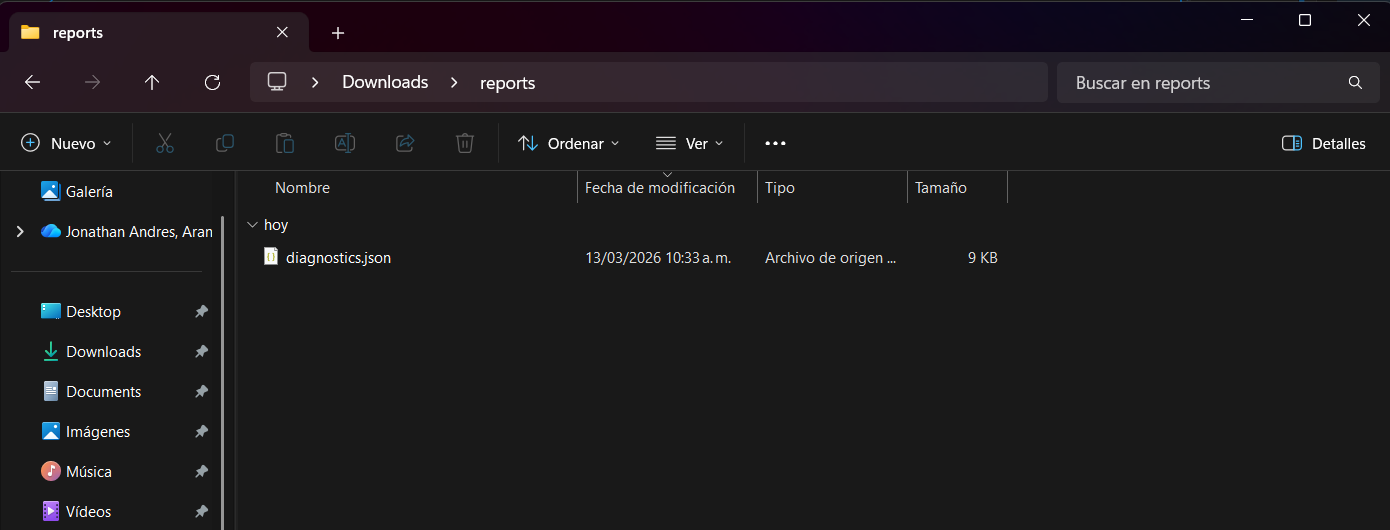
4. Once the self-diagnostic process is complete, close the window by pressing any key or manually closing the window. The test result will be stored in the path where the utility is located, in the Reports, the file is saved diagnostics.json and you will be able to view it in an available text editor.
Resulting file
Explanation of each test performed by the self-diagnostic agent and possible errors
Below is the context and explanation of each test performed by the self-diagnosis tool. Additionally, the possible errors that may occur in each test due to some local restriction in firewall, antivirus or network problems or lack of any configuration in the console are explained:
1. Equipment architecture verification.
Verification of operating system architecture and folders Program Files
{
  "TestId": "ENV",
  "Group": "Environment",
  "Name": "Environment / Architecture / Admin",
  "Status": "Ok",
  "Findings": [],
  "Evidence": {
    "OSArchitecture": "X64",
    "ProcessArchitecture": "X64",
    "ProgramFiles": "C:\\Program Files",
    "ProgramFilesX86": "C:\\Program Files (x86)",
    "IsElevated": "True"
  }
}
2. Query using the WMI service.
An enquiry is made to the service Windows Management Instrumentation (Winmgmt) checking if it is enabled and running.
{
  "TestId": "WMI_WINMGMT",
  "Group": "Environment",
  "Name": "WMI Winmgmt service status",
  "Status": "Ok",
  "Findings": [],
  "Evidence": {
    "ServiceName": "Winmgmt",
    "DisplayName": "Instrumental de administración de Windows",
    "Status": "Running"
  }
}
Example of error:
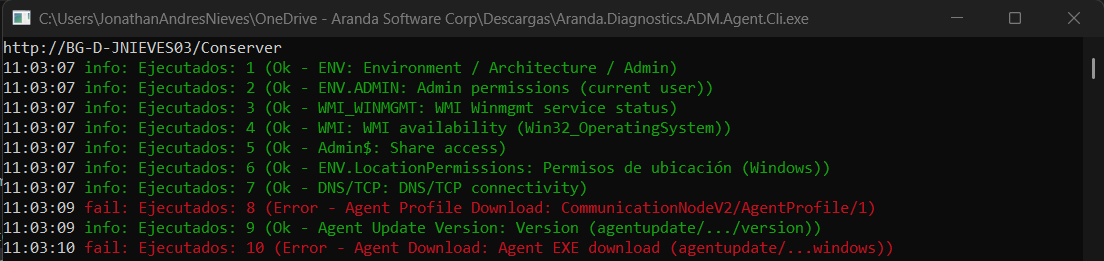
This error is caused by a service failure Windows Management Instrumentation (Winmgmt); Check if the service is enabled and started and is not blocked by a domain policy.
3. Query using the WMI service
A basic query is made requesting the editing of the operating system, version and architecture.
{
  "TestId": "WMI",
  "Group": "Environment",
  "Name": "WMI availability (Win32_OperatingSystem)",
  "Status": "Ok",
  "Findings": [],
  "Evidence": {
    "TimeoutMs": "30000",
    "Query": "SELECT Caption, Version, OSArchitecture FROM Win32_OperatingSystem",
    "OS.Caption": "Microsoft Windows 11 Enterprise",
    "OS.Version": "10.0.26200",
    "OS.OSArchitecture": "64 bits"
  }
}
Example of error:
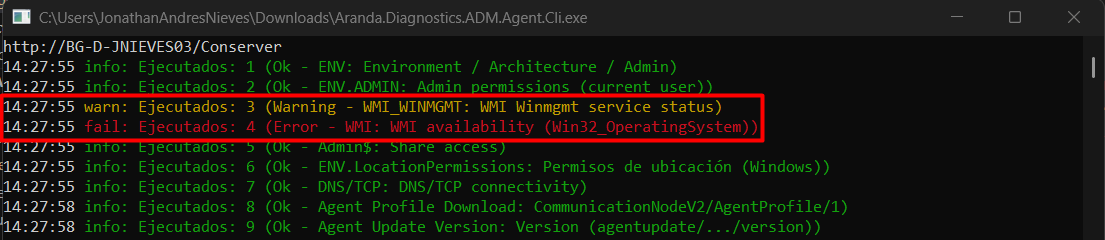
The most common causes for this error can be:
- The service Windows Management Instrumentation (Winmgmt) is enabled, but you do not have permissions on the Control WMI, contact your administrator to assign permissions to the user.
- Firewall-level blocking for the port used by WMI.
- Corrupt or non-existent namespace from the Control WMI
- DCOM disabled for the computer from the Component Services
⚐ Note: Although it is recommended that you run the utility as an administrator, for WMI-related tests it is recommended that you also validate the execution of the utility with the non-administrator end user, especially in environments where UAC is used. The most common errors with the WMI service occur with users who do not belong to an administrator group and do not have the execution permissions.
4. Verification of execution as an administrator.
Validates whether or not the user running the self-diagnostic tool belongs to the Administrator group and whether the tool is running as an administrator.
{
  "TestNumber": 4,
  "TestId": "ENV.ADMIN",
  "Group": "Environment",
  "Name": "Admin permissions (current user)",
  "Status": "Ok",
  "Findings": [],
  "Evidence": {
    "User": "DESKTOP-7SSBSN9\\Administrador",
    "IsInAdministratorsGroup": "True",
    "IsElevated": "True"
  }
}
Example of an alert:

5. Verification of the ADMIN$ share.
It is validated in a query, if on the shares, there is the ADMIN$ resource that has access to the C:\Windows path or if there is a domain policy that blocks access to this resource.
{
  "TestId": "Admin$",
  "Group": "Environment",
  "Name": "Share access",
  "Status": "Ok",
  "Findings": [],
  "Evidence": {
    "TargetHost": "DEVICENAME",
    "AdminSharePath": "\\\\DEVICENAME\\Admin$",
    "FileCount": "40"
  }
}
Example of error:
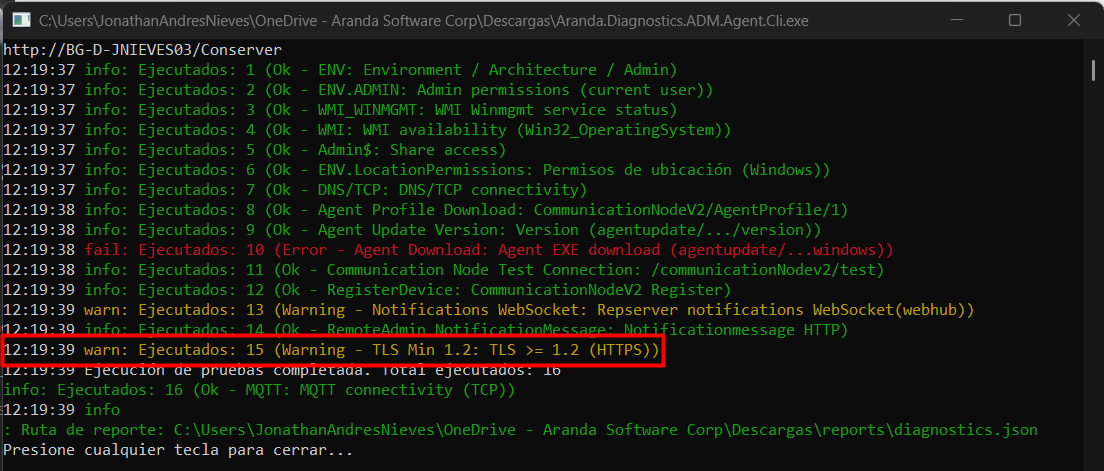
The most common causes for this error can be:
- The resource is restricted from access by using the following AutoShareWks=0 registration key:
- Computer\HKEY_LOCAL_MACHINE\SYSTEM\CurrentControlSet\Services\LanmanServer\Parameters
- The resource is not shared from the Team Manager > Shared Folders > Shares
6. Checking for antivirus exclusions in Microsoft Windows Defender.
A verification test is carried out to validate if there are exclusions in the operating system’s antivirus Microsoft Windows Defender that affect the functioning of the agent.
{
  "TestNumber": 6,
  "TestId": "ENV.AntivirusExclusions",
  "Group": "Environment",
  "Name": "Exclusiones de antivirus (Microsoft Defender)",
  "Status": "Ok",
  "Findings": [
    {
      "Code": "AV.NO_EXCLUSIONS",
      "Details": null,
      "Message": "No se encontraron exclusiones configuradas en Microsoft Defender.",
      "Severity": "Info"
    }
  ],
  "Evidence": {
    "AntivirusExclusions.Paths": "0",
    "AntivirusExclusions.Processes": "0",
    "AntivirusExclusions.Extensions": "0",
    "AntivirusExclusions.IpAddresses": "0",
    "AntivirusExclusions.Total": "0"
  }
}
Example of error:
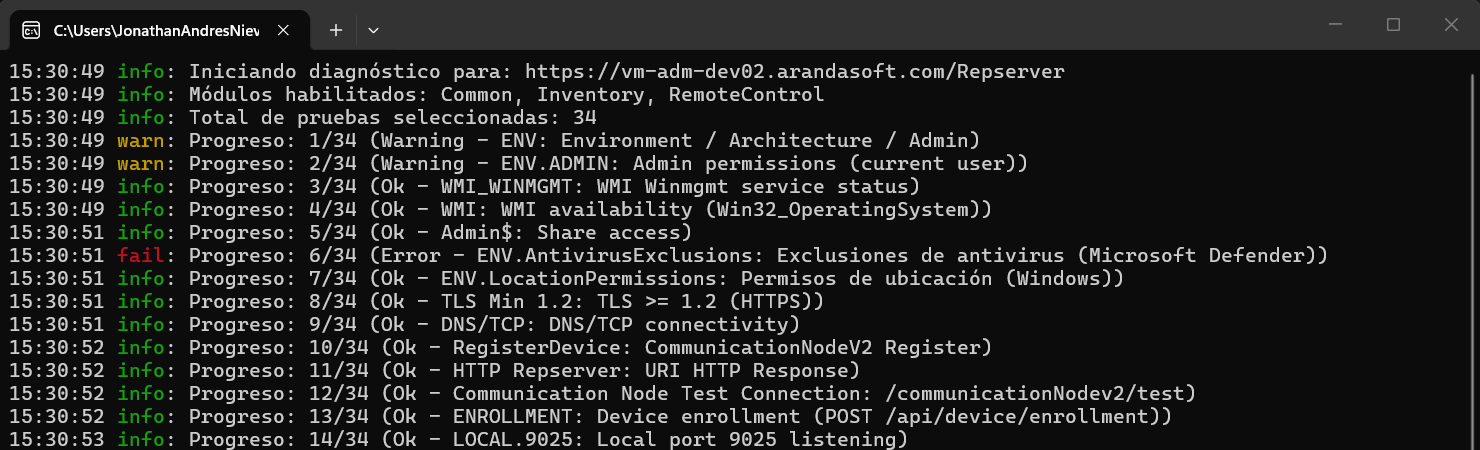
The most common causes for this error can be:
- You don’t have sufficient permissions. For this test, we recommend running the Self-Diagnostic Agent as an administrator if the user has UAC restrictions.
7. Verification of the geolocation service and location permissions.
A consultation is made to the Geolocation Service (LFSVC) checking if it is enabled and running. It also checks if there is a domain policy blocking location services.
{
  "TestId": "ENV.LocationPermissions",
  "Group": "Environment",
  "Name": "Permisos de ubicación (Windows)",
  "Status": "Ok",
  "Findings": [],
  "Evidence": {
    "Location.Service": "Running",
    "Location.PolicyBlocked": "False",
    "Consent.Result": "Allow",
    "Consent.Source": "None",
    "Location.BlockReason": "None"
  }
}
Example of error:


The most common causes for this error can be:
- The Geolocation Service (LFSVC) It is not enabled or has access restrictions by domain policy.
- You have domain policies configured with location access restriction. If any of these registry keys are created with DWORD = 1, they must be deleted:
- Registry Key: Software\Policies\Microsoft\Windows\LocationAndSensors\DisableLocation
- Registry Key: Software\Policies\Microsoft\Windows\LocationAndSensors\DisableSensors
- Registry Key: Software\Policies\Microsoft\Windows\LocationAndSensors\DisableWindowsLocationProvider
8. DNS/TCP verification.
A TCP connectivity test is performed to the host and port configured in the file appsettings.json checking if it performs a DNS resolution and capturing response times.
{
  "TestId": "DNS/TCP",
  "Group": "Prerequisites",
  "Name": "DNS/TCP connectivity",
  "Status": "Ok",
  "Findings": [],
  "Evidence": {
    "Url": "https://DNS-NAME/Repserver",
    "Scheme": "https",
    "Host": "DNS-NAME",
    "Port": "443",
    "ResolvedIPs": "IP-DETECTED",
    "TimeoutMs": "30000",
    "ConnectedIP": "IP-DETECTED"
  }
}
9. HTTP verification to the supplied base URL.
HTTP response verification is performed to the supplied base URL to confirm if it responds correctly, capturing response times.
{
  "TestId": "HTTP Repserver",
  "Group": "Prerequisites",
  "Name": "URI HTTP Response",
  "Status": "Ok",
  "Findings": [],
  "Evidence": {
    "Url": "https://DNS-NAME/Repserver",
    "Method": "HEAD",
    "StatusCode": "200",
    "ElapsedMs": "380"
  }
}
Example of error:
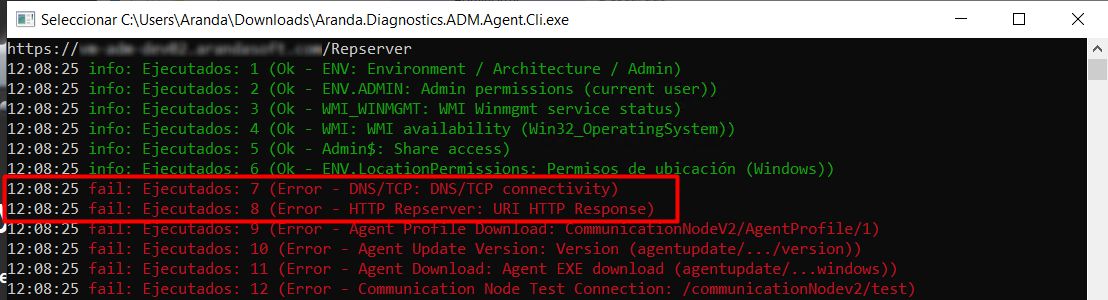
In this case, items 8 and 9 share the same scenario, due to a possible restriction of communication to the URL to which the test is being performed. Validate if it has an Internet outlet, review the network restrictions configured at the firewall level, and make the exception to the node’s URL.
10. Verification download agent profile by default.
A query is made to the URL where the agent’s profile is stored, returning the information in JSON format with the configurations that are available for the default profile and capturing the response times.
{
  "TestId": "Agent Profile Download",
  "Group": "Inventory.AgentProfileDownload",
  "Name": "CommunicationNodeV2/AgentProfile/1",
  "Status": "Ok",
  "Findings": [],
  "Evidence": {
    "Url": "https://DNS-NAME/Repserver/CommunicationNodeV2/AgentProfile/1",
    "HeadStatusCode": "200",
    "HeadElapsedMs": "368",
    "HeadContentType": "",
    "HeadContentLength": "867",
    "Head": "Ok",
    "Method": "GET",
    "StatusCode": "200",
    "ElapsedMs": "245",
    "ContentType": "application/octet-stream",
    "BodyPreview": "{\"aam\":{\"aamInventory\":{\"period\":86400,\"startTime\":1772799960},\"aamInventoryLogon\":false,\"aflIncremental\":null,\"aflInventory\":null,\"excludedFiles\":[],\"excludedPaths\":[\"C:\\\\Program Files\",\"C:\\\\Program Files (x86)\",\"C:\\\\Windows\"],\"executablesToScan\":[\"EXE\",\"CPL\",\"RUN\",\"BIN\",\"PY\",\"SH\",\"BASH\"],\"extensionToScan\":null,\"synchronization\":{\"period\":600,\"startTime\":1774366188}},\"additionalSurveyFields\":null,\"apm\":{\"apmInventoryLogon\":false,\"inventory\":{\"period\":86400,\"startTime\":1772820000},\"synchronization\":{\"period\":86400,\"startTime\":1774366188}},\"apwm\":null,\"ars\":null,\"asd\":{\"synchronization\":{\"period\":600,\"startTime\":1774366188}},\"asm\":null,\"communication\":{\"fileSharing\":{\"download\":1024,\"port\":0,\"retention\":1,\"type\":4,\"upload\":1024},\"port\":9025,\"registerPeriod\":5,\"serverAddress\":[\"https:\\/\\/DNS-NAME\\/repserver\"]},\"profile\":1,\"showIcon\":true}"
  }
}
Example of error:
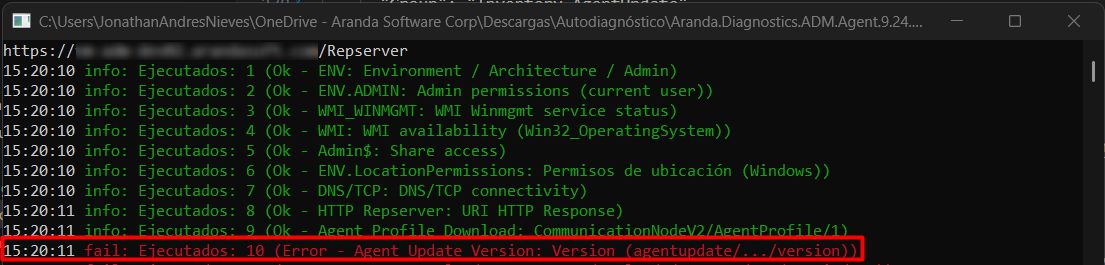
These errors can occur when pointing to a Conserver due to the absence of the resource in the Conserver’s file storage path. You can run the self-diagnostic test again to make it run successfully. On the first failed run, the Conserver processes the task that requests the resource and stores it.
11. Verification to the available version of the ADM agent.
A query is made to verify the latest available version of the ADM agent and displays the available file name, identifier, download date, and captures the response time.
{
  "TestId": "Agent Update Version",
  "Group": "Inventory.AgentUpdate",
  "Name": "Version (agentupdate/.../version)",
  "Status": "Ok",
  "Findings": [],
  "Evidence": {
    "BaseUrl": "https://DNS-NAME/Repserver",
    "Url": "https://DNS-NAME/Repserver/api/agentupdate/com.arandasoft.adm.agent.windows/version",
    "Method": "GET",
    "StatusCode": "200",
    "ElapsedMs": "2450",
    "ContentLength": "184",
    "BodyPreview": "{\"fileName\":\"Aranda.Agent.Windows.x86_x64.9.24.1.4.exe\",\"installerIdentifier\":\"com.arandasoft.adm.agent.windows\",\"modificationDate\":\"2026-03-19T00:00:32.32+00:00\",\"version\":\"9.24.1.4\"}"
  }
}
Example of error:
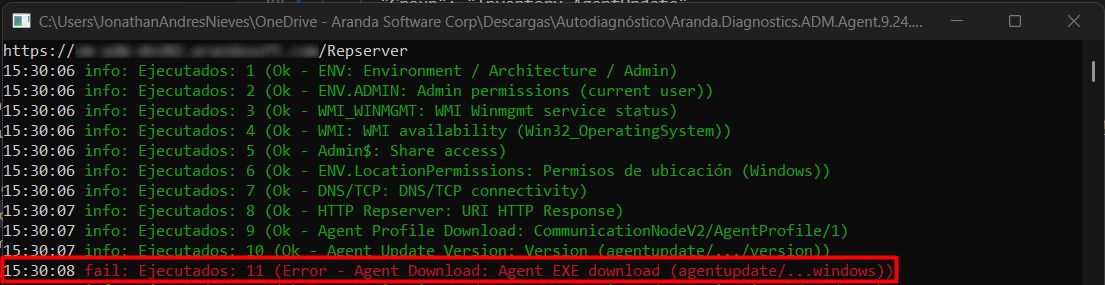
There is no version data available because the task that is responsible for downloading this information has not been executed. For more information, see Deploying Agents.
12. Agent installer verification.
A query is performed to verify that the ADM agent’s .EXE resource exists on the storage path configured for the node being queried.
{
  "TestId": "Agent Download",
  "Group": "Inventory.AgentUpdate",
  "Name": "Agent EXE download (agentupdate/...windows)",
  "Status": "Ok",
  "Findings": [],
  "Evidence": {
    "Url": "https://DNS-NAME/Repserver/api/agentupdate/com.arandasoft.adm.agent.windows",
    "Method": "GET(Range 0-0)",
    "StatusCode": "206",
    "ElapsedMs": "244",
    "ContentType": "application/octet-stream",
    "ContentLength": "1"
  }
}
Example of error:
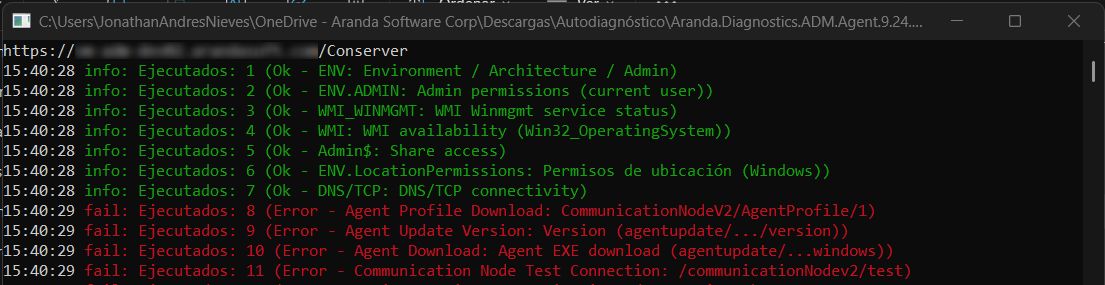
This is due to the absence of the resource in the file container for the Repserver case or in the file storage path for the Conserver case.
13. Node connectivity test.
Connectivity test is performed to the node that was configured in the file appsettings.json and it is verified that the node is responding appropriately.
{
  "TestId": "Communication Node Test Connection",
  "Group": "Inventory.CommunicationNodeCnx",
  "Name": "/communicationNodev2/test",
  "Status": "Ok",
  "Findings": [],
  "Evidence": {
    "BaseUrl": "https://DNS-NAME/Repserver",
    "Url": "https://DNS-NAME/Repserver/communicationNodev2/test",
    "Method": "GET",
    "StatusCode": "200",
    "ElapsedMs": "227"
  }
}
Example of error:
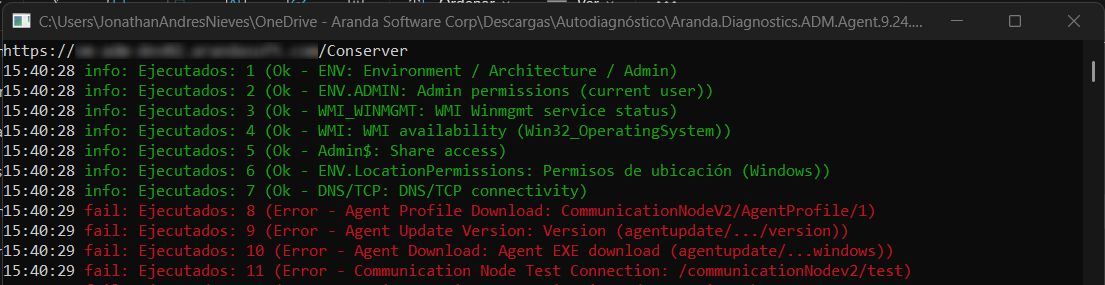
It can occur due to a communication failure with the node to which the diagnostic test is being performed, it is recommended to check that the service is operational or verify the firewall rules.
14. Device registration.
A request is made to the console to perform a test registration with random data and verify that the devices can be registered correctly in the console.
{
  "TestId": "RegisterDevice",
  "Group": "Inventory.CommunicationNode",
  "Name": "CommunicationNodeV2 Register",
  "Status": "Ok",
  "Findings": [],
  "Evidence": {
    "PayloadResource": "Aranda.Diagnostics.ADM.Agent.Core.Assets.register-body.json",
    "RunGuid": "c164570f229b4858ba240895c092b107",
    "DeviceName.Original": "TestArandaDiagnosticsAgent",
    "DeviceName.Final": "TestArandaDiagnosticsAgent-c164570f229b4858ba240895c092b107",
    "HwHash.Final": "c164570f229b4858ba240895c092b107",
    "Url": "https://DNS-NAME/Repserver/communicationNodeV2/register",
    "TimeoutMs": "30000",
    "StatusCode": "200",
    "ElapsedMs": "1322",
    "Response.Token": "{E79387D5-CA80-4FA7-A404-3ADD4D4B7D42}",
    "Response.Topic": "device/{FF2D3566-1474-4714-9DC3-6BC9F2F87266}",
    "Response.BrokerPort": "1884",
    "Response.BrokerIp": "IP-DETECTED",
    "Response.Guid": "{FF2D3566-1474-4714-9DC3-6BC9F2F87266}",
    "IsEnableServerNotification": "False"
  }
}
⚐ Note: Once the self-diagnostic tests are finished, it is recommended to delete the test record(s) created in the console. If there are multiple records, you can delete them by filtering by status No inventory and agent 9.12.2110.106 and then select More options > All and then Remove devices.
15. Operation verification Remote administration.
In this case, there are two paths:
-
LAN Remote Management: If the EnableServerNotification is set in False, a connectivity test is performed on the station verifying if port 9025 is available for use and that another program or service is not using it; If the agent is already installed, verify that the port is associated with the agent’s process and that it is in listen-only mode.
{
"TestId": "LOCAL.9025",
"Group": "Inventory.RemoteAdmin",
"Name": "Local port 9025 listening",
"Status": "Ok",
"Findings": [],
"Evidence": {
    "Port": "9025",
    "Target": "localhost",
    "AgentService.Name": "ArandaAgent9",
    "AgentService.Exists": "True",
    "AgentService.Status": "Running",
    "AgentService.StartType": "Automatic",
    "AgentProcessPid": "6552",
    "AgentProcessName": "Aranda.Agent.ACOREService",
    "Port.ListenerCount": "2",
    "Port.Bindings": "0.0.0.0, ::",
    "Port.Listening": "True",
    "PortOwnerPid": "6552",
    "PortOwnerProcessName": "Aranda.Agent.ACOREService",
    "Port.OwnerMatch": "True (PID 6552)",
    "ConnectedIP": "127.0.0.1"
}
}
Example of error:
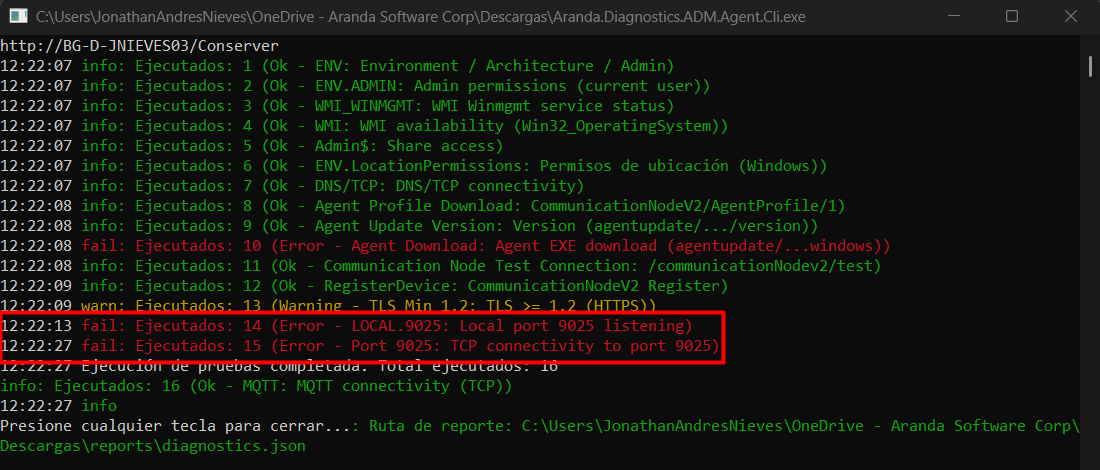
If you have the agent installed, check from the Network > Resource Monitor > Listening Ports that the Aranda.Agent.ACOREService.exe process is running with port 9025. Validate that in the Firewall Status say Allowed, not restricted; otherwise, check the firewall rules.
-
Remote Management Outbound Connection: If the EnableServerNotification is set in True, a request is made using the WebSocket protocol to the site identified in the registration procedure (Step 14). The utility verifies that the plugin is installed and that the site is secured by HTTPS.
{
"TestId": "Notifications WebSocket",
"Group": "Inventory.RemoteAdmin",
"Name": "Repserver notifications WebSocket(webhub)",
"Status": "Ok",
"Findings": [],
"Evidence": {
    "BaseUrl": "https://DNS-NAME/repserver/notificationmessage",
    "Host": "DNS-NAME",
    "Scheme": "https",
    "WsUrl": "wss://DNS-NAME/repserver/notificationmessage/webhub",
    "ElapsedMs": "7903",
    "State": "Open"
}
}
Example of error:
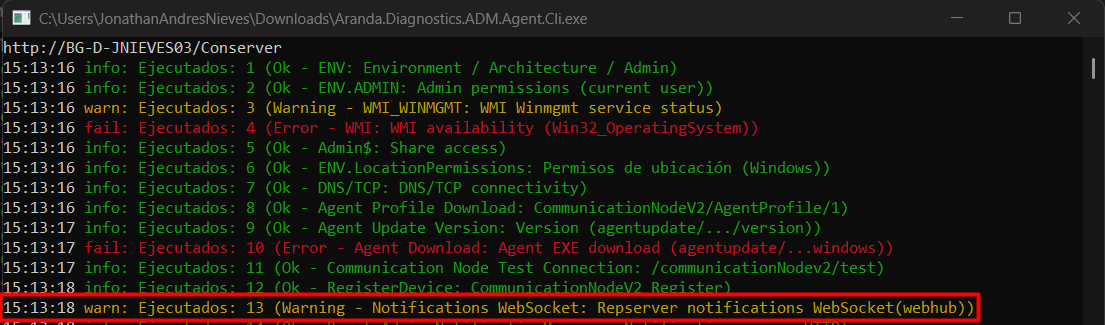
The most common causes for this error can be:
- The lack of HTTPS configuration on the node that is being diagnosed. For more information, please consult the following links according to your infrastructure:
16. Site verification of notifications.
A check is performed on the Repserver/notificationmessage site verifying that it is available and capturing response times.
{
  "TestId": "RemoteAdmin NotificationMessage",
  "Group": "Inventory.RemoteAdmin",
  "Name": "Notificationmessage HTTP",
  "Status": "Ok",
  "Findings": [],
  "Evidence": {
    "BaseUrl": "https://DNS-NAME/repserver/notificationmessage",
    "Method": "GET",
    "StatusCode": "200",
    "ElapsedMs": "684",
    "ContentType": "text/html"
  }
}
Example of error:
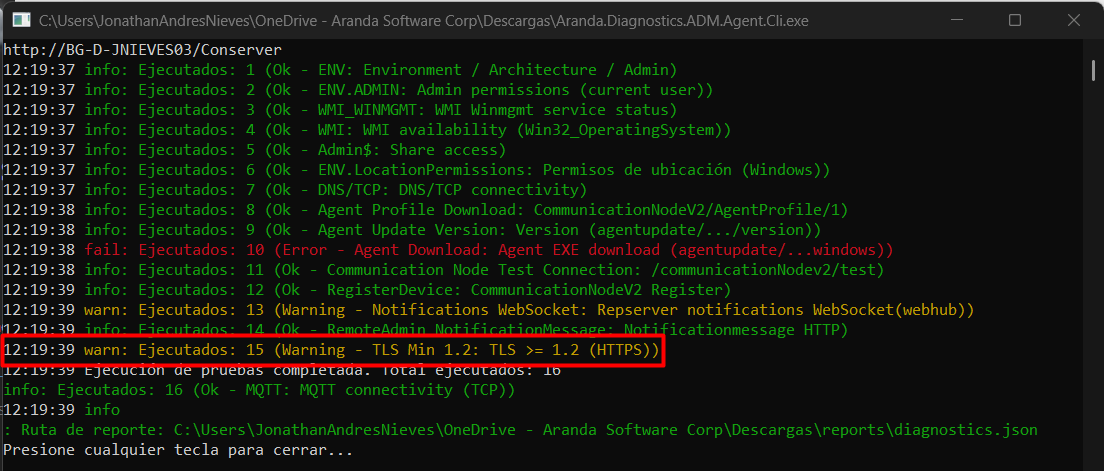
This error can occur because the server is saturated with resources and consequently generates a timeout or due to an incorrect configuration in the site’s connection chain.
17. Minimum TLS verification.
A verification of the TLS cryptographic protocol handled by the site you are targeting to perform the diagnostic test is performed.
{
  "TestId": "TLS Min 1.2",
  "Group": "Inventory.RemoteAdmin",
  "Name": "TLS >= 1.2 (HTTPS)",
  "Status": "Ok",
  "Findings": [],
  "Evidence": {
    "RepserverUrl": "https://DNS-NAME/Repserver",
    "Scheme": "https",
    "Host": "DNS-NAME",
    "Port": "443",
    "ElapsedMs": "161",
    "NegotiatedProtocol": "Tls13",
    "CipherAlgorithm": "Aes256",
    "CipherStrength": "256",
    "HashAlgorithm": "Sha384",
    "HashStrength": "0",
    "KeyExchangeAlgorithm": "None",
    "KeyExchangeStrength": "255"
  }
}
Example of error:
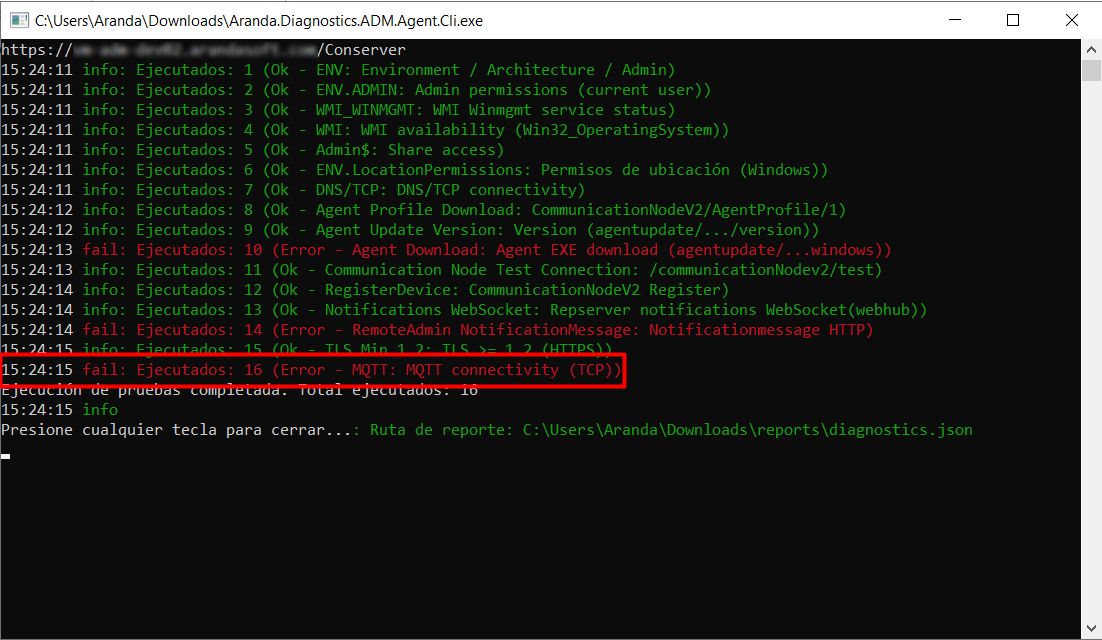
Verify that the server meets the minimum requirements, such as the minimum supported version of TLS (1.2). For more information, see the note Things to keep in mind Requirements.
18. MQTT/IoT Actions Submission Component Verification.
First, a verification test is carried out to validate if the parameter is configured DeviceMessageConfiguration, if this configuration exists, a connectivity test to the MQTT is performed using the IP/DNS and port configured in that component.
{
  "TestId": "ENROLLMENT",
  "Group": "Inventory.CommunicationNode",
  "Name": "Device enrollment (POST /api/device/enrollment)",
  "Status": "Ok",
  "Findings": [],
  "Evidence": {
    "Url": "https://DNS-NAME/Repserver/api/device/enrollment",
    "RequestBody": "{\"guid\":\"{4BE52D7A-5B13-4B59-8621-C39D92A9FA36}\",\"version\":\"9.24.1.3\",\"sufix\":\"ADM\"}",
    "StatusCode": "200",
    "ResponseBody": "{\"metaData\":\"{\\\"broker\\\":\\\"IP-DETECTED\\\",\\\"password\\\":\\\"\\\",\\\"port\\\":1884,\\\"secure\\\":false,\\\"sslProtocols\\\":0,\\\"topic\\\":\\\"ADM_4BE52D7A-5B13-4B59-8621-C39D92A9FA36\\\",\\\"username\\\":\\\"\\\"}\",\"type\":1}",
    "Response.TypeValue": "1",
    "Response.MetaData": "{\"broker\":\"IP-DETECTED\",\"password\":\"\",\"port\":1884,\"secure\":false,\"sslProtocols\":0,\"topic\":\"ADM_4BE52D7A-5B13-4B59-8621-C39D92A9FA36\",\"username\":\"\"}",
    "Response.TypeName": "MQTT",
    "Source": "Enrollment",
    "Enrollment.Broker": "IP-DETECTED",
    "Enrollment.Port": "1884",
    "Enrollment.Topic": "ADM_4BE52D7A-5B13-4B59-8621-C39D92A9FA36",
    "Probe.Broker": "IP-DETECTED",
    "Probe.Port": "1884",
    "Probe.Topic": "ADM_4BE52D7A-5B13-4B59-8621-C39D92A9FA36",
    "Probe.MQTT.TcpConnect": "Ok"
  }
}
⚐ Note: In the current version, it is not possible to perform a connectivity test to the IoT component that is configured for DeviceMessageConfiguration.
If the parameter does not exist DeviceMessageConfiguration, validates whether MQTT is configured in the Web.config in the case of the Repserver or in Aranda.Conserver.Windows.Service.exe.config/appsettings.json and performs a connectivity test using the IP/DNS and port configured in that component.
{
  "TestId": "ENROLLMENT",
  "Group": "Inventory.CommunicationNode",
  "Name": "Device enrollment (POST /api/device/enrollment)",
  "Status": "Ok",
  "Findings": [
    {
      "Code": "ENROLL.BAD_STATUS",
      "Message": "Respuesta no exitosa en enrollment.",
      "Severity": "High",
      "Details": "\"DeviceMessageConfiguration_NotFound\""
    },
    {
      "Code": "ENROLL.FALLBACK.BAD_STATUS",
      "Message": "Enrollment falló. Se intenta MQTT usando la configuración registrada.",
      "Severity": "Low",
      "Details": null
    },
    {
      "Code": "ENROLL.FALLBACK_MQTT_OK",
      "Message": "Falló enrollment, pero la prueba MQTT con la configuración registrada fue exitosa.",
      "Severity": "Low",
      "Details": null
    }
  ],
  "Evidence": {
    "Url": "https://DNS-NAME/Repserver/api/device/enrollment",
    "RequestBody": "{\"guid\":\"{0DCFB561-7A61-48DF-A7F1-BD5102A16362}\",\"version\":\"9.24.1.3\",\"sufix\":\"ADM\"}",
    "StatusCode": "409",
    "ResponseBody": "\"DeviceMessageConfiguration_NotFound\"",
    "Fallback.Source": "RegisterCommunicationNode",
    "Fallback.Broker": "IP-DETECTED",
    "Fallback.Port": "1884",
    "Fallback.Topic": "device/{0DCFB561-7A61-48DF-A7F1-BD5102A16362}",
    "FallbackProbe.Broker": "IP-DETECTED",
    "FallbackProbe.Port": "1884",
    "FallbackProbe.Topic": "device/{0DCFB561-7A61-48DF-A7F1-BD5102A16362}",
    "FallbackProbe.MQTT.TcpConnect": "Ok"
  }
}
Example of error:
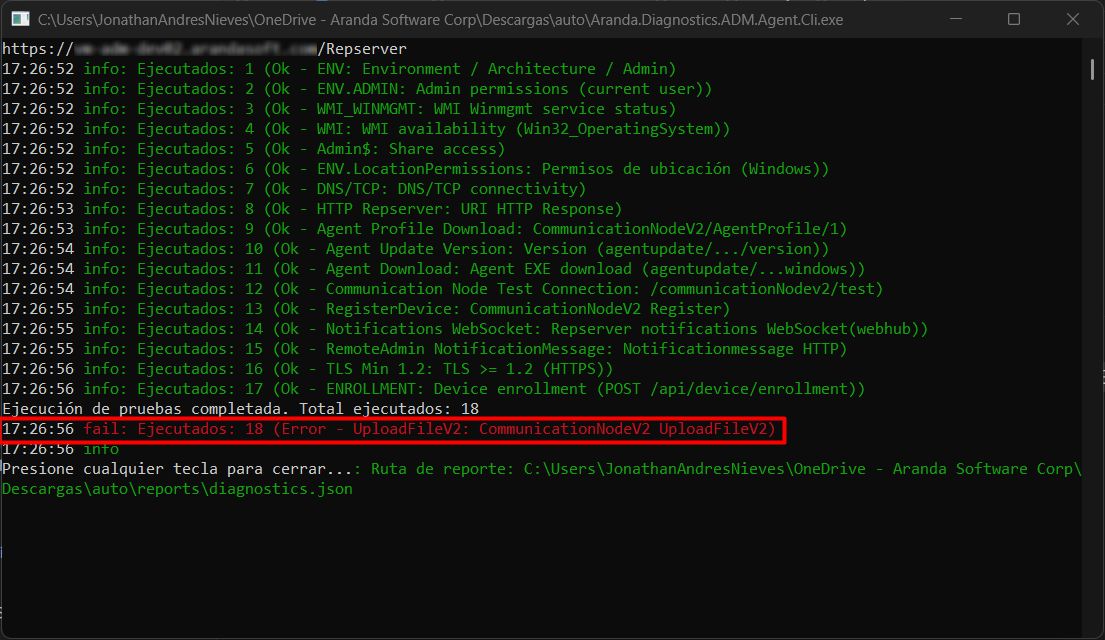
Check the firewall rules for any restrictions on the IP or DNS configured for the MQTT component by port 1884 or validate that the MQTT service on the server is operational.
19. Inventory shipment verification.
A test file is loaded to the storage path configured for the node being diagnosed.
{
  "TestId": "UploadFileV2",
  "Group": "Inventory.CommunicationNode",
  "Name": "CommunicationNodeV2 UploadFileV2",
  "Status": "Ok",
  "Findings": [],
  "Evidence": {
    "PayloadFileName": "test_Aranda_diagnostics_agent.txt",
    "Url": "https://DNS-NAME/Repserver/communicationNodeV2/uploadfilev2",
    "Method": "POST",
    "MultipartField": "inputStream",
    "FileName": "test_Aranda_diagnostics_agent.txt",
    "FileBytes": "75",
    "TimeoutMs": "30000",
    "StatusCode": "200",
    "ElapsedMs": "395",
    "ResponseLength": "2"
  }
}
⚐ Note: Once the self-diagnostic tests are finished, it is recommended to delete the test file(s) created in the storage path that is configured for the node that was performed, these files are stored in the folder Exception
Example of error:
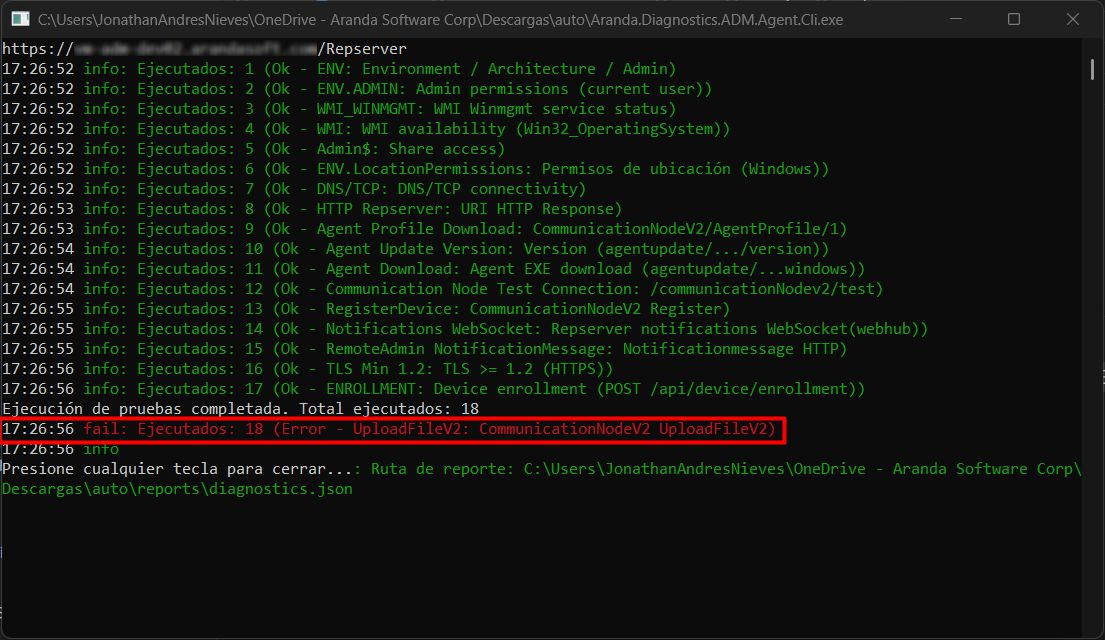
The most common causes for this error can be:
- You don’t have a valid local file storage path or blob storage configured for the node you’re targeting. For more information, see Communications.
- You don’t have read and write permissions on the local file storage path or blob storage that you have configured for the node you’re targeting.
20. File Verification vncSettings.json or rfbSettings.json.
File verification is performed vncSettings.json or rfbSettings.json and the AcceptRfbConnections of False to True to perform the following remote control tests and start the Aranda Remote Control VNC.
{
  "TestNumber": 25,
  "TestId": "REMOTE_CONTROL.CONFIGURE_AND_START_SERVICE",
  "Group": "Inventory.RemoteAdmin",
  "Name": "Configure Remote Control settings and start service",
  "Status": "Ok",
  "Findings": [],
  "Evidence": {
    "VncSettingsPath": "C:\\Program Files\\Aranda\\Aranda Remote Control\\Workstation\\vncSettings.json",
    "RfbSettingsPath": "C:\\Program Files\\Aranda\\Aranda Remote Control\\Workstation\\rfbSettings.json",
    "VncSettings.Exists": "False",
    "RfbSettings.Exists": "True",
    "SettingsFile.Used": "rfbSettings.json",
    "SettingsFile.Modified": "True",
    "AcceptRfbConnections.ConfiguredValue": "true",
    "WorkstationService.TargetName": "Aranda Remote Control Workstation",
    "WorkstationService.StartAttempted": "False",
    "WorkstationService.StartResult": "AlreadyRunning"
  }
}
Example of error:
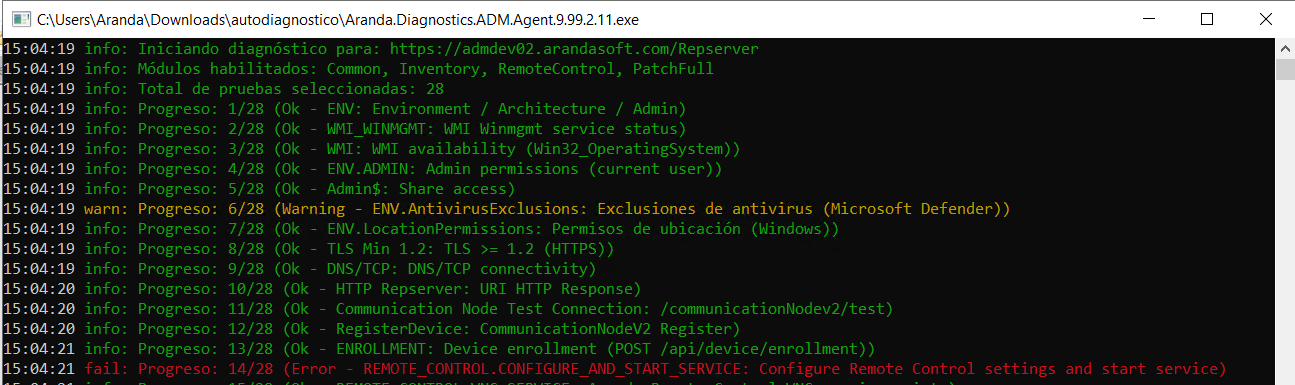
The most common causes for this error can be:
- The file(s) in the path C:\Program Files\Aranda\Aranda Remote Control\Workstation do not exist.
- You do not have permissions to modify the file. For this test, we recommend running the Self-Diagnostic Agent as an administrator if the user has UAC restrictions.
- The Aranda Remote Control Workstation It is not installed.
21. Service verification Aranda Remote Control Workstation.
An enquiry is made to the service Aranda Remote Control Workstation checking if it is enabled and running.
{
  "TestNumber": 26,
  "TestId": "REMOTE_CONTROL.WORKSTATION_SERVICE",
  "Group": "Inventory.RemoteAdmin",
  "Name": "Aranda Remote Control Workstation service status",
  "Status": "Ok",
  "Findings": [],
  "Evidence": {
    "WorkstationService.Name": "Aranda Remote Control Workstation",
    "WorkstationService.Exists": "True",
    "WorkstationService.Status": "Running",
    "WorkstationService.StartType": "Automatic"
  }
}
Example of error:
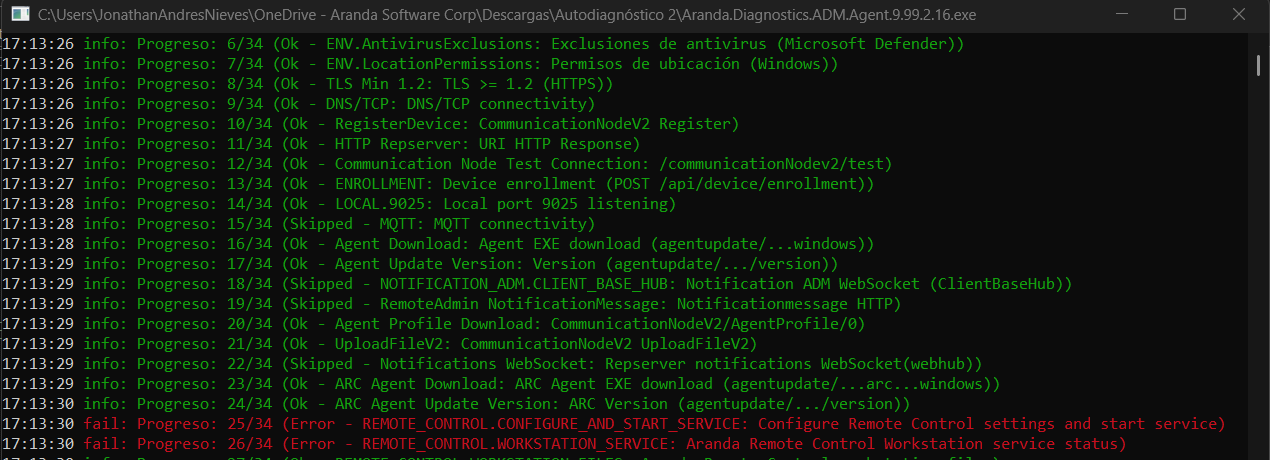
The most common causes for this error can be:
- The service Aranda Remote Control Workstation is disabled.
- The Aranda Remote Control Workstation It is not installed.
22. File Verification Aranda.ARC.Workstation.exe and Aranda.AVS.VNC.Application.exe
File verification is performed Aranda.ARC.Workstation.exe and Aranda.AVS.VNC.Application.exe.
{
  "TestNumber": 27,
  "TestId": "REMOTE_CONTROL.WORKSTATION_FILES",
  "Group": "Inventory.RemoteAdmin",
  "Name": "Aranda Remote Control workstation files",
  "Status": "Ok",
  "Findings": [],
  "Evidence": {
    "InstallDir": "C:\\Program Files\\Aranda\\Aranda Remote Control\\Workstation",
    "ExpectedDirectory": "C:\\Program Files\\Aranda\\Aranda Remote Control\\Workstation",
    "Directory.Exists": "True",
    "WorkstationExe.Path": "C:\\Program Files\\Aranda\\Aranda Remote Control\\Workstation\\Aranda.ARC.Workstation.exe",
    "WorkstationExe.Exists": "True",
    "VncApplicationExe.Path": "C:\\Program Files\\Aranda\\Aranda Remote Control\\Workstation\\Aranda.AVS.VNC.Application.exe",
    "VncApplicationExe.Exists": "True"
  }
}
Example of error:
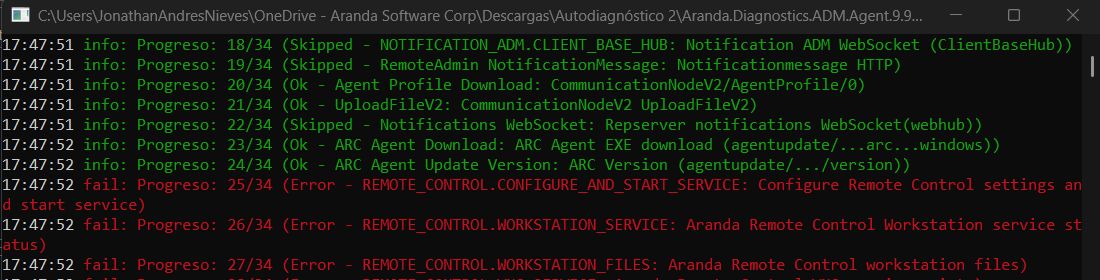
The most common causes for this error can be:
- The file(s) in the path C:\Program Files\Aranda\Aranda Remote Control\Workstation do not exist.
- The Aranda Remote Control Workstation It is not installed.
23. Service verification Aranda Remote Control VNC.
A service health verification test is performed Aranda Remote Control VNC
{
  "TestNumber": 28,
  "TestId": "REMOTE_CONTROL.VNC_SERVICE",
  "Group": "Inventory.RemoteAdmin",
  "Name": "Aranda Remote Control VNC service exists",
  "Status": "Ok",
  "Findings": [],
  "Evidence": {
    "VncService.Name": "Aranda Remote Control VNC",
    "VncService.Exists": "True",
    "VncService.Status": "Stopped",
    "VncService.StartType": "Manual",
    "VncService.RequiredRunning": "False"
  }
}
Example of error:
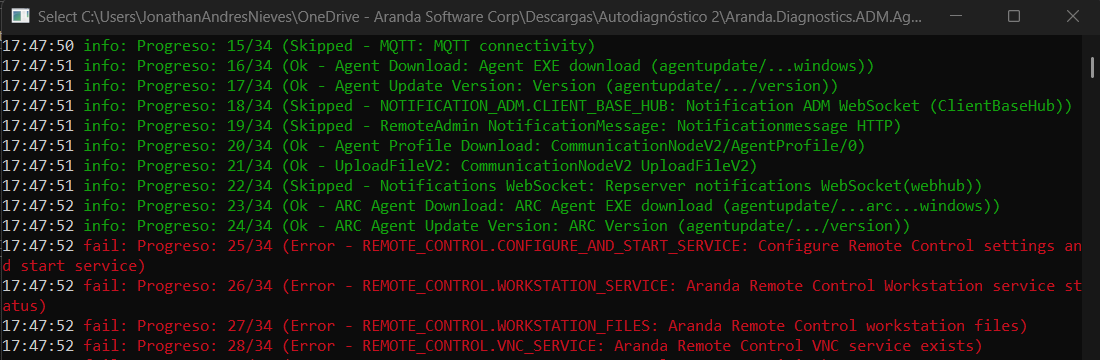
The most common causes for this error can be:
- The service Aranda Remote Control VNC is disabled.
- The agent Aranda Remote Control Workstation It is not installed.
24. TCP connectivity test for the IP/DNS of the TURN Server.
A TCP connectivity test is performed to the IP/DNS supplied in the remote control section of the file appsettings.json.
{
  "TestNumber": 29,
  "TestId": "REMOTE_CONTROL.TCP",
  "Group": "Inventory.RemoteAdmin",
  "Name": "Remote Control TCP connectivity",
  "Status": "Ok",
  "Findings": [],
  "Evidence": {
    "TimeoutMs": "30000",
    "URI": "https://DNS-NAME/Repserver",
    "RemoteControl.Config.Ip": "IP-ADDRESS",
    "RemoteControl.Config.Port": "8081",
    "RemoteControl.Config.UseSsl": "False",
    "RemoteControl.Target.Host": "IP-ADDRESS",
    "RemoteControl.Target.Port": "8081",
    "RemoteControl.Target.UseSsl": "False",
    "RemoteControl.Target.ResolvedIps": "IP-ADDRESS",
    "RemoteControl.Target.TcpReachable": "True",
    "RemoteControl.Target.ConnectedIp": "IP-ADDRESS"
  }
}
Example of error:
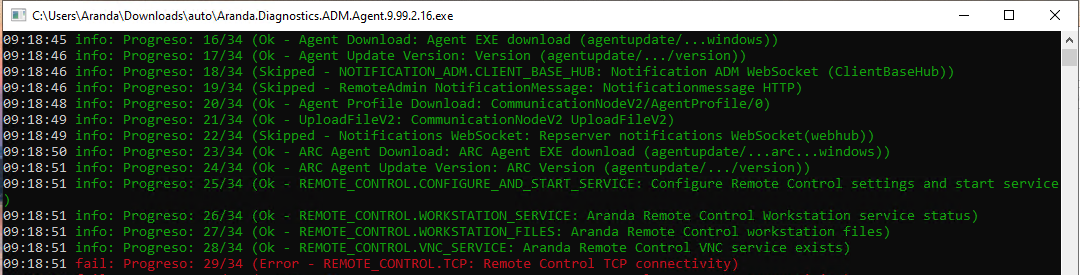
The most common cause of this error may be a restriction on the firewall for egress to the Internet. If so, add the exception to the IP/DNS configured for the remote control.
25. Test of connectivity to the TURN server port.
A TCP connectivity test is performed to the port supplied in the remote control section of the file appsettings.json.
{
  "TestNumber": 30,
  "TestId": "REMOTE_CONTROL.TURN_PORTS",
  "Group": "Inventory.RemoteAdmin",
  "Name": "Remote Control TURN Ports connectivity",
  "Status": "Ok",
  "Findings": [
    {
      "Code": "REMOTE_CONTROL.CONFIGUREDPORT_OK",
      "Details": null,
      "Message": "Conectividad exitosa al puerto 8081 del servidor TURN.",
      "Severity": "Info"
    },
    {
      "Code": "REMOTE_CONTROL.CONFIGURED_PORT_OK",
      "Details": null,
      "Message": "Puerto configurado 8081 es accesible.",
      "Severity": "Info"
    }
  ],
  "Evidence": {
    "TurnHost": "IP-ADDRESS",
    "TurnUseSsl": "False",
    "ConfiguredPort": "8081",
    "TimeoutMs": "30000",
    "ConfiguredPort.Port": "8081",
    "ConfiguredPort.ResolvedIps": "IP-ADDRESS",
    "ConfiguredPort.TcpReachable": "True",
    "ConfiguredPort.ConnectedIp": "IP-ADDRESS"
  }
}
Example of error:
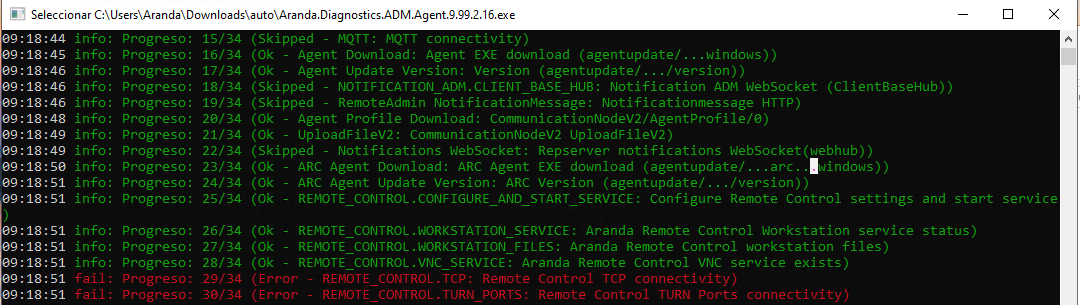
The most common cause of this error may be a restriction on the firewall for egress to the Internet. If so, add the exception to the port configured for remote control.
26. Test of message exchange between server and station.
A test is performed using the Exchange plug-in to perform a message exchange between the server’s Turn and the station where the self-diagnostic agent is running.
{
  "TestNumber": 31,
  "TestId": "REMOTE_CONTROL.EXCHANGE",
  "Group": "Inventory.RemoteAdmin",
  "Name": "Remote Control Exchange Test",
  "Status": "Ok",
  "Findings": [
    {
      "Code": "REMOTE_CONTROL.EXCHANGE_SUCCESS",
      "Details": null,
      "Message": "El intercambio de mensajes fue exitoso. 80 enviados, 80 recibidos durante 20s.",
      "Severity": "Info"
    }
  ],
  "Evidence": {
    "TurnHost": "IP-ADDRESS",
    "TurnPort": "8081",
    "TurnUseSsl": "False",
    "TimeoutMs": "30000",
    "SessionCode": "358E3DDCAB-893211763EE8DE08",
    "ReceiverCode": "1D02AB-DA3211763EE8DE08",
    "TransmitterCode": "9C264295-AE3211763EE8DE08",
    "GenerationElapsedMs": "196",
    "ConnectionElapsedMs": "323",
    "TotalElapsedMs": "20536",
    "ExchangeDurationSeconds": "20",
    "ExchangeElapsedMs": "20012",
    "MessagesSentClient": "40",
    "MessagesReceivedClient": "40",
    "MessagesSentServer": "40",
    "MessagesReceivedServer": "40",
    "TotalMessagesSent": "80",
    "TotalMessagesReceived": "80",
    "MessagesFailed": "0",
    "MessagesPerSecond": "4.00"
  }
}
Example of error:
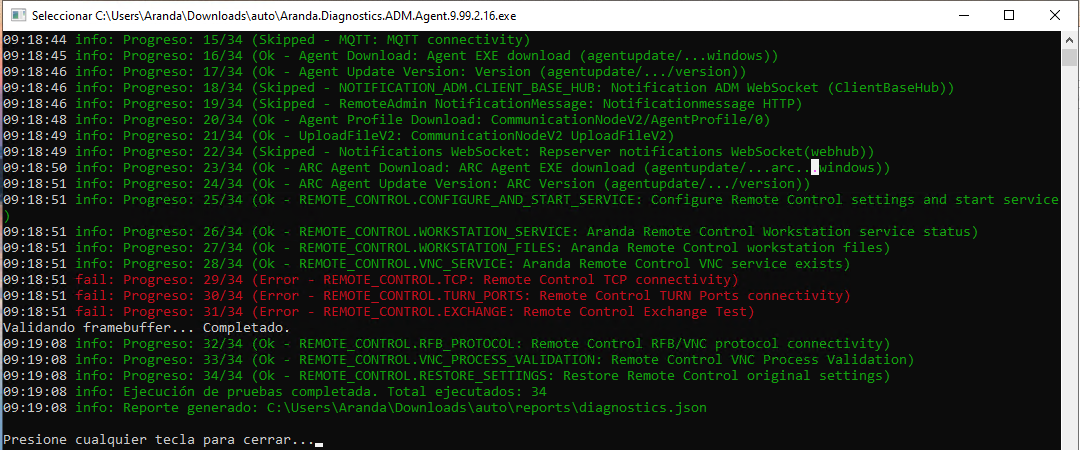
The most common causes for this error can be:
- There is a restriction in the firewall for Internet egress, if so, the exception must be added to the IP/DNS and port configured for remote control.
- The agent Aranda Remote Control Workstation is not installed.
27. Remote control test using RFB/VNC.
The RFB protocol and the Aranda Remote Control VNC to perform a remote control simulation test to and from the same station from which the self-diagnostic agent is running
{
  "TestNumber": 32,
  "TestId": "REMOTE_CONTROL.RFB_PROTOCOL",
  "Group": "Inventory.RemoteAdmin",
  "Name": "Remote Control RFB/VNC protocol connectivity",
  "Status": "Ok",
  "Findings": [
    {
      "Code": "REMOTE_CONTROL.VNC_SERVICE_NOT_RUNNING",
      "Details": null,
      "Message": "El servicio Aranda Remote Control VNC no está en ejecución. Se intentará iniciar el servicio automáticamente.",
      "Severity": "Medium"
    }
  ],
  "Evidence": {
    "VncService.Name": "Aranda Remote Control VNC",
    "VncService.Exists": "True",
    "VncService.Status": "Stopped",
    "VncService.StartType": "Manual",
    "VncService.Started": "True",
    "VncService.CurrentStatus": "Running",
    "RFB.Host": "127.0.0.1",
    "RFB.Port": "5903",
    "RFB.Connected": "True",
    "RFB.ClientInit.Shared": "True",
    "RFB.DesktopName": "bg-dev-jnieves0",
    "RFB.RequestCount": "14"
  }
}
Example of error:
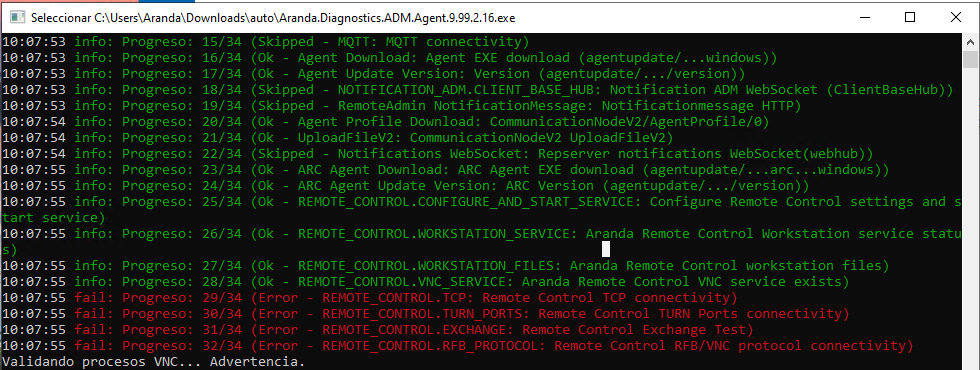
The most common causes for this error can be:
- The service Aranda Remote Control VNC is disabled.
- The agent Aranda Remote Control Workstation It is not installed.
28. Verification of the number of processes running from the service Aranda Remote Control VNC.
It is verified that during test number 28 two processes of the service are running Aranda Remote Control VNC, one as SYSTEM, and one as the user who is running the self-diagnostic agent.
{
  "TestNumber": 33,
  "TestId": "REMOTE_CONTROL.VNC_PROCESS_VALIDATION",
  "Group": "Inventory.RemoteAdmin",
  "Name": "Remote Control VNC Process Validation",
  "Status": "Ok",
  "Findings": [
    {
      "Code": "REMOTE_CONTROL.VNC_PROCESSES_OK",
      "Details": null,
      "Message": "Se encontraron 2 procesos VNC en ejecución correctamente.",
      "Severity": "Info"
    }
  ],
  "Evidence": {
    "VNC.Process.Count": "2",
    "VNC.Process.Expected": "2",
    "VNC.Process.1.Id": "31104",
    "VNC.Process.1.Name": "Aranda.AVS.VNC.Application",
    "VNC.Process.2.Id": "30996",
    "VNC.Process.2.Name": "Aranda.AVS.VNC.Application",
    "VNC.Process.ValidationResult": "Success"
  }
}
Example of error:
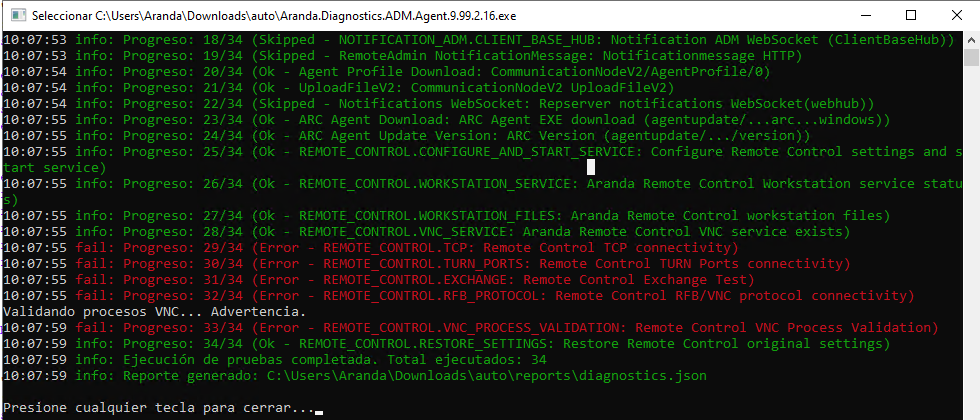
The most common causes for this error can be:
- The service Aranda Remote Control VNC is disabled.
- The agent Aranda Remote Control Workstation It is not installed.
- You don’t have sufficient permissions. For this test, we recommend running the Self-Diagnostic Agent as an administrator if the user has UAC restrictions.
29. Restoring changed files and services.
The last part of the test is to modify the vncSettings.json or rfbSettings.json files again and leave them as they were at the beginning, with the parameter of AcceptRfbConnections = true to AcceptRfbConnections = false, stop the Aranda Remote Control VNC service and the processes that have been started with that service by the self-diagnostic agent.
{
  "TestNumber": 34,
  "TestId": "REMOTE_CONTROL.RESTORE_SETTINGS",
  "Group": "Inventory.RemoteAdmin",
  "Name": "Restore Remote Control original settings",
  "Status": "Ok",
  "Findings": [],
  "Evidence": {
    "AcceptRfbConnections.OriginalValue": "True",
    "WorkstationService.OriginalStatus": "Running",
    "VncService.OriginalStatus": "Stopped",
    "SettingsFile.Path": "C:\\Program Files\\Aranda\\Aranda Remote Control\\Workstation\\rfbSettings.json",
    "AcceptRfbConnections.BeforeRestore": "True",
    "AcceptRfbConnections.WasChanged": "False",
    "WorkstationService.BeforeRestore": "Running",
    "WorkstationService.WasChanged": "False",
    "VncService.BeforeRestore": "Running",
    "VncService.WasChanged": "True",
    "AcceptRfbConnections.Restored": "True",
    "AcceptRfbConnections.RestoredValue": "True",
    "WorkstationService.Restored": "False (unchanged)",
    "WorkstationService.FinalStatus": "Running",
    "VncService.Restored": "True (stopped)",
    "VncService.FinalStatus": "Stopped"
  }
}
30. Try the update module.
In this case, there are two paths:
-
Full Update Module: If the parameter in the appsettings.json, on line 11, was marked as True, the self-diagnostic agent will perform a test on the URL used by the ADM agent to download the update catalog and verify that the resource exists and is available.
{
  "TestNumber": 19,
  "TestId": "CommunicationNode.CatalogDownload",
  "Group": "Inventory.CommunicationNode",
  "Name": "(/api/CommunicationNodeV2/catalog/0)",
  "Status": "Ok",
  "Findings": [],
  "Evidence": {
    "Url": "https://DNS-NAME/Repserver/api/CommunicationNodeV2/catalog/0",
    "ContentType": "application/octet-stream",
    "ContentDisposition": "attachment; filename=WindowsPatchData.zip; modification-date=\"Mon, 27 Jul 2026 15:36:28 GMT\"; size=34346605",
    "HEAD.StatusCode": "200",
    "GET.StatusCode": "200"
  }
}
Example of error:
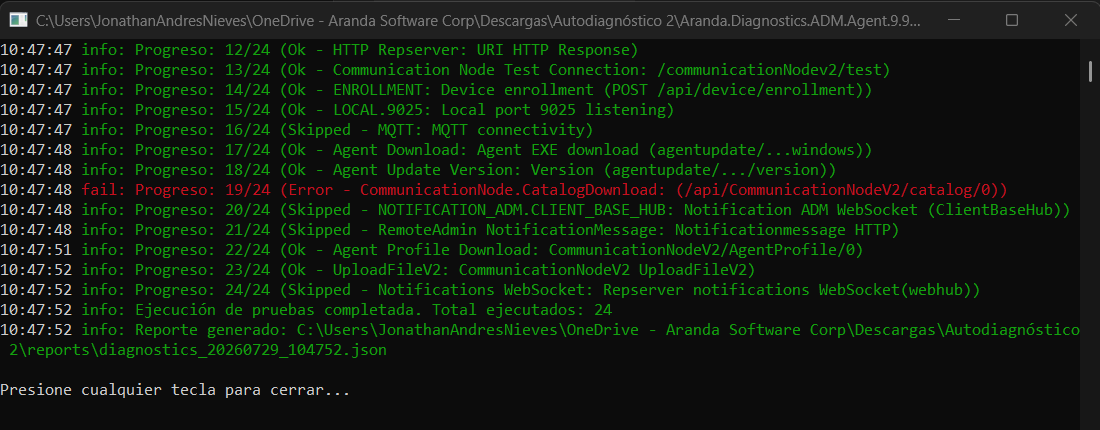
The most common causes for this error can be:
- The update catalog has not been downloaded. For more information, see Download the catalogue.
- They can be presented when pointing to a Conserver because of the absence of the resource in the file storage path. You can run the self-diagnostic test again so that it completes successfully. During the first run that generates the error, the Conserver processes the task that requests the resource and stores it.
-
Updates Lite module: If the parameter in the appsettings.json, on line 12, was marked as True, the self-diagnostic agent will perform two tests: the first is validation of access to the Microsoft catalog URL, and the second is validation of service health Windows Update (wuauserv).
{
  "TestNumber": 6,
  "TestId": "ENV.InternetAccess",
  "Group": "Environment",
  "Name": "Salida a Internet - Microsoft Update Catalog",
  "Status": "Ok",
  "Findings": [],
  "Evidence": {
    "Url": "https://catalog.update.microsoft.com/Search.aspx",
    "Method": "GET",
    "TimeoutMs": "15000",
    "ElapsedMs": "3563",
    "StatusCode": "200"
  }
}

{
  "TestNumber": 9,
  "TestId": "ENV.WindowsUpdateService",
  "Group": "Environment",
  "Name": "Servicio Windows Update (wuauserv)",
  "Status": "Warning",
  "Findings": [
    {
      "Code": "WU.SERVICE_NOT_RUNNING",
      "Details": null,
      "Message": "El servicio Windows Update (wuauserv) no está en ejecución.",
      "Severity": "Medium"
    }
  ],
  "Evidence": {
    "Service.Name": "wuauserv",
    "Service.DisplayName": "Windows Update",
    "Service.Status": "Stopped",
    "Service.StartType": "Manual"
  }
}
Example of error:
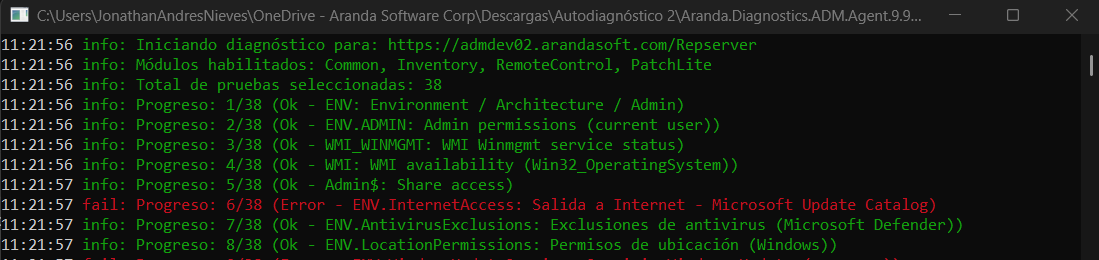
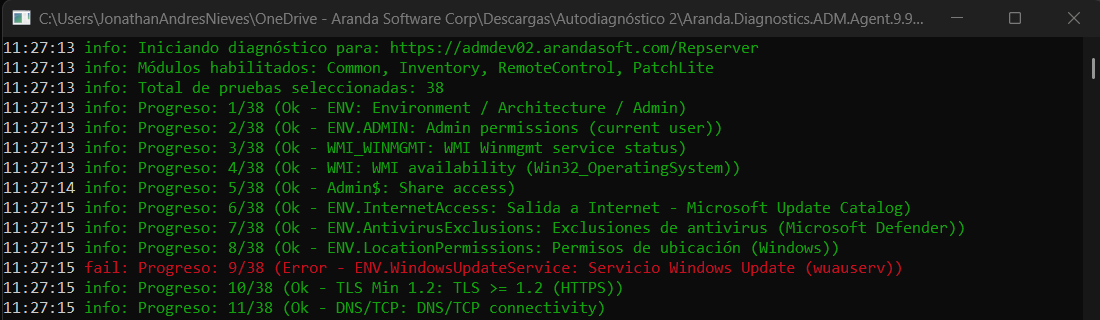
The most common causes for this error can be:
- Network restrictions configured at the firewall level, make the exception to the URL catalog.update.microsoft.com.
- The service Windows Update (wuauserv) is disabled. Verify that the service is enabled; the service does not need to be started; the service starts or stops automatically when you manually check for updates or when the ADM agent performs the update inventory.
In the following link you can find the executable of the self-diagnostic agent Self-Diagnostic Agent