


Login
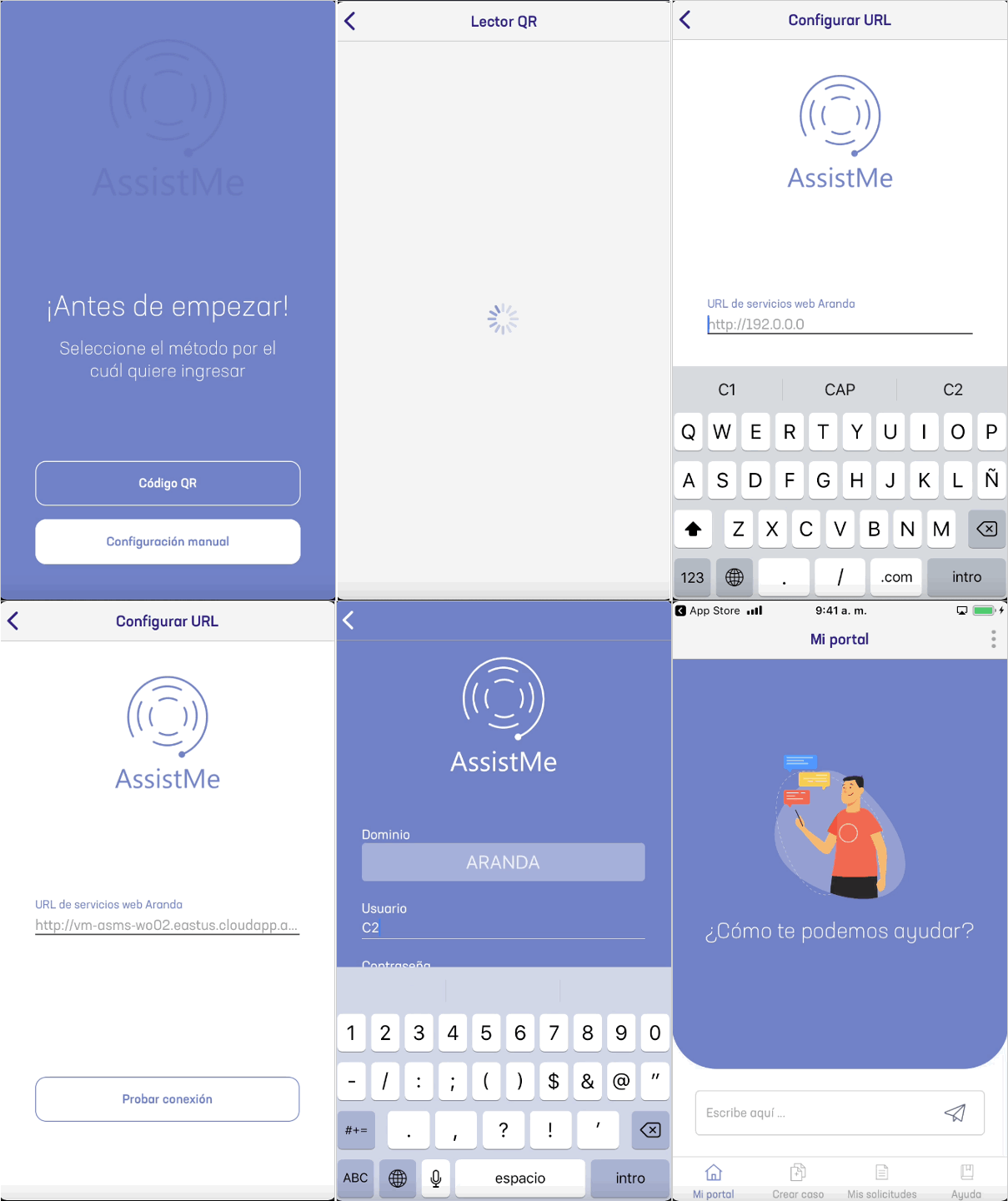
The AssistMe mobile console login module allows the user to define the method for registering as follows:
Pre login
In this option, the user can select the method to configure their service provider.
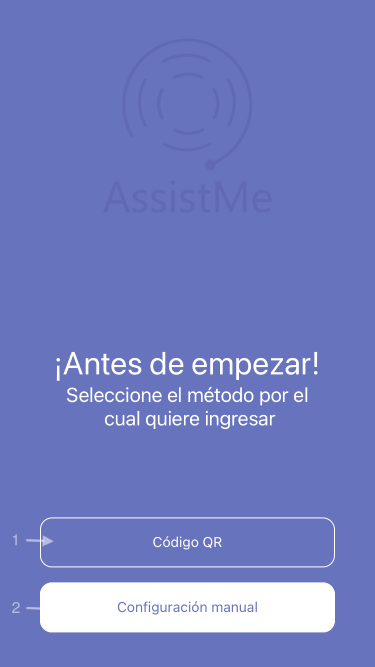
| Field | Description |
|---|---|
| QR code: | -Selecting this option enables a window to record the reading of QR codes. |
| Manual Configuration: | By selecting this option, you can manually configure the domain of use. |
QR reader
In this option, the user reads QR codes, for this the first time the permissions to use the camera are requested.
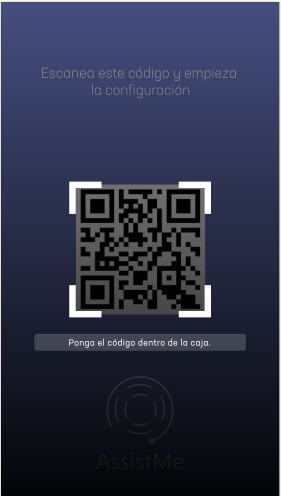
By performing the QR validation, you will be able to register in the Login option.
Manual Configuration
In this option, the user will be able to enter the AssistMe console manually, entering the URL of their provider and validating that it is correct.
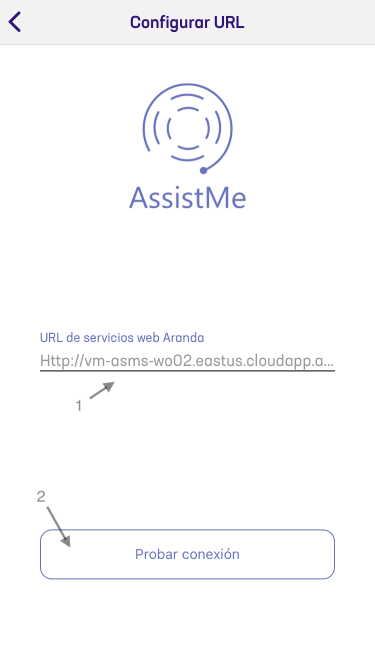
| Field | Description |
|---|---|
| Set up URLs: | text box to configure the server URL. |
| Test Connection button: | valid that the URL entered corresponds to a valid server. |
When validating the manual configuration, you will be able to register for the Login option.
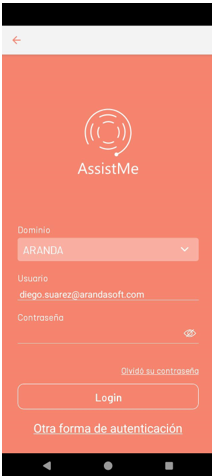
Login
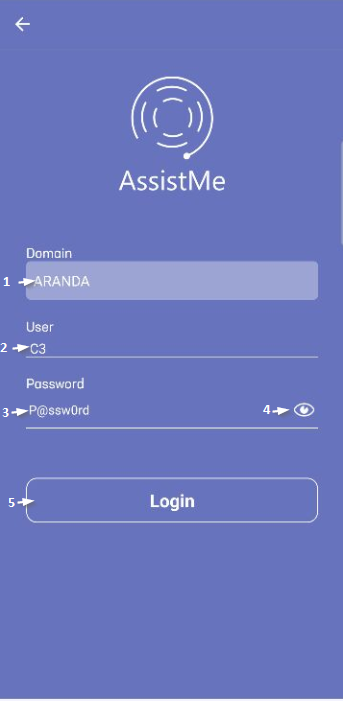
In the user’s registration in the AssistMe console, authentication and validation will be carried out before the system. The data required for login are:
| Field | Description |
|---|---|
| Domain: | Type of user access. |
| User: | Username. |
| Password: | Password assigned to the user. |
| Password Viewer: | Option to display the text in the password field. |
With this information, the user can make an access request through the login.
External Authentication
For entry by External authentication, the provider must previously be configured with the type of console that you want to integrate, in this case (Mobile Client) in External Authentication Configuration.
Once external authentication is configured, you can view the providers in the app’s Login as follows:
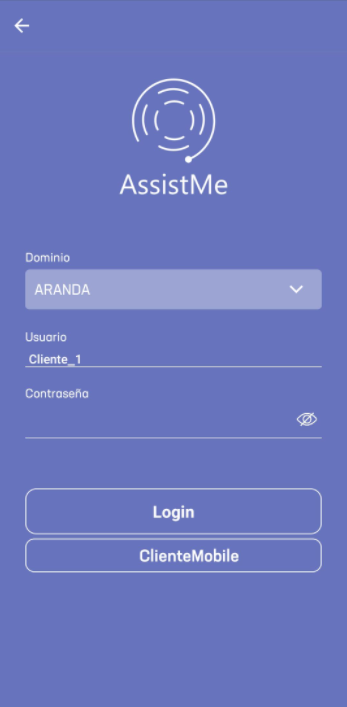
When entering through this option, the previously configured provider credentials are requested, as follows:
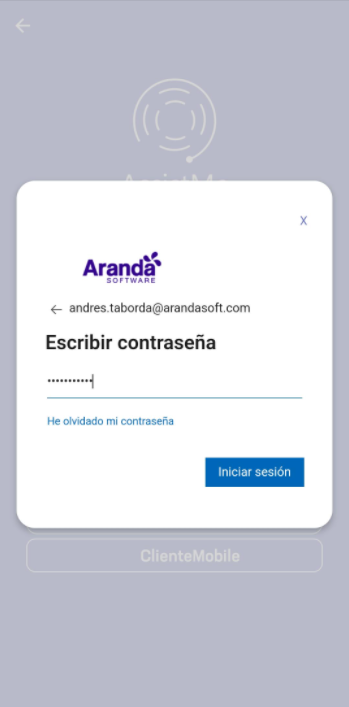
By entering the credentials, the customer will have access and will be able to navigate the AssistMe app.
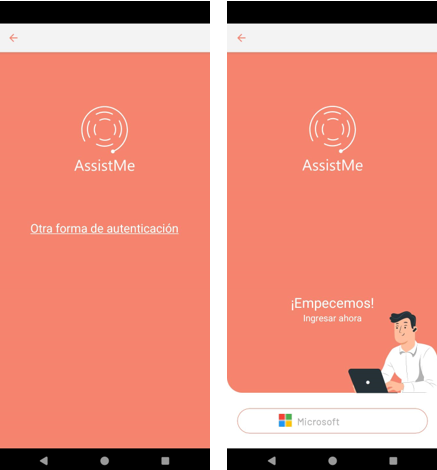
⚐ Note: If in the ASMSAdministrator, in the General Settings > Settings, in the drop-down combo option ServiceDesk Setting is configured AllowHiddenLoginforSaml in True, the login form will be hidden and only the option Another form of authentication. See setting settings AllowHiddenLoginforSaml.
Reset password
⚐ Note: To access the APR console from the App AssistMe, the UserAPRURL option must be configured View Settings.
To reset your password, click Forgot your password?.
⚐ Note: To reset your password, see the Manual de Aranda Pass Recovery APR.