


⚠ Warning To access the Quick Boards functionality, please contact the support or operations team to enable it.
A dashboard in Aranda QUERY MANAGER is a tool that allows you to graphically visualize the metrics required by the organization and facilitates the selection of relevant data and indicators, for analysis and intelligent business decision-making.
Quick dashboards allow you to create graphs and diagrams quickly and efficiently by selecting the information you need.
Creating Quick Boards
⚠ Important requirements:
- You must have previously set up a Folder
- You must have previously set up a Data Source
1. To create the Quick Boards, log in to the AQM Web Console, in the Information View. Boards.
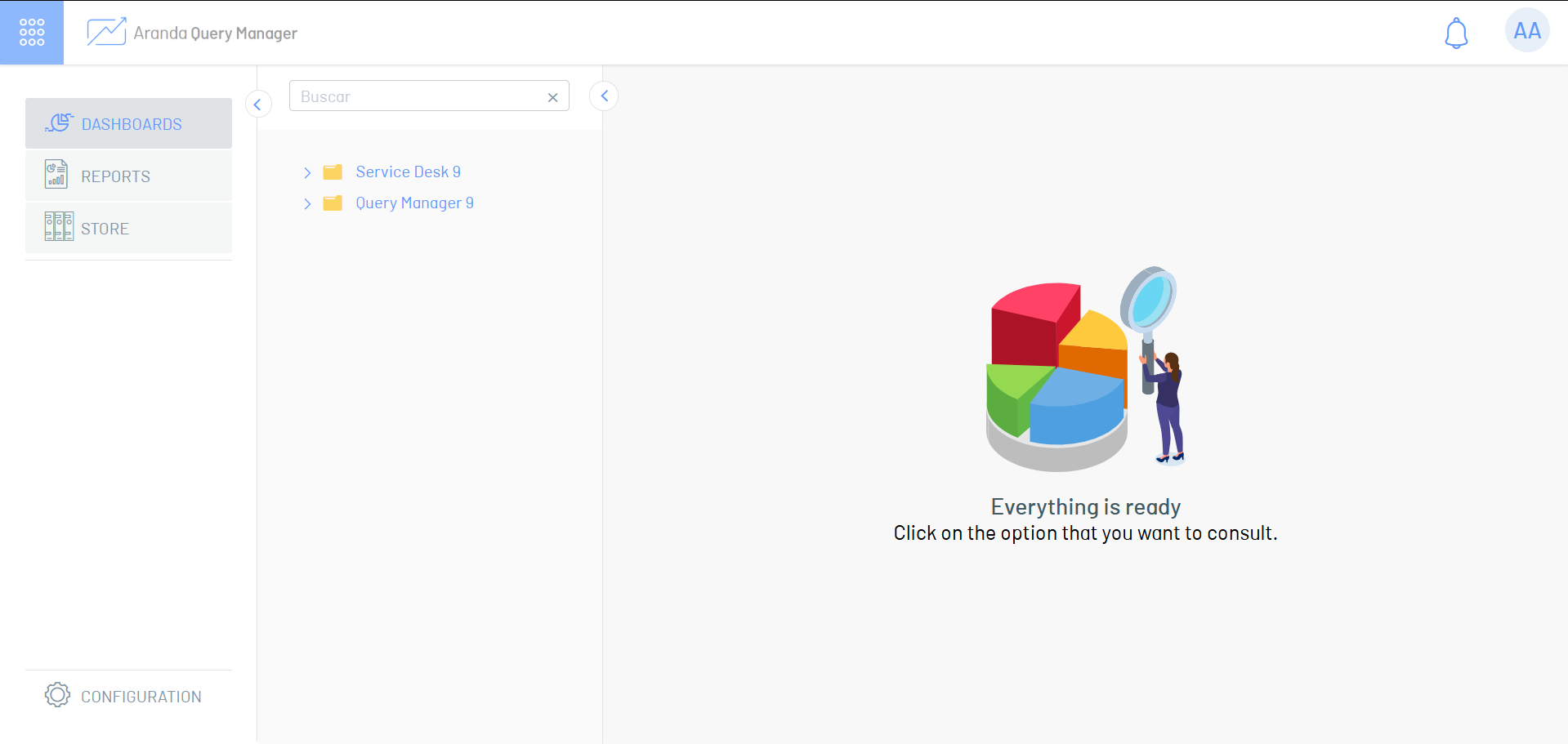
2. Select the folder where you want to create the quick board; The custom boards contained in the selected folder will be listed.
3. Click the Quick Boards from the list of custom boards.
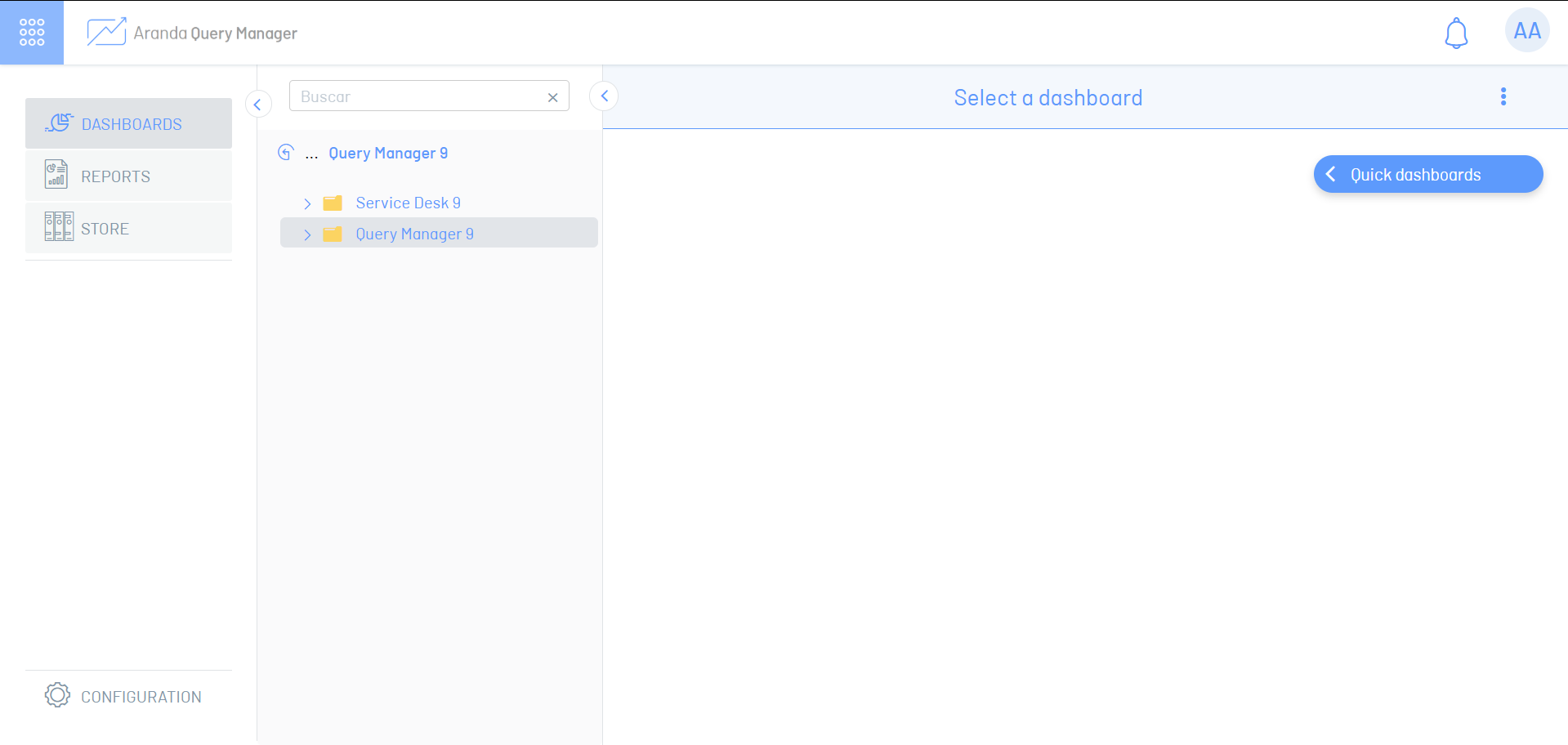
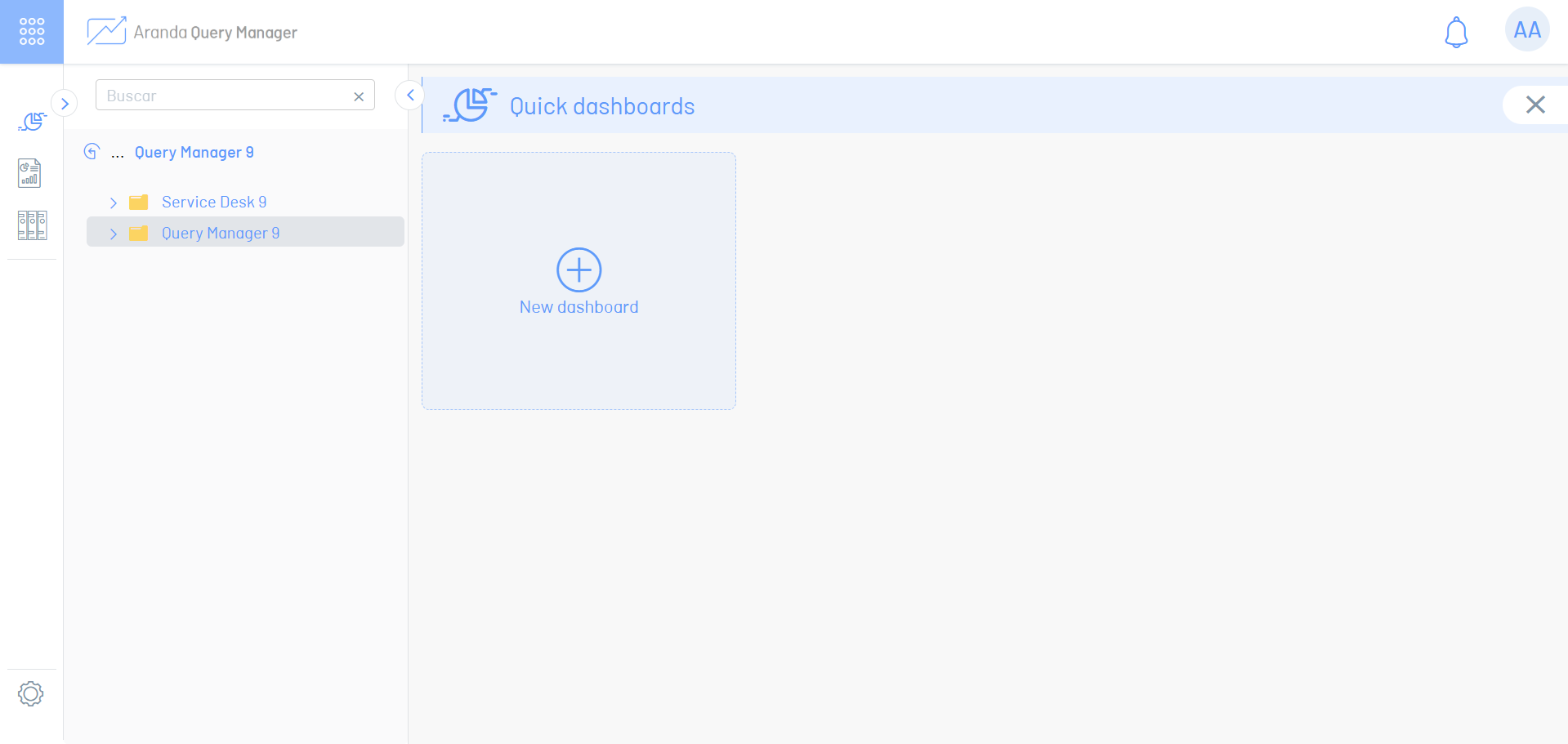
4. In the new window, the quick boards are listed; You can open or delete Quick Boards created from this window. Select the option to Create dashboard to create a new one and move to the blank board workspace.
5. At the top of the workspace, specify the name and data source of the dashboard.
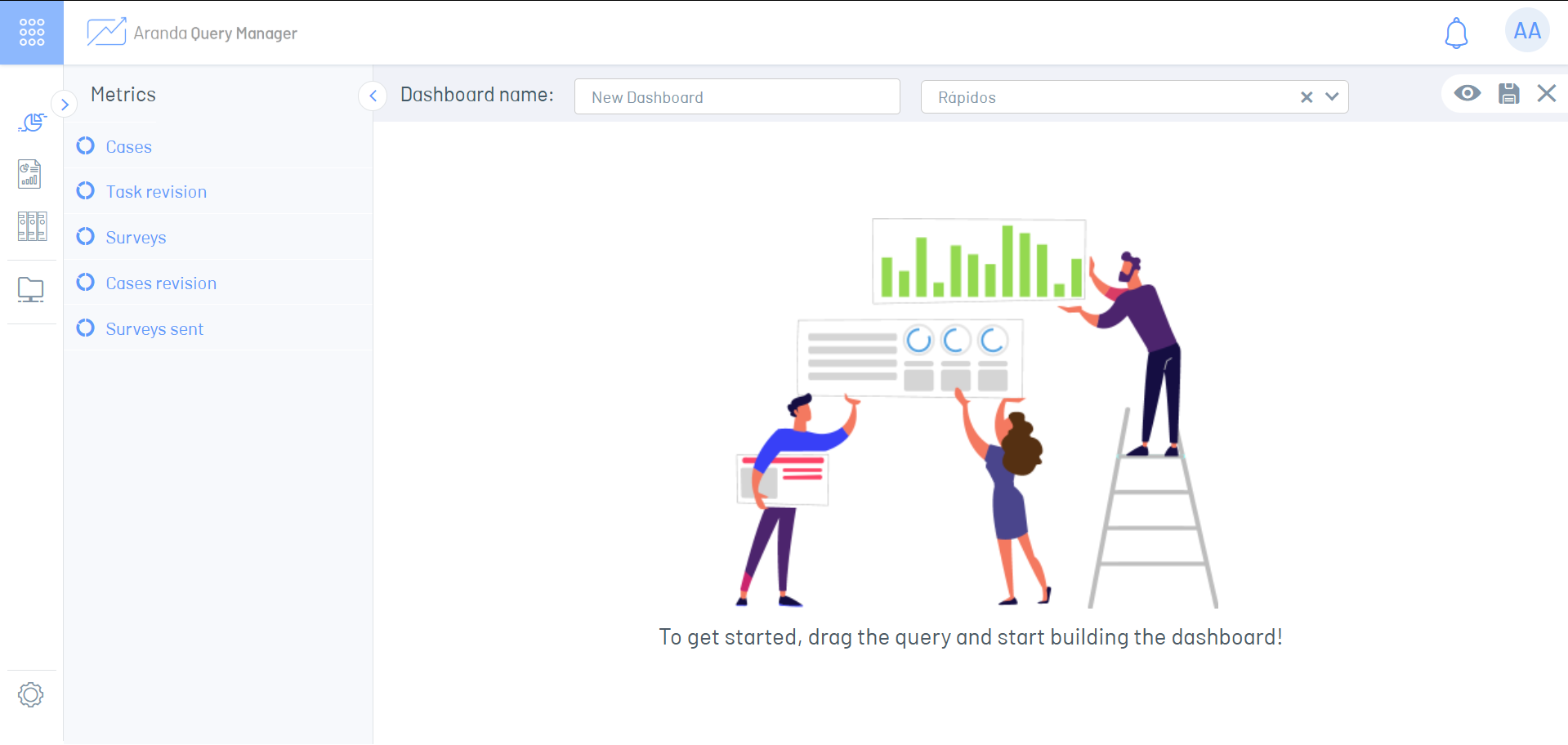
6. In the Models You can find the Data Models, which you can drag and drop into the workspace to fill out the Parameters.
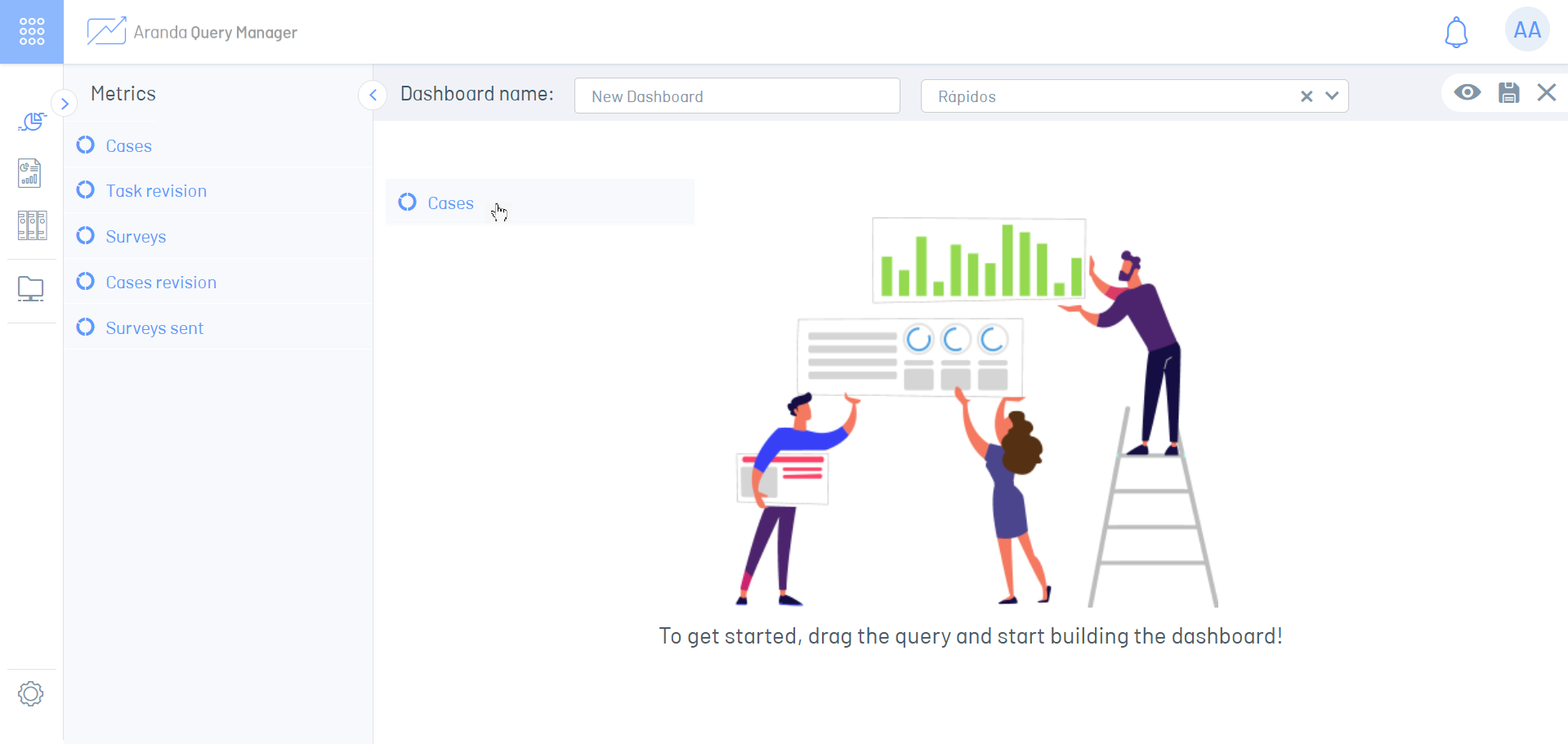
7. In the Parameters window, section General, add the following information to each of your fields:
| Field | Description |
|---|---|
| Name | Specify a name for the chart. |
| Chart Type | Select the chart type; Cake, bar, doughnut, area, card, simple KPI, and tracking PI. |
| Metric | Specify one of the metrics that are enabled based on the Data Models on which he is working. |
| Aggregation | Specify an aggregation based on the Data Models on which he is working. |
| Dimension | Specify the column you want to query in the Data Models. |
| Drilldown | Opional. Define the column by which you want to break down the chart when you click on any of the sections of the chart. |
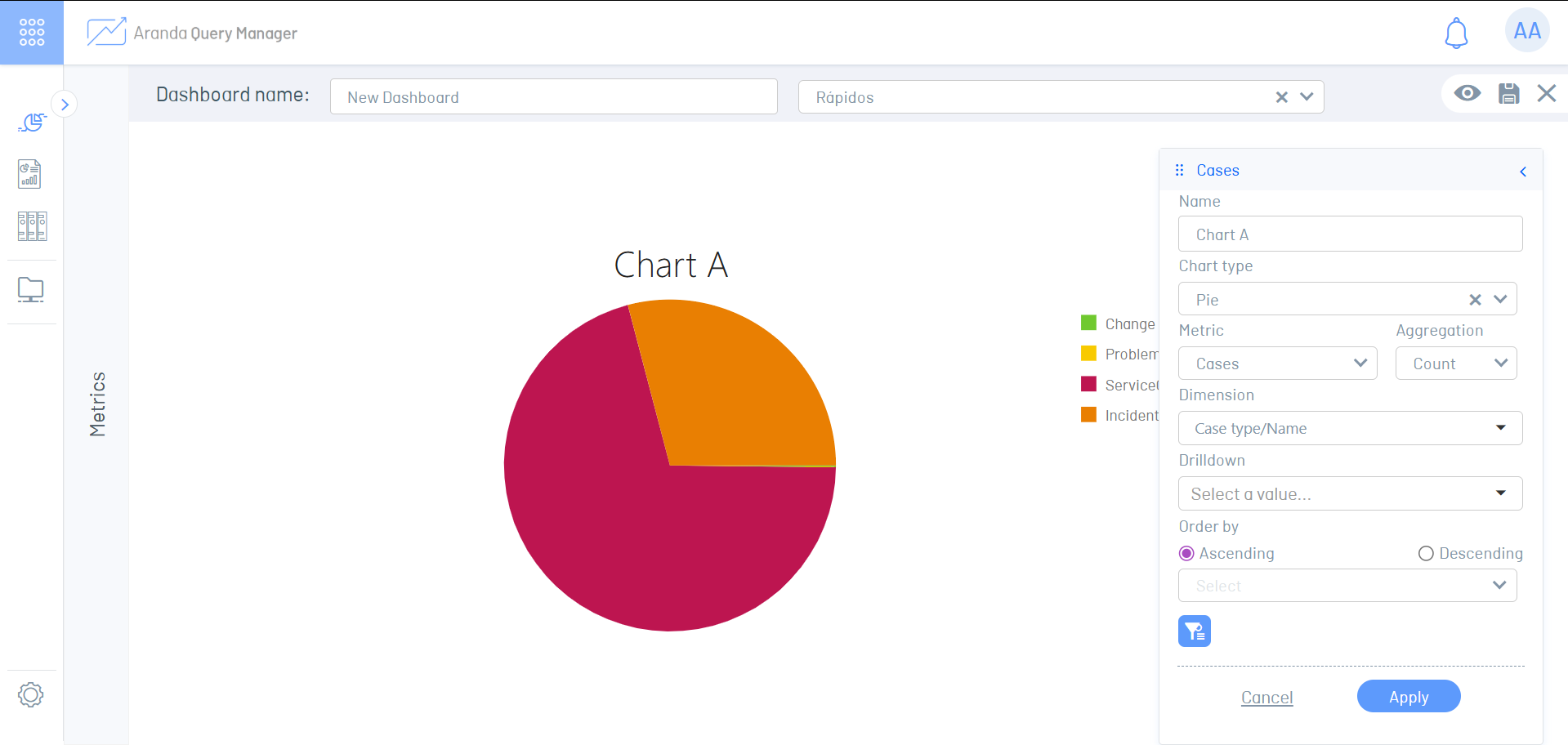
8. Click the  to save and display chart changes.
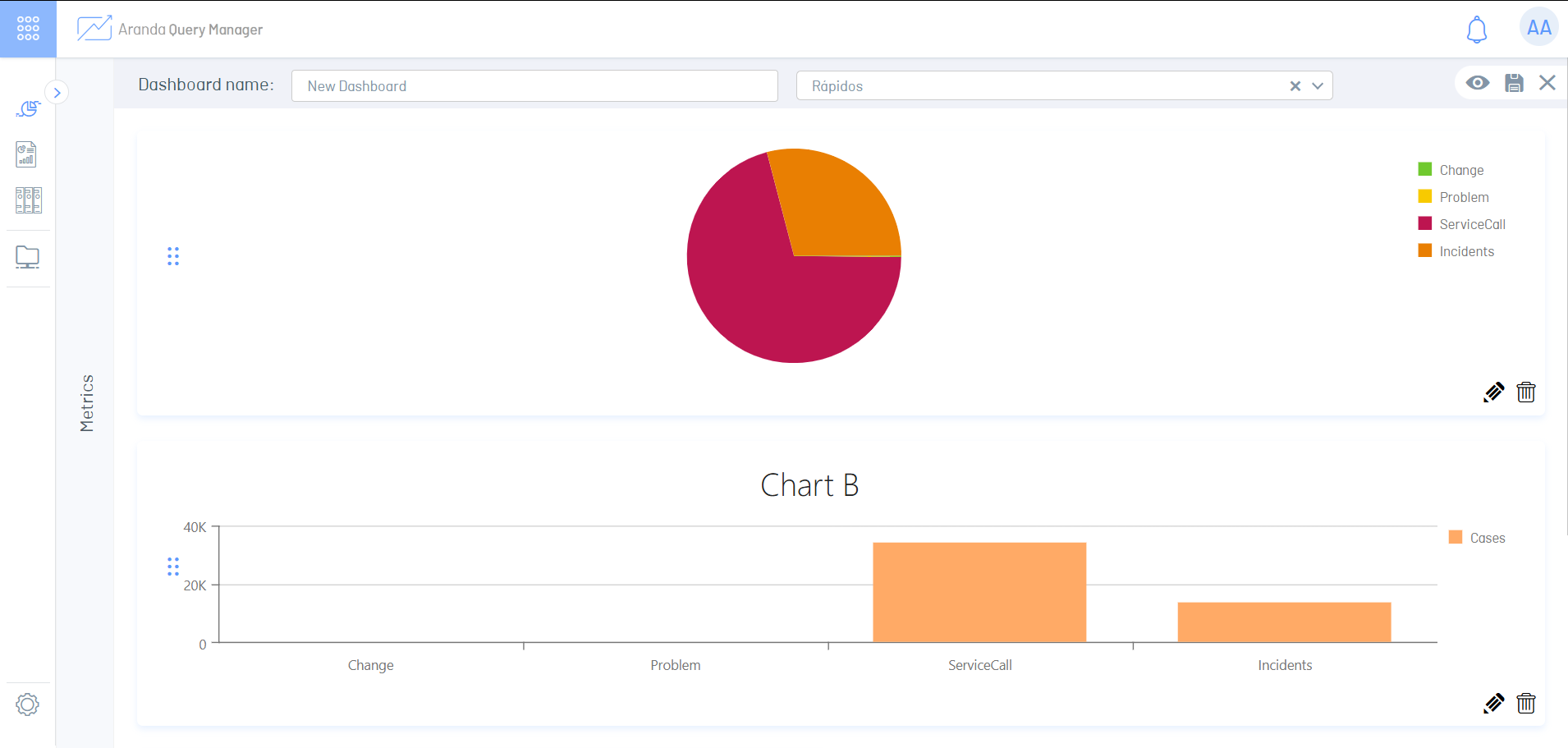
9. To create more than one chart, replicate the previous process. Once all the changes are made, click on the  to store the board.
Configuration Parameters
In the parameters window you can enter the following sections:
- General
- Style
- Analytics
Click on each section to see its options or use the drag and drop option for each available section, to view them all at once.
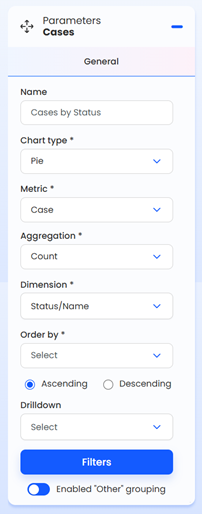
General Section
In this section you can configure the query by selecting the different fields such as chart type, metric, aggregation, and dimension. It also has options to sort the information, filter, drill down, and group depending on the chart type.
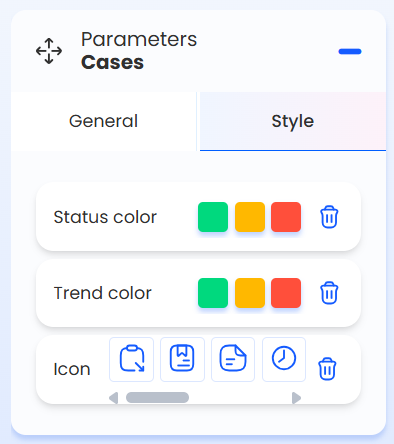
Styles Section
In this section, configure colors, icons, line type, and other options to change the display mode for the following charts:
- Bars
- Area
- Card
- Simple KPIs
- Tracking KPIs
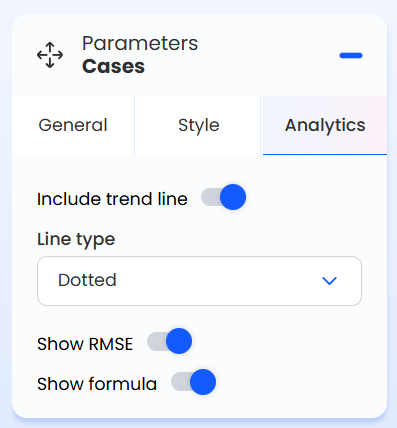
Analytical Section
In this section, enable options to display the analysis data for the following charts:
⚠ Important requirements:
- To enable this section, select a Dimension (For example, dimensions related to dates of creation, modification, or closure of cases.) in the General section.
- Bars
- Area
Types of charts
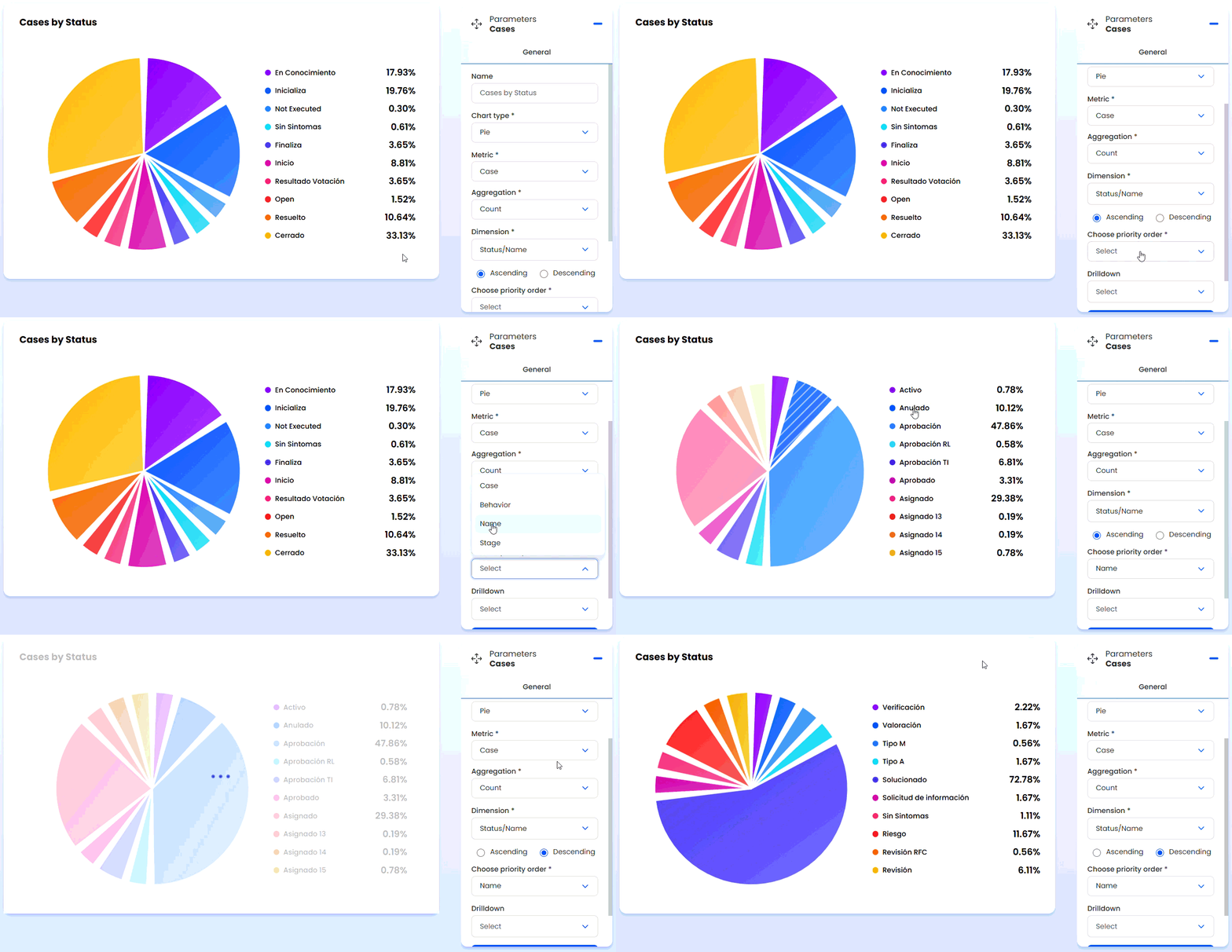
Pie chart
| Option in the form | Description | Use in chart creation |
|---|---|---|
| Name | Chart name. | Specify a name for the chart. |
| Metric | A set of attributes that can be calculated. | Select a Metric from a data model. |
| Aggregation | Calculate the metric with operations predetermined by the application. | Select an aggregation. Note: It is normal that not all aggregations (Count, Sum, average) are seen. |
| Dimension | These are the attributes that are part of the metric. | Select an attribute from the list. There are dimensions that can have an additional attribute level. |
| Sorting Directorate | Indicates the direction in which the data is sorted when displayed. | Select the sort direction Ascending or Descending. |
| Sorting by column | Sort the information by a column. | Select the column that requires sorting. |
| Drilldown | Allows you to click on a portion of the chart to drill down into the information. | Select a column that requires further |
| Filters | It allows you to filter information by columns. | For more information see Filter menu |
| Data grouping | Default The graphs group the first 10 records. This option allows you to group the data that is not displayed, in a label in the visualization called Other. | Enable or disable grouping. |
⚐ Example:
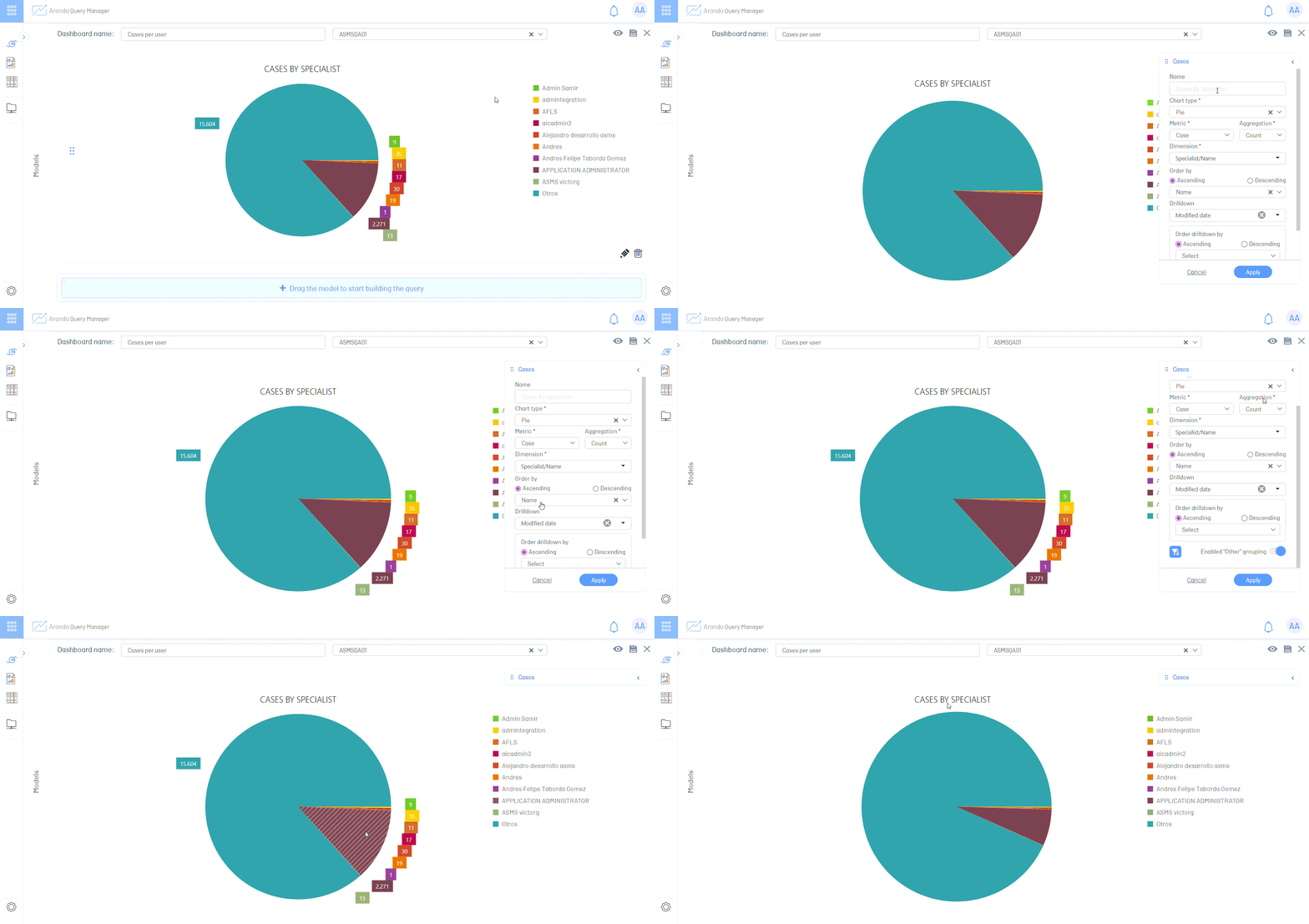
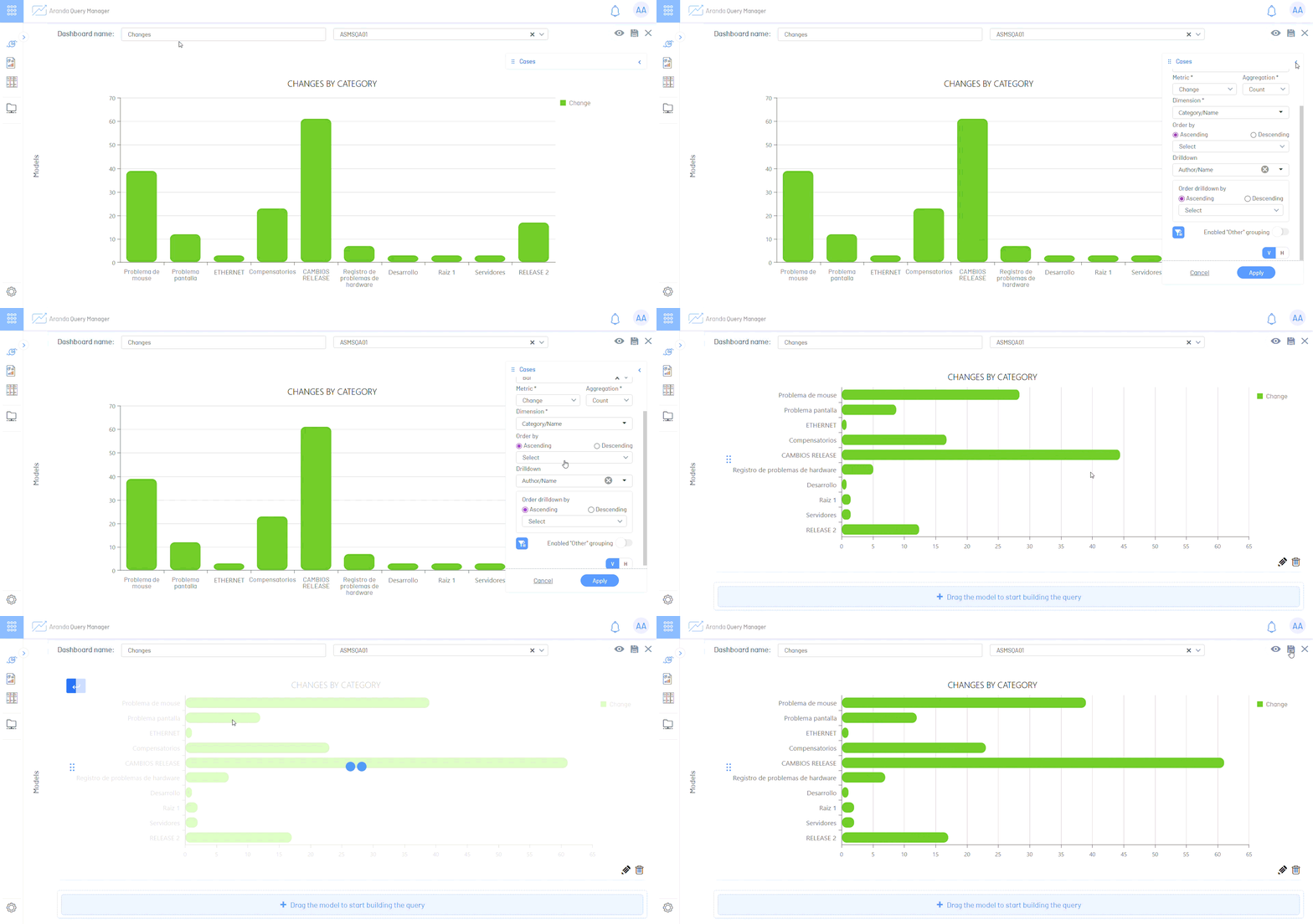
Bar Chart
| Option in the form | Description | Use in chart creation |
|---|---|---|
| Name | Chart name. | Specify a name for the chart. |
| Metric | A set of attributes that can be calculated. | Select a Metric from a data model. |
| Aggregation | Calculate the metric with operations predetermined by the application. | Select an aggregation. Note: It is normal that not all aggregations (Count, Sum, average) are seen. |
| Dimension | These are the attributes that are part of the metric. | Select an attribute from the list. There are dimensions that can have an additional attribute level. |
| Sorting Directorate | Indicates the direction in which the data is sorted when displayed. | Select the sort direction Ascending or Descending. |
| Sorting by column | Sort the information by a column. | Select the column that requires sorting. |
| Drilldown | Allows you to click on a portion of the chart to drill down into the information. | Select a column that requires further |
| Filters | It allows you to filter information by columns. | For more information see Filter menu |
| Data grouping | Default The graphs group the first 10 records. This option allows you to group the data that is not displayed, in a label in the visualization called Other. | Enable or disable grouping. |
| Chart orientation | Sort chart information horizontally or vertically. | Select the horizontal or vertical orientation of the chart. |
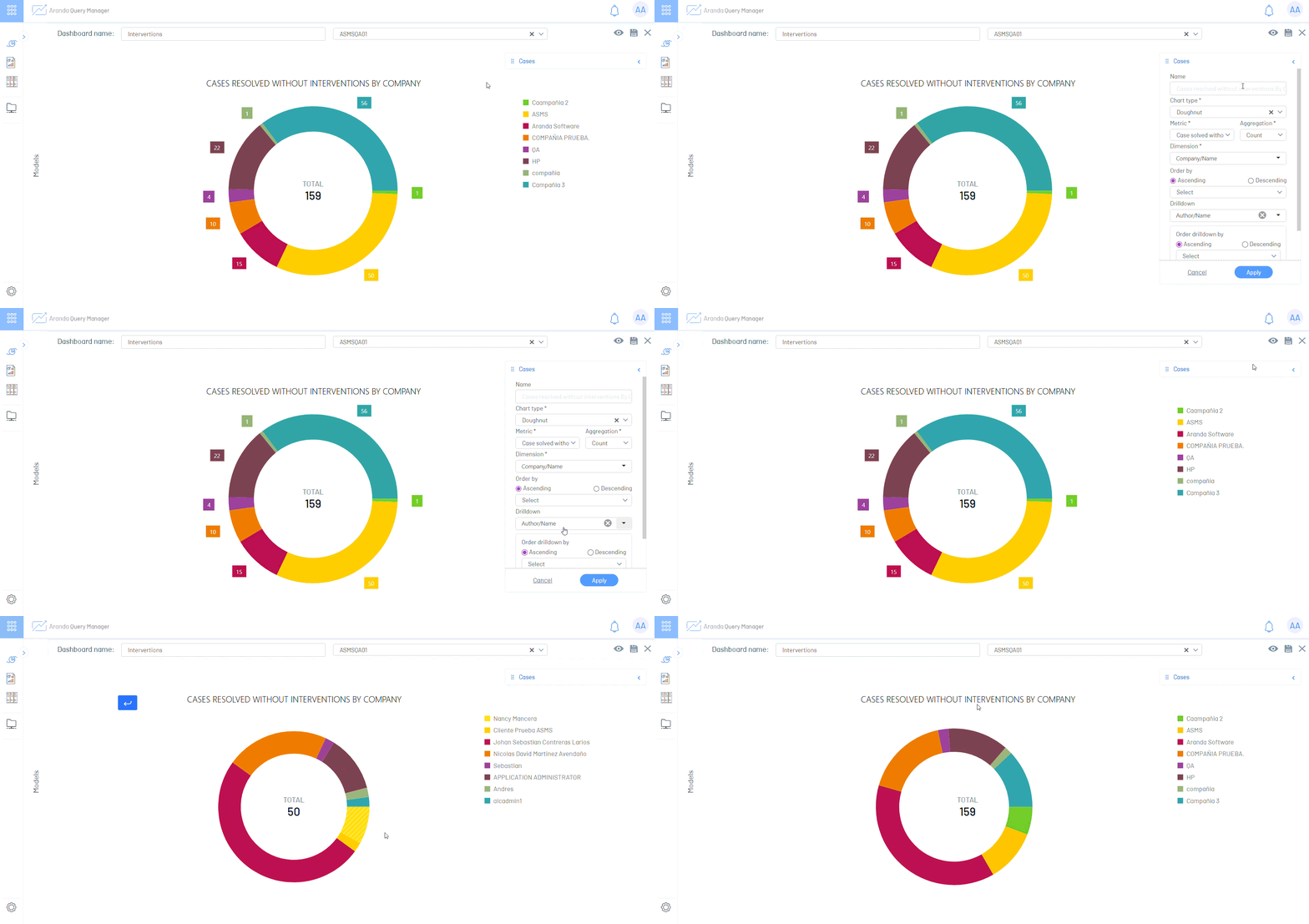
Donut Graphic
| Option in the form | Description | Use in chart creation |
|---|---|---|
| Name | Chart name. | Specify a name for the chart. |
| Metric | A set of attributes that can be calculated. | Select a Metric from a data model. |
| Aggregation | Calculate the metric with operations predetermined by the application. | Select an aggregation. Note: It is normal that not all aggregations (Count, Sum, average) are seen. |
| Dimension | These are the attributes that are part of the metric. | Select an attribute from the list. There are dimensions that can have an additional attribute level. |
| Sorting Directorate | Indicates the direction in which the data is sorted when displayed. | Select the sort direction Ascending or Descending. |
| Sorting by column | Sort the information by a column. | Select the column that requires sorting. |
| Drilldown | Allows you to click on a portion of the chart to drill down into the information. | Select a column that requires further |
| Filters | It allows you to filter information by columns. | For more information see Filter menu |
| Data grouping | Default The graphs group the first 10 records. This option allows you to group the data that is not displayed, in a label in the visualization called Other. | Enable or disable grouping. |
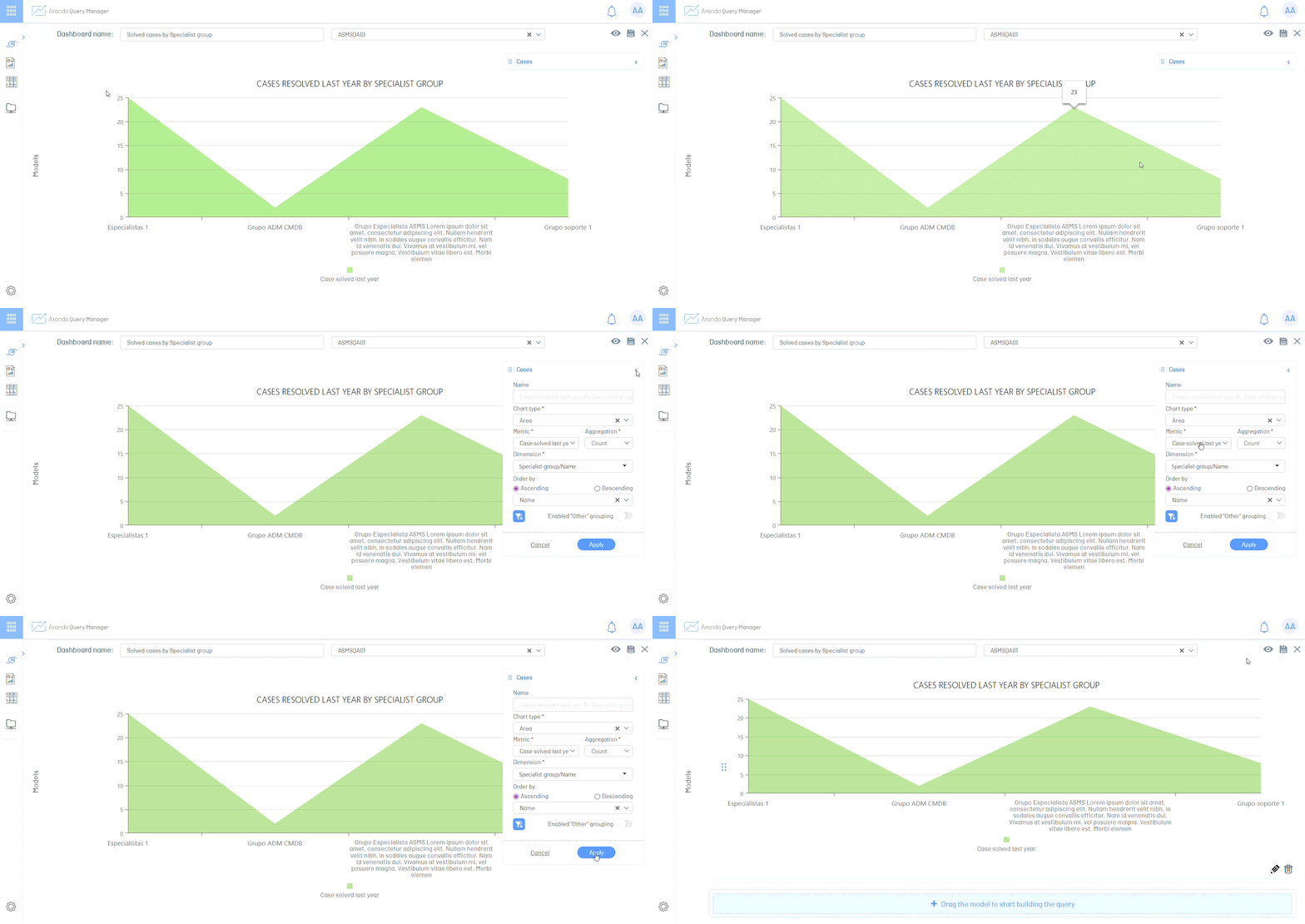
Area Chart
| Option in the form | Description | Use in chart creation |
|---|---|---|
| Name | Chart name. | Specify a name for the chart. |
| Metric | A set of attributes that can be calculated. | Select a Metric from a data model. |
| Aggregation | Calculate the metric with operations predetermined by the application. | Select an aggregation. Note: It is normal that not all aggregations (Count, Sum, average) are seen. |
| Dimension | These are the attributes that are part of the metric. | Select an attribute from the list. There are dimensions that can have an additional attribute level. |
| Sorting Directorate | Indicates the direction in which the data is sorted when displayed. | Select the sort direction Ascending or Descending. |
| Sorting by column | Sort the information by a column. | Select the column that requires sorting. |
| Filters | It allows you to filter information by columns. | For more information see Filter menu |
| Data grouping | Default The graphs group the first 10 records. This option allows you to group the data that is not displayed, in a label in the visualization called Other. | Enable or disable grouping. |
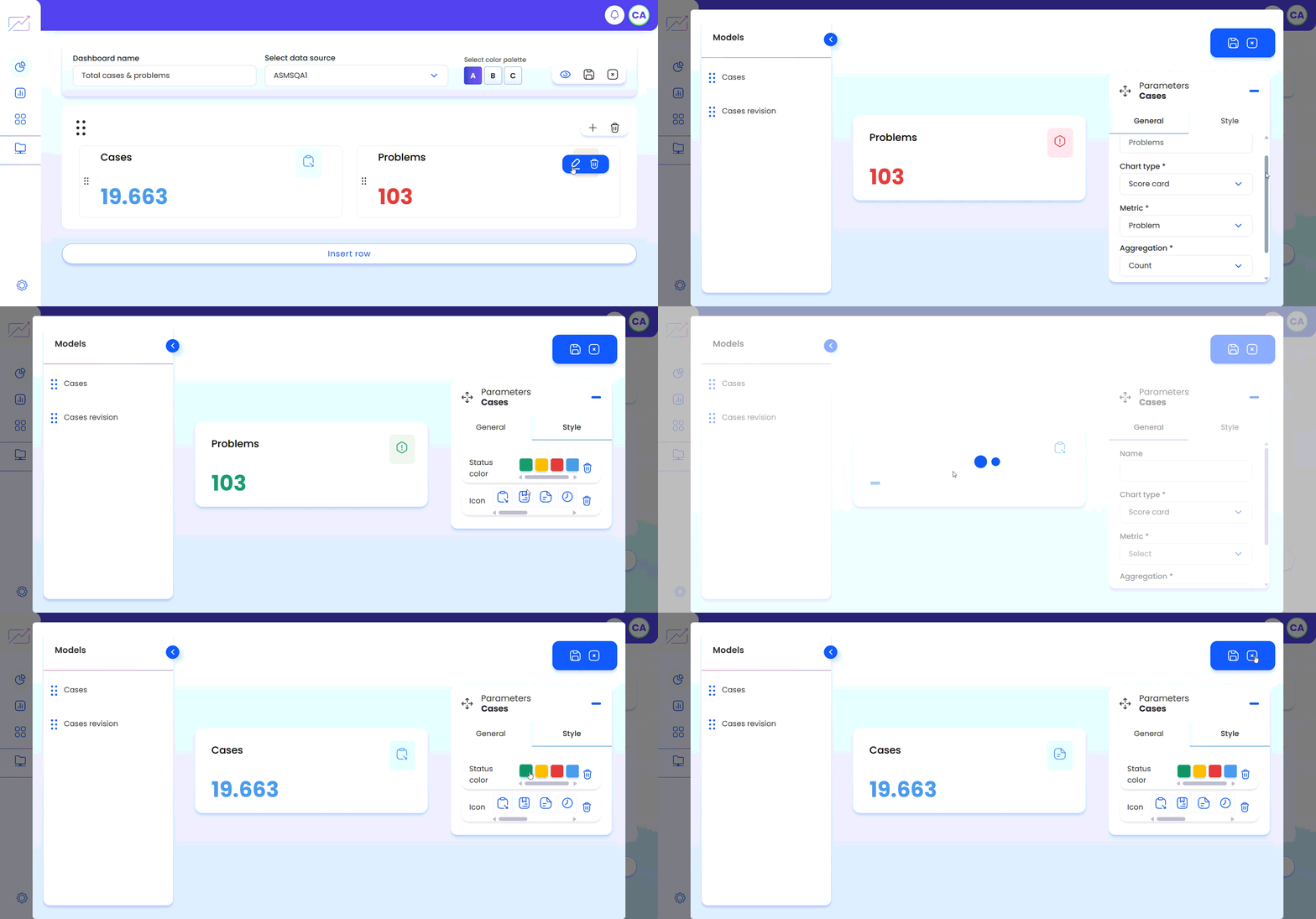
Card Chart
| Option in the form | Description | Use in chart creation |
|---|---|---|
| Name | Chart name. | Specify a name for the card. |
| Description | Describes the card chart. | Specify a description for the chart. |
| Metric | A set of attributes that can be calculated. | Select a Metric from a data model. |
| Aggregation | Calculate the metric with operations predetermined by the application. | Select an aggregation. Note: It is normal that not all aggregations (Count, Sum, average) are seen. |
| Filters | It allows you to filter information by columns. | For more information see Filter menu |
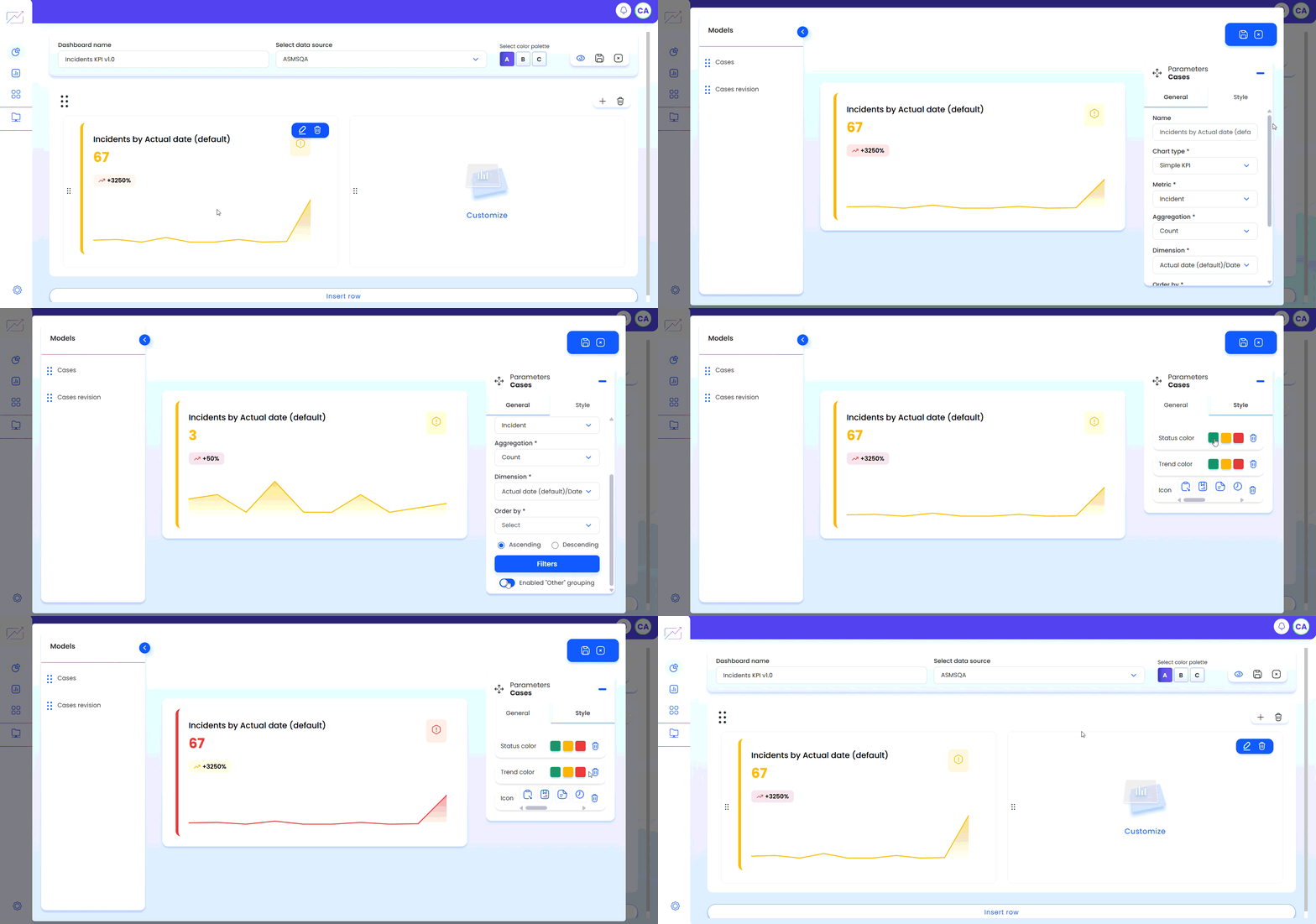
Simple KPI Chart
| Option in the form | Description | Use in chart creation |
|---|---|---|
| Name | Chart name. | Specify a name for the simple KPI. |
| Metric | A set of attributes that can be calculated. | Select a Metric from a data model. |
| Aggregation | Calculate the metric with operations predetermined by the application. | Select an aggregation. Note: It is normal that not all aggregations (Count, Sum, average) are seen. |
| Dimension | These are the attributes that are part of the metric. | Select an attribute from the listing if the visualization requires a breakdown by dimension. Only dimensions are listed in relation to dates. |
| Sorting Directorate | Indicates the direction in which the data is sorted when displayed. | Select the sort direction Ascending or Descending if the option is available. |
| Sorting by column | Sort the information by a column. | Select the column that requires sorting if the option is available. |
| Filters | It allows you to filter information by columns. | For more information see Filter menu |
| Data grouping | Default The graphs group the first 10 records. This option allows you to group the data that is not displayed, in a label in the visualization called Other. | Enable or disable grouping. |
Tracking KPI chart
| Option in the form | Description | Use in chart creation |
|---|---|---|
| Name | Chart name. | Specify a name for the tracking KPI. |
| Metric | A set of attributes that can be calculated. | Select a Metric from a data model. |
| Aggregation | Calculate the metric with operations predetermined by the application and choosing the target mode by metric or value. | Select an aggregation, target mode Metric if you want to compare it to a metric or value if you want to specify a target value. Note: It is normal that not all aggregations (Count, Sum, average) are seen. |
| Dimension | These are the attributes that are part of the metric. | Select an attribute from the listing if the visualization requires a breakdown by dimension. Only dimensions are listed in relation to dates. |
| Sorting Directorate | Indicates the direction in which the data is sorted when displayed. | Select the sort direction Ascending or Descending if the option is available. |
| Sorting by column | Sort the information by a column. | Select the column that requires sorting if the option is available. |
| Filters | It allows you to filter information by columns. | For more information see Filter menu |
Gauche Chart
| Option in the form | Description | Use in chart creation |
|---|---|---|
| Name | Chart name. | Specify a name for the Gauche chart. |
| Metric | A set of attributes that can be calculated. | Select a Metric from a data model. |
| Aggregation | Calculate the metric with operations predetermined by the application. | Select an aggregation. Note: It is normal that not all aggregations (Count, Sum, average) are seen. |
| Ranks | Set up formatting rules that allow you to define the performance threshold. | Configure chart ranges through formatting rules. For more information, seeRanges (Formatting Rules). |
| Filters | It allows you to filter information by columns. | For more information see Filter menu |
Sorting and query filters
Ordering
The information presented when generating the dashboard is sorted by the identifier in descending order. You can also sort the information by other columns.
1. Once the metric to query in the workspace has been defined, select a column to sort in ascending or descending order, in the query creation window.
2. Click the to save changes made to filters.
Filters
Apply filters to columns to display information as required.
1. Once the Metric to query in the workspace, click the  to open the Filters settings menu.
2. Click the  to add a filter.
3. Select the column, logical operator, and value by which you want to filter the information.
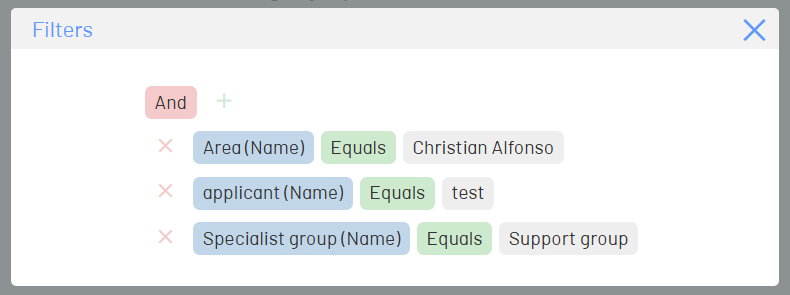
4. Close the filter settings menu and click the  to save changes made to filters.
⚐ Note: Changes made to filters and sorts are updated in real-time.
Ranges (Formatting Rules)
Ranges allow the Gauche chart to be contextualized by defining the result of the metric within a performance threshold (e.g., bad, acceptable, or good), making it easier to visually interpret the information.
Configuring Ranges and Formatting Rules
The following describes the configuration of Gauche chart ranges through formatting rules.
1. Click the Setting Up Ranges.
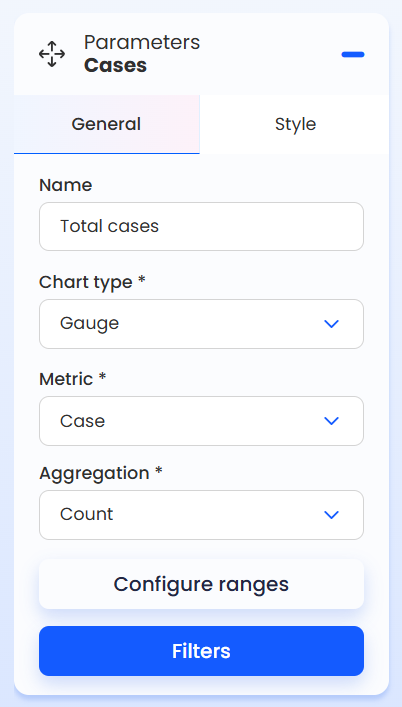
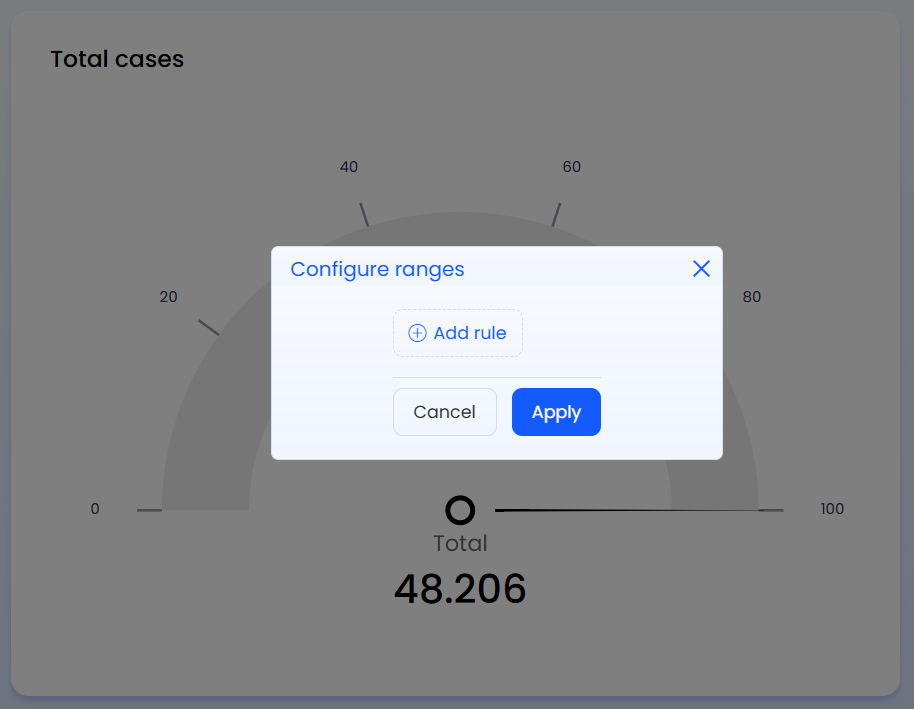
2. The range settings menu opens. Click Add Rule.
3. Specify a name, operator, numeric value of the range, and color to distinguish it.
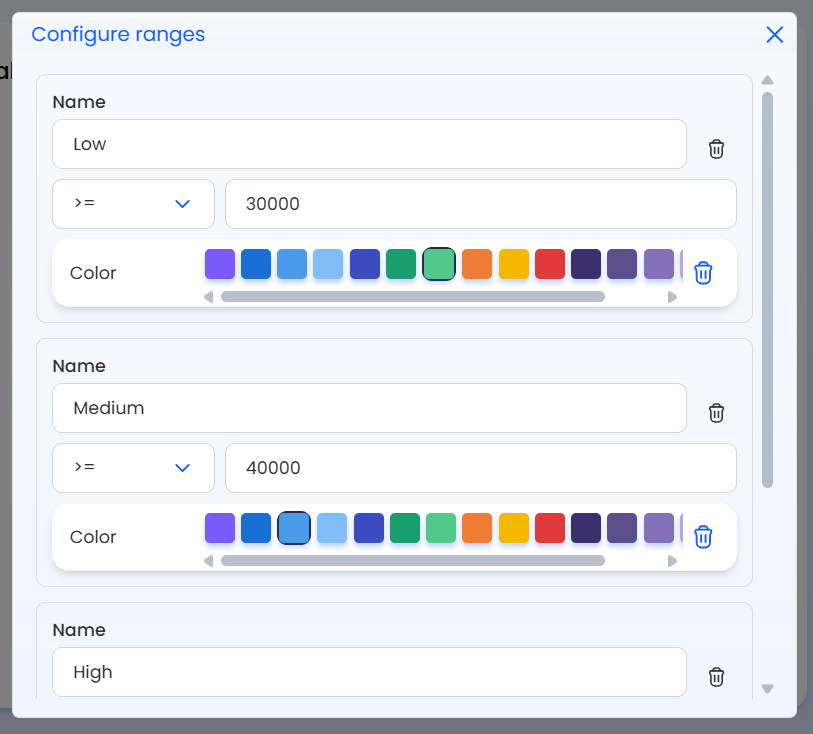
4. Add more rules at your discretion.
5. Click Apply to finish the setup and preview the Gauche chart.
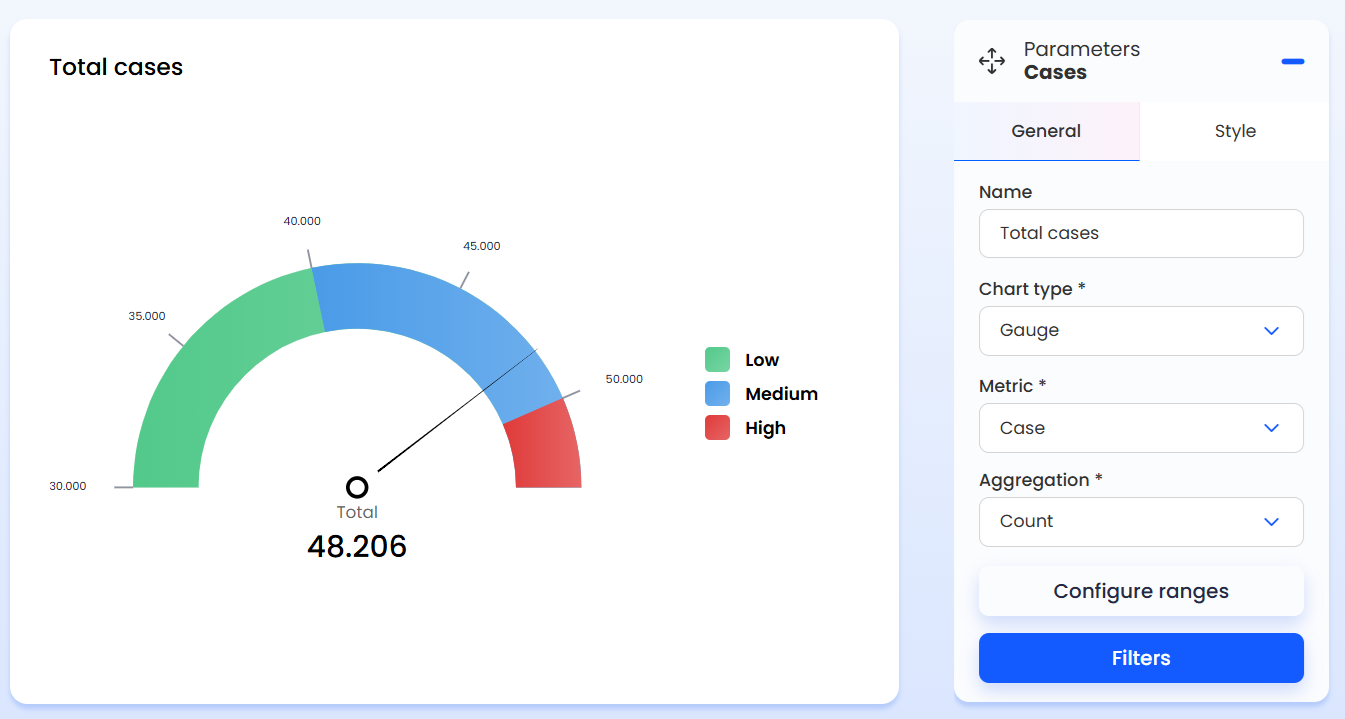
⚐ Note:
- The numerical value of the ranges can be a negative number.
- Rules can be arranged by dragging and dropping your card.
- The rules respect an order and apply from the first to the last.
About Visualization
- You can relocate and resize the dashboard charts as needed.
- You can add more containers for the charts, these can contain a maximum of 4 charts.
- You can switch between three color palette variations (dark mode supported).
- Click the
 to view the dashboard at Display Mode, hiding buttons, focusing the dashboard graphics and allowing you to enter full-screen mode.
 - The Data Models listed are different from those in Quick Reports. Some will not be listed when creating a board.
⚐ Note: The Data Models, Dimensions and Columns they have translations in supported languages.