Reporting Actions
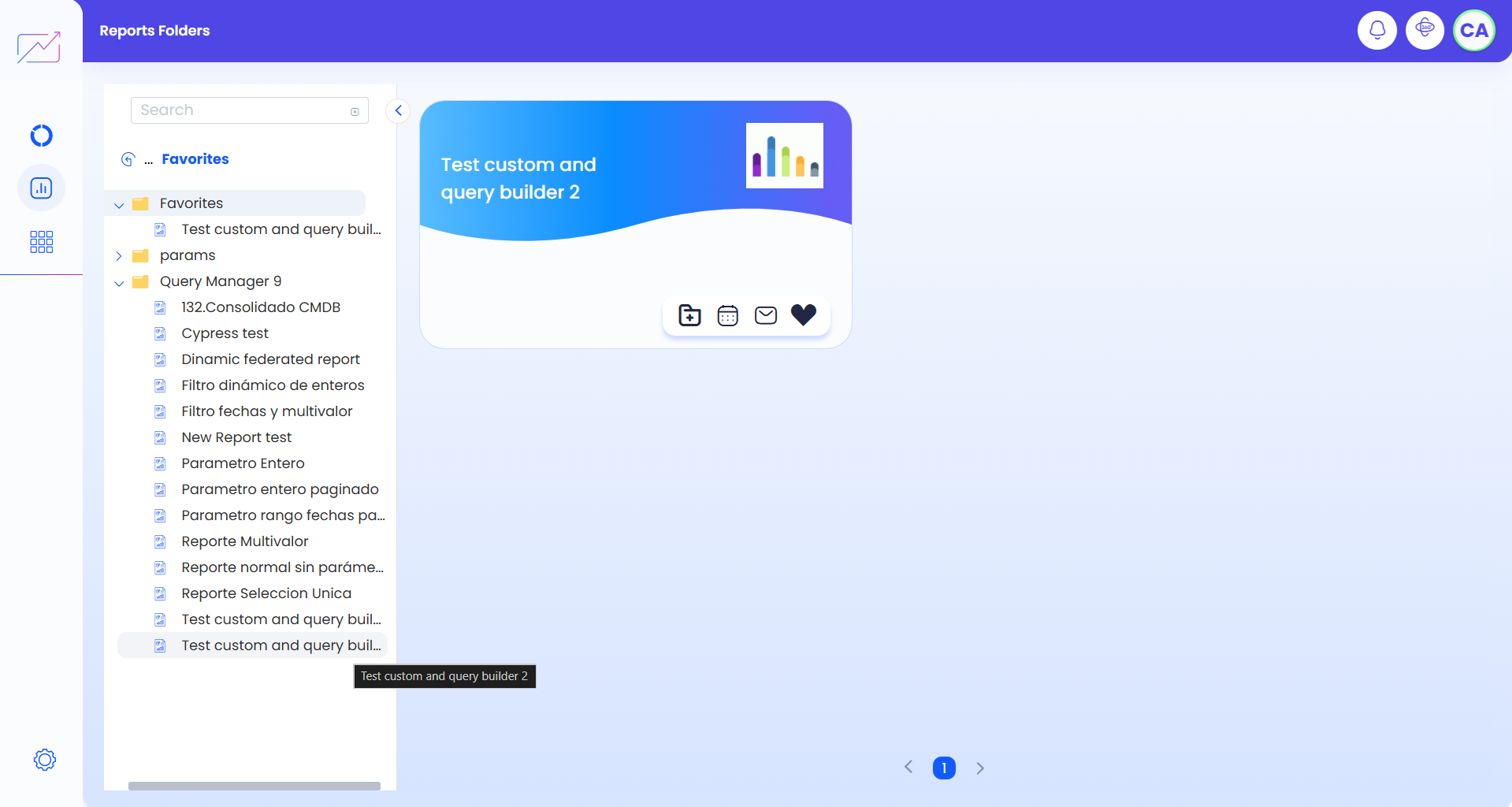
- To execute the actions per report, enter the AQM configuration console, in the General Settings section of the main menu, select a reports folder and in the Information View you will be able to view the report logs that have read permissions.
- In the description of the cards of each report, you will have associated actions such as the publication, scheduling and scheduled sending of reports.
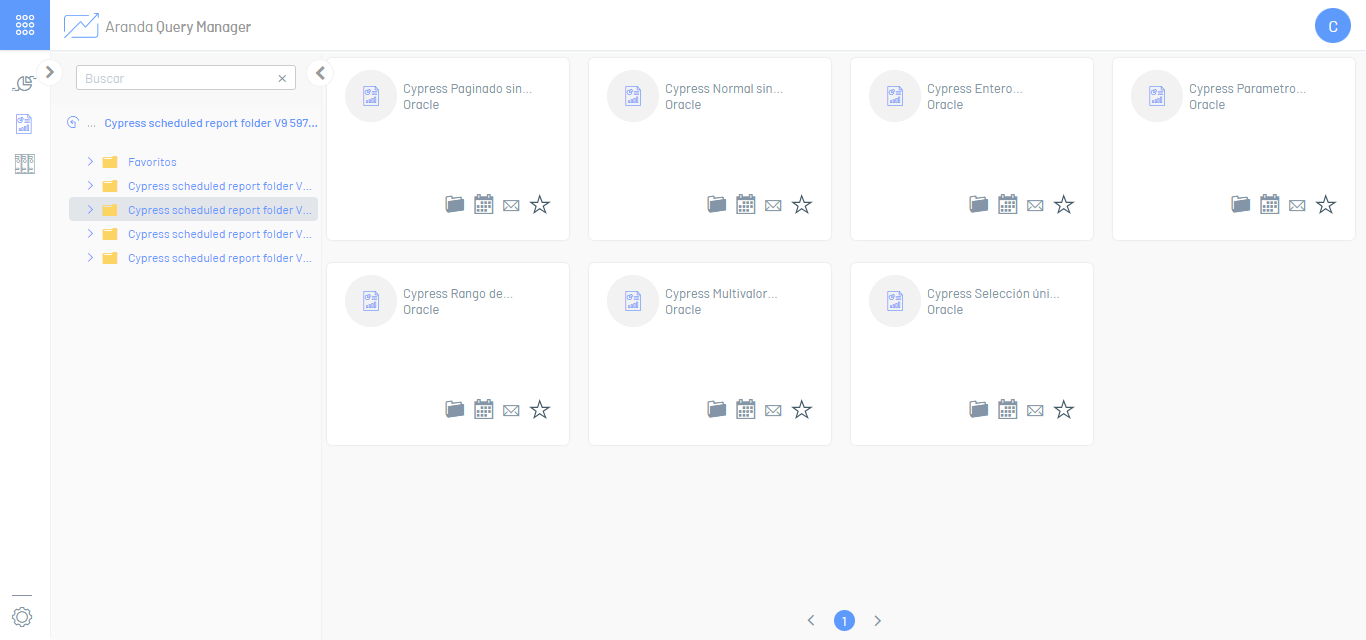
| Action | Icon | Description |
|---|---|---|
| Publish Report |  |
Send a report to a shared folder in environments Onpremise. |
| Schedule Report |  |
Send a report to a recipient via email. |
| Send Report Directly |  |
Email a report to a recipient to view in a pop-up tab. |
| Bookmark |  |
When you check this option, the report will appear in the Favorites folder. |
Publish Report
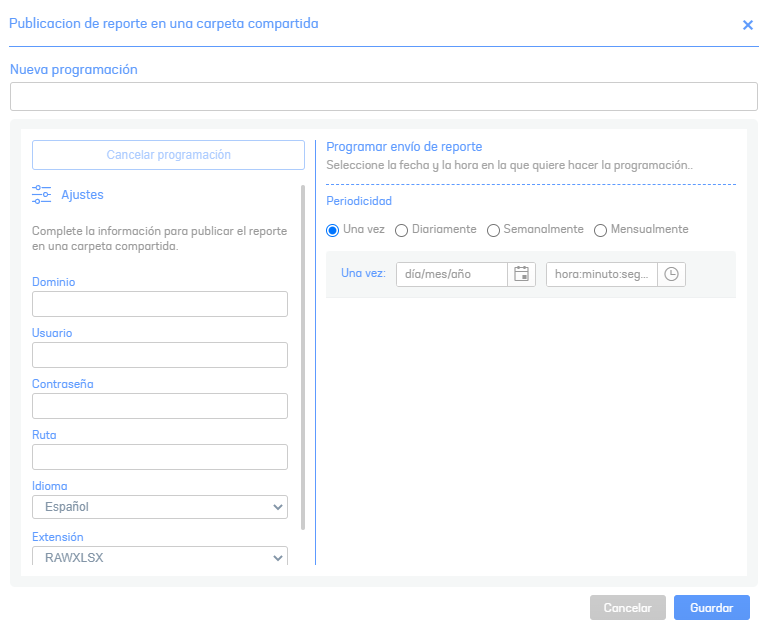
In the window Publishing Report to a Shared Folder, you will be able to consult the reports to be published and publish according to an established schedule.
The process of publishing a report is authenticated with the user and password parameters specified in the local environment OnPremise.
If the auto-increment option is enabled on the form, a file will be created sequentially; a new one each time the report schedule is executed. Otherwise, the generated file will always be overwritten in the destination folder and the parameter of using UTC dates does not apply.
The name of the file in the folder is as follows: fecha_nombrereporte. Where date is the date of the server. If UTC dates are enabled, the Universal Date will be used for file renaming. The format of the date will be yyyy-MM-dd-HH-mm
⚐ Considerations:
- Shared folder publishing is intended for use only in local environments.
- The location or path of the folder where the documents are published must be located on the same machine. It does not apply to routes through local networks and VPNs.
Schedule Report
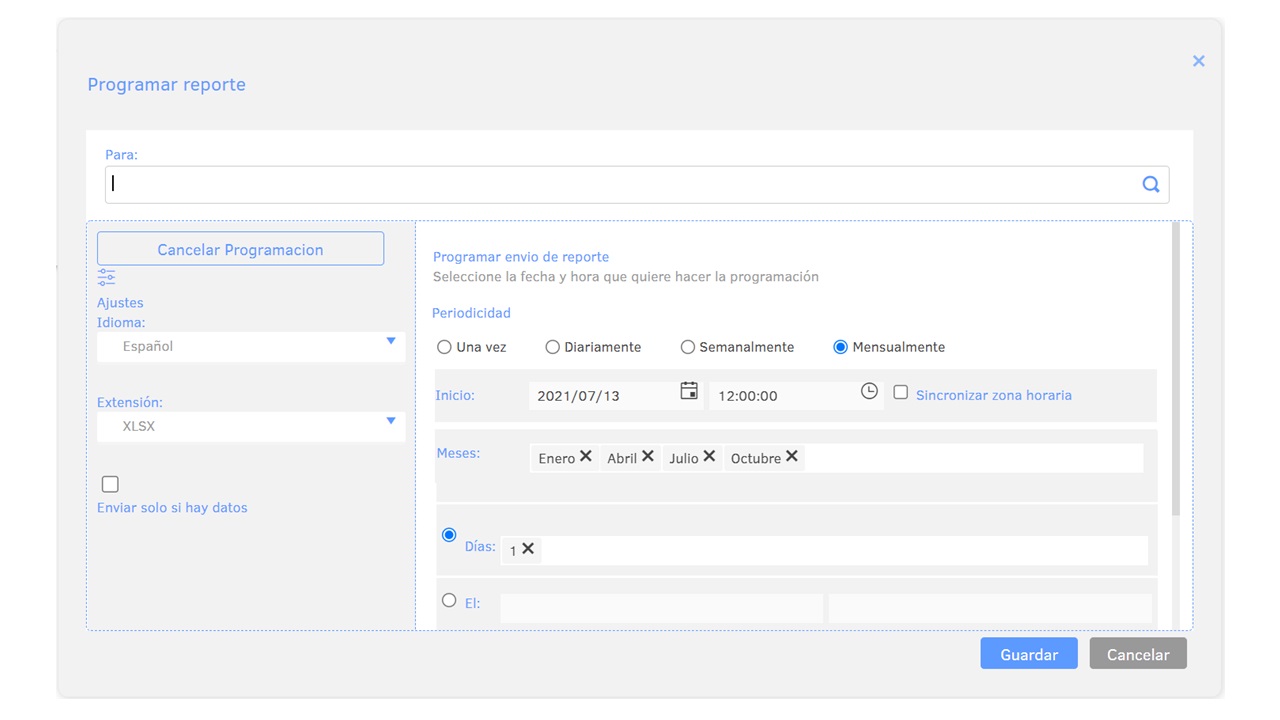
In the window Schedule Report, you will be able to consult reports for scheduling and sending them periodically. This form requests the data to schedule the sending of reports in the future. You can configure multiple schedules for the sending of the report, choose an existing one or press New programming to set up one.
⚐ Note: Users with an administrator role can manage the schedules of all users.
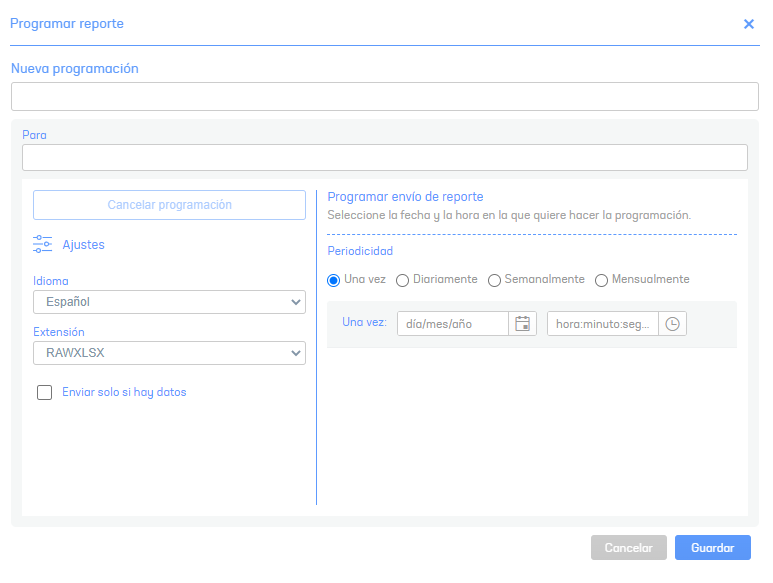
Enter the requested information:
| Field | Description |
|---|---|
| In this field you can add one or more email addresses, an autocomplete mechanism will be activated. To validate it, press enter (which will make the email appear inside the box), | |
| Extension | Specify the export format of the report |
| Language | Select the export language |
| Periodicity | Define the date and time at which the report will be scheduled and the frequency at which the schedule is made (once, daily, weekly, monthly). If the report export frequency is once, the schedule will be automatically deleted after the document is emailed. In case the report contains parameters, they will appear for you to specify their respective values. |
Send Report Directly
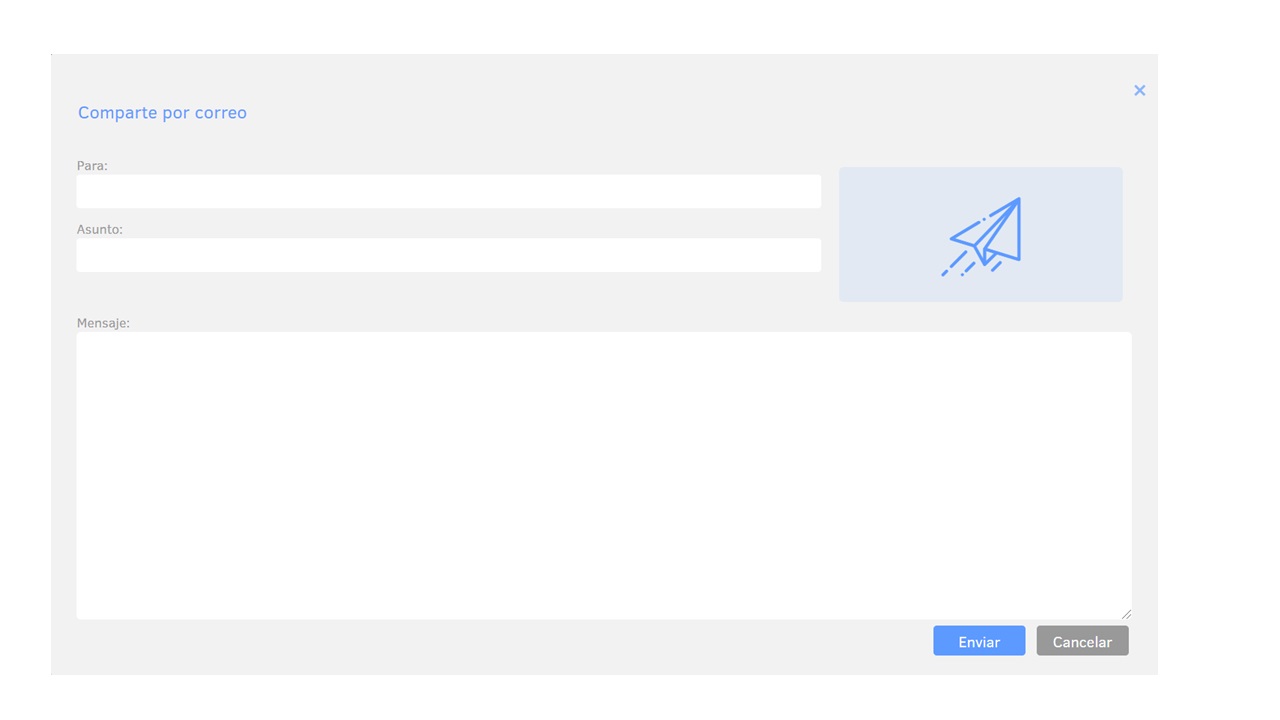
In the share by email window, you can send the report by email by defining the recipient, subject and message of the email.
Immediately, this sending is used for the recipient to use the report through a link. The recipient must have a previously configured and licensed user.
Favorite
Add favorite reports at your discretion from any of the folders to which you have permission. These reports will appear in the favorites folder of the main report tree only for your user.