


From the Devices list view, you will be able to access a detail where you will see the summary of vulnerabilities, the security score, the list of vulnerabilities, the group with its associated policy and the option to update the agent.
Summary Vulnerabilities
In the device detail, the vulnerability summary (Total, Critical, Important, Moderate, and Low) is always visible at the top of the page, without requiring a separate tab.

On the Summary, you will be able to view the card Safety Score, calculated from the security scan of the device. This card indicates the overall security level of the computer, the date of the last scan (Last analysis) and makes it easier to identify those devices with possible risks.
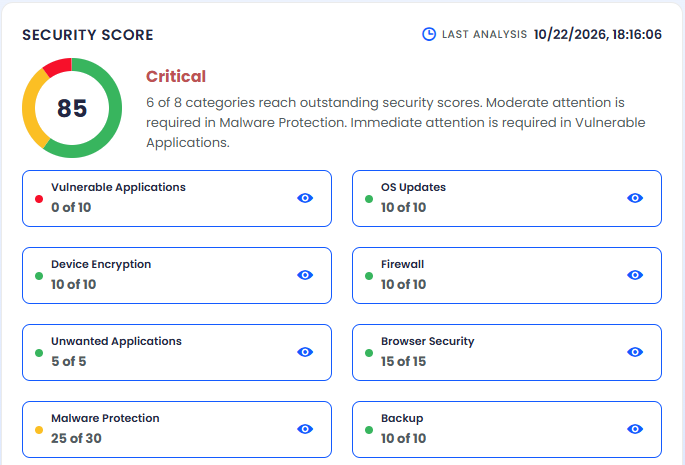
The card displays a numerical score, from 0 to 100, along with a risk level (e.g., Critical), and organizes the result into eight safety categories: Vulnerable Applications, OS Updates, Device Encryption, Firewall, Unwanted Applications, Browser Security, Malware Protection and Backup; Each category presents the score obtained against the maximum possible.
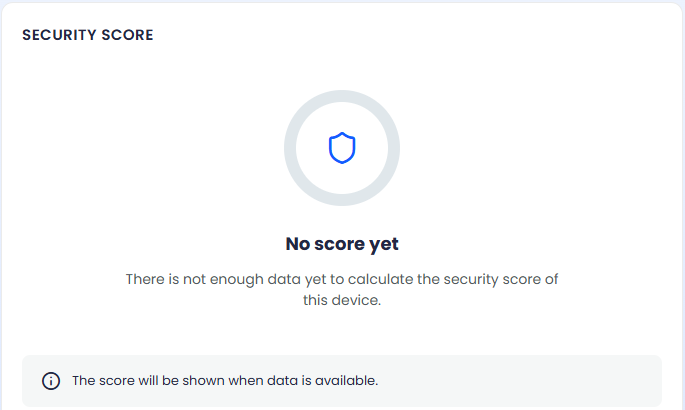
⚐ Note: The agent runs the Security Score analysis at startup and every 24 hours. As long as the device does not have enough information to calculate it, the card displays the message No score yet.
By clicking on the view icon  per category, a window is enabled with the detail of the validation performed; the information presented varies according to the type of category:
DEFINICIÓN: ❯ Vulnerable Applications
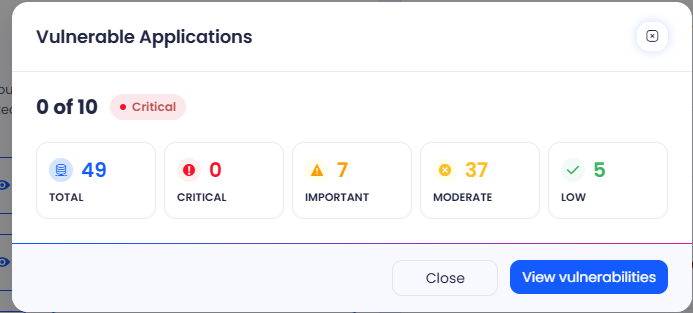
Displays the device’s vulnerability rating by severity (Total, Critical, Important, Moderate, and Low) and the View vulnerabilities, which directs to the Vulnerabilities of the device.
DEFINICIÓN: ❯ OS Updates
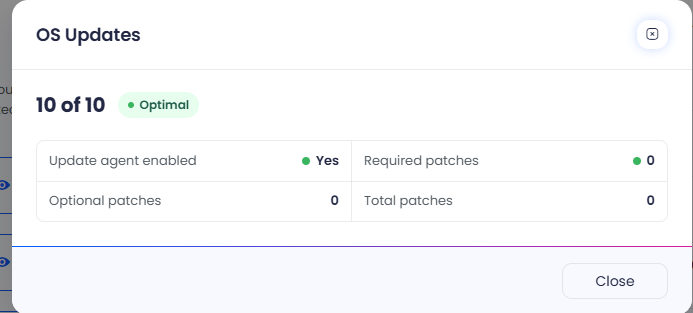
Indicates whether the Update Agent is enabled and the number of required, optional, and total patches pending installation.
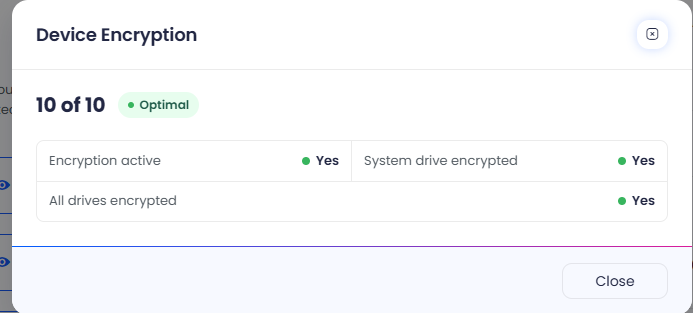
DEFINICIÓN: ❯ Device Encryption
Indicates whether encryption is active, whether the system drive and device drives are encrypted.
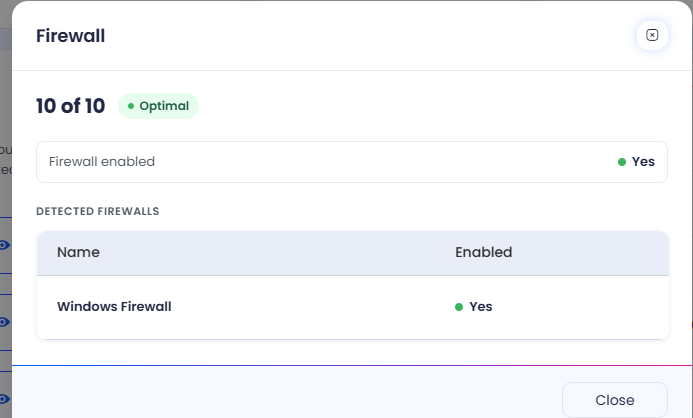
DEFINICIÓN: ❯ Firewall
Indicates whether the firewall is enabled and lists firewalls detected on the device along with their status.
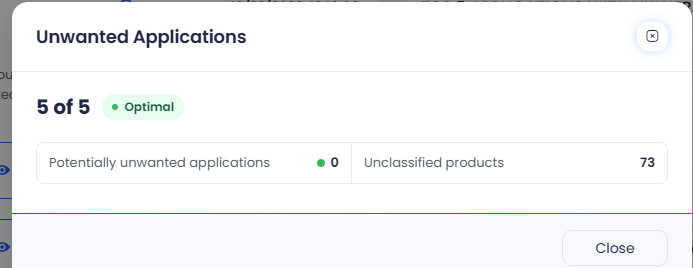
DEFINICIÓN: ❯ Unwanted Applications
Indicates the number of detected potentially unwanted applications and the number of unclassified products.
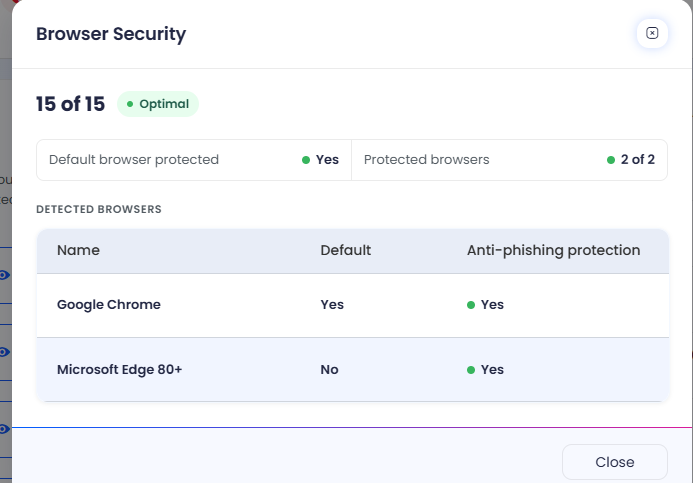
DEFINICIÓN: ❯ Browser Security
Indicates whether the default browser and other browsers are protected; lists detected browsers with their default status and anti-phishing protection.
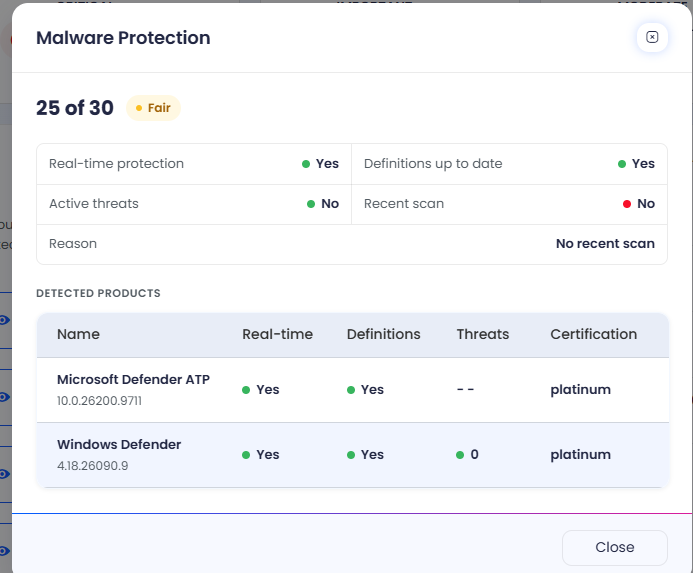
DEFINICIÓN: ❯ Malware Protection
Indicates the real-time protection status, the update of definitions, the presence of active threats, and the date of the last scan (when there is no recent scan, the reason is indicated). It also lists detected protection products with their certification.
DEFINICIÓN: ❯ Backup
Indicates the number of backup products detected and lists each one along with the date of its last backup made.
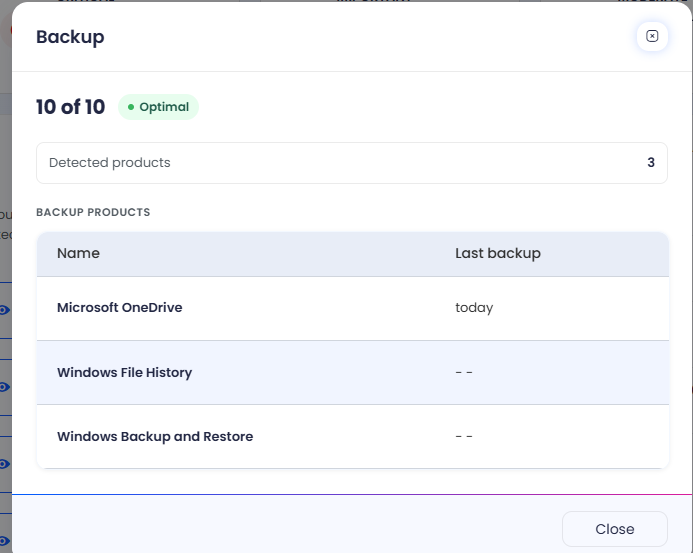
⚐ Note: The risk level of each category (Optimal, Fair or Critical) depends on the results obtained against the maximum possible defined for that category.
Policies
When you select the Policies, the criteria associated with the device will be displayed, organized in expandable cards with the status of each validation. The Remediation and the date of the last scan, allowing the most recent changes to be identified.

Groups
When accessing the Groups, the name of the only group that the device is associated with will be displayed. This functionality allows the relationship between the device and its corresponding group to be quickly and accurately identified, facilitating its management within the platform.

Vulnerabilities
When you select the Vulnerabilities, a detailed list of detected vulnerabilities that are associated with the device will be displayed. In addition, the tool offers severity filtering options, making it easy to prioritize those most critical vulnerabilities that require immediate attention.
This view also visualizes the version of the vulnerability catalog used in the scan, allowing you to accurately identify the source of information applied and validate that the device was evaluated with the most recent version available. This provides greater traceability and context in vulnerability management.

Remediation Activity
When you select the Remediation Activity, you will be able to view the list of actions carried out on the device, allowing detailed monitoring according to their status of evolution (Executed, Pending or Error) and facilitating the supervision and management of remediations.
⚐ Note: In this section you will be able to Apply the advanced filters to search for user-specific actions and/or remediation actions and/or Use the filters by status to identify devices or systems that require tracking, corrective actions, or priority attention.
This management speeds up the location of interventions and ensures quick access to the information necessary for analysis and decision-making.


Update Agent
In the device detail, select the Quick Actions to display the Device Actions, where the Update Agent only when it is detected that the installed version of the agent on the device is lower than the last published version. Selecting it will automatically start the update process in the background, without interrupting the user’s operations in the application.
In this way, the system ensures that the agent is always kept up to date with the latest improvements, correcting possible errors, optimizing performance and ensuring compatibility with new functionalities, while the user continues with their management tasks transparently and without interruptions.
