


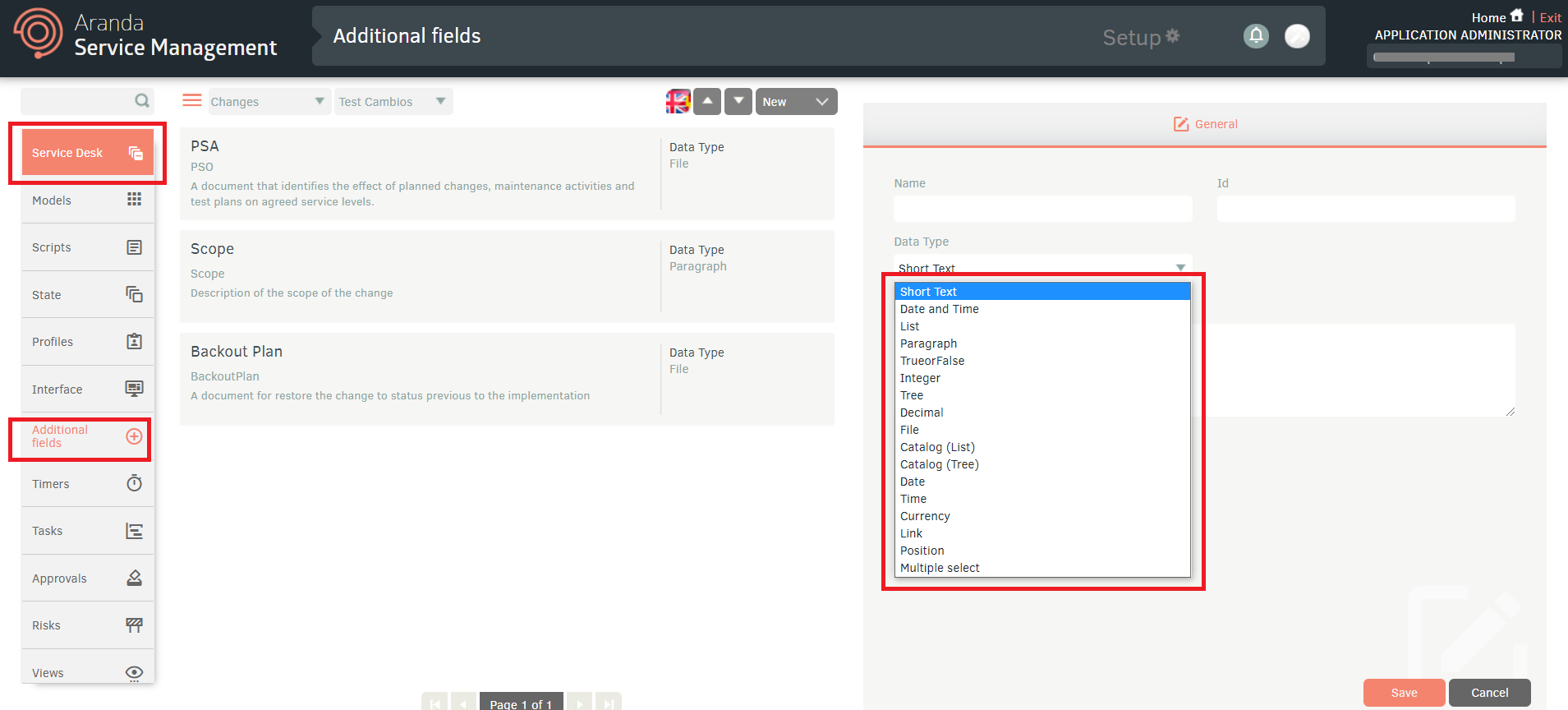
The connector allows you to add the additional fields as connector fields (the assignment of the value depends on the type of field).
Additional fields
To add additional information required by the item, go to Advanced Options:
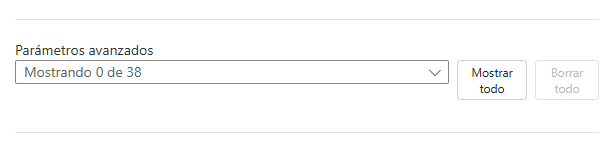
The deployed component allows you to add the additional fields of Aranda Service Management.
Note:
- Additional fields required in ASMS will be displayed as required fields in the connector. Example:
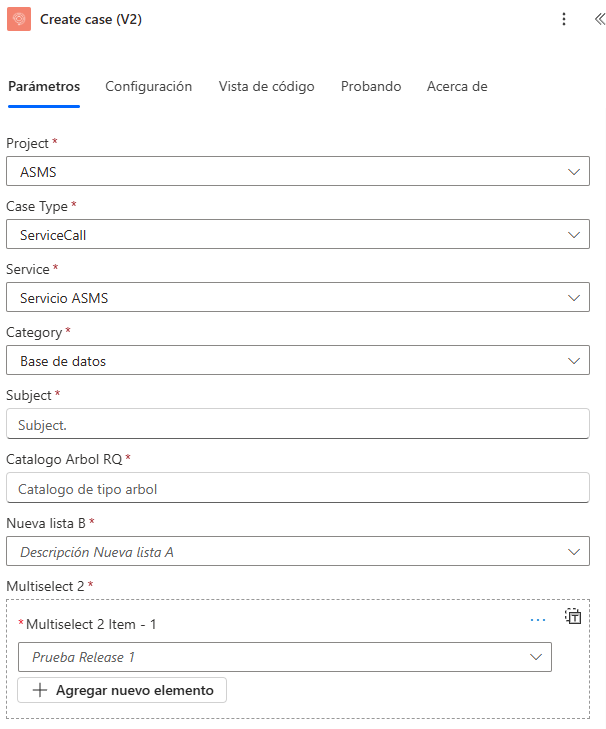
Additional field types
ASMS has the following types of additional fields:
- Short text (ShortText)
- Date and time (Datetime)
- List (List)
- Paragraph (LongText)
- True or False (CheckBox)
- Integer (Numeric)
- Tree (Recursive)
- Decimal (Decimal)
- File [N/A]
- Catalog (List) (CatalogList)
- Catalog (Tree) (CatalogTree)
- Date (Date)
- Time (Time)
- Currency (Currency)
- Link (Link)
- Position [N/A]
- Multiple select (MultiSelect)
To assign a value, each field must have the following format:
-
Short text (ShortText):
Type the text without any restrictions.
-
Date and time (Datetime)
Enter the date in the following format ISO 8601.
-
List (List)
Type or select the value from the list as found in ASMS:
Note:
- The first 100 items in the list are provided, if the value you require is not in the list, type the value in the
-
Paragraph (LongText)
Type the text without any restrictions.
-
True or False (CheckBox)
Select between “True” or “False” as appropriate.
-
Integer (Numeric)
Enter an integer that corresponds. Example “1000”.
-
Tree (Recursive)
The value for the field must be formatted as follows:
Example:
"valor 1\valor 2\valor 3"
Take the following example
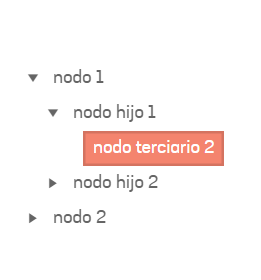
For the example, the value would be as follows:
Example:
"nodo 1\nodo hijo 1\nodo terciario 2"
-
Decimal (Decimal)
Enter a decimal number that corresponds. Example “0.001”.
-
Catalog (List) (CatalogList)
Type or select the value from the list as found in ASMS:
Note:
- The first 100 items in the list are provided, if the value you require is not in the list, type the value in the
-
Catalog (Tree) (CatalogTree)
The value for the field must be formatted as follows:
Example:
"valor 1\valor 2\valor 3"
Take the following example:
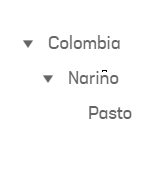
For the example, the value would be as follows:
Example:
"Colombia\Nariño\Pasto"
-
Date (Date)
Enter the date in the following format ISO 8601.
-
Time (Time)
Enter the time in the following format:
HH:mm:ss
-
Currency (Currency)
Enter a decimal number that corresponds.
-
Link (Link)
Enter the value that corresponds to a URL.
-
Multiple select (MultiSelect)
Select a value from the list provided by the connector:
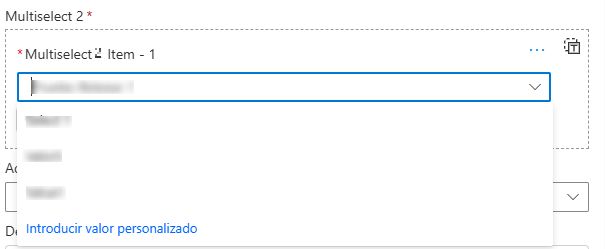
Note:
- The first 100 items in the list are provided, if the value you require is not in the list, type the value in the