


View attachments
1. To view the attachments of a work order, enter the detail of an order and select the option Attachments. In the list of attachments you will be able to see the date, name and type of file added.
The files correspond to documents, images, videos, among others.
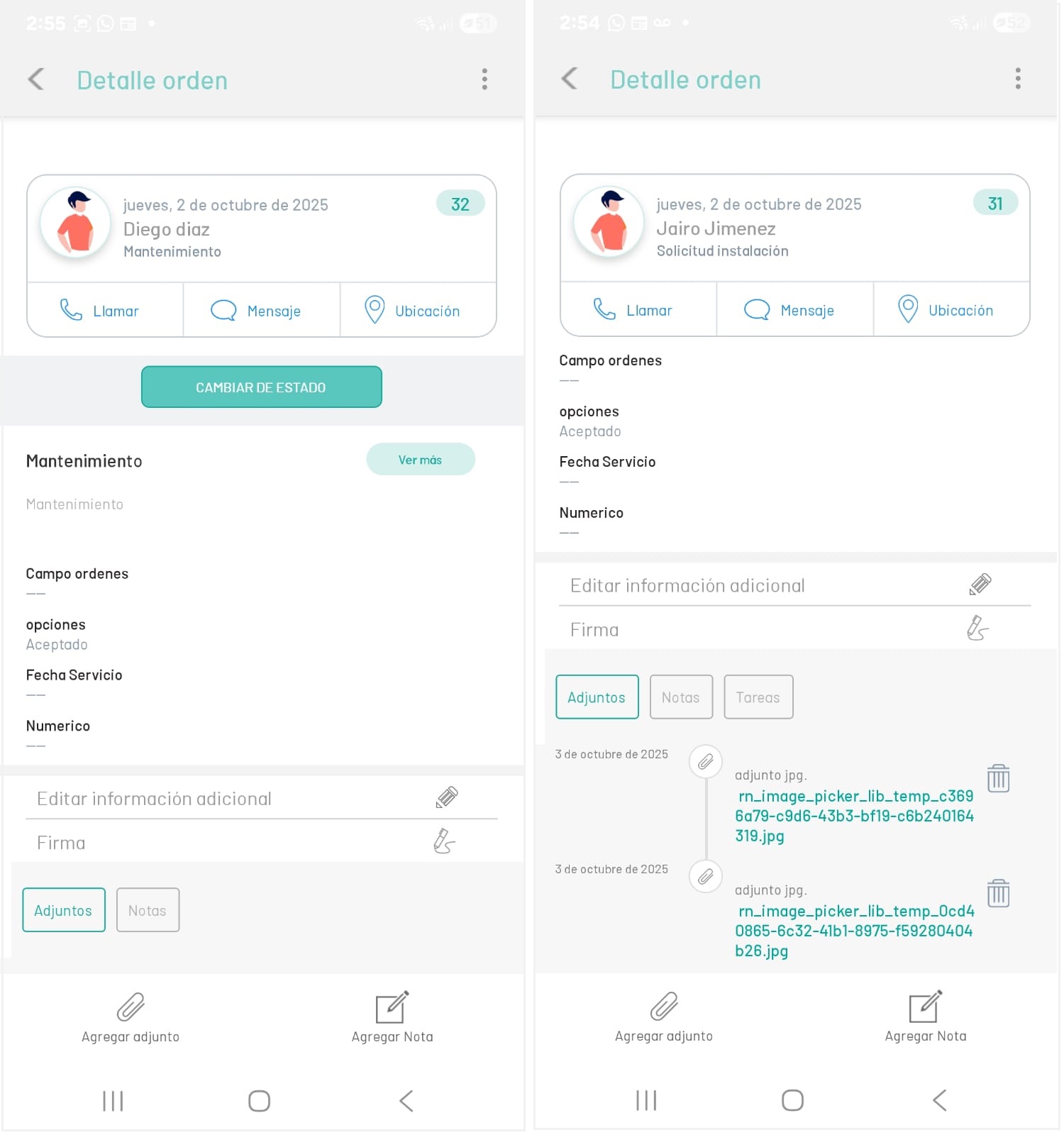
Add Attachments Notes
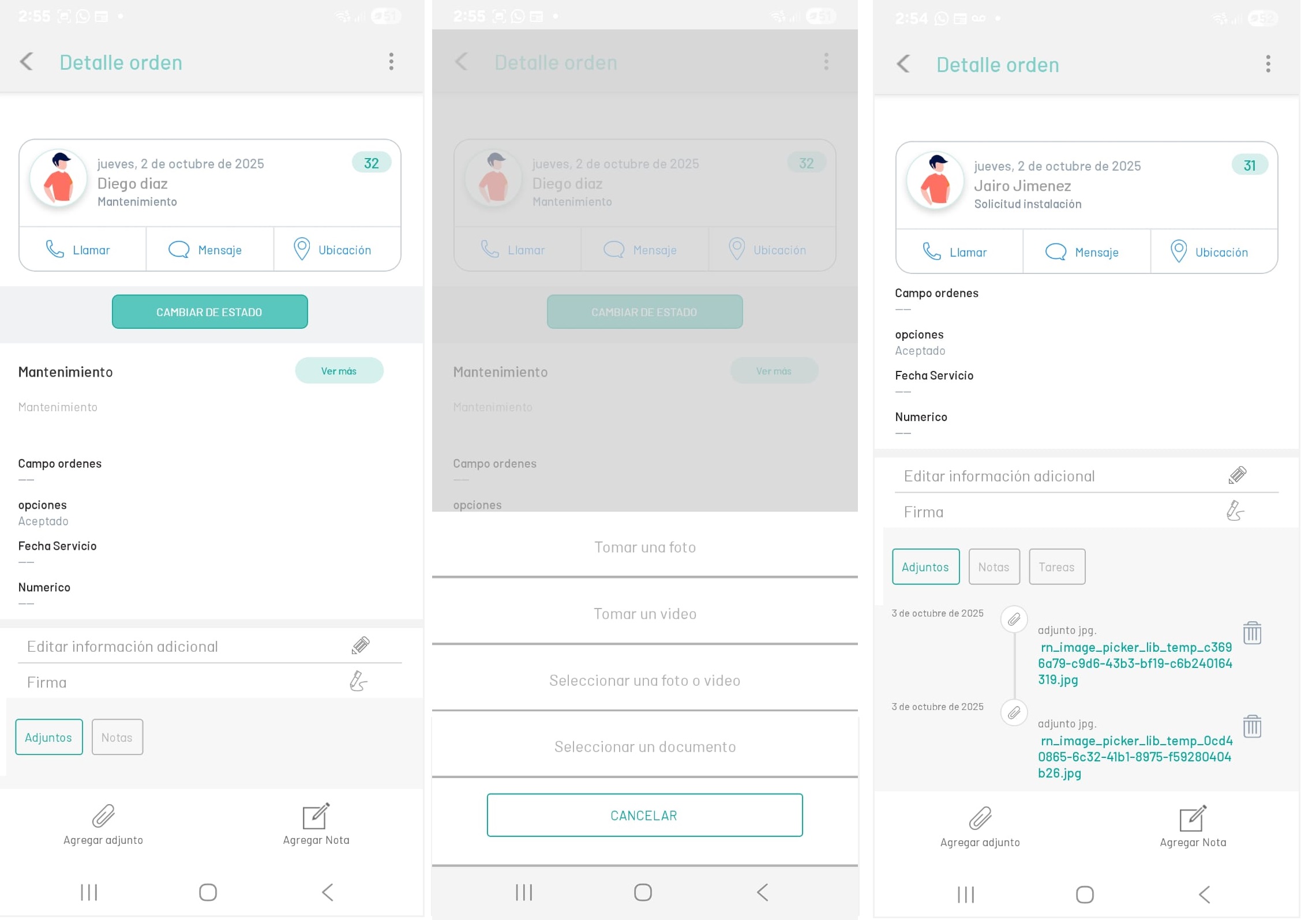
1. Selecting a work order record enables the Order Detail where the specialist may attach the files required during the attention of the work order such as photographs, videos or audios of evidence of the evolution of the service.
2. When selecting the Add Attachment  on the mobile console taskbar and select the file type to upload to the work order.
The file types you can add to the order can be of formats with text, images, photography, videos, or audio content such as: .jpg, .jpeg, .mp4, .mp3, .doc, .xls, .ppt, .PDF, files that have a maximum size of 10MB (except for .exe).
⚐ Note: The Add Attachment action will be enabled in the mobile console for the specialist, when the order status is found In Process.