The field specialist will be able to view from the mobile console, the work orders generated to follow up or process them until the service is completed.
View Work Order
1. In the AFLS mobile console, in the information view of the home workspace, you can view the first three orders scheduled for the day of the consultation.
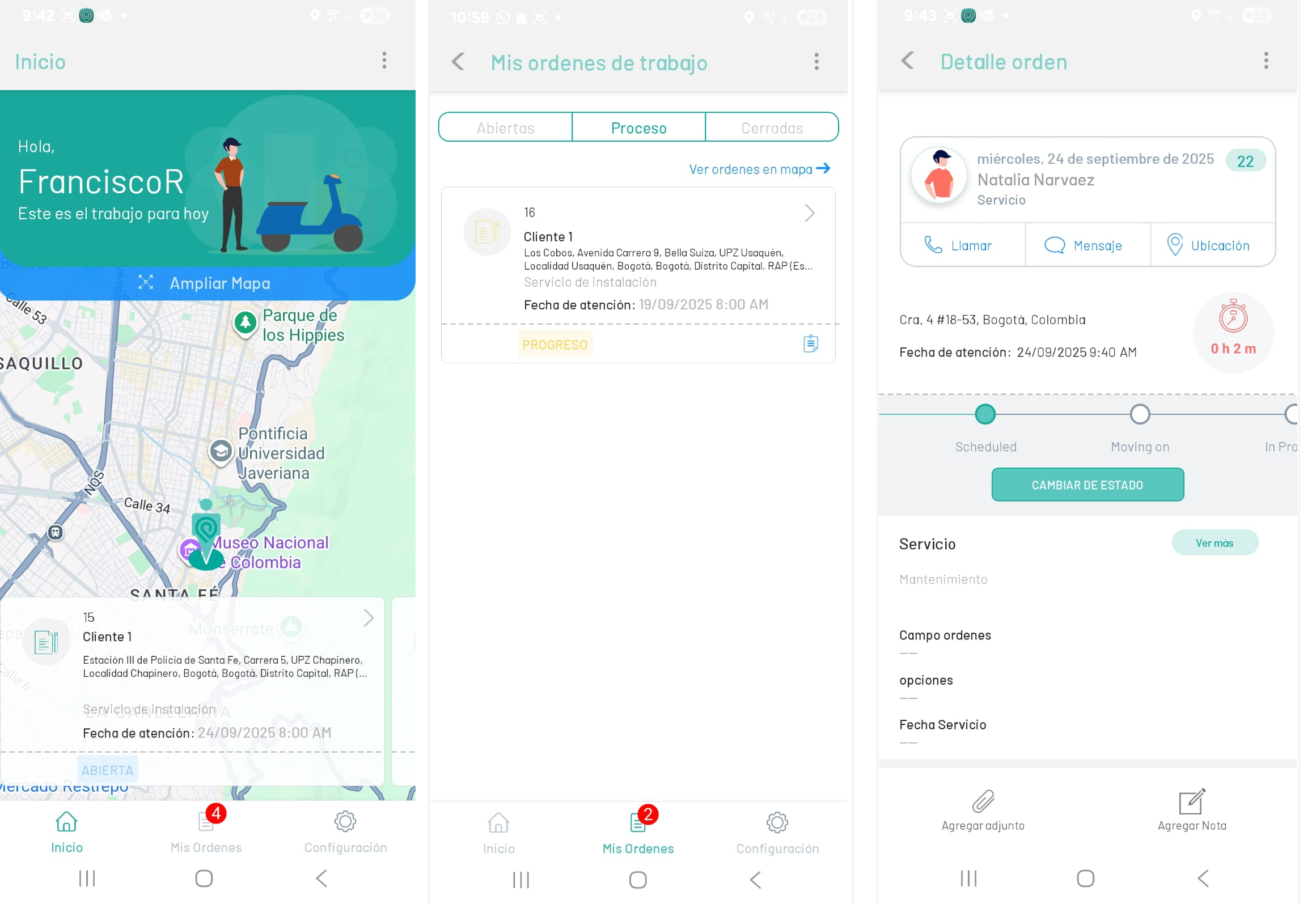
2. Selecting a work order record enables the Order Detail where you can consult basic order information (customer, date and place of operation), contact the customer, add time and change order statuses.
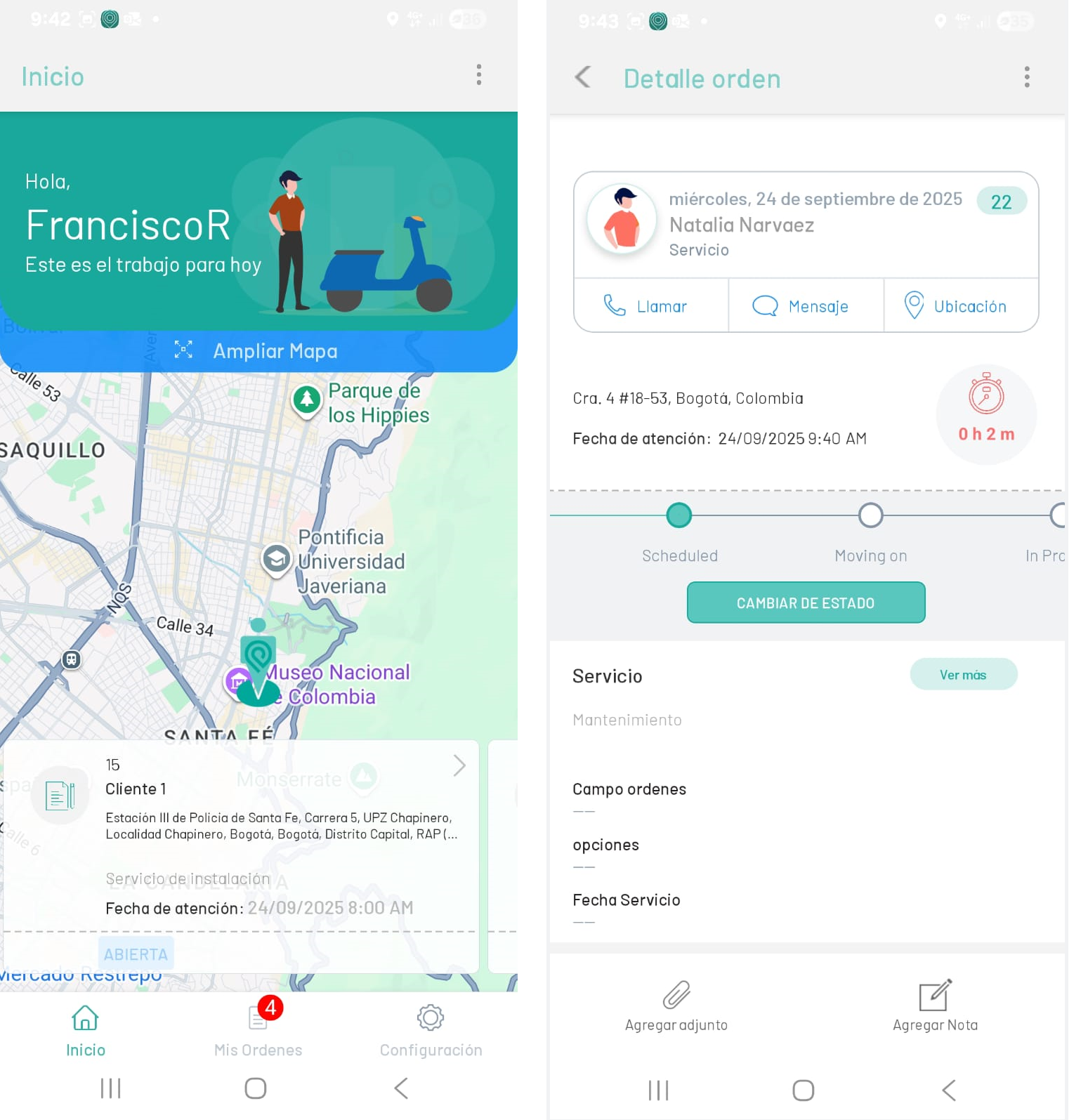
3. Alternatively, to view orders, in the AFLS Mobile Console, in the Home workspace, select the My Orders on the Taskbar, where you can validate all the assigned orders according to their execution status (Open, In Process and Closed).
4. Selecting a work order record enables the Order Detail where you can consult basic order information (customer, date and place of operation), contact the customer, add time and change order statuses.
Display work orders on the map
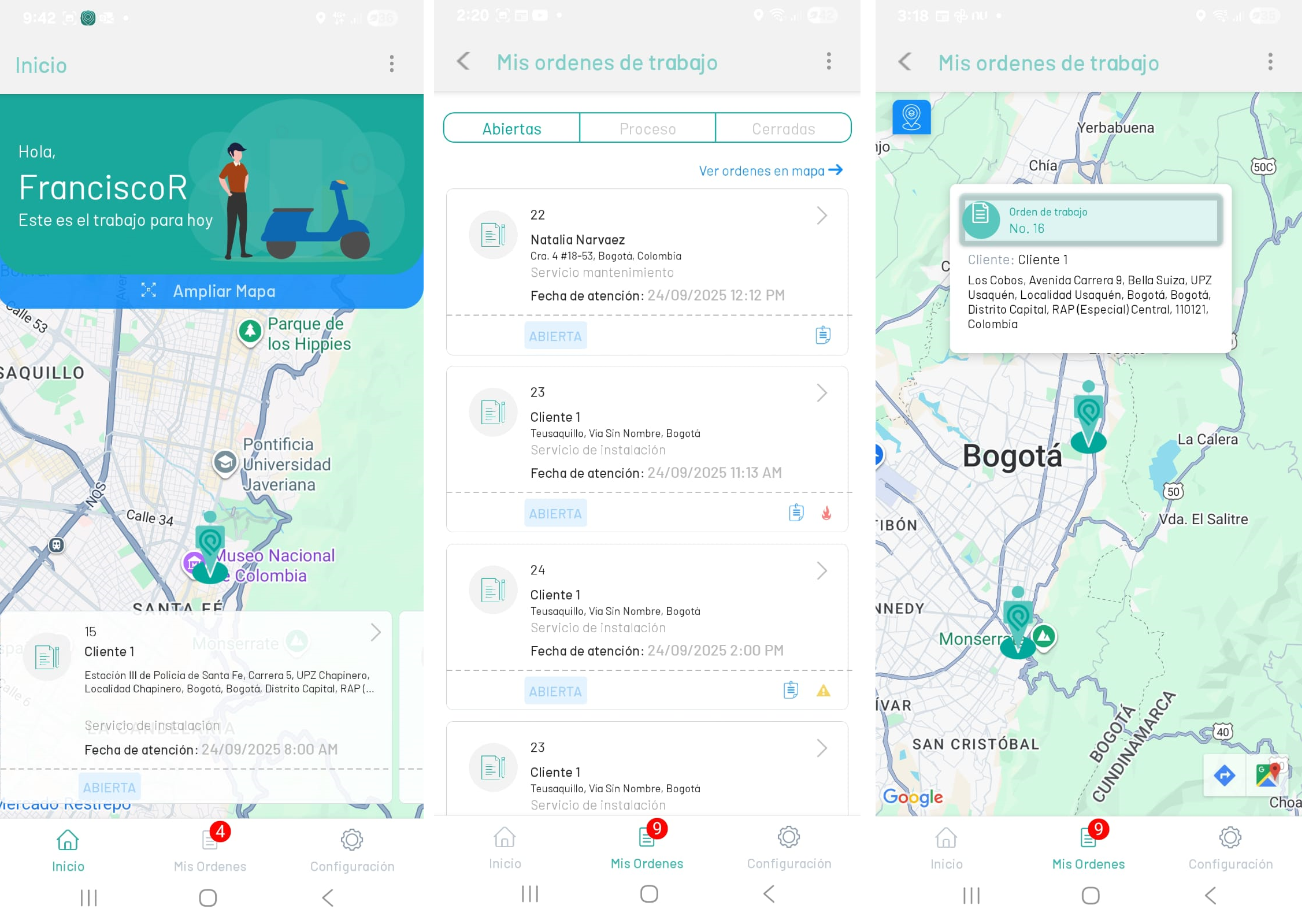
1. In the AFLS Mobile Console, in the Home workspace, select the My Orders on the Taskbar. In the information view, select the View orders on map
2. The field specialist will be able to view the work orders that have been assigned to them on the map. Selecting the customer’s location pin expands the basic information of the assigned work order.
View Emergency or Priority Orders
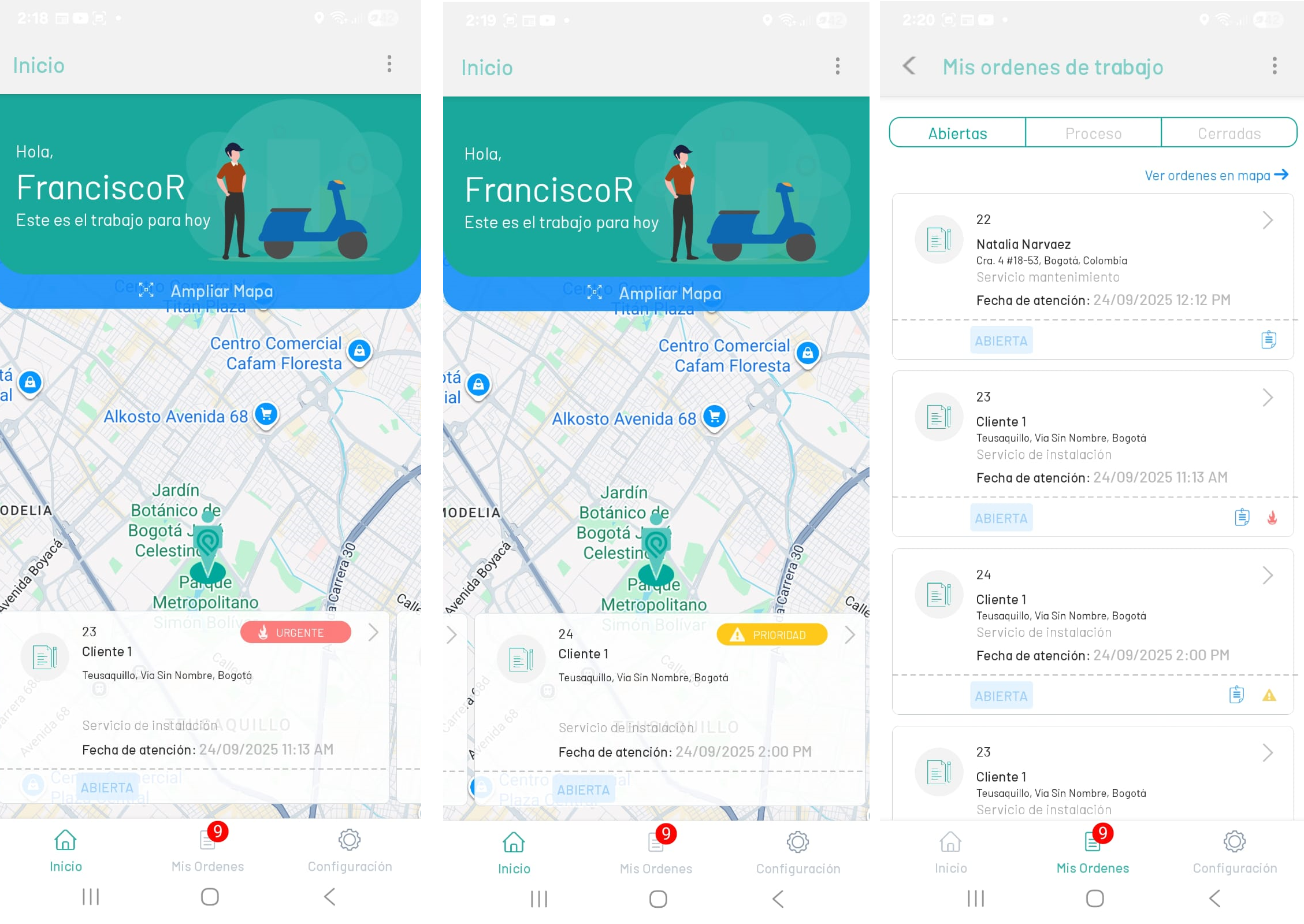
⚐ Note: When you assign a specialist to handle an emergency or priority order, it is automatically synchronized with the mobile console and the new order is included at the top of that specialist’s order list. This will modify the schedule for the rest of the day according to the preset settings.
1. In the AFLS mobile console, in the Home Workspace Information View, you can view emergency (red label) or priority (yellow label) orders. The field specialist must always attend to them starting with the first order.
2. Selecting the record of a work order (Emergency or Priority) enables the Order Detail where you can consult basic order information (customer, date and place of operation), contact the customer, add time and change order statuses.