


1. By selecting a work order record, on the start of the mobile console or from My Orders, the specialist accesses the Order Detail where you can consult basic information about the order (customer, date and place of service) and will have tasks and actions available to manage, monitor and attend to the assigned work order.
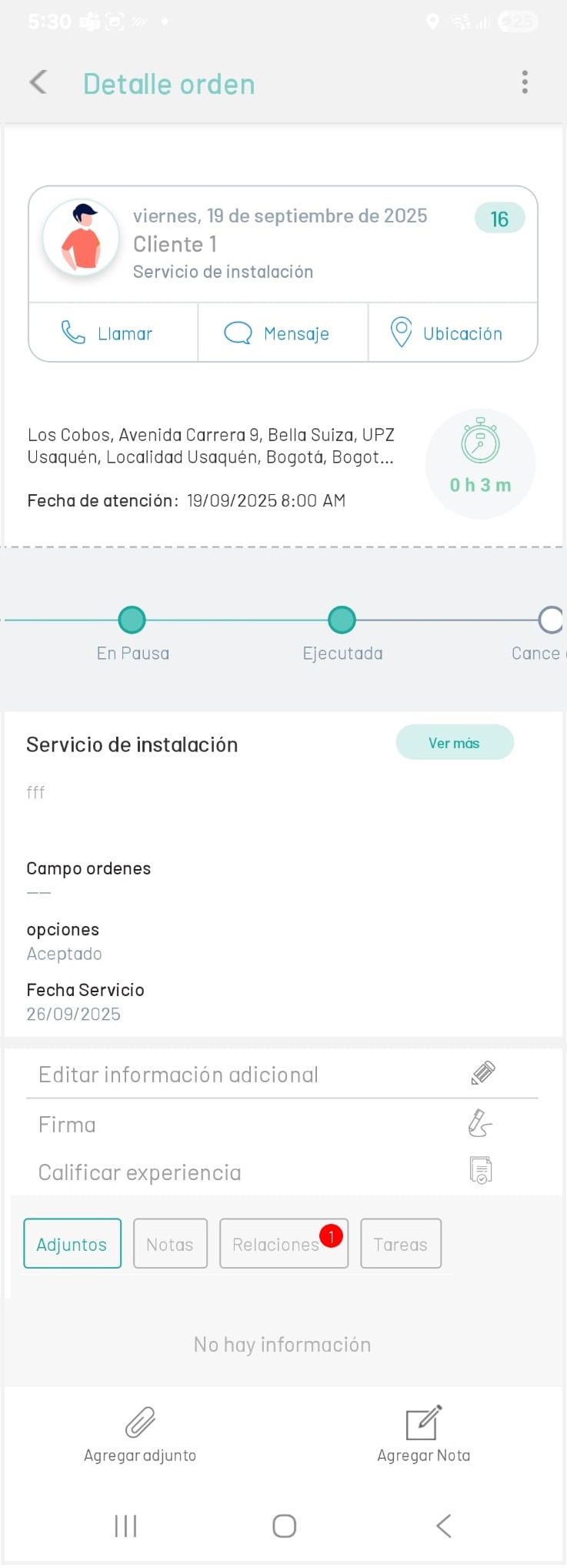
Depending on the stage in which the service is located, in the detail view of the order, the following actions will be enabled from the mobile console for the specialist to execute according to the case:
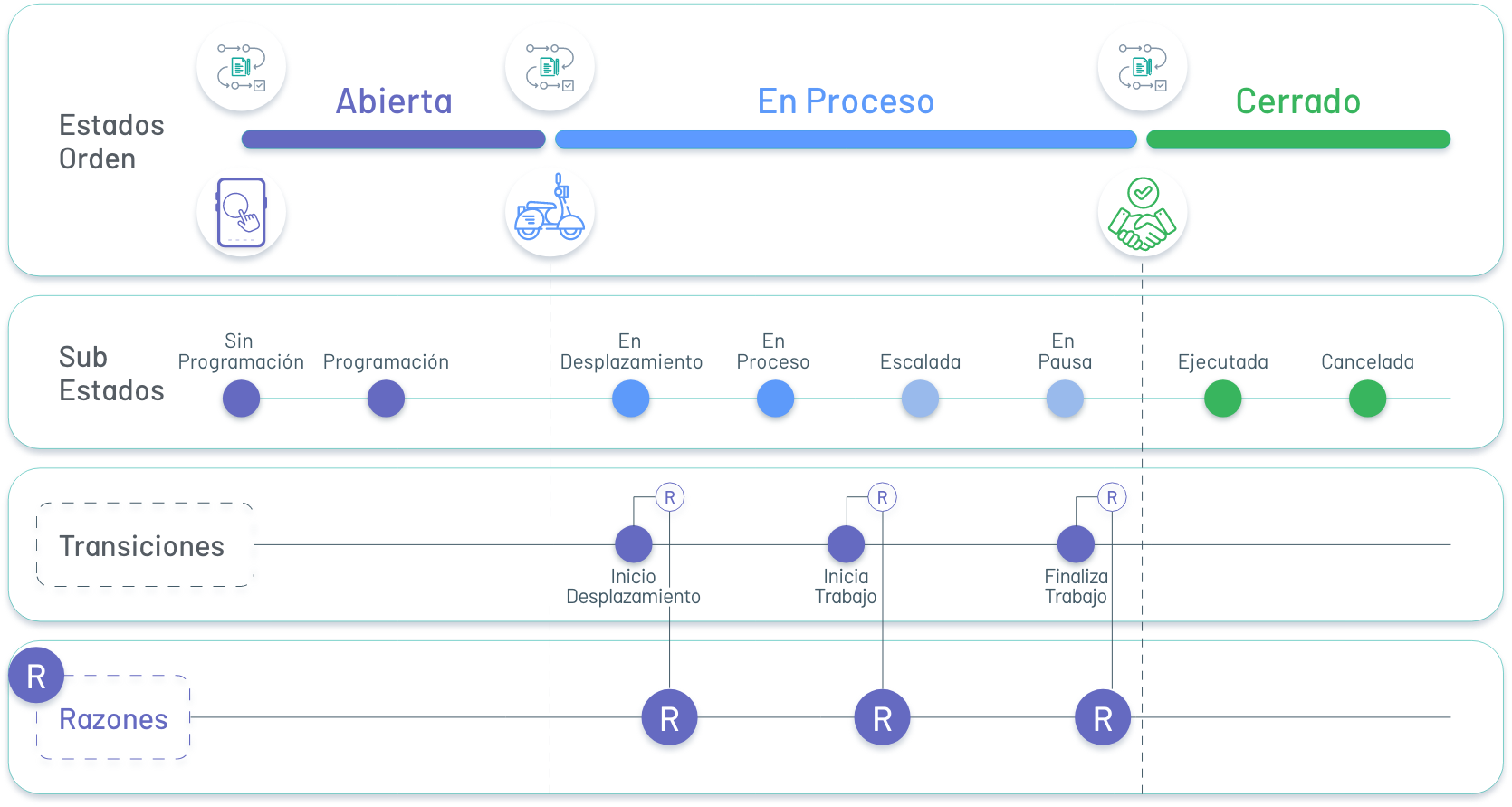
| Action | Description | Stage in which is enabled |
|---|---|---|
Contact the customer  |
This option allows the specialist to contact the customer by phone, text message, or visualize the customer’s location to attend to the work order. See Action Contact Customer |
Order Status: In Process |
Add Time  |
This option allows the specialist to request additional time to finish a pending task of the assigned work order. See Action Add Time |
Transition: Start Work |
Change States:  |
This option allows the specialist to change service statuses, report service times, service breaks, and order closure. See Change States Action |
Order Status: In Process |
Additional Fields:  |
This option allows the specialist to view and fill in the additional fields that are active for the model and for the work orders. See Additional Fields Action |
Order Status: In Process (after configuring fields in the AFLS web console) |
Signatures:  |
This option allows the customer to sign the work order after it has been served. View Action Signatures |
Transition: Finish Work |
Surveys:  |
This option allows the customer to answer the satisfaction survey at the end of the order process. View Action Surveys |
Transition: Finish Work |
Tasks:  |
This option allows the specialist to view and manage the tasks assigned to attend to a work order. View Action Tasks |
Order Status: In Process (after configuring fields in the AFLS web console) |
Relations:  |
This option allows the specialist to visualize the orders with which a relationship was established, either succession or bond. See Action Relationships |
Order Status: In Process (after configuring fields in the AFLS web console) |
Attach Files:  |
This option allows the specialist to attach the required files during the work order service See Attach Files Action |
Order Status: In Process |
Add Notes:  |
This option allows you to enter comments related to the assignment or attention of the work order, and also to consult previous comments. See Action Add Notes |
Order Status: In Process |