


Create Customer
1. In the AFLS Mobile Console, under In the Home workspace, select the Configuration on the Taskbar.
2. In the window that is enabled in the Basic Settings section, select the Clients, click the Create Customer, where the specialist will be able to enter data such as name, email, telephone, address and additional fields.
⚐ Note: The specialist will only be able to view the Customer functionality if the administrator from the AFLS web console settings, activates the functional capabilities of create, edit customers or create work orders to all field specialists.
⚐ Note: The system verifies that the user has not been created previously (validates the existence of the unique code). The customer’s unique name and code can only be updated from the Web Console.
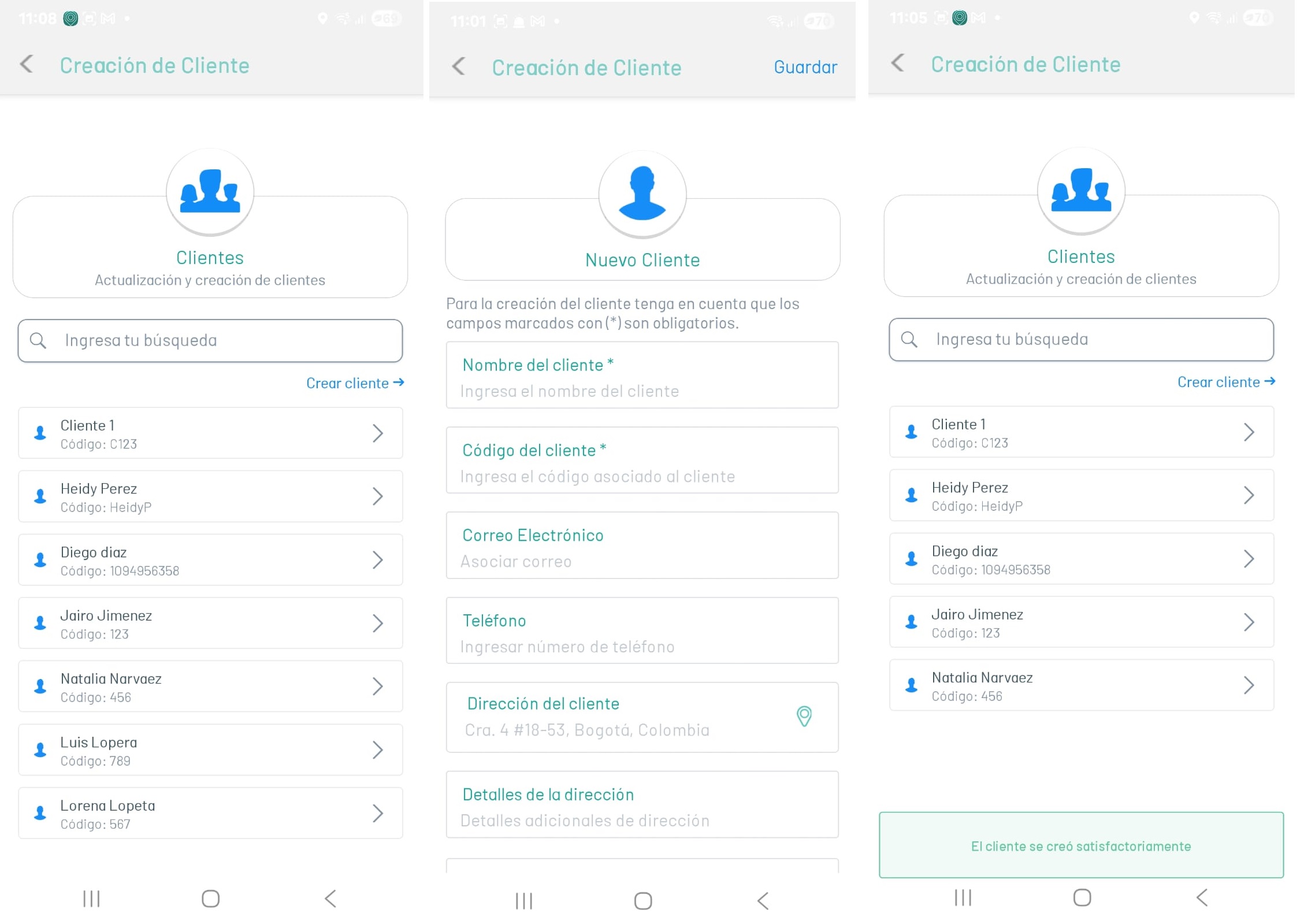
3. When filling in the Customer information in the workspace header, click Save and you can display the message Customer was successfully created.
Update Client
1. In the AFLS Mobile Console, in the Home workspace, select the Configuration on the Taskbar.
2. In the window that is enabled in the Basic Settings section, select the Clients, To update or edit a customer, in the workspace select a record from the list of existing customers.
Field specialists will be able to update basic customer information (email, phone, address, and additional fields).
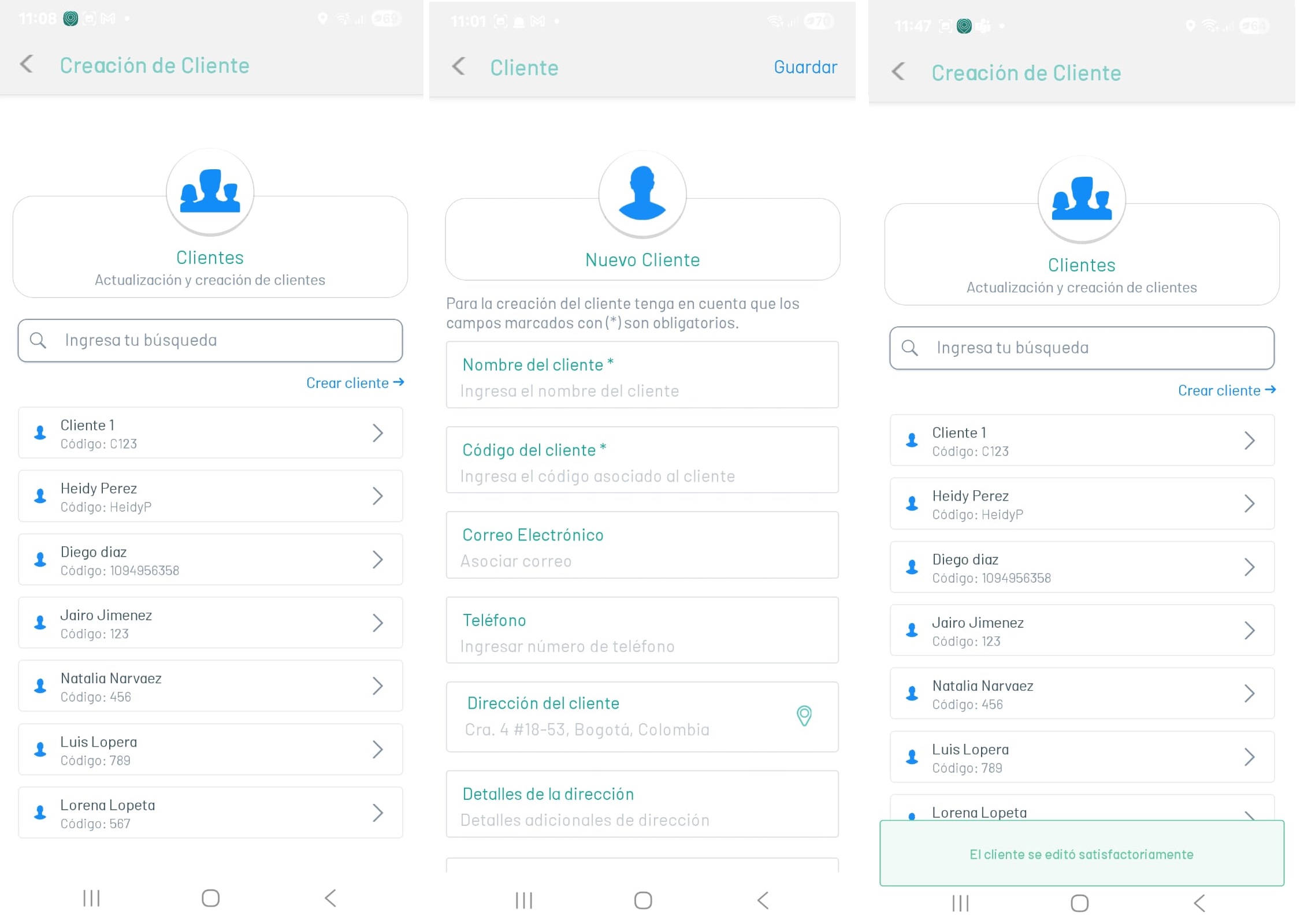
3. When you complete the Client upgrade, in the workspace header, click Save and you will be able to display the message Customer was successfully edited.
⚐ Note: These functionalities are only available online.