View Tasks
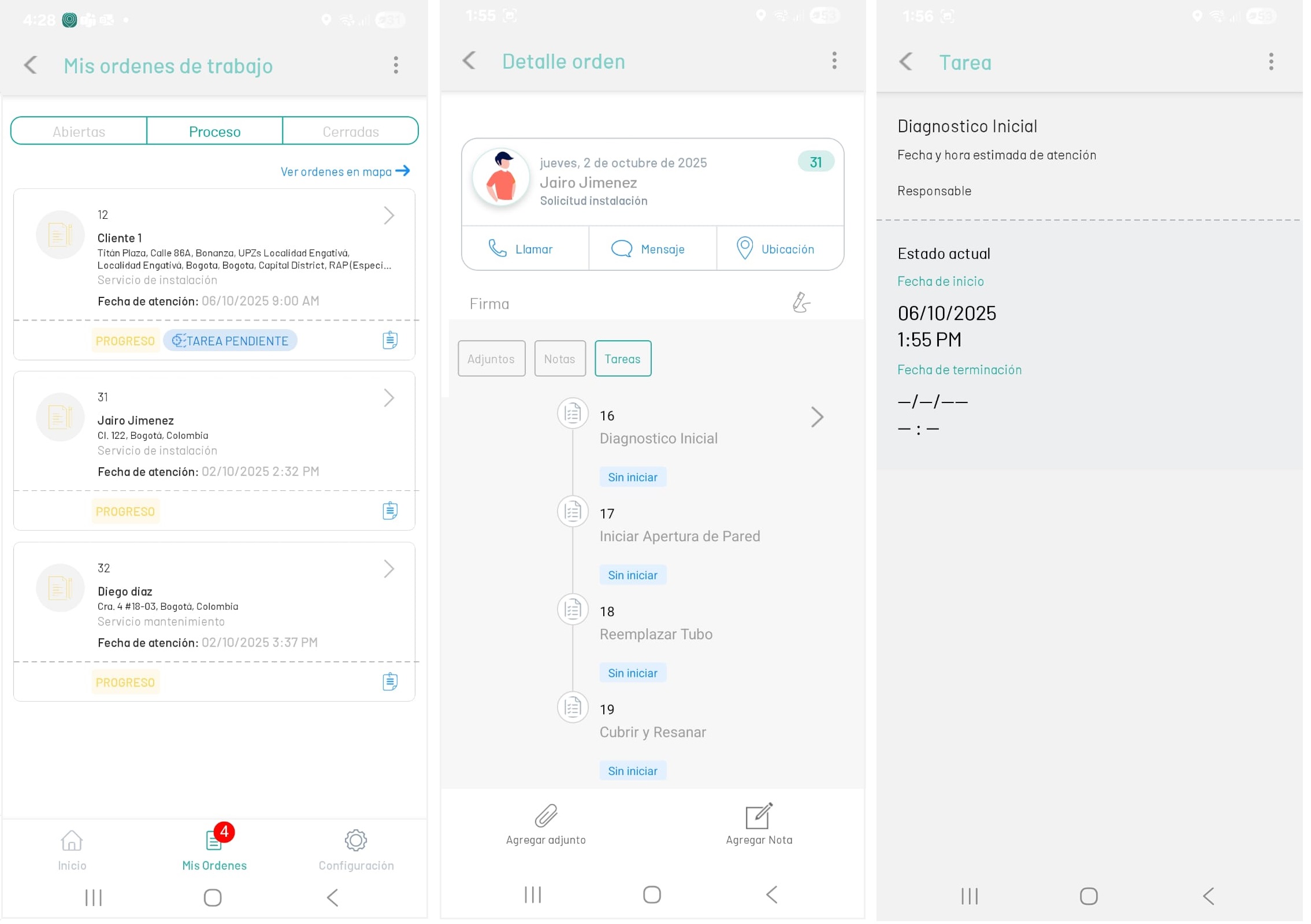
1. To display the tasks of a work order, enter the detail of an order and select the option Tasks. In the tasks list, the tasks configured for the work order, by the administrator user, will be available from the AFLS web console.
2. Alternatively, from the list of work orders you can see an informative notice that the work order has a  . By selecting the button you will be able to enter the order detail.
The tasks will have the status Not Started and the specialist will only be able to work on them, when the administrator assigns the specialist(s) to develop each configured task.
⚐ Note:
- A work order can have one or more tasks associated with it and these can have different specialists in charge.
- A work order can have a lead specialist and other collaborating specialists.
- Only the lead specialist can move forward in the workflow once the tasks in the order are completed.
- A lead specialist may be responsible for one or more tasks of his own order, and also be a collaborator of tasks of other orders.
Manage Tasks
1. Selecting a work order record enables the Order Detail where the specialist will be able to manage the tasks of a work order.
2. When selecting the  You will be able to view the list of tasks and the management status of each one.
⚐ Note: The tasks will have the status of Not Started and the specialist will only be able to work on them, when the administrator assigns the specialist(s) to develop each configured task.
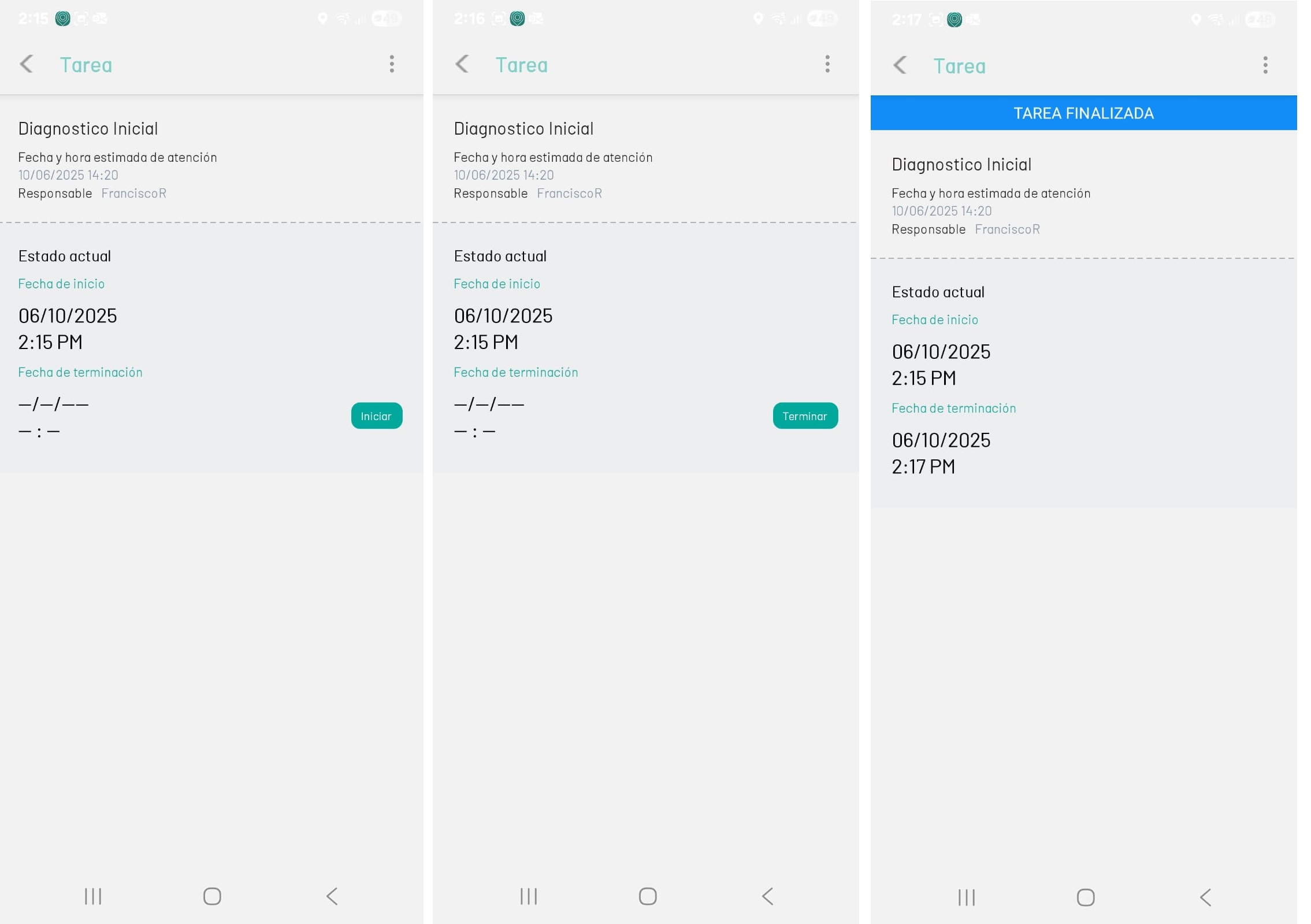
3. By selecting each task you will be able to manage it (Start/Finish) and advance to the next state.
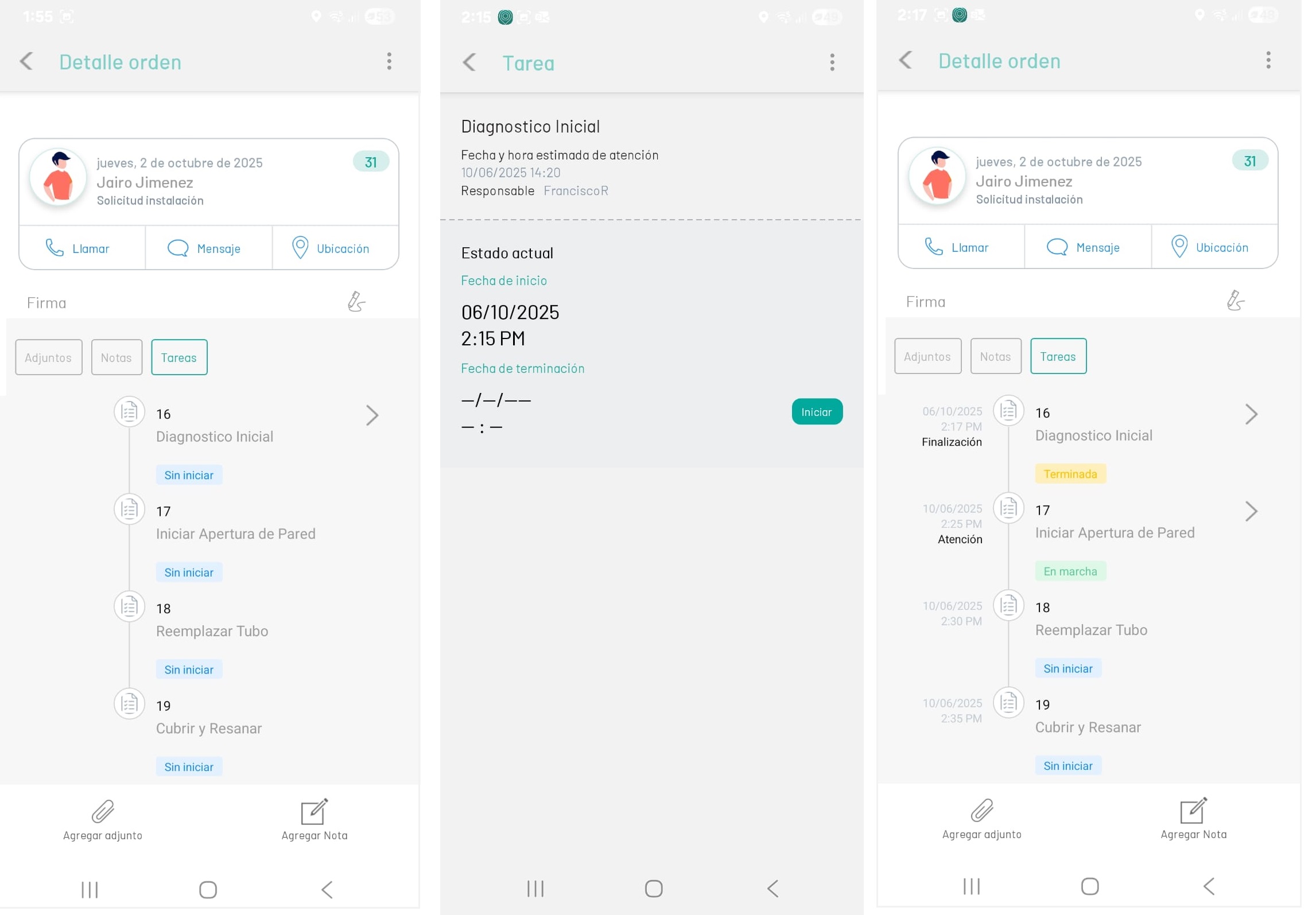
⚐ Note: The Tasks action will be enabled in the mobile console for the specialist, when the order status is In Process and the tasks have been assigned and defined from the AFLS web console.
The statuses of the tasks assigned to the specialist to attend a work order are as follows:
| Task Status | Description | Responsible | Action |
|---|---|---|---|
 |
The task is not started | Does not correspond to current specialist | No Actions Required |
|
The task is not Starting. | Current Specialist | Start Task |
 |
The task is in process. | Not the Current Specialist | No action required |
|
The task is in process. | Current Specialist | Start Task |
 |
The task is finished. | Current Specialist | NA |
| UNFINISHED | The task was not finished. | To whom it may concern | NA |
You can access each of the tasks and you will view them according to the status as follows: