


1. In the AFLS Mobile Console, in the Home Workspace, in the Floating Menu, select the Create Order. The specialist will be able to fill in client information, order information, and assign the specialist for your care.
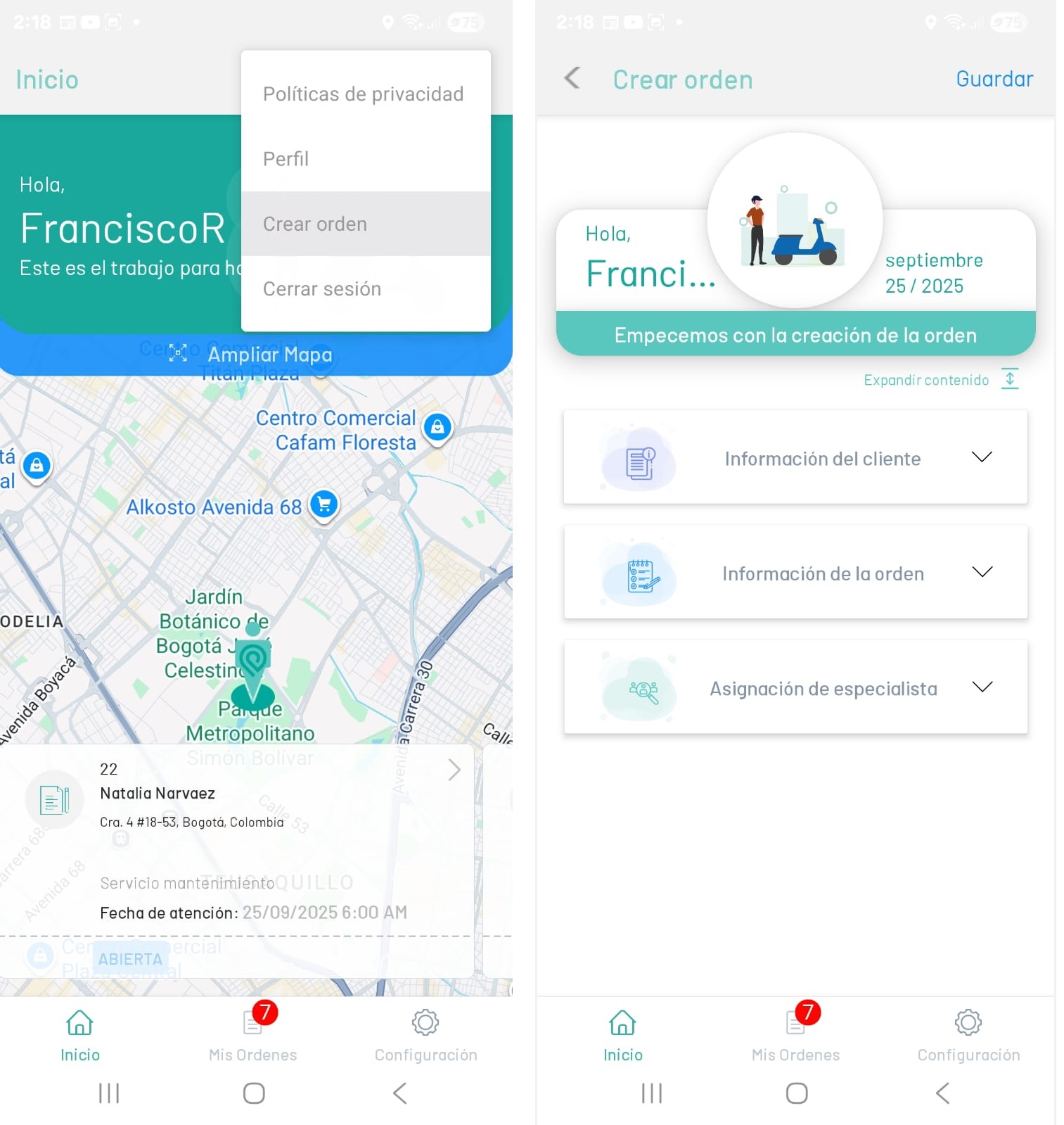
⚐ Note: The specialist will only be able to view this functionality if it is previously enabled from the web console on the Global Settings.
2. In the information view of the order creation, the specialist will be able to complete the following categories:
- Customer Information: The previously created client is loaded into the AFLS web or mobile console with data such as name, phone, and email.
- Order Information: The customer’s address is entered, the previously enabled service is loaded into the AFLS web console, and the subject and description of the order is entered.
- Specialist Assignment: The specialist who will attend to the work order is assigned. The assignment engine will be able to validate whether the session specialist can attend to the created work order; otherwise, you can search for specialists who belong to the user’s vendor in session, to attend to the work order.
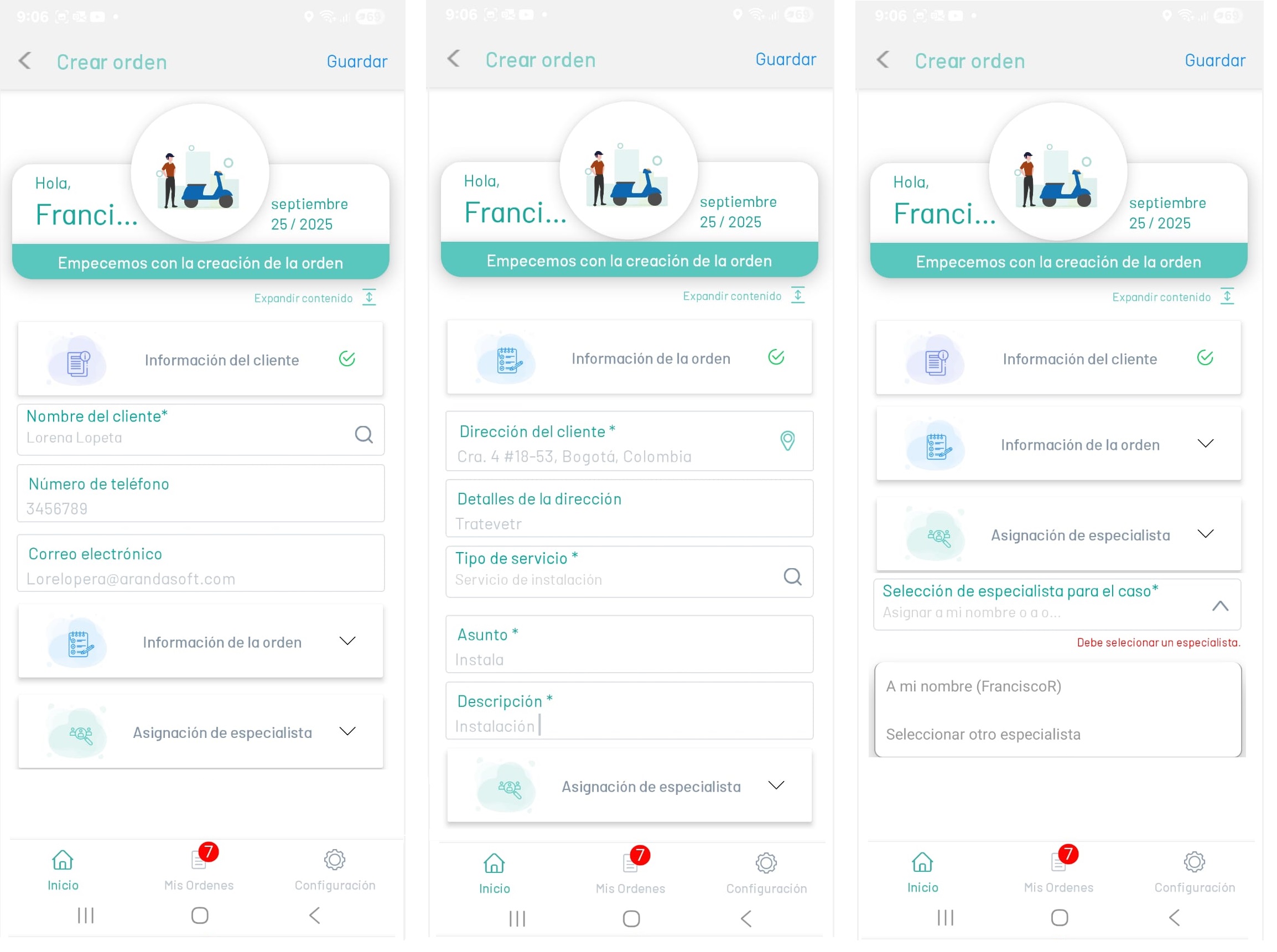
⚐ Note: The services that are displayed for the creation of a new order must have been enabled by the administrator in the Services in the AFLS web console.
3. When you complete the work order information and assignment, in the workspace header, click Save.
4. As the specialist attends to the work order, the status may change, until the assigned service is concluded. See Change of States from the AFLS mobile console.
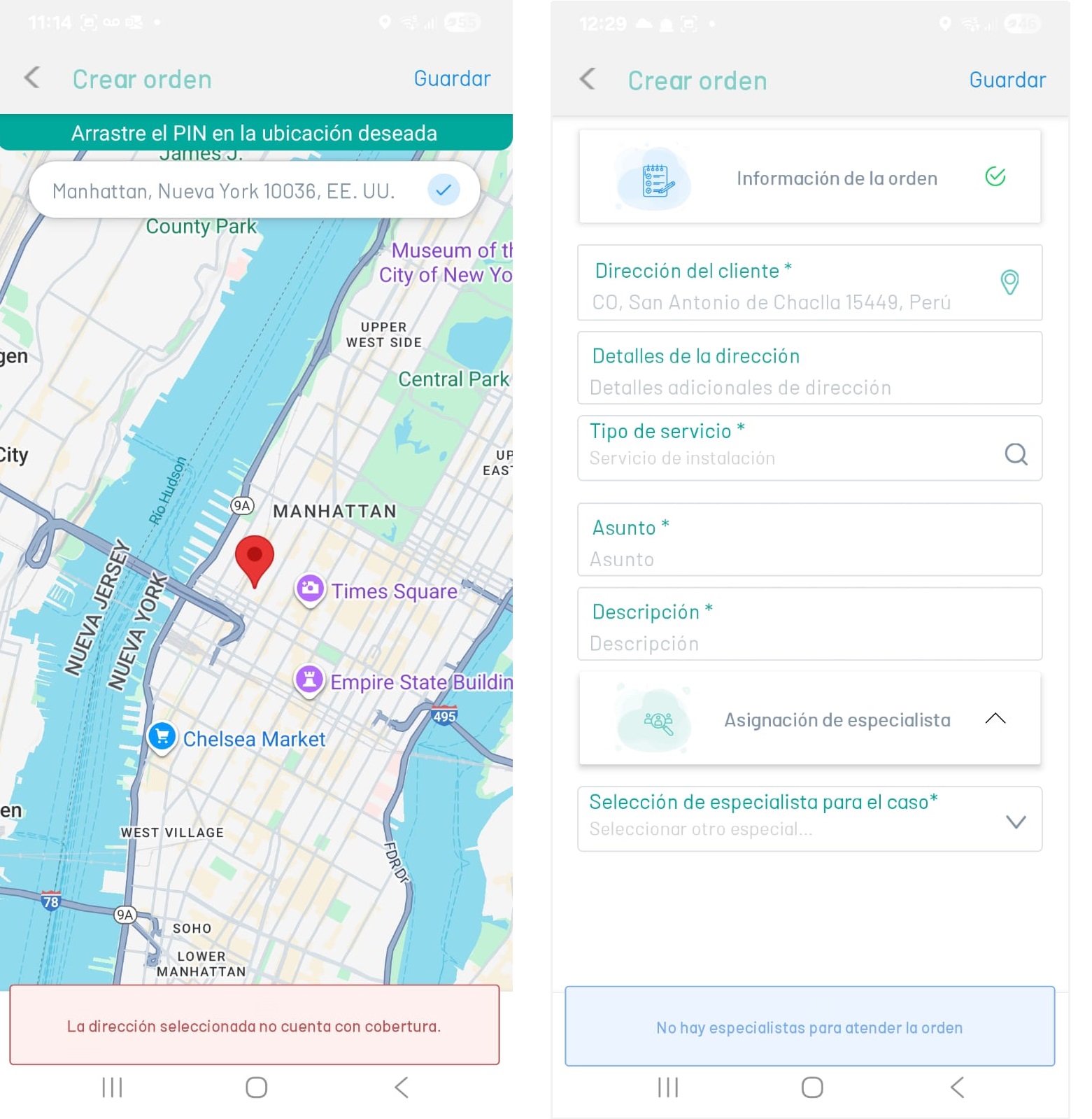
When you create a new order, the system checks for any of the following situations:
⚠ Warning: If the address entered in the order information is not within the coverage area for the specialist’s care, the message is displayed “The selected address does not have coverage”.
⚠ Warning: If the specialist assigned to handle the order is not licensed, available, qualified, inactive, or the mobile user settings are not correct, the message is displayed “There are no specialists to attend to the order”.
⚐ Note: This functionality is only available online.