View Notes
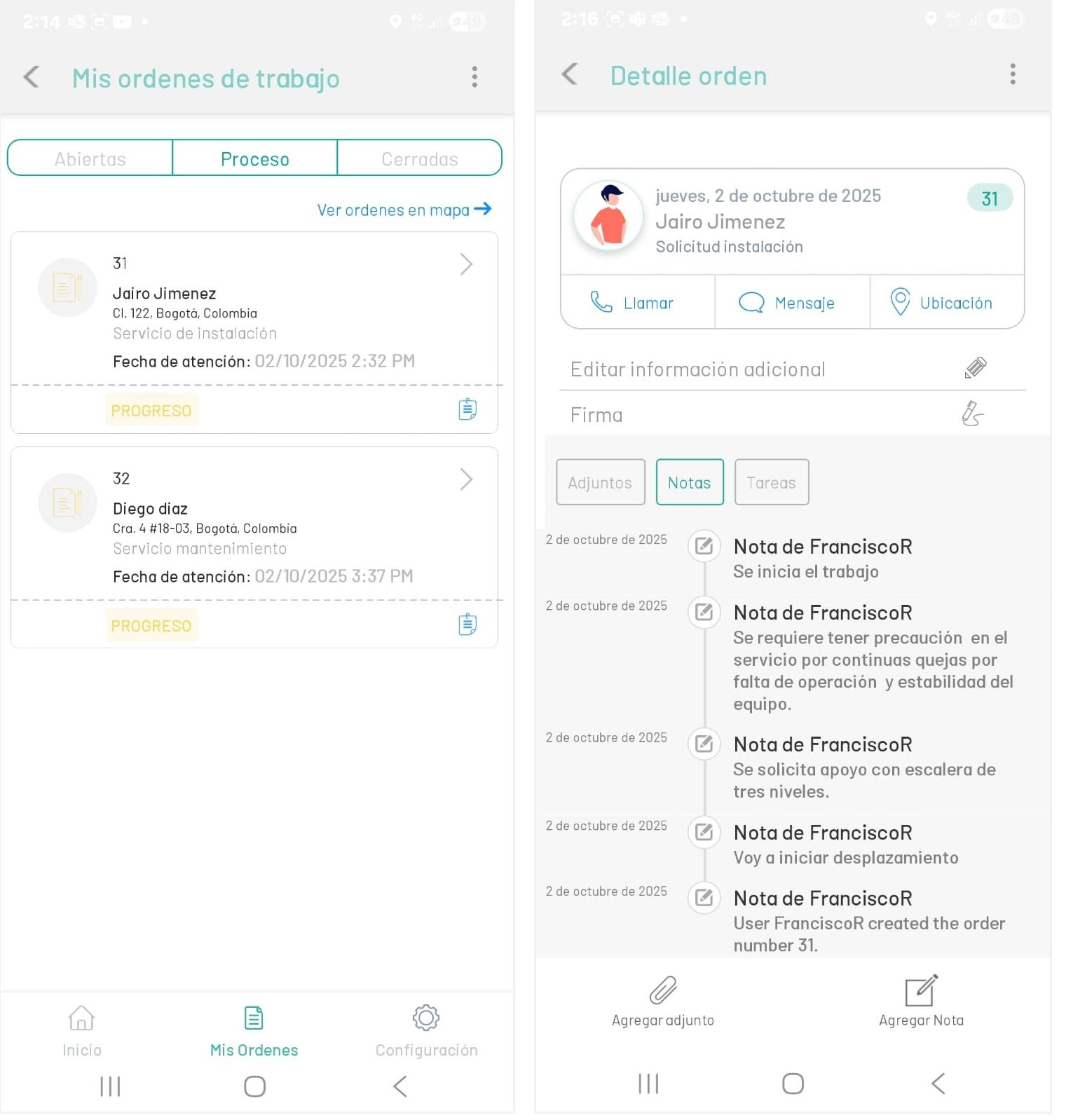
1. To view the notes of a work order, enter the detail of an order and select the option Notes. In the list of notes you can see the date of creation, the author of the note and the related comments.
The notes consulted correspond to the automatic records for status changes in the work order, to the notes entered by the specialist during the operation through the Add Notes and to previous comments made by the dispatcher, monitor, or end user.
Create Notes
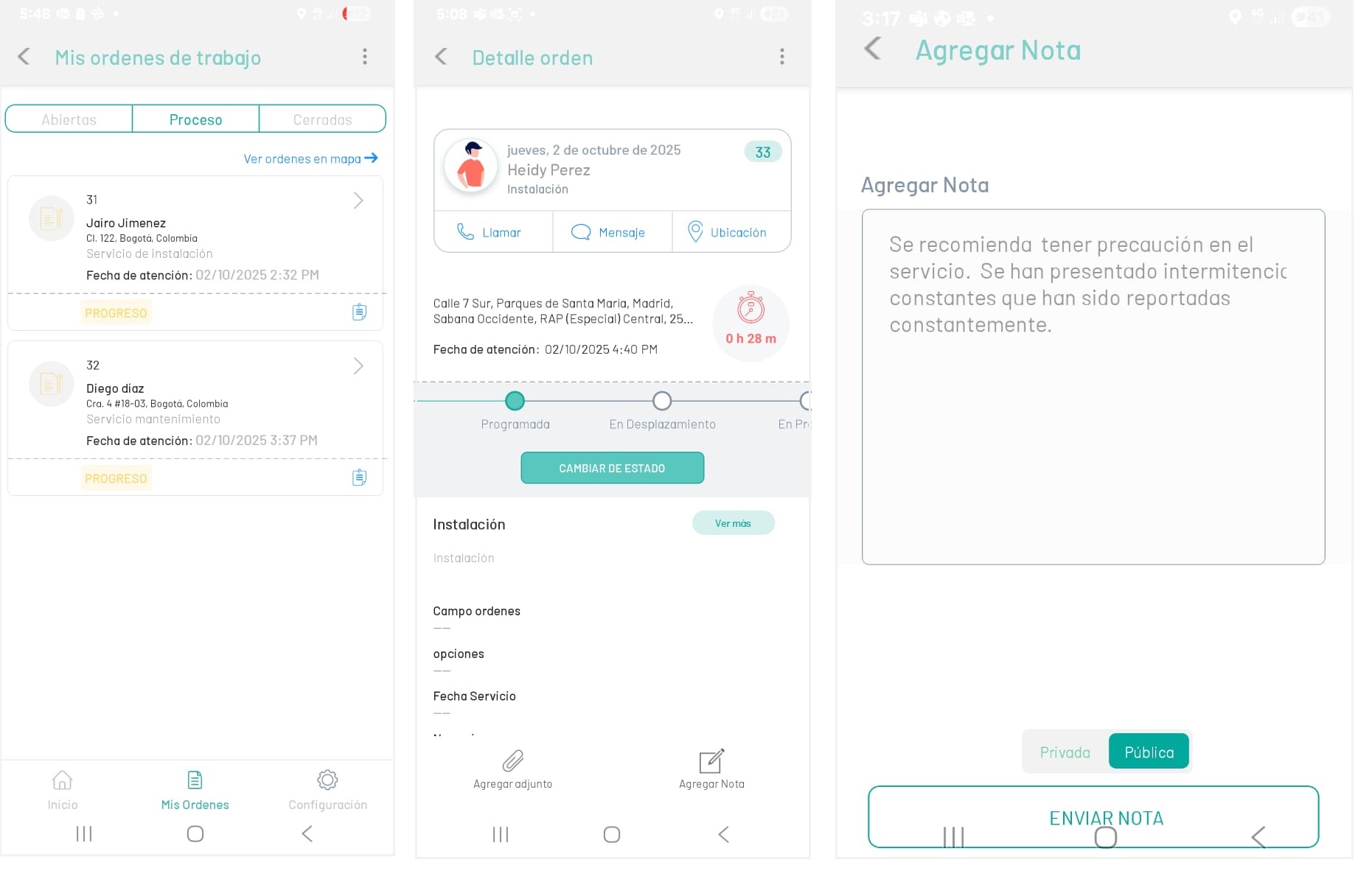
1. Selecting a work order record enables the Order Detail where the specialist will be able to enter comments related to the assignment or attention of the work order,
2. When selecting the Add Note  On the mobile console taskbar or from the order list, select the
  The space needed to write the note is enabled, and the option to mark the note as public or private.
⚐ Note: If a public note is created, whether from a dispatcher, monitor, or specialist, an email is sent to the end user, who will be able to view it from the AssistMe console.
2. When filling in the text of the note, click the Send Note. Notes written by the Field Specialist will be recorded in the feedback instance of the mobile console and will be visible in the Dispatcher console.
Notes are useful for adding relevant information to the order, such as changes to the registration request, parts confirmation, follow-up to the field specialist, recommendations and suggestions, among other messages.
⚐ Note: The Notes action will be enabled in the mobile console for the specialist, when the order status is found In Process.
Notes as Quick Replies
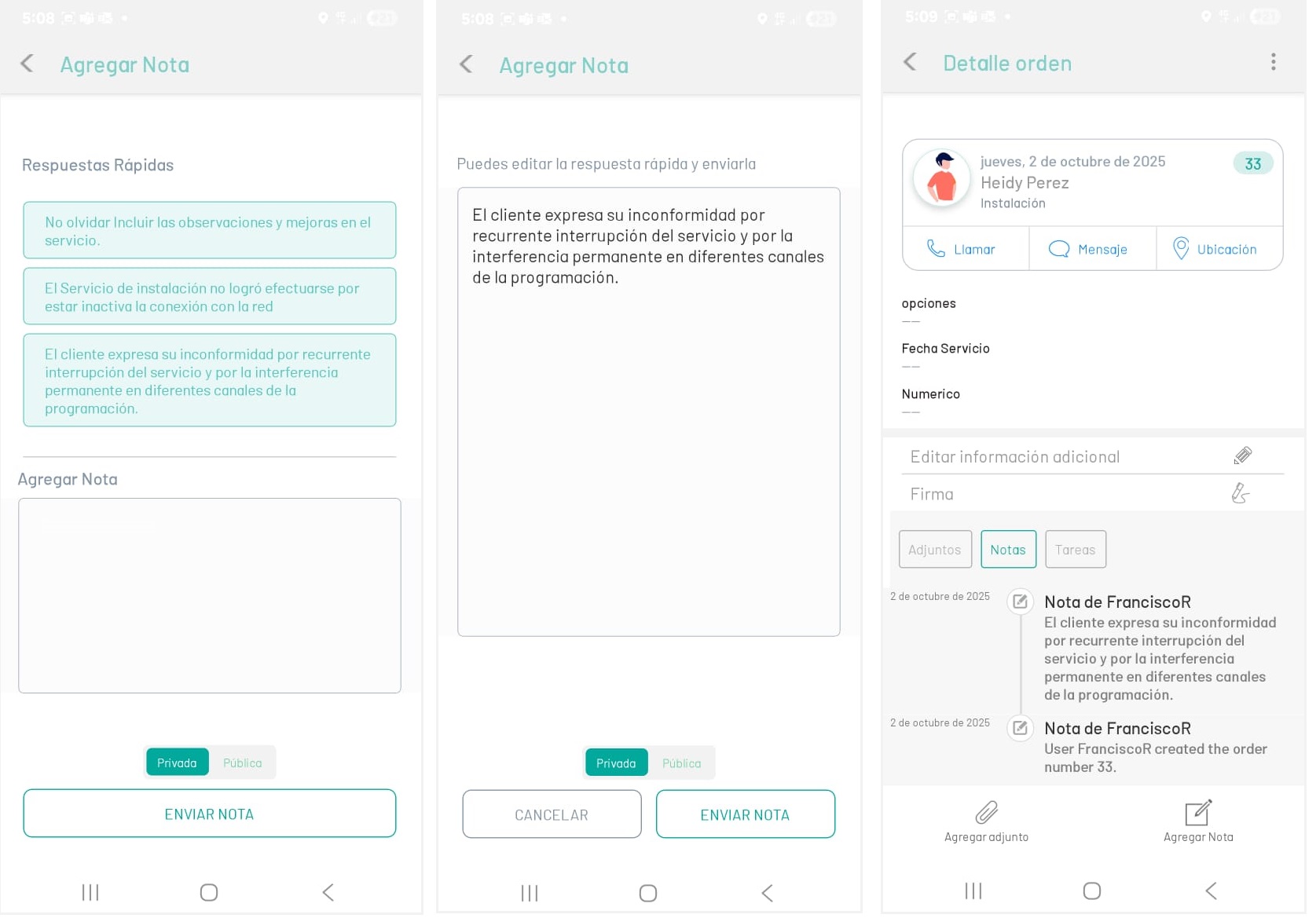
⚐ Note: The field specialist will be able to create notes using the quick replies previously created and enabled from the AFLS web console by the admin users.
2. To create notes with quick replies, enter the detail of a work order select the option Add Note On the mobile console taskbar or from the order list, select the respective icon. The necessary space is enabled to write the note or choose a quick reply; and the option to mark the note as public or private.
Quick replies can also be viewed and selected for use as a note within the work order.