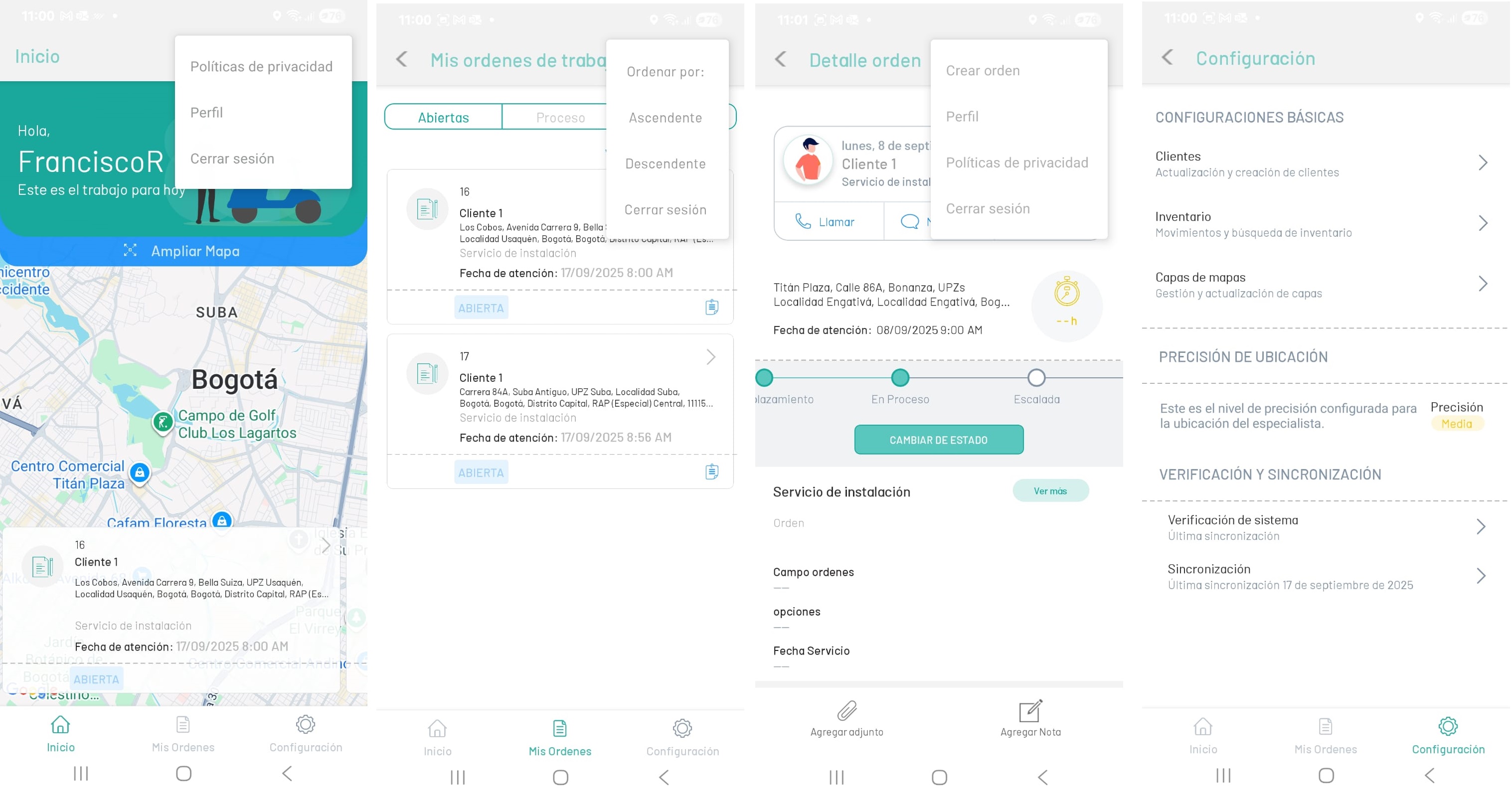
By installing the AFLS mobile console, you will be able to access a work environment where the field specialist will be able to perform work order management tasks:
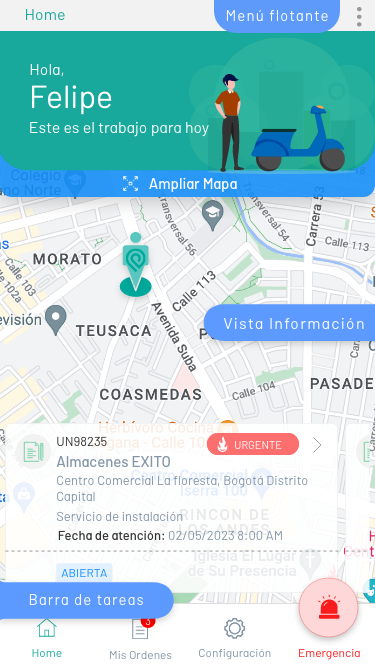
The AFLS Mobile Console unifies work order viewing, configuring, and managing tasks. The mobile environment can be divided into three areas of work:
| Areas of Work | Description |
|---|---|
| Floating menu | This area displays a floating menu of options for the Home, Order Listing, and Order Detail sections. The options per section are: - Beginning: Allows access to options such as Privacy Policies, User Profile, Create Order, and Log Out Currently. - Order List: Allows you to access options such as Sort by (ascending, descending, and logging out). - Order Detail: Allows access to options such as Create Order, User Profile, Privacy Policies, and Current Logout. |
| Information View | In this view, the information related to the chosen concept is displayed in the work area or in the taskbar and you can consult information or perform administrative tasks. |
| Taskbar | This area presents the tasks by section available for the management of a work order. The tasks per section are: - Beginning: Allows you to view the work order on the map, the list of active work orders. - My Orders: This section allows you to view a list of the generated work orders and organized according to their execution status (open, processed, closed) - Configuration: In this section you can define basic configurations (customers, inventory, map layer), consult the specialist’s location accuracy and synchronize the device. - Add Attachment: Allows you to view the work order on the map, the list of active work orders. - Add Note: Allows you to view the work order on the map, the list of active work orders. |
⚐ Example: In the following image, you can see elements of the AFLS mobile console environment such as the floating menu by section or the taskbar options for work order management.