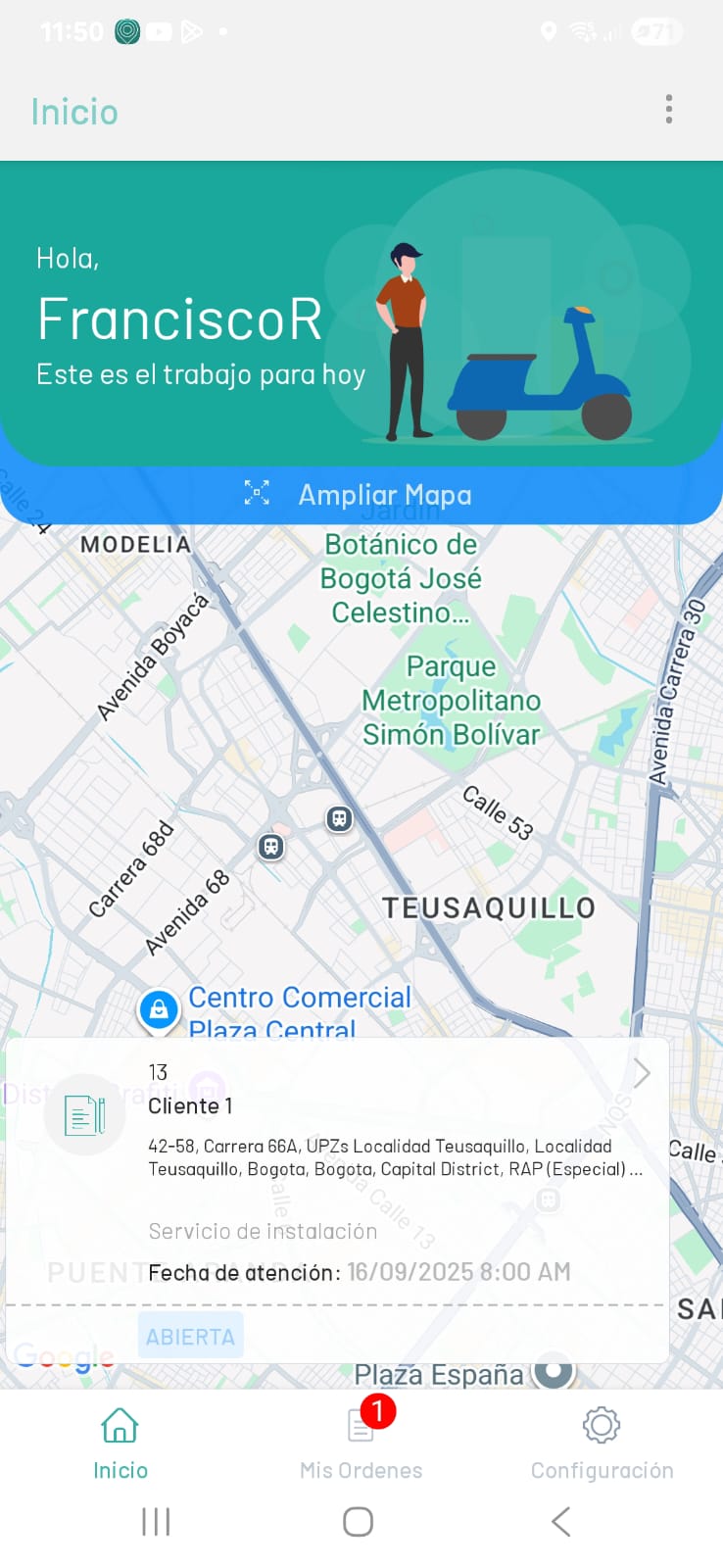
If this is the first time the specialist has logged into the AFLS mobile app, please fill out the following information:
1. In the address or URL of the application to be connected, e.g.: _https://fieldservice.arandasoft.com/AFLSAPI/api, click the Confirm to validate the URL.
2. If you have an active privacy policy, please agree to the terms and conditions to continue.
3. The option to log in to the mobile application is enabled where you can enter information such as the domain, username and password of the assigned specialist.
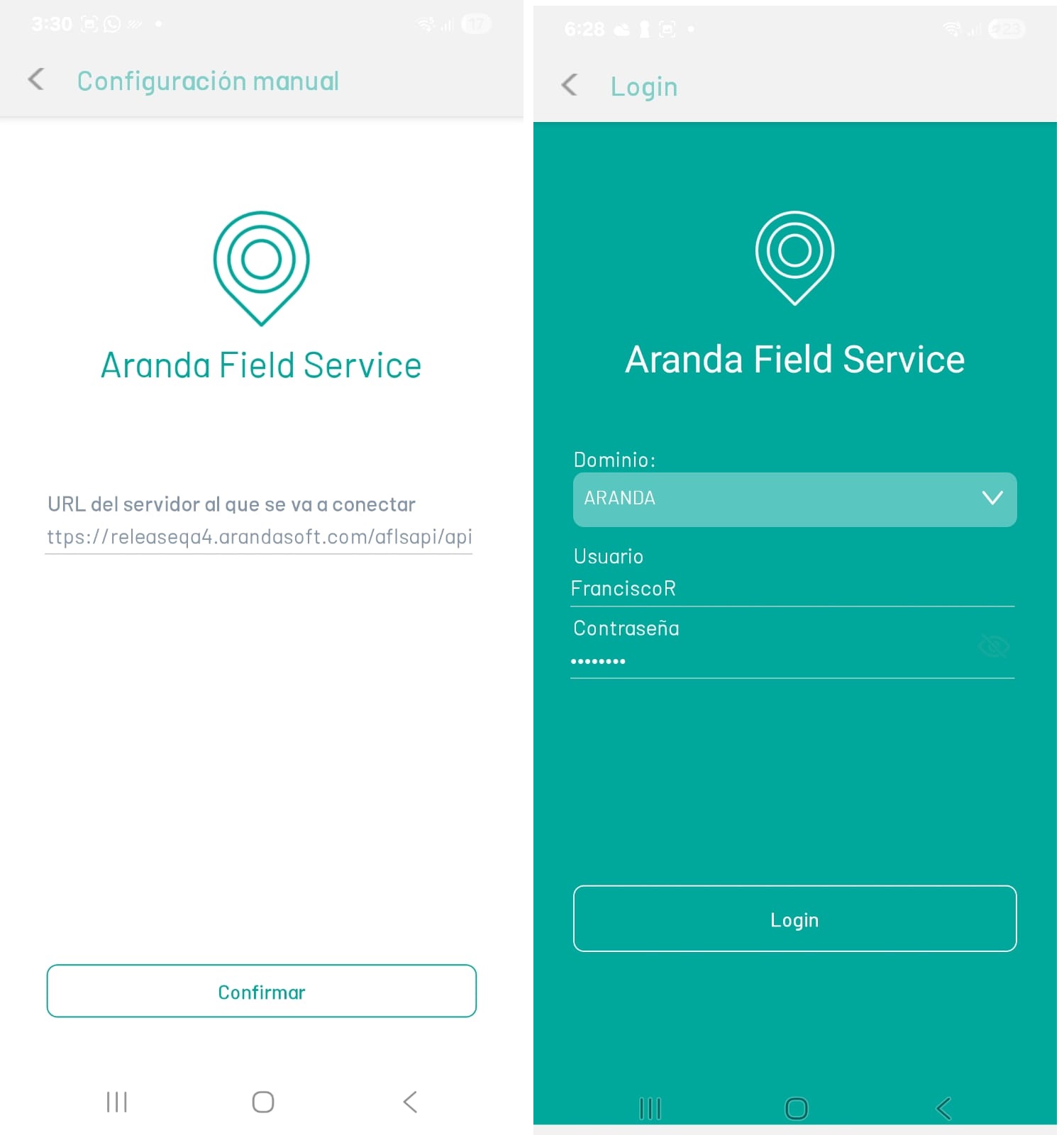
⚐ Note: The URL to connect to the AFLS server should be sent as follows: EXAMPLE URL: https://{host}/AFLSAPI/api.
4. Select the Login to enter the application.
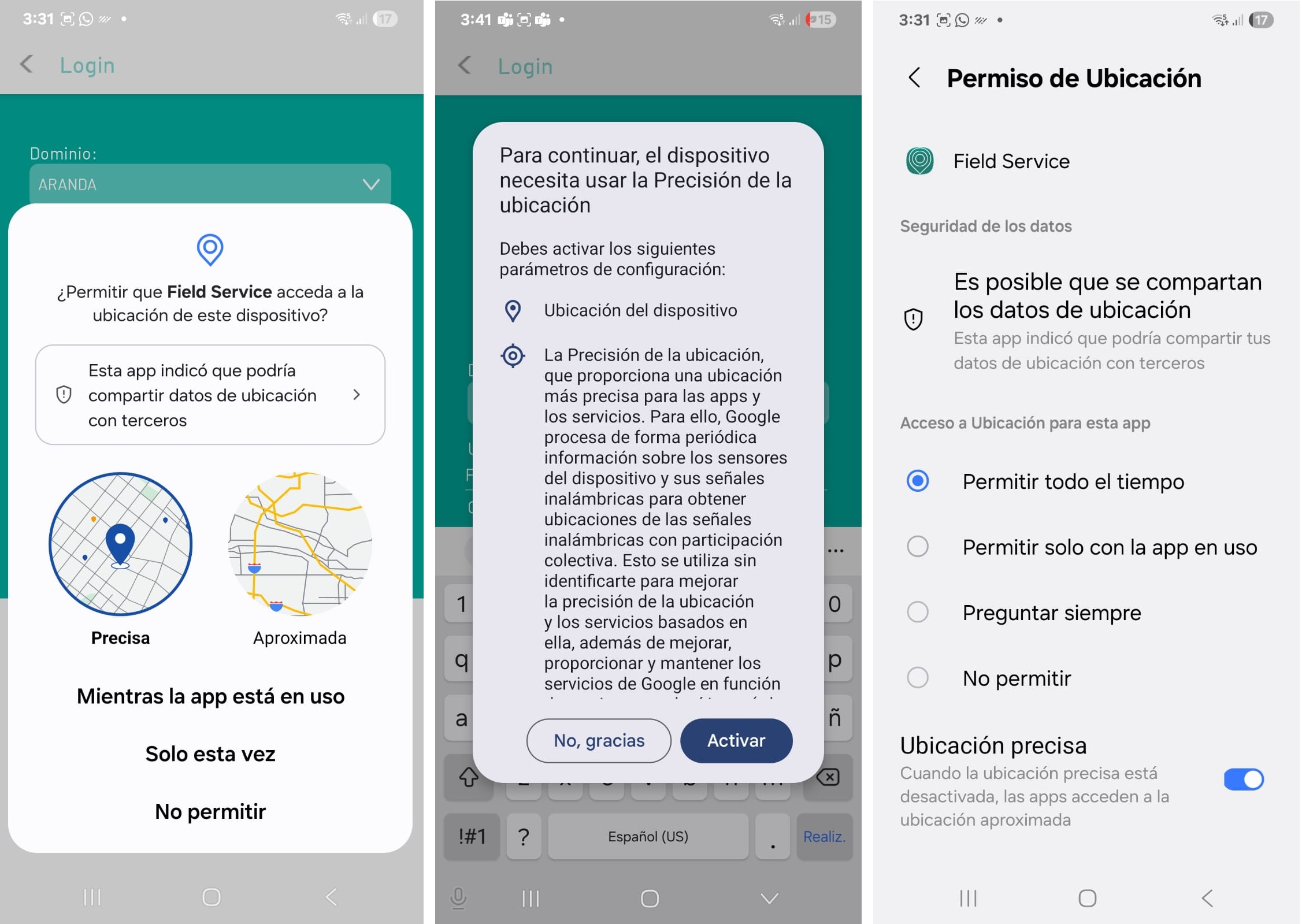
5. If your mobile device does not have location enabled, you must allow AFLS to access location for app use and enable Permission All Time to Share Location Data.
⚐ Note: These configurations, access and all permissions are essential to avoid interruptions in the service and ensure the correct performance of the application.
6. The field specialist logs into the AFLS mobile console to manage assigned work orders.