


1. Selecting a work order record enables the Order Detail where the specialist may request additional time to finish a pending task in case of eventualities such as unscheduled activities, inconveniences in the process, or defects in any of the spare parts.
2. To request additional time, the specialist selects the Add Time icon  and in the Runtime option select the Add.
⚐ Notes:
- The Add Time action will be enabled in the mobile console for the specialist, when the order status is In Process and the Transition is in Start of Work.
- If you try to add time to the order in a previous state, you will be able to display the message To add time to the work order, the work order must be in the “in process” status.
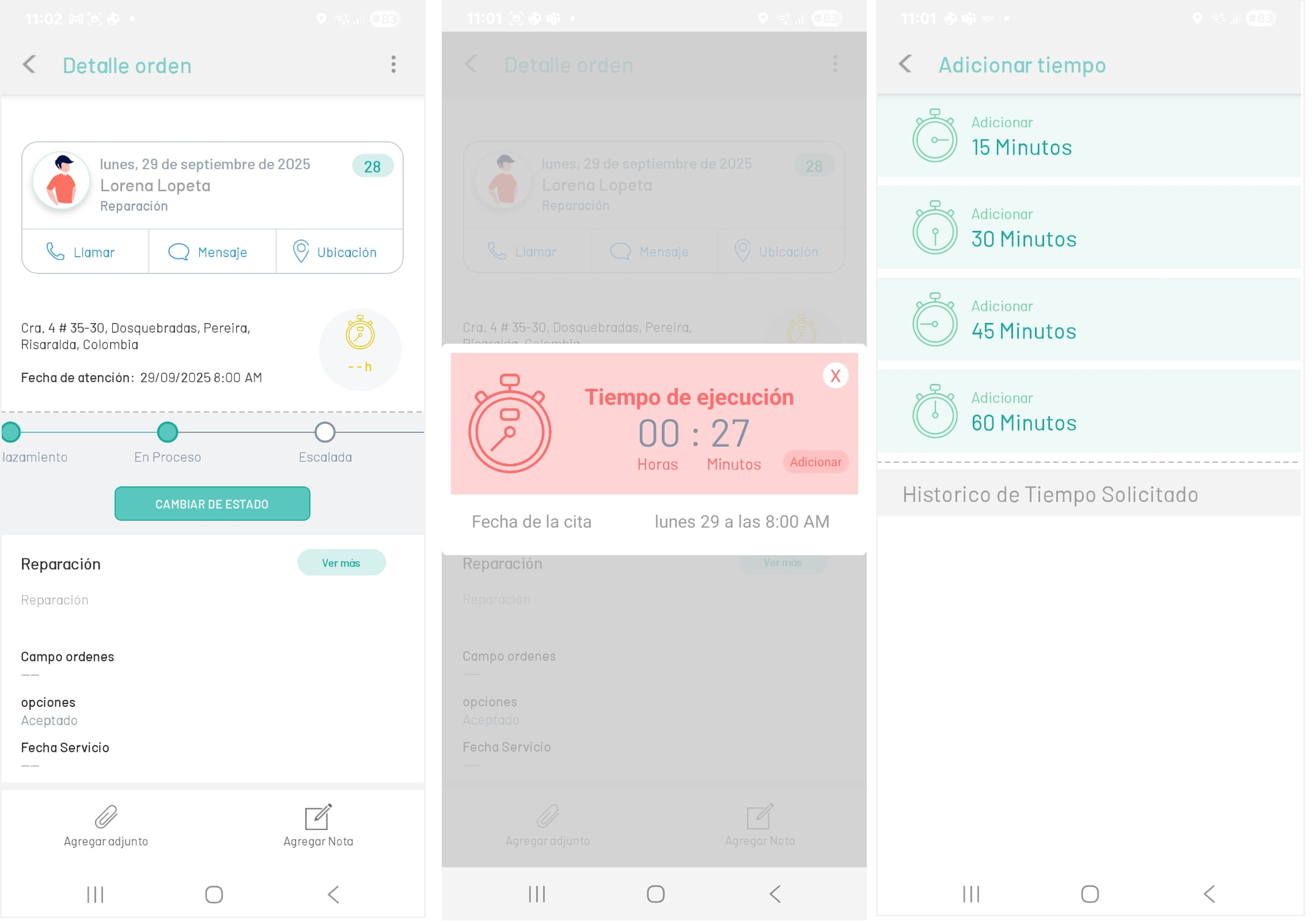
3. In the Add Time window, you can add the required time: Add 15 minutes, 30 minutes, 45 minutes, or 60 minutes.
When you select the time, you can display a confirmation message of the addition of time to the work order.
⚐ Note: Requests for additional time generate a notification that will be visible by the monitor, who will be in charge of approving or rejecting the time requested by the specialist.
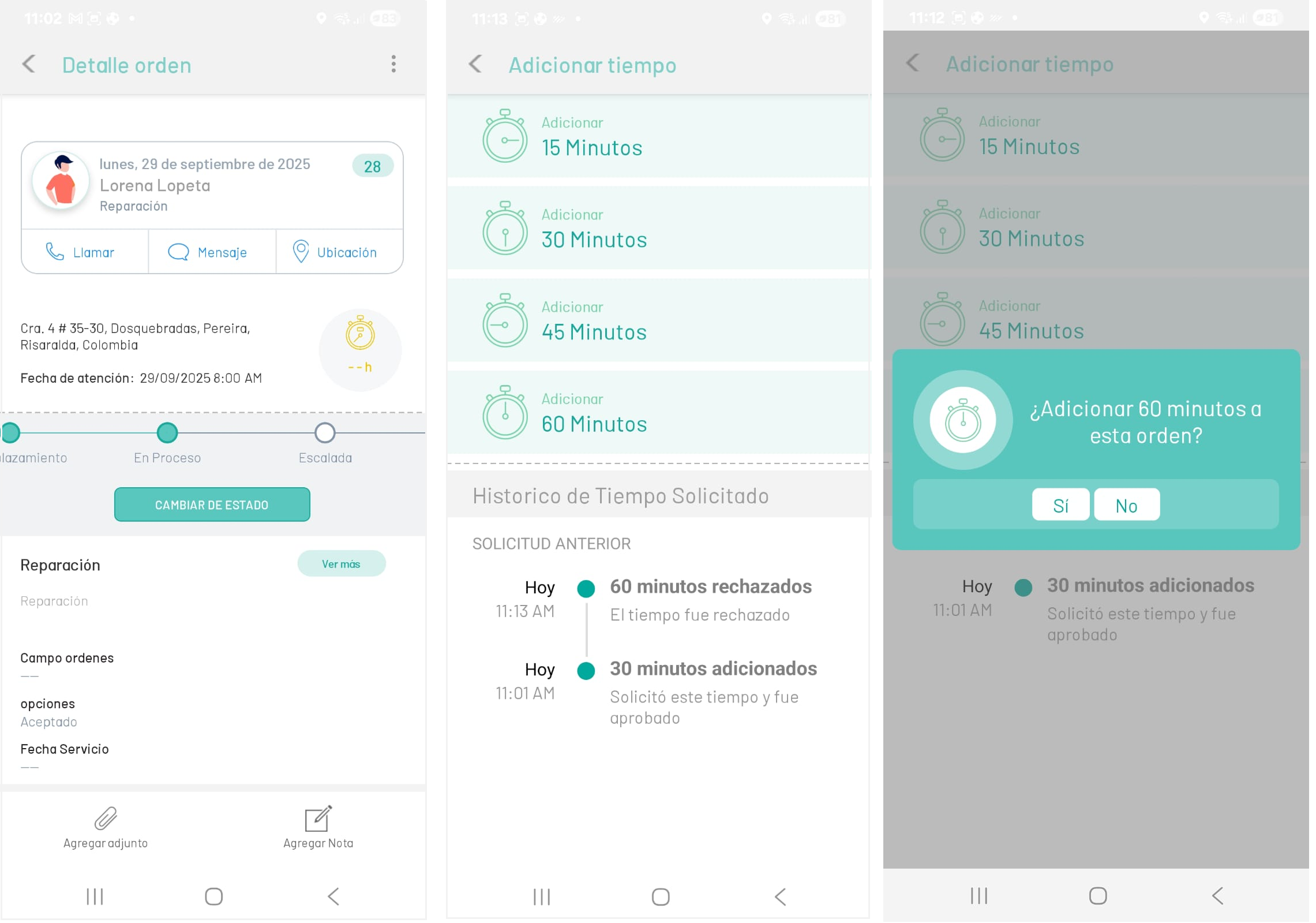
Time Consultation
When the field specialist consults the detail of the work order, he will be able to visualize the effective time for the attention of the work order. Weather indicators serve as a reference for effective monitoring. The indicators are;
| Time Indicator | icon | Description | Add Time |
|---|---|---|---|
| Green | |
This indicator presents the execution time (on time) to attend to the work order. | NOT Enabled |
| Red |  |
This indicator shows the (delayed) execution time to serve the work order | NOT Enabled |
| Yellow |  |
This indicator presents the execution time (Not running) to serve the work order | Enabled |