


1. To assign a concurrent license, in the license information view, click the Groups.
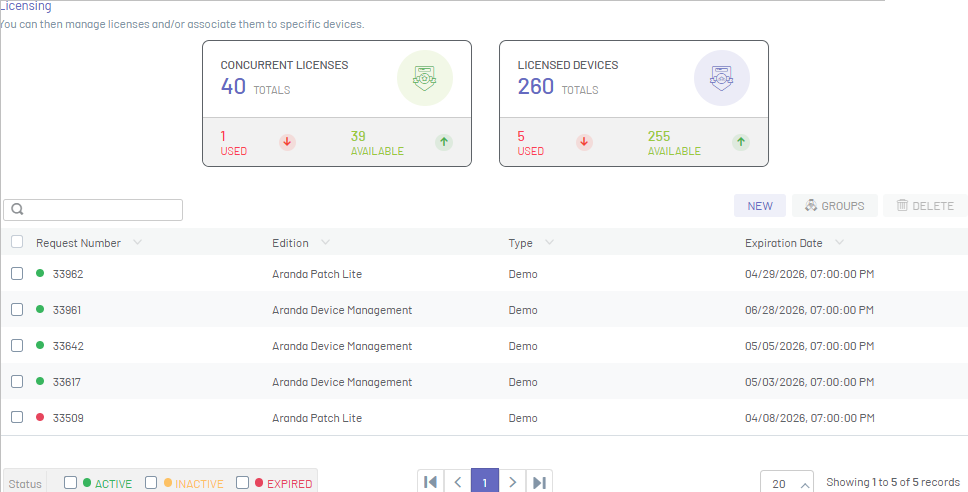
⚐ Note: Users in the group who are assigned a concurrent license will have access to the console until the total number of licenses assigned is reached. For example, if a group is assigned 10 concurrent licenses and the group consists of 20 users, only the 10 most recent users to authenticate to the system will have access.
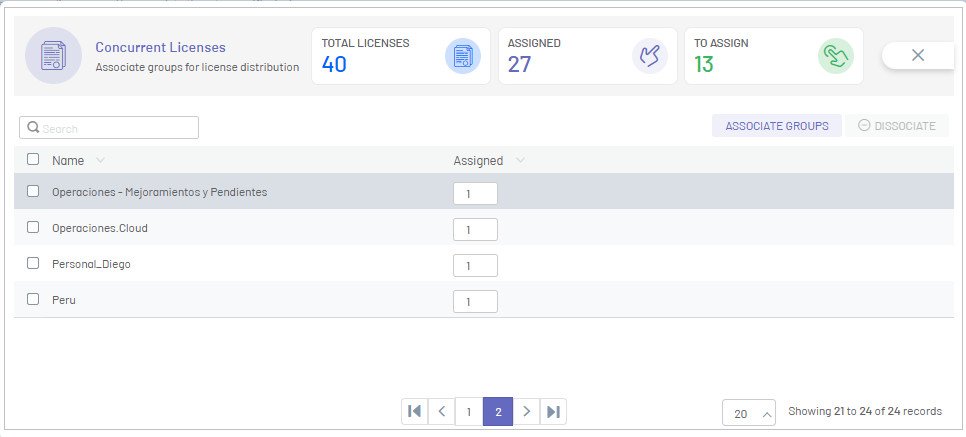
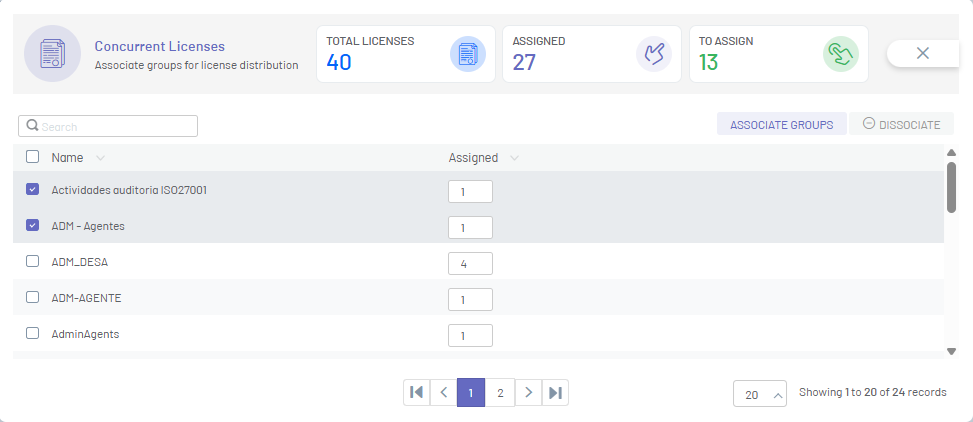
2. In the Concurrent Licenses window, you can view a summary of all concurrent licenses (assigned and available), grouped by data such as Name and Number of Concurrent Licenses Assigned
3. To search for groups with assigned licenses, enter data such as group name in the search field and press the enter key.
Associate groups
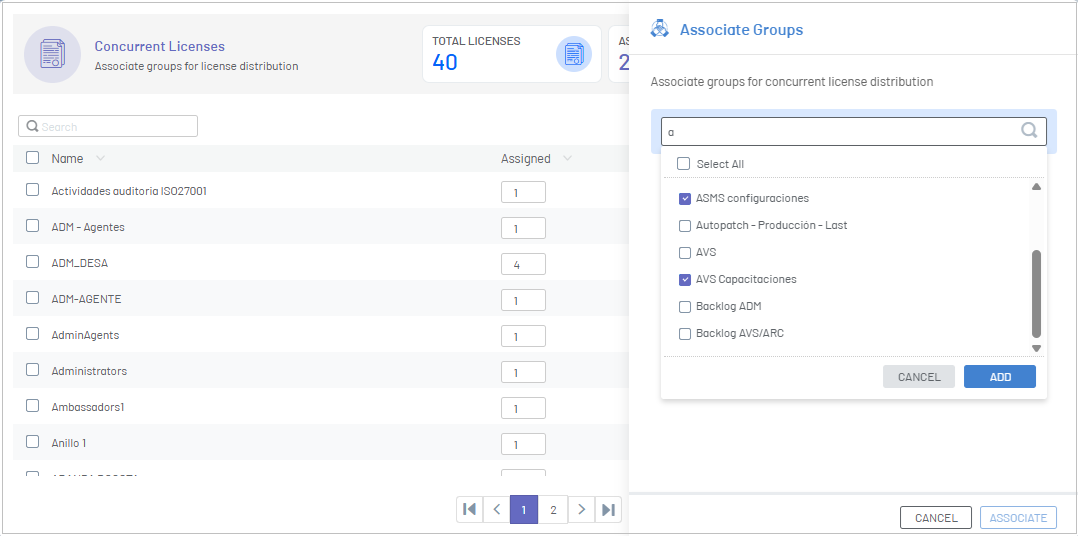
4. To assign a new license, click the Associate Groups. Find and select the groups you want to assign to the license and click the Add.
5. In the Concurrent Licensing window, click the ASSOCIATE. The assigned licenses can be viewed in the list of licenses.
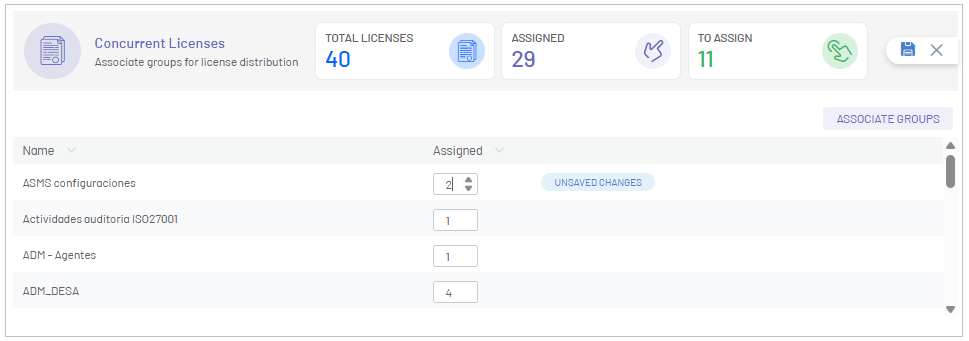
6. Enter the number of concurrent licenses you want to assign to each group and click the Save 
Disassociate groups
7. To disassociate a license, select one or more records from the license list and click the DISASSOCIATE.
8. Once it is disassociated, the license will be available and will be displayed in the total number of available concurrent licenses.