


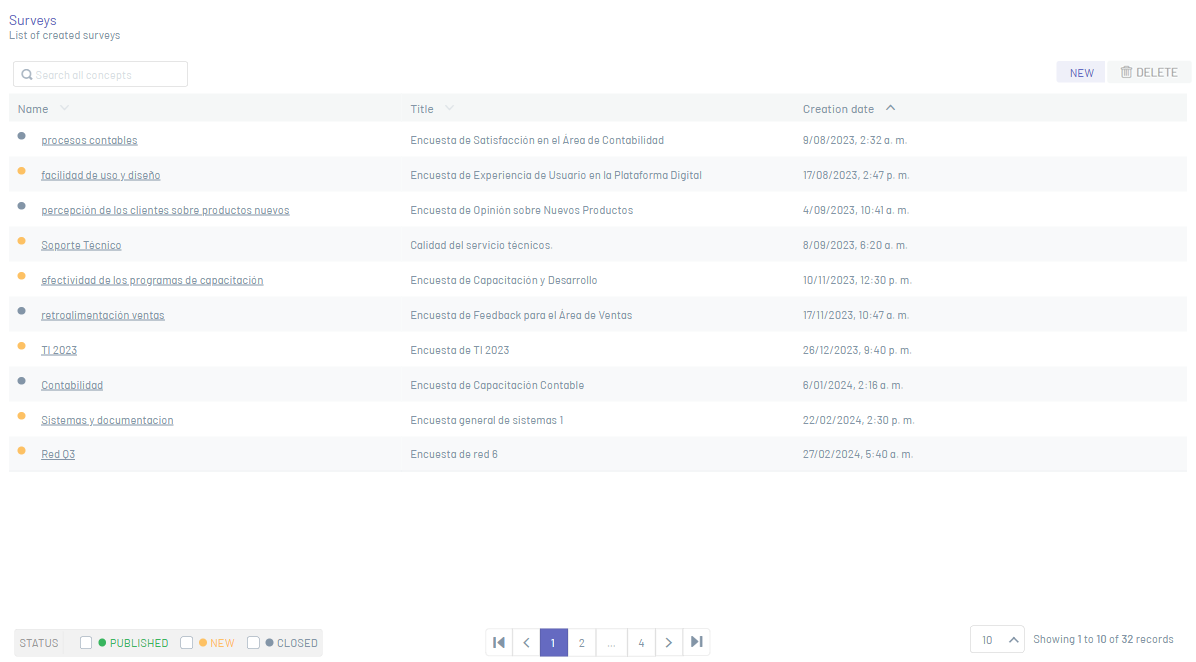
1. To edit a survey, in the survey information view, select a record from the list.
Basic Facts
2. In the window that is enabled you can modify the data and questions of the survey.
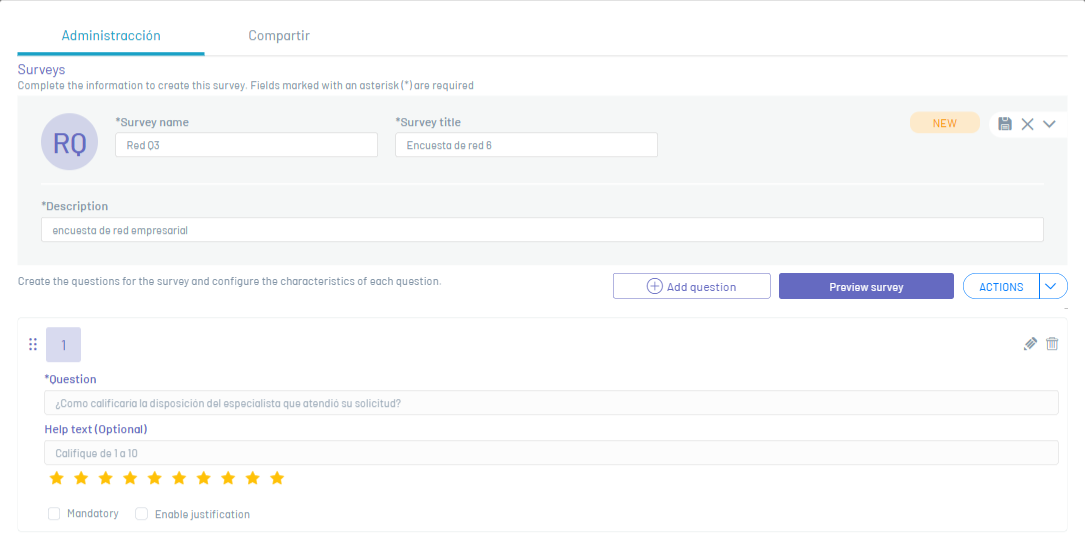
⚐ Note: You can only edit surveys that are in the New
Actions and Preview
3. You can change the status of the survey by clicking Actions.
If the survey is in the New may publish it and thus send it to the respondents who must fill it out.
Or if you are in a state Published You can close it so that you don’t receive any more responses from respondents.
⚐ Note: The change in state is irreversible, so you need to be sure when you execute the action
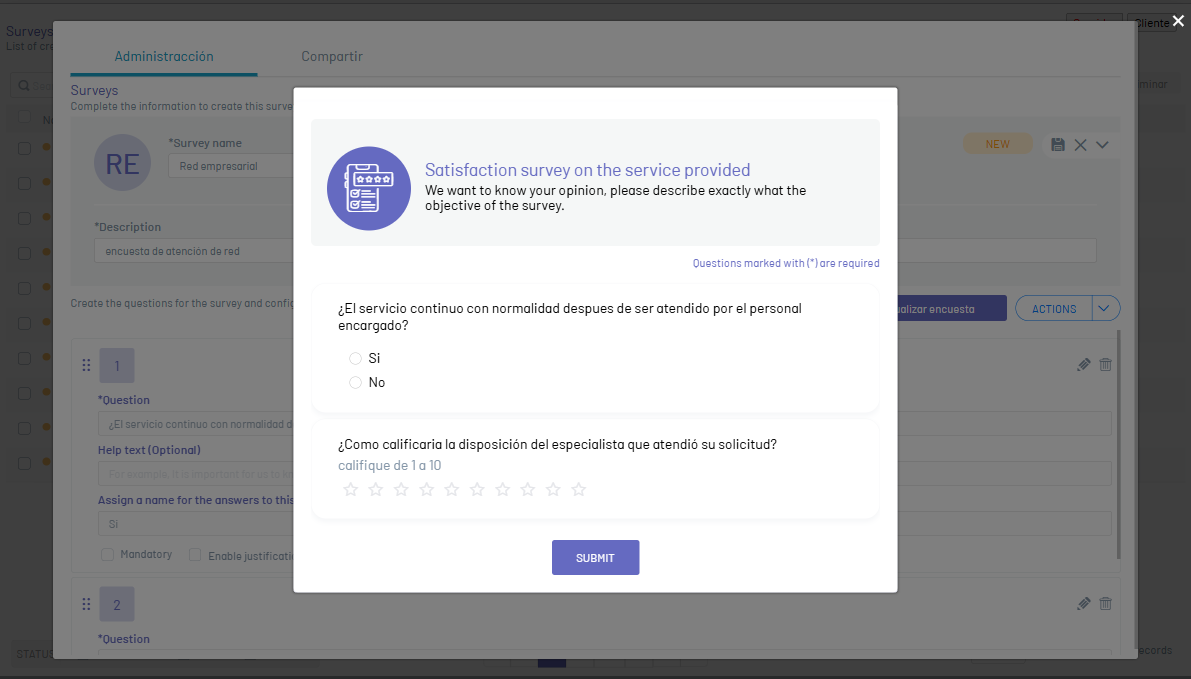
4. To preview how respondents will look, click Preview Survey
5. A window will be enabled with the information and questions filled out as the respondents will see it.
Questions
5. To modify a question by clicking on the Edit  and enter the Fields according to the type of question.
Finish by clicking the Add or if you want to discard the changes made to the question by clicking on the Discard 
⚐ Note: You will not be able to change the question type to an existing question.
6. To add more questions, click Add Question.
7. To change the order of the questions, tap the Order  Drag and drop the question to the position you want.
⚐ Note: This same sorting action can be performed when editing the answer options of the question type of Multiple Choice
8. To delete a question by clicking the Eliminate
9. When all questions are created, click the Save 
⚐ Note: When you save the survey, it is in the New, which you can change by entering the survey to publish it and send it to users.