


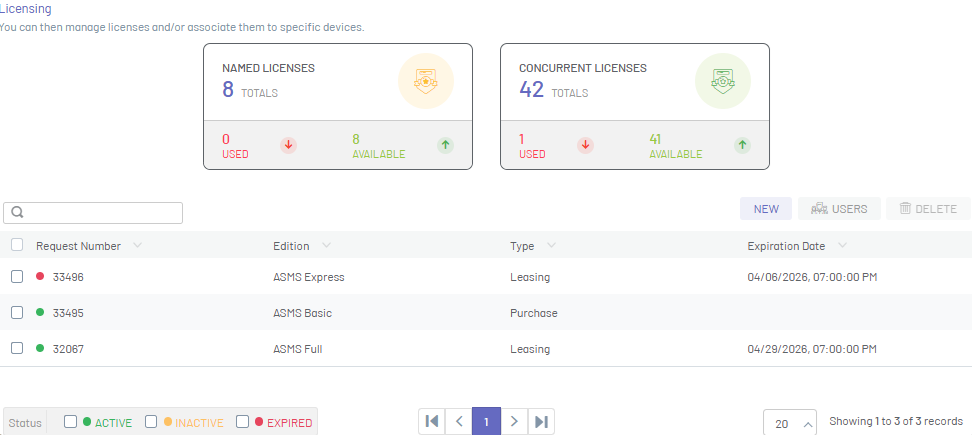
1. To request a new license, in the license information view, click the NEW.
Download MachineKey.amk
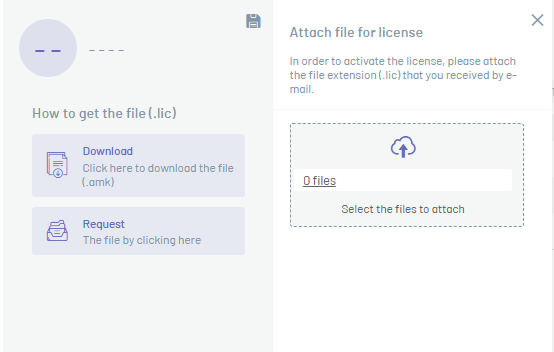
2. In the New License Detail view, select the Download that allows the download of the file MachineKey.amk, which is required for the license application.
License Application
3. In the New License Detail view, select the Application which enables a form to fill in license information such as:
- Customer Overview
- Type of License and Upload of the downloaded .amk file.
- Select Application to License, Edition, and Number of Licenses by Licensing Feature.
4. When completing the application, click Apply
⚐ Note: When processing the license generation request, you will receive an email with the .lic file which you will need to use in the next step.
Attach File
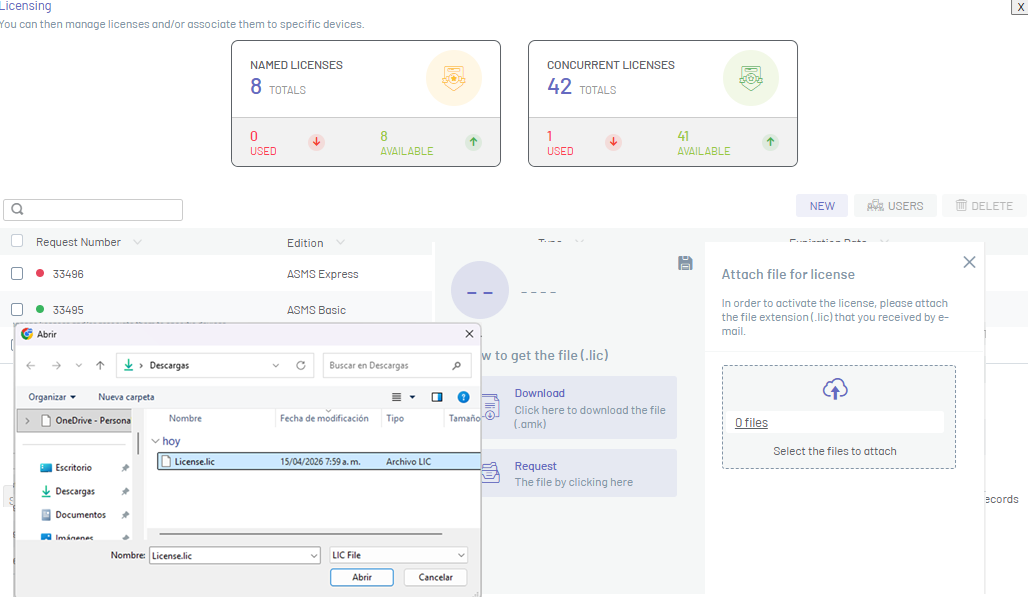
5. In the New License Detail view, select the Select files to attach, load the .lic file and click the Save 
⚐ Warnings:
- Once the purchased licenses are loaded, the common licensing service must remain on the same machine, otherwise the uploaded licenses will be lost.
- If your application server is located on a virtual machine, it is recommended that you install the Common Licensing Service on a physical machine, because when you restart virtual machines, there is a high probability that the hardware brand will change and the service will incorrectly assume that it was moved.