


In the information view of the AEMM Starter Console, you will be able to view Actions (commands). These actions are sent to the device to be executed and report the result to the Aranda Enterprise Mobility Management (AEMM) server.
The available actions change depending on the device platform:
Android
| Functions | Detail |
|---|---|
| Remote control | See Description Remote control. |
| Direct Boot | See Description Direct Boot. |
ios
| Functions | Detail |
|---|---|
| Remote viewing | See Description Remote Viewing. |
Android Remote Control
Allows the administrator to log in from the console to view and operate the device. During the session, you’ll be able to navigate, send messages, and perform actions, from controlling the device’s keyboard to managing files (uploading files from the console to the device). The system records the activity and notifies the connection status. Full device control and enabling accessibility permissions apply only to DO (Device Owner) bindings.

- Request a remote control session of the device from the AEMM console.
- Sending Command:
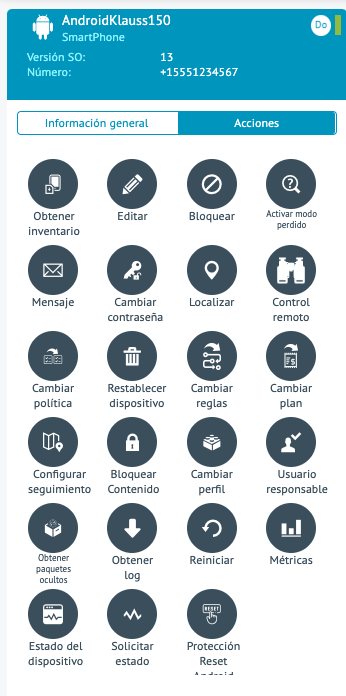
Remote control
Allows the administrator to log in from the console to view and operate the device. During the session, you will be able to navigate, execute actions, and send messages, while the system logs activity and notifies you of the connection status. The option to control the device completely and enable accessibility permissions applies only to DO (Device Owner) linkages.
1. Request a remote control session on the device from the AEMM console.
- Login Display:
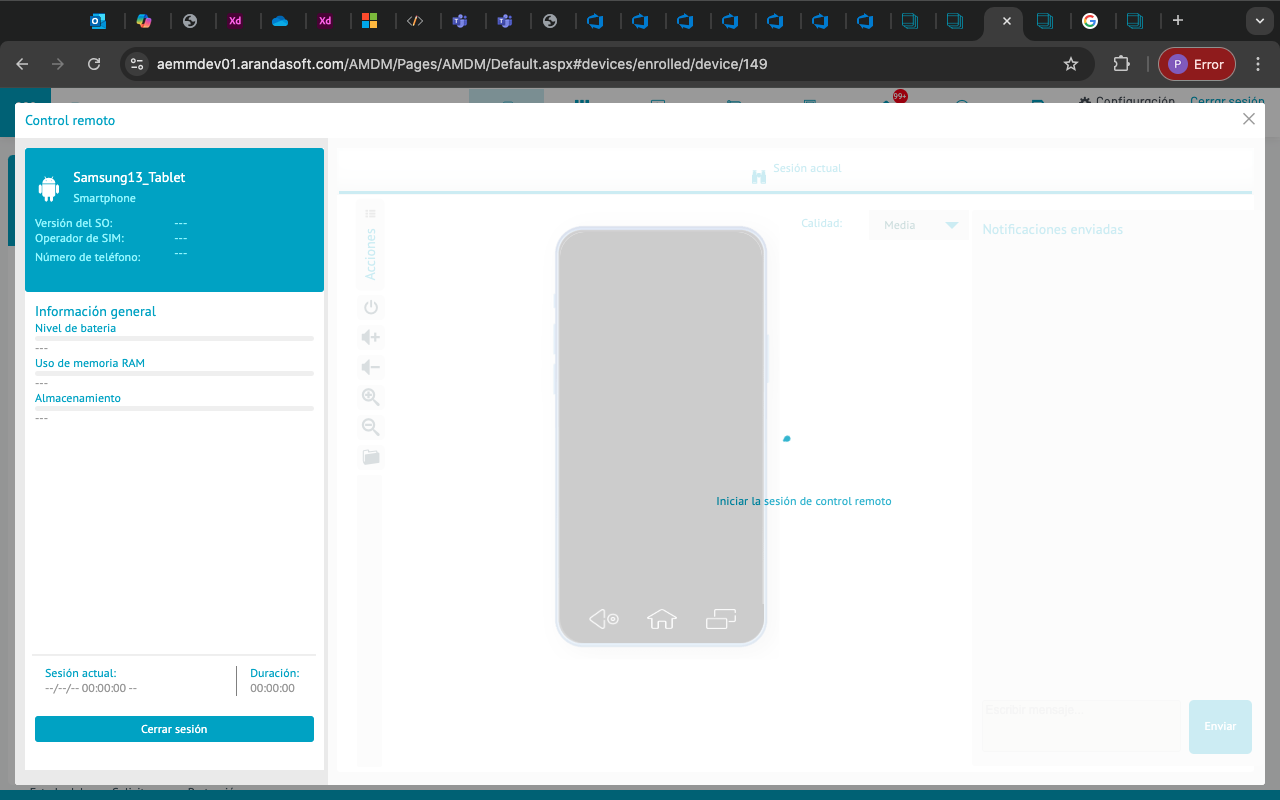
- The command will arrive on the device and prompt the user to enable the accessibility service.
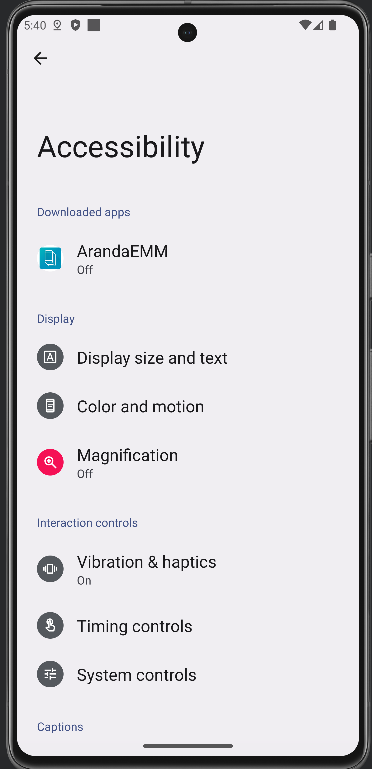
- Enable the Accessibility Service to grant full remote control.
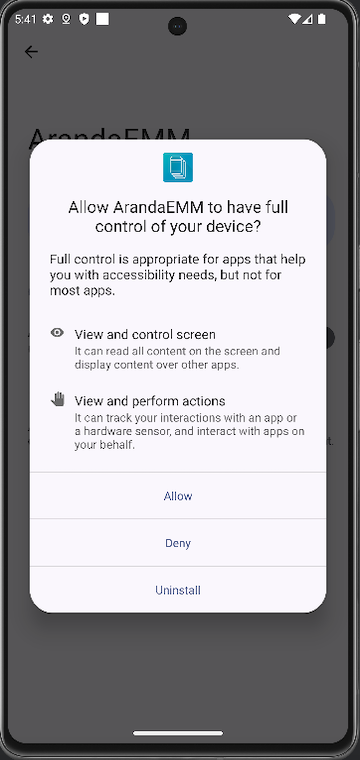
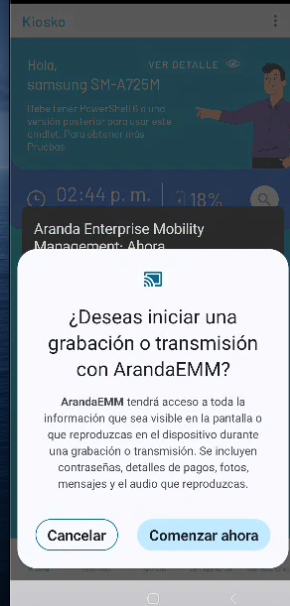
- Click Get started now.
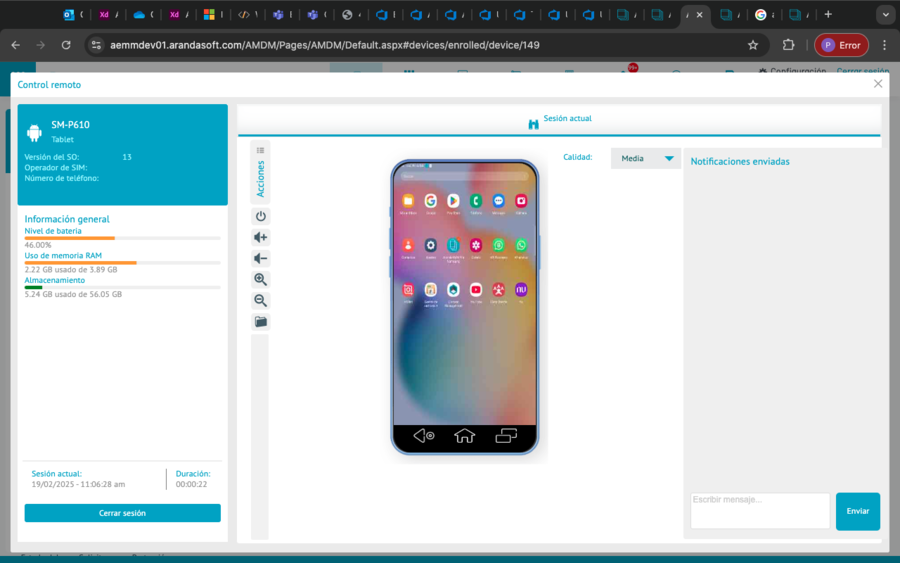
- Launch the remote control from the AEMM console to gain full control of the device.
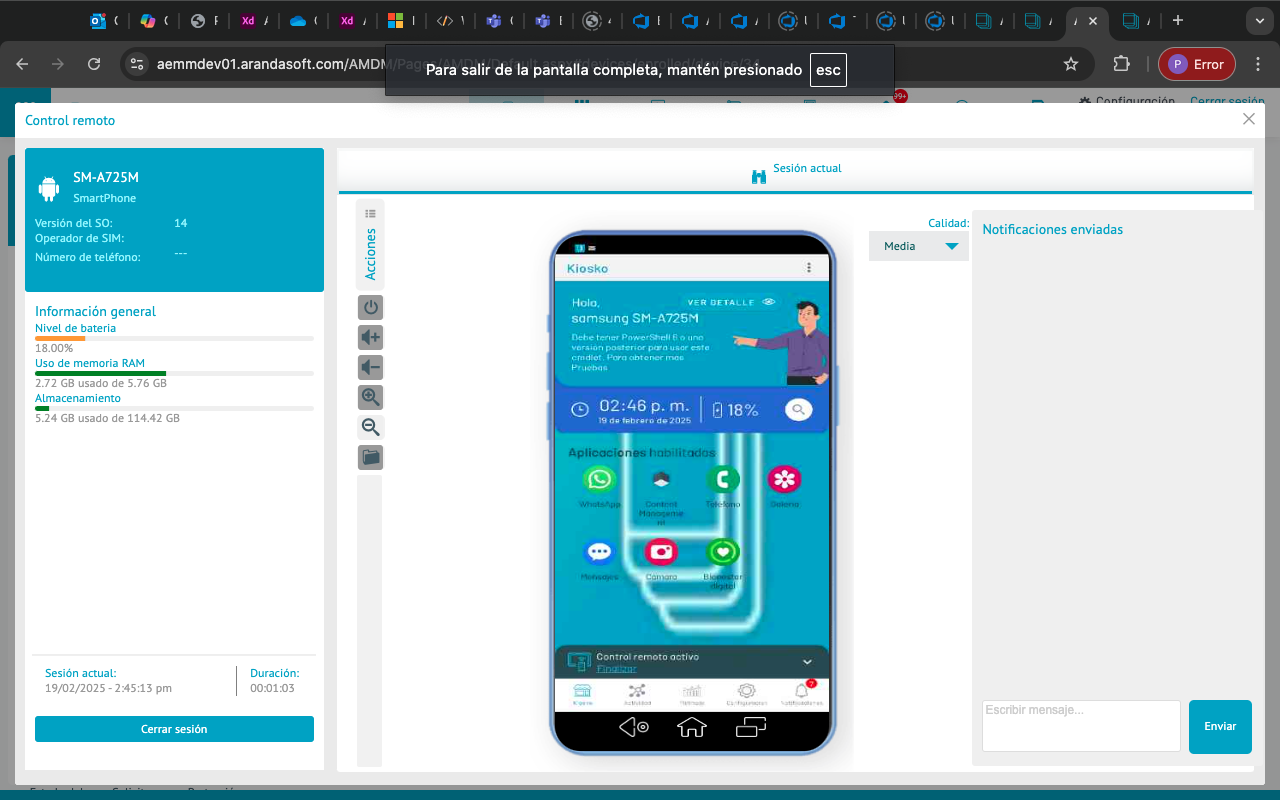
⚐ Note: During the remote control session on DO (Device Owner) devices, you will be able to type using the computer keyboard; The text entered will be reflected in real time directly on the device.
- In the AEMM console, go to Settings > Mobile > Remote Support and configure the options for requesting the remote:
- Request confirmation on mobile device before logging in.
- Request password on mobile device before logging in.
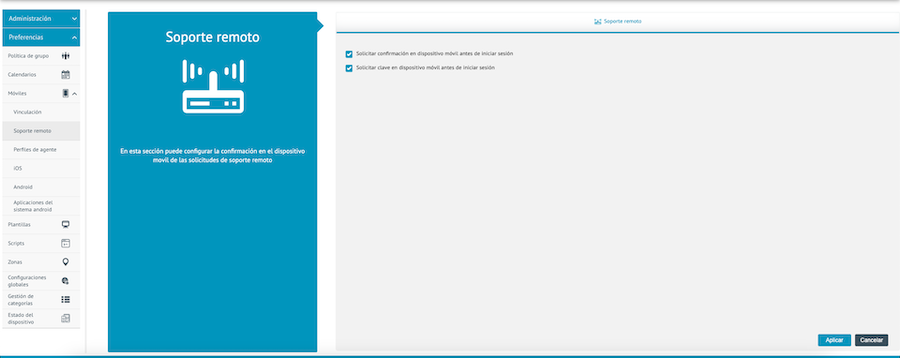
- The command will arrive on the device and ask for confirmation before starting the remote control session.
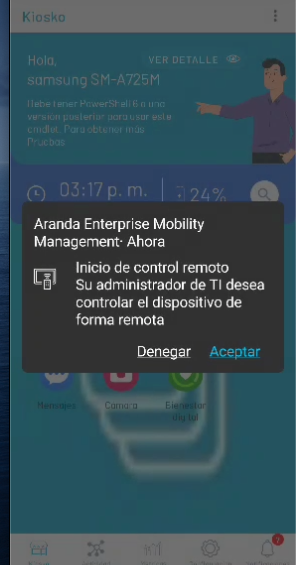
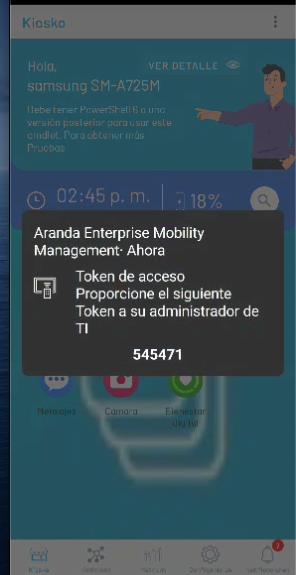
- On the device, a token will be displayed to enter it into the console and perform the remote control.
- Enter the token in the AEMM console to perform the remote control.
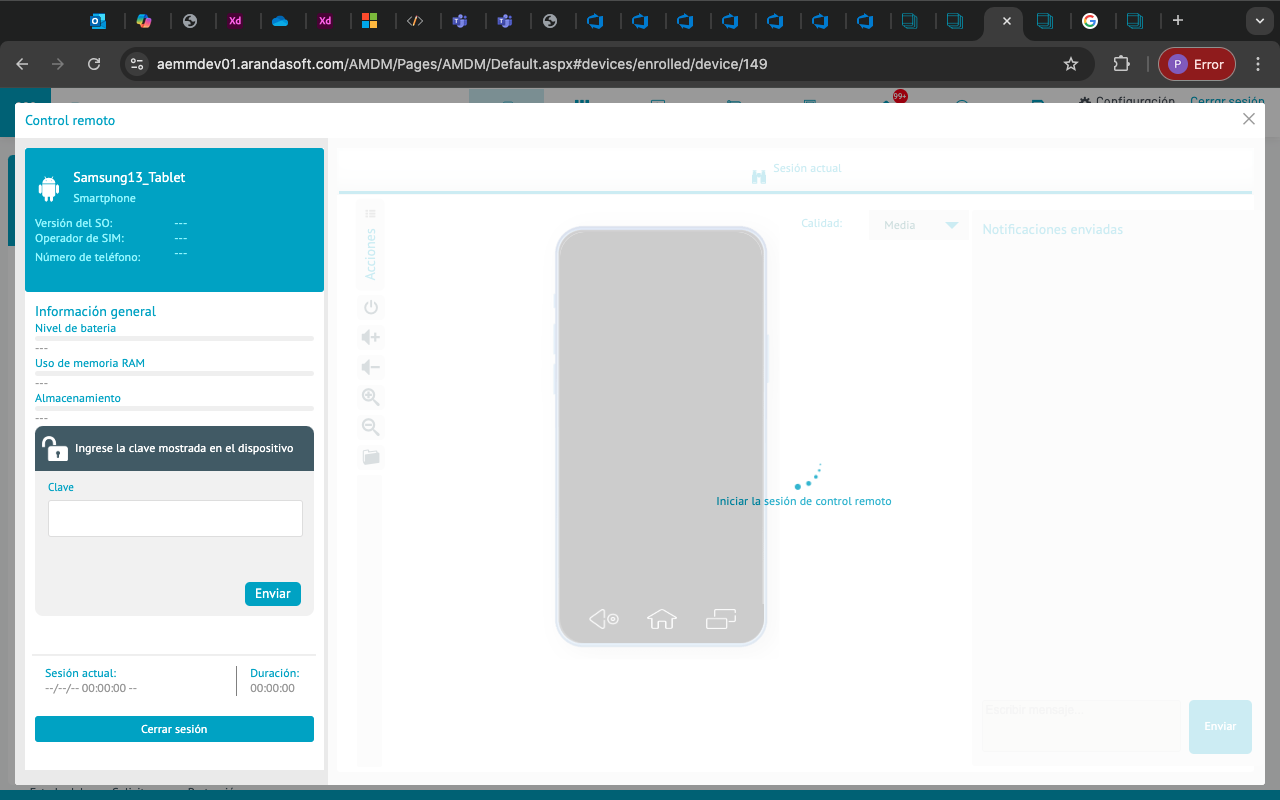
- The remote will start on the device.
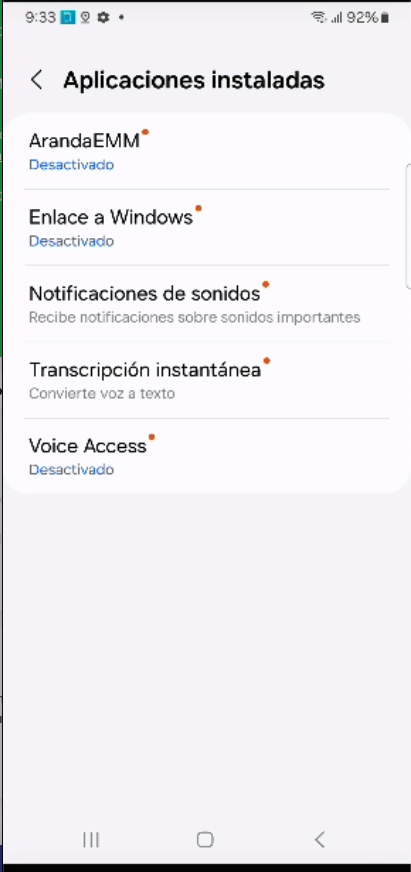
- On Samsung devices with generic AEMM agent, the request to enable access is different. First, enter the installed apps section:
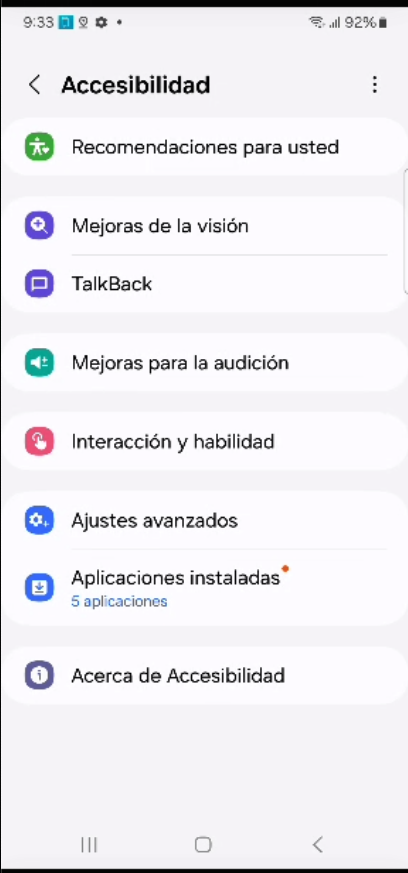
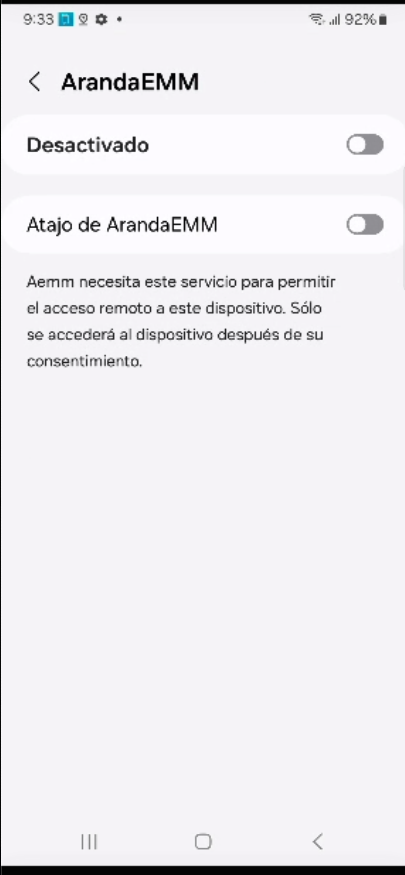
- Enter Aranda AEMM.
- Click the slider button to turn on accessibility.
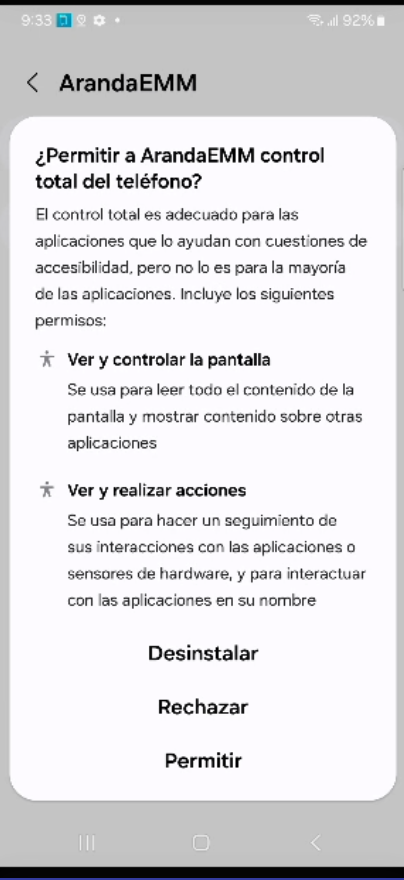
- Click Allow to give AEMM full control of the phone.
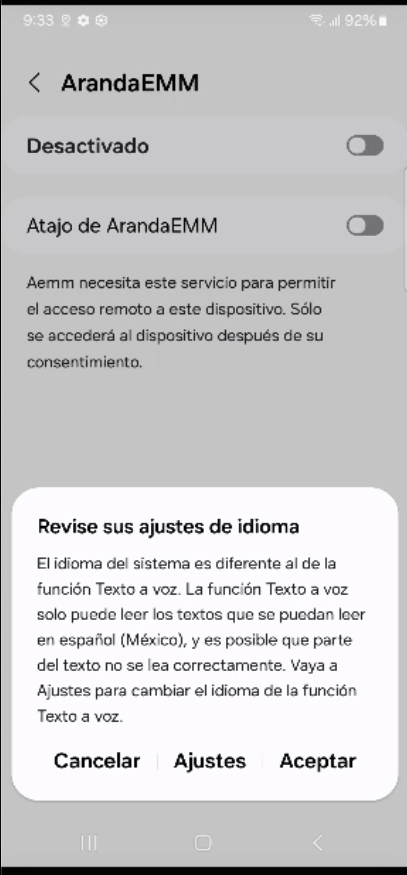
- Click Accept.
- Click Get Started Now to start the remote.
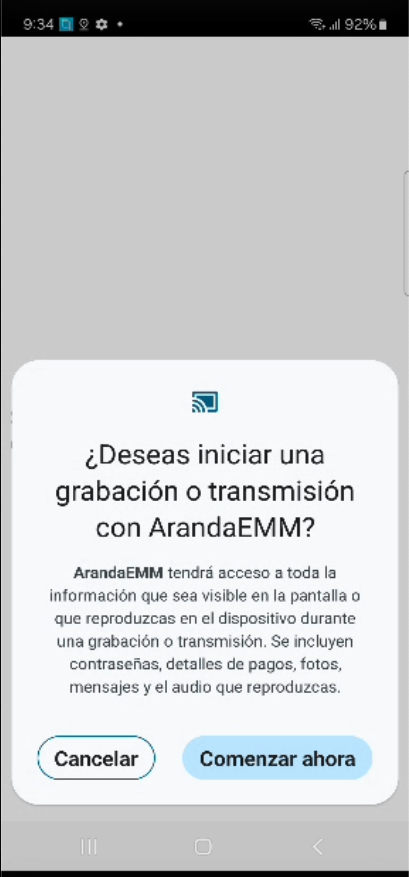
- The remote will start on the device.
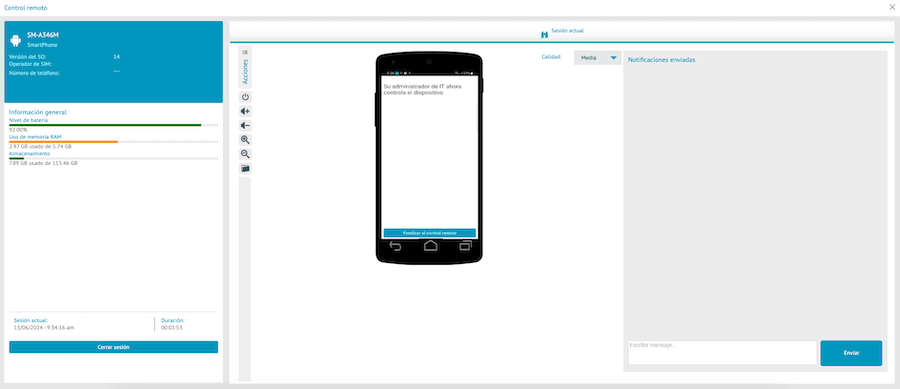
Case for Samsung Devices in Accessibility
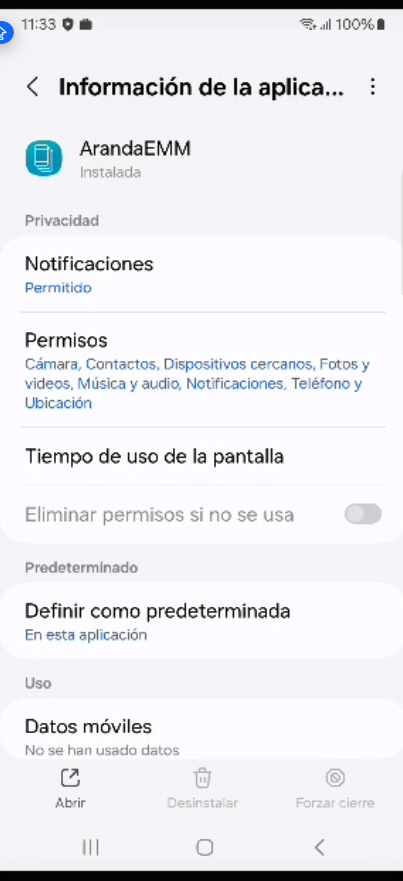
- If accessibility is blocked, as shown in the following image, keep these considerations in mind:
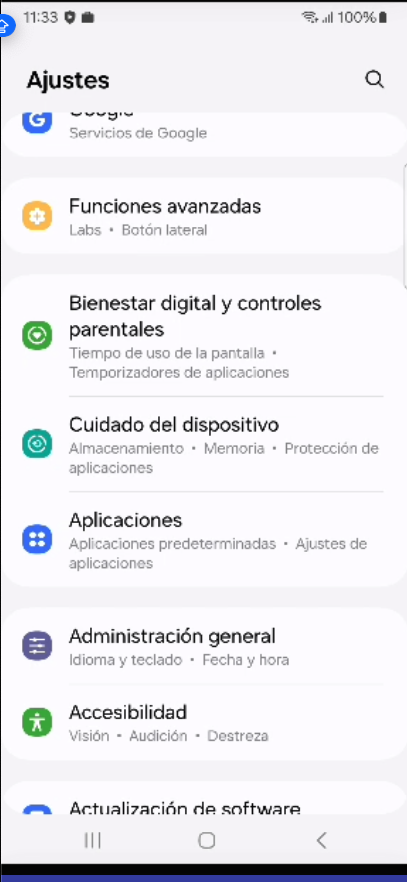
- In Settings of the system, select Applications and search for the ArandaEMM app.
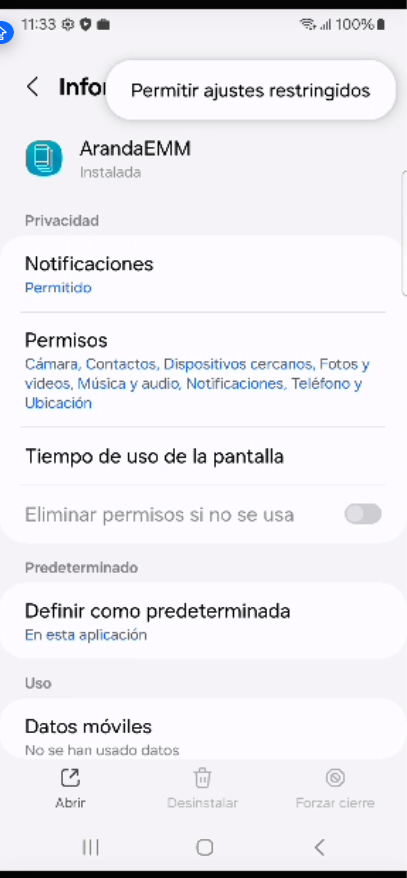
- In the top menu, within the policy information, select the three dots.
- Click Allow restricted settings.
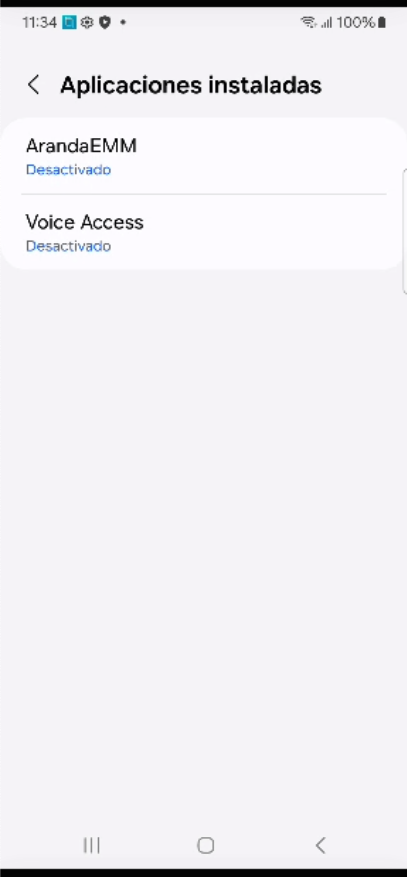
- Return to option Accessibility and repeat steps 12 through 15 to start the remote.
Direct Boot Mode Management Android for Work
iOS Remote Viewing


Allows the administrator to log in from the console to view the device. During the session, you can perform file management actions (upload files from the console to the device), while the system records the activity and notifies the connection status.
- Display on iOS devices
- File management on iOS
Direct Boot Mode Management
The administrator can run, in Direct Boot, certain remote management actions to be applied after the first reboot.
Available Actions
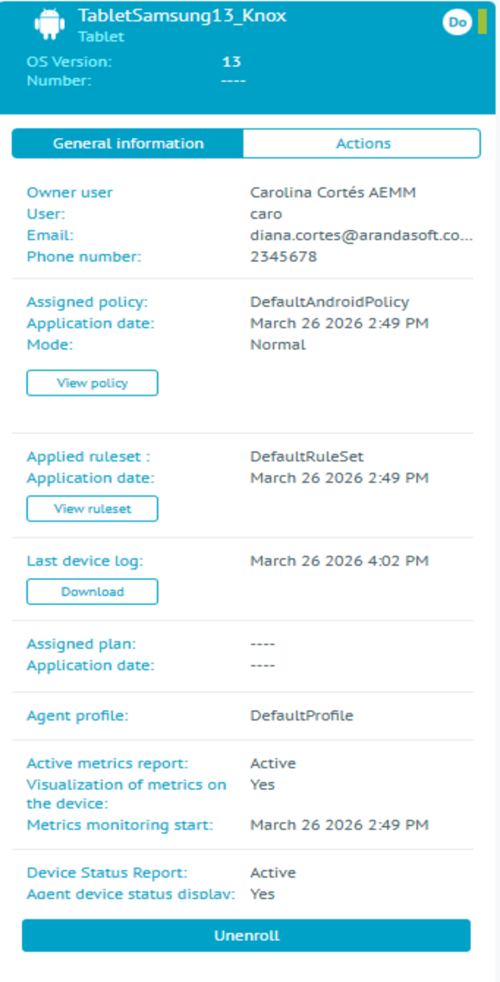
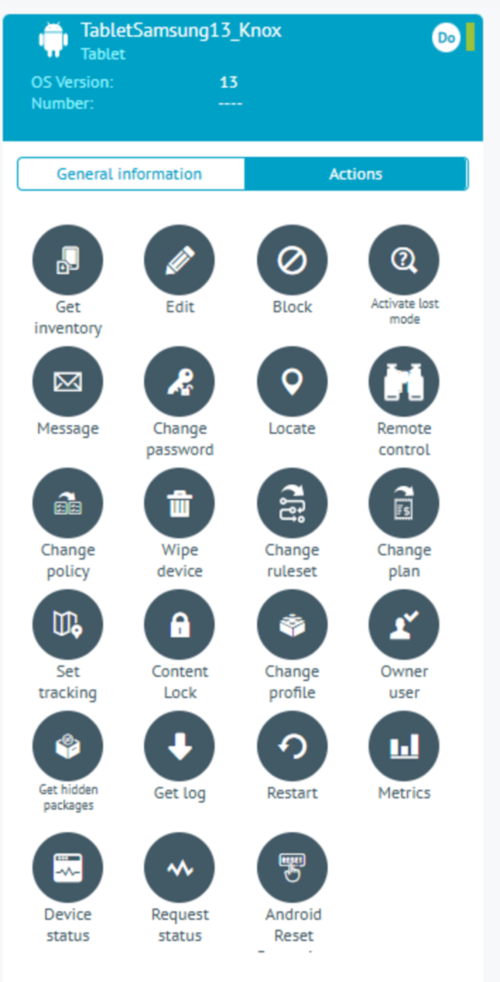
In this mode, the following commands can be executed:
- Unpairing the device.
- Wipe (remote data erase).
- Password reset (if you have password change configured from the policy, you must comply with these settings).
Below is a picture of the actions:
| Direct Boot Mode Commands | Reference |
|---|---|
 |
 |
How to turn on Direct Boot mode
- Restart your device. The device must have a recent restart.
- Validate the mode status Direct Boot:
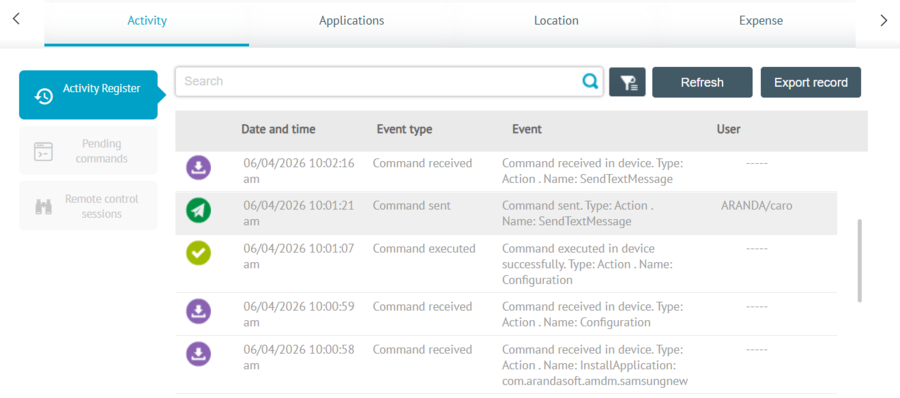
- From the console, send a non-management test command in Direct Boot mode (for example, a text message).
- Go to the Activities on your console.
- Verify that the command is displayed as Sent and Received, but Not executed. This confirms that Direct Boot mode is active.
- Execute the management action: With the status confirmed, send the final command in Direct Boot mode (Unlink, Wipe or Reset password). The system will send it and it will run successfully. If there are other commands queued, they will be processed after the device is unlocked.