


Android Enterprise allows you to link mobile device management to a Google Account from the AEMM console. This section describes how to update that link to a managed Google domain, how to configure provisioning of managed Google accounts, and how this process is reflected in the agent installed on the devices, while maintaining centralized synchronization and management from AEMM.
Upgrade from Android Enterprise to Managed Google Domain
When an Android Enterprise enterprise is linked using a managed Google Play account, AEMM allows you to update that link to a managed Google domain (Google Workspace). This update enables advanced Google services, Google managed accounts, and additional Android Enterprise capabilities on top of already enrolled devices, without impacting existing centralized management and synchronization.
To update the company link, follow these steps:
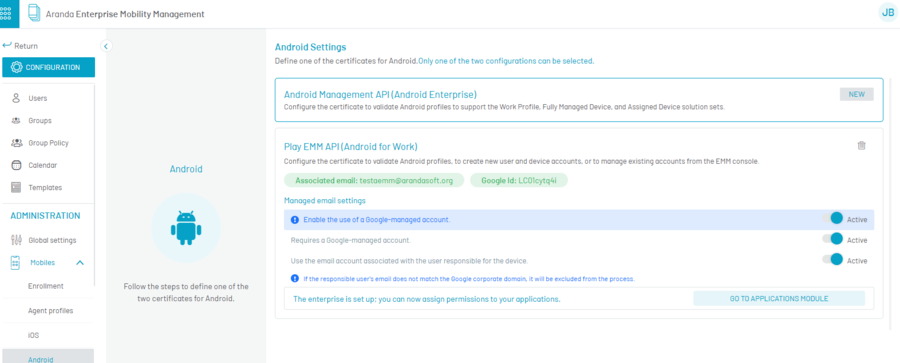
1. Enter the AEMM Home console, in the heading menu select the option Configuration and, within the PreferencesSelect Mobile; then enter the Android. On the panel Android Settings, AEMM displays the company’s current linking type, along with the associated email and Google ID, the AEMM console gives you the option to update or change the settings to a Managed Google domain , please check the conditions for this update before you check the conditions.
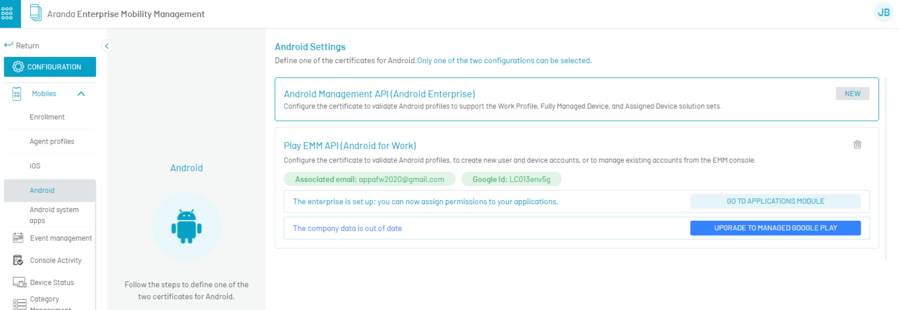
2. If you have an Android account setting, AEMM enables the Upgrade to Google Play Managed; Click on it, to start the update process.
3. AEMM invokes the official Google services (Google Play EMM API and Android Management API) to start the process of updating the company link (Enterprise Binding), follow the step by step and at the end the system will indicate the successful status of the process.
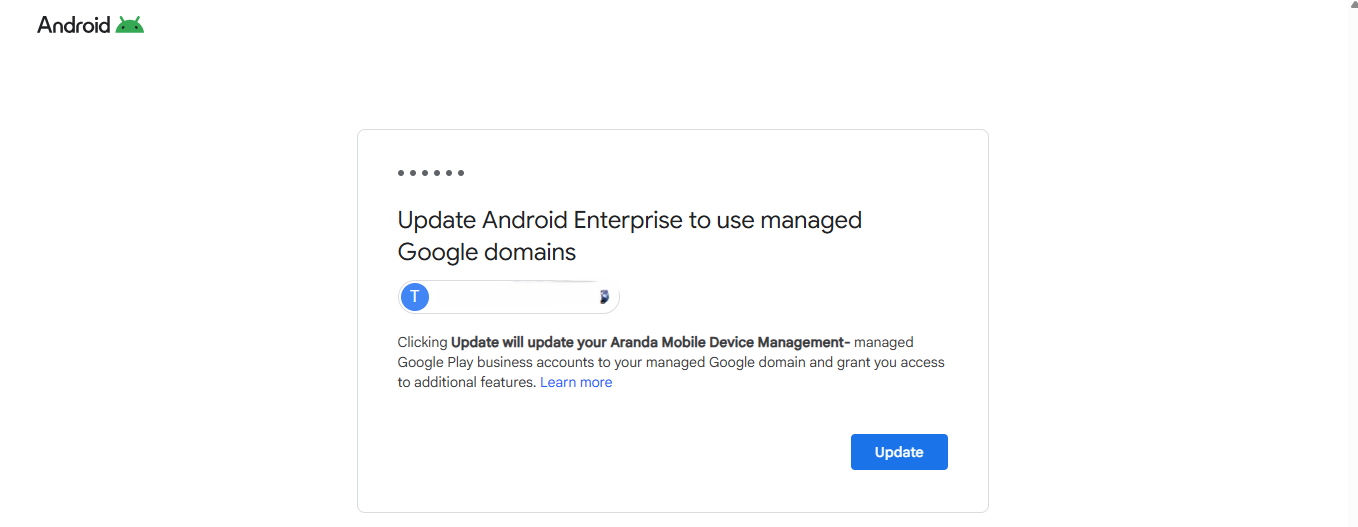
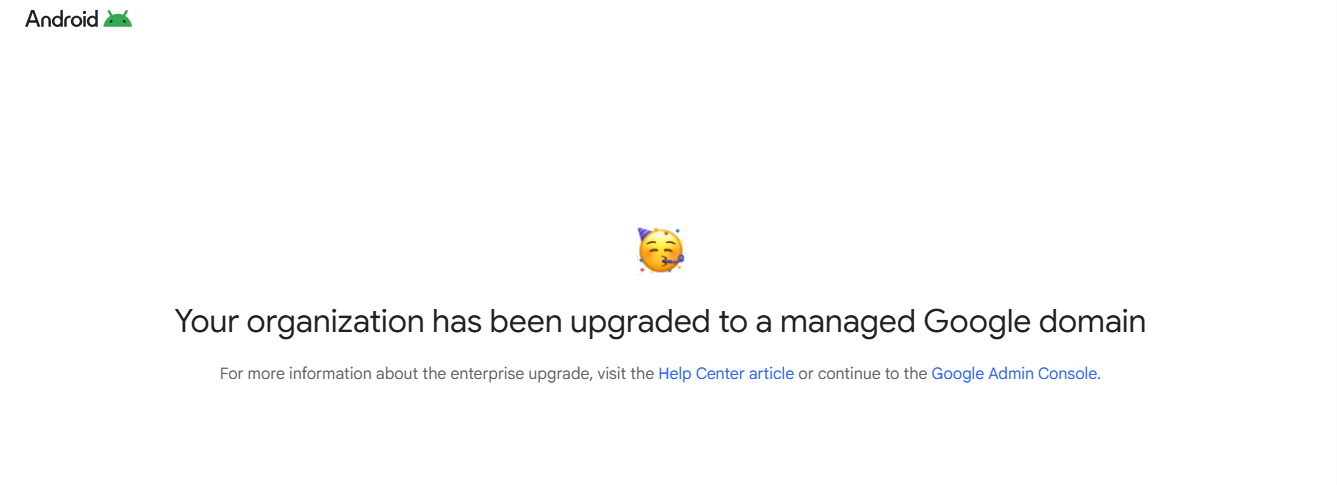
4. In Google, the administrator will be able to observe the successful response to the request.
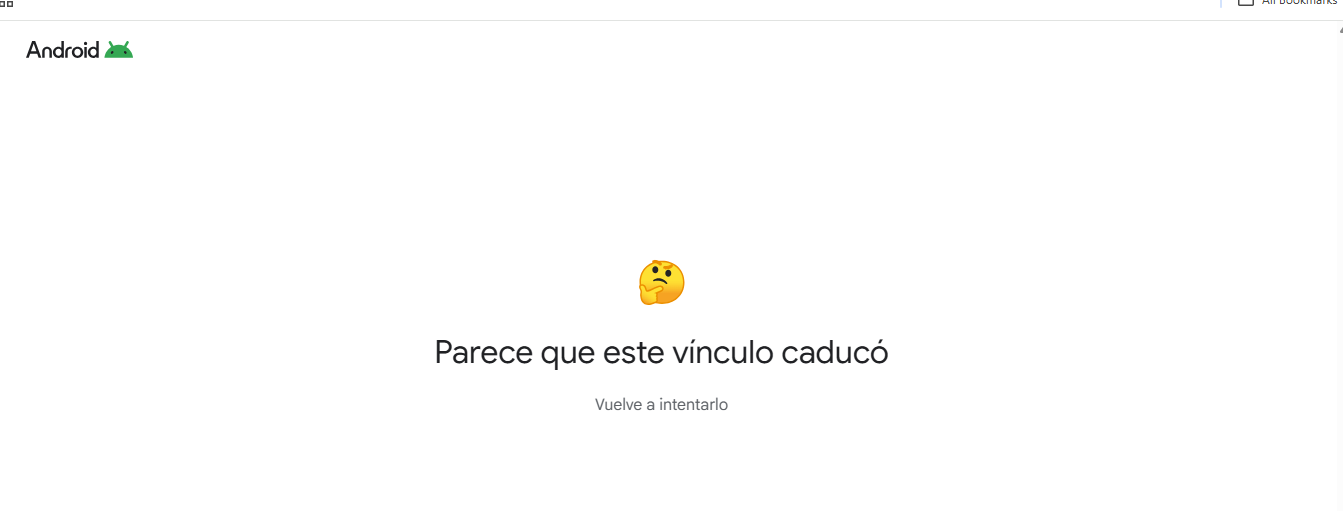
Keep in mind that this process has a timeout and the system will tell you that the session has expired.
5. Once Google successfully responds to the request, AEMM updates the on-screen email information (MGD) and Google ID associated with the console.

Provisioning Managed Google Accounts (MGA)
Once the company has a Google managed domain, AEMM allows you to provision Managed Google Accounts (MGAs) during or after the enrollment of Android Enterprise devices. This allows you to identify managed users, control the distribution of corporate applications, apply the policies associated with each user, and enable access to Google services managed by the organization; Google establishes this capability as a requirement for EMM solutions that support Android Enterprise.
After performing the upgrade, the administrator can configure provisioning for managed accounts using the following steps:
1. On the same panel Android Settings, in the Managed email settings, configure provisioning for Android Enterprise device enrollment. Enabling checks as appropriate.
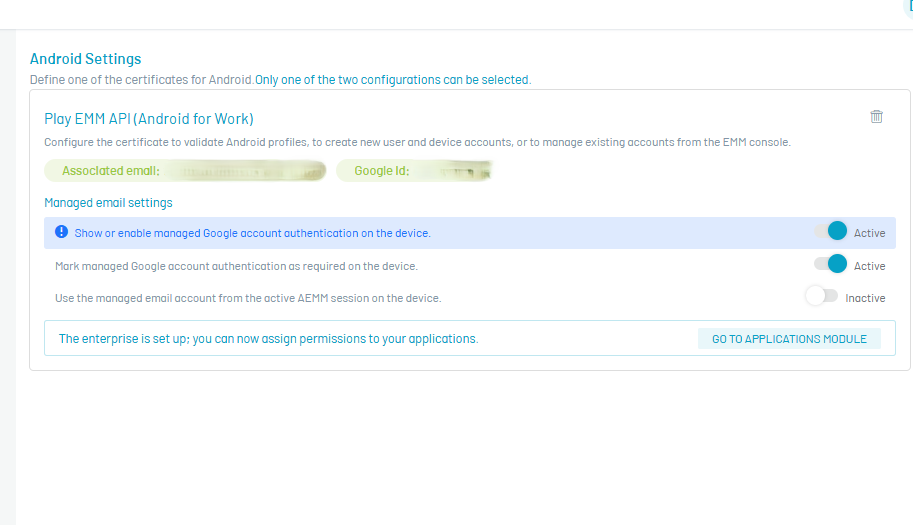
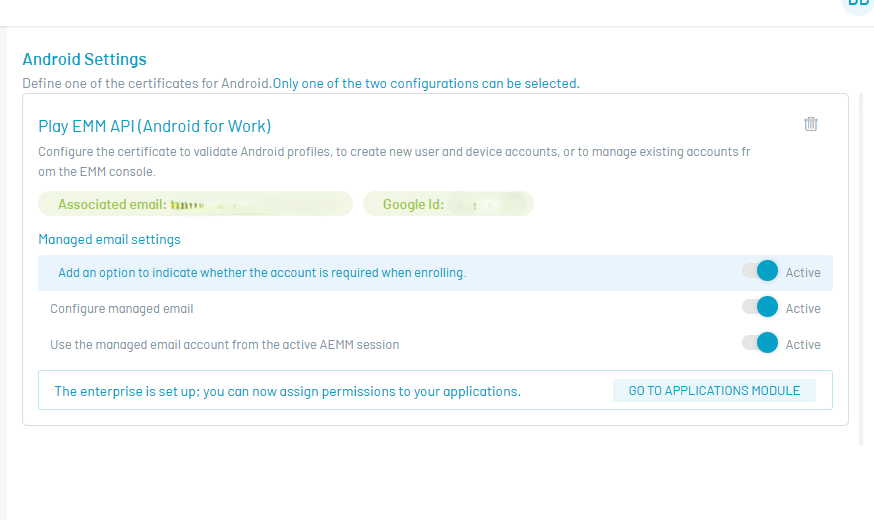
2. Within that section, enable authentication with a Google managed account using the main check; optionally, combine it with two additional verifications: Require managed Google account and Configured User Mail. The resulting behavior is as follows:
- Both inactive checks: enrollment doesn’t require a managed Google Account; the end user can bypass their association.
- Require managed Google Account: Active, User email configured: Inactive: enrollment requires a managed Google Account, without restricting mail to a specific one.
- Require managed Google Account: Active, User mail configured: Active: enrollment requires the managed Google account corresponding to the specific email configured for the user; the user sees their email and only has to enter the password.
⚠ Warning: AEMM does not allow saving the configuration if Configured User Mail is active while Require managed Google account remains inactive.
3. With the settings saved, AEMM enforces provisioning during the device enrollment process, using the mechanisms supported by the Play Emm Api or Android Management API to associate the corresponding managed account.
4. To check the provisioned account, go to the device detail, tab General information; AEMM displays the associated user and managed mail.
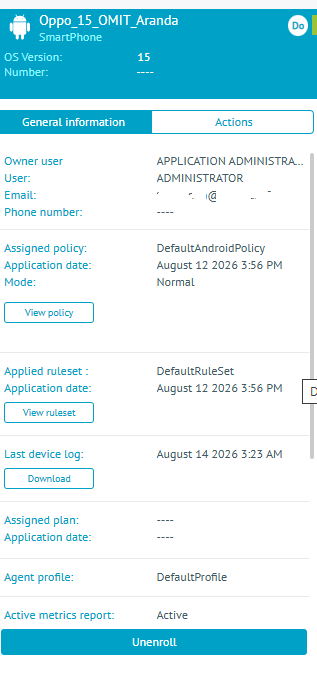
Provisioning of managed Google accounts is supported by management modes AFW and AMAPI, and applies to both DO (Device Owner) as PO (Profile Owner).
Updating your Google account in the Android agent
With the enterprise linked to a managed Google domain and managed Google account provisioning configured, the AEMM Android Agent reflects this configuration during the device linking process, allowing the end user to be migrated to a managed Google account. This behavior is also a requirement from Google for the app to remain in the Android Enterprise App Directory and retain the benefits of membership in the Android Enterprise App Directory.
Before proceeding, verify that your business is linked to a managed Google domain and that provisioning for managed accounts is enabled, as described in Upgrade from Android Enterprise to managed Google domain and in Managed Google Account Provisioning (MGA).
1. The end user initiates the linking process in the Android agent and logs in with their domain user, created in console, or corresponding to an enterprise domain (LDAP, Microsoft Entra ID, or other provider). Depending on the settings defined in the previous section, AEMM exhibits one of the following behaviors in the Google authentication window:
- Both inactive checks: Google sign-in is presented and the user can skip the managed account login.
- Require an active managed Google account, without specific email: Google sign-in is presented and the user must enter a managed account for the organization.
- Require active managed Google Account, with specific email configured: the Google login is presented with the user’s email already filled in; they only have to enter the password.
2. Upon completion of the sign-in, AEMM adds the managed Google account to the device’s managed Google Play store and continues with the normal linking process.
3. Once the device is linked, AEMM takes the inventory and records the linking information on the device’s resume, including the associated managed account.
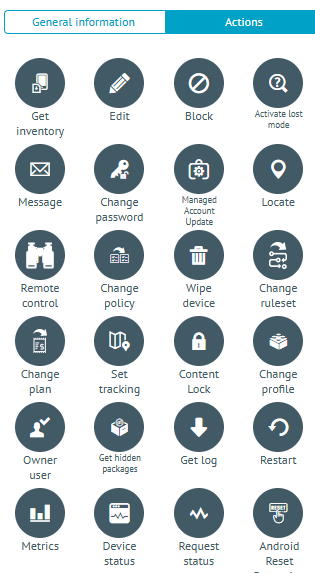
4. For a device that is already enrolled, the administrator can associate the managed Google Account later by using the Update Managed Account, available in the Actions of the device. The resume shows this command available when the user skipped the Google Account login during linking, and also when the assignee assigned to the device changes; when executed, AEMM applies the provisioning process and updates the status of the assignment. Behavior depends on verification Configured User Mail:
|
 |
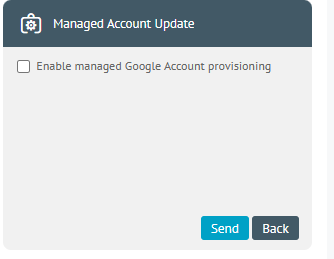
- Active: The command defaults to the mail configured for the user.
- Inactive: The system prompts the user to enter the managed email account.
|
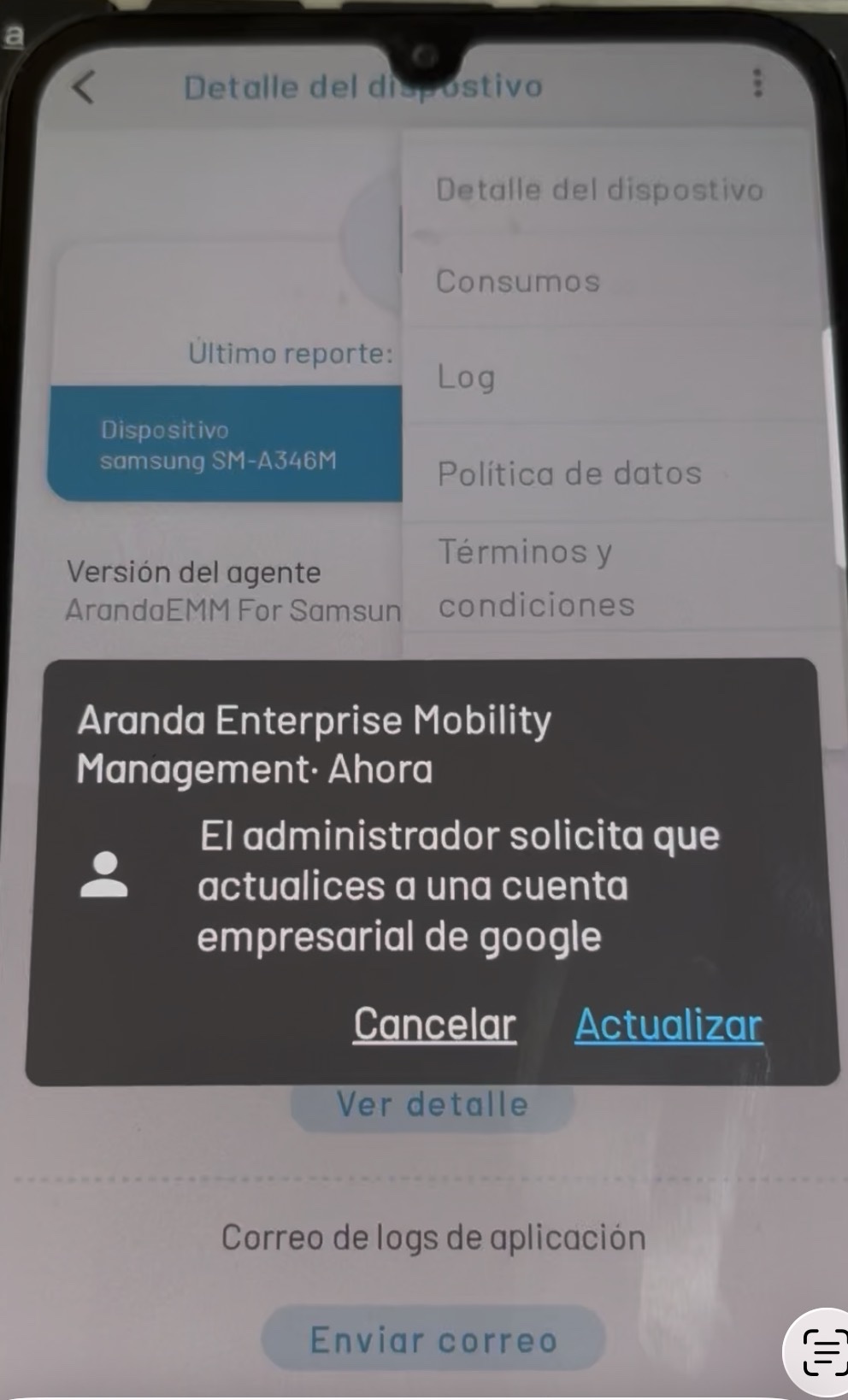 |
⚐ Note: The account that the user enters is set up in the device’s managed Google Play store.