


The goal of this step is to relate HP TechPulse incidents to ASMS cases.
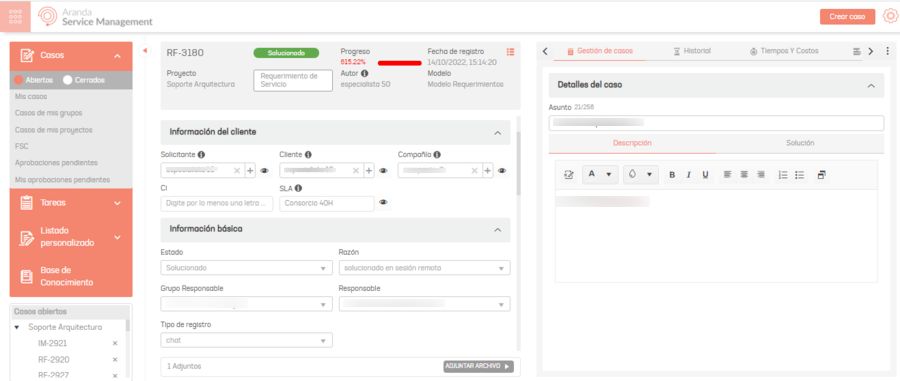
Example of an incident in ASMS
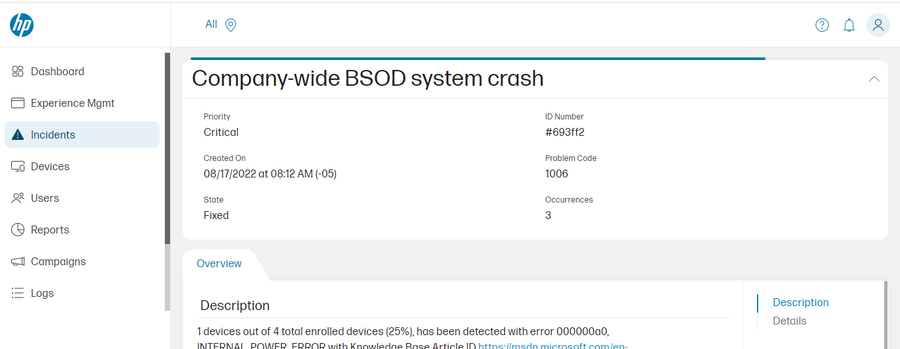
Example of an incident in HP TechPulse:
1. With the help of a Aranda Service Management (ASMS) get the IDs of the properties required for the integration; as described in the See Relationship Between ASMS Cases and HP TechPulse Incidents.
Below you can see some examples of the IDs of some properties
Projects
   {
      "id": 1,
      "name": "Caso Export"
   }
Service
     [
         {
             "id": 1,
             "name": "IMPLEMENTOS DE SEGURIDAD"
         },
         {
             "id": 2,
             "name": "INFORME SU ESTADO DE SALUD"
         }
     ]
Category
     [
        {
            "id": 1,
            "name": "CONTROL VISITA"
        },
        {
            "id": 2,
            "name": "SEGUIMIENTO Y CONTROL"
        }
     ]
Select the type of case to create:
| Case Type (itemType) |
|---|
| Incidents |
| Problem |
| Change |
| ServiceCall |
| Release |
SLAs
   {
      "id": 3,
      "name": "SLA 1"
   }
State
   [
         {
             "id": 188,
             "name": "Registrado"
         },
         {
             "id": 189,
             "name": "Solucionado"
         }
   ]
Urgency
   [
      {
         "id": 4,
         "name": "CRITICAL"
      },
      {
         "id": 3,
         "name": "HIGH"
      },
      {
         "id": 2,
         "name": "LOW"
      }
   ]
2. Match HP TechPulse states to the ID of ASMS statuses, as shown below:
| KEY STATE HP TechPulse | ASMS | ID STATE ASMS |
|---|---|---|
| NEW | Registered | 188 |
| FIXED | Solved | 189 |
Type the relationship in the configuration file in the state as follows:
On the property “Commentary” of “state”, in the “Solved” status - ID “189”, write a comment to close the case if required (Most cases require having a value in “commentary”).
{
  "mappers": [
    {
      "subtypes": [

      ],
      "tenantIds": [
        ""
      ],
      "filter": "",
      "case": {
        "category": 0,
        "ci": 0,
        "itemType": "",
        "project": 0,
        "service": 0,
        "sla": 0,
        "company": 0,
        "customer": 0,
        "reason": 0,
        "state": [
          {
            "value": "NEW",
            "id": 188
          },
          {
            "value": "FIXED",
            "id": 189,
            "commentary": "Caso finalizado"
          }
        ],
        "urgency": [
        ]
      }
    }
  ],
  "uniqueTenant": "",
  "companies": [
  ]
}
3. For the property urgency ASMS “Urgency” and HP TechPulse “Priority” properties are related
| HP TechPulse Priority | ASMS | ID URGENCY ASMS |
|---|---|---|
| CRITICAL | CRITICAL | 4 |
| HIGH | HIGH | 3 |
| LOW | LOW | 2 |
Type the relationship in the configuration file in the urgency as follows:
   {
       "mappers":[
          {
             "id":"",
             "subtypes":[

             ],
             "filter":"",
             "case":{
                "itemType":"",
                "project":0,
                "service":0,
                "category":0,
                "sla":0,
                "company":0,
                "state":[
                      {
                         "value":"NEW",
                         "id":188
                      },
                      {
                         "value":"FIXED",
                         "id":189,
                         "commentary": "Caso finalizado"
                      }
                ],

                "urgency": [
                   {
                      "value": "CRITICAL",
                      "id": 4
                   },
                   {
                      "value": "HIGH",
                      "id": 3
                   },
                   {
                      "value": "LOW",
                      "id": 2
                   },
                   {
                      "value": "MEDIUM",
                      "id": 2
                   }
                ]
             }
          }
       ],
       "tenantIds":[
       ],
       "uniqueTenant":"",
       "companies": [
       ]
   }
4. Register the Ids of the other properties, obtained from the ASMS APIs:
| itemType: “ServiceCall”, |
| project:1, |
| service:2, |
| category:2, |
| SLA:3, |
| company:1, |
⚐ Note: If you want to relate the tenant(s) associated with a company(s), assign 0 to the value of Company see Relationship between companies and tenants
- For the example, the property is assigned 0 to Company
Record in the configuration file as follows:
{
  "mappers": [
    {
      "id": "",
      "subtypes": [
        "COMPANY_WIDE_BIOS_OUTOFDATE",
        "BATTERY_NEEDS_ATTENTION",
        "BATTERY_NOT_DETECTED"
      ],
      "filter": "",
      "case": {
        "itemType": "ServiceCall",
        "project": 1,
        "service": 2,
        "category": 2,
        "sla": 3,
        "company": 0,
        "state": [
          {
            "value": "NEW",
            "id": 1
          },
          {
            "value": "FIXED",
            "id": 13,
            "commentary": "Caso finalizado"
          }
        ],
        "urgency": [
          {
            "value": "CRITICAL",
            "id": 4
          },
          {
            "value": "HIGH",
            "id": 3
          },
          {
            "value": "LOW",
            "id": 2
          },
          {
            "value": "MEDIUM",
            "id": 2
          }
        ]
      }
    }
  ],
  "tenantIds": [
    ""
  ],
  "uniqueTenant": "",
  "companies": [
    {
      "id": 0,
      "tenantId": ""
    }
  ]
}
5. To add the additional fields, see the following API:
Additional Fields API
api/v9/item/additionalfields
Make a request with the following JSON
{
    "categoryId": 0,
    "consoleType": "specialist",
    "itemType": 0,
    "modelId": 0,
    "stateId": 0
}
Use the values obtained in advance to make the query. As a result, the following IDs of the additional fields are obtained (No more information of the additional fields is attached because it is not required for the example).
[
    {
        "id": 122,
        ...
    },
]
For more information, please refer to the ASMS documentation
6. On the property “additionalFields” Configuration file Enter the results obtained:
    {
      "mappers": [
        {
          "id": "",
          "subtypes": [
            "COMPANY_WIDE_BIOS_OUTOFDATE",
            "BATTERY_NEEDS_ATTENTION",
            "BATTERY_NOT_DETECTED"
          ],
          "filter": "",
          "case": {
            "itemType": "ServiceCall",
            "project": 1,
            "service": 2,
            "category": 2,
            "sla": 3,
            "company": 0,
            "state": [
              {
                "value": "NEW",
                "id": 1
              },
              {
                "value": "FIXED",
                "id": 13,
                "commentary": "Caso finalizado"
              }
            ],
            "urgency": [
              {
                "value": "CRITICAL",
                "id": 4
              },
              {
                "value": "HIGH",
                "id": 3
              },
              {
                "value": "LOW",
                "id": 2
              },
              {
                "value": "MEDIUM",
                "id": 2
              }
            ],
            "additionalFields": [
              {
                "fieldId": 122,
                "values": [
                  ""
                ]
              }
            ]
          }
        }
      ],
      "tenantIds": [
        ""
      ],
      "uniqueTenant": "",
      "companies": [
        {
          "id": 0,
          "tenantId": ""
        }
      ]
    }
Because the value that can be added depends on its type, read the following section: Additional fields.
For this example, the additional field is of type text, it will have the following value:
   "additionalFields": [
        {
            "fieldId": 122,
            "values": [
                "texto prueba"
            ]
        }
    ]
Complete the configuration file as follows:
    {
      "mappers": [
        {
          "id": "",
          "subtypes": [
            "COMPANY_WIDE_BIOS_OUTOFDATE",
            "BATTERY_NEEDS_ATTENTION",
            "BATTERY_NOT_DETECTED"
          ],
          "filter": "",
          "case": {
            "itemType": "ServiceCall",
            "project": 1,
            "service": 2,
            "category": 2,
            "sla": 3,
            "company": 0,
            "state": [
              {
                "value": "NEW",
                "id": 1
              },
              {
                "value": "FIXED",
                "id": 13,
                "commentary": "Caso finalizado"
              }
            ],
            "urgency": [
              {
                "value": "CRITICAL",
                "id": 4
              },
              {
                "value": "HIGH",
                "id": 3
              },
              {
                "value": "LOW",
                "id": 2
              },
              {
                "value": "MEDIUM",
                "id": 2
              }
            ],
            "additionalFields": [
              {
                "fieldId": 122,
                "values": [
                  "texto prueba"
                ]
              }
            ]
          }
        }
      ],
      "tenantIds": [
        ""
      ],
      "uniqueTenant": "",
      "companies": [
        {
          "id": 0,
          "tenantId": ""
        }
      ]
    }
Continue: Get the Hp TechPulse Tenants (Step 3) ↪