


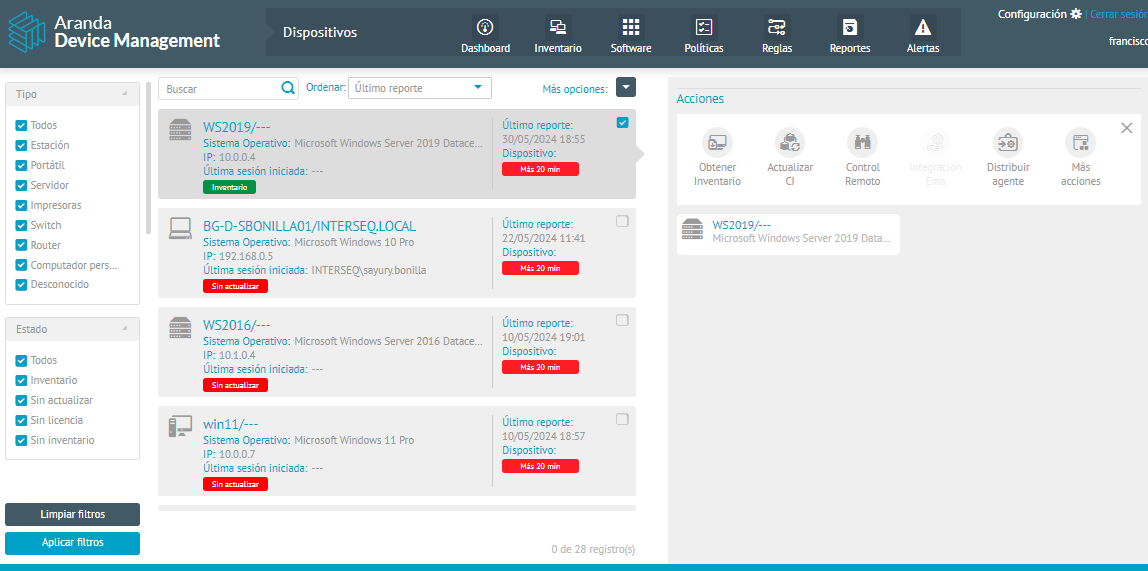
1. Enter the Home view of the ADM Management Console and select the module Inventory from the Header menu and from the drop-down list select the Devices.
⚐ Remote Control Configuration: To perform remote control, the following must be previously configured:
- You must have a user group that has Remote Support permission active in your role.
- (Optional) If the user group should only view the devices to be controlled remotely, keep the “Manage all devices” option disabled in the permission associated with the Device Group Role. Roles and Permissions.
- The device must be associated with a device group. Device Group
- In the device group, assign the Remote Control permission to the groups of users authorized to take remote control Associate Permission and User Groups
2. Once the above configuration has been made, in the detail view of the selected device you will be able to see the section of available actions that can be exercised on a defined device. Select the action Remote control to take real control over the chosen device.
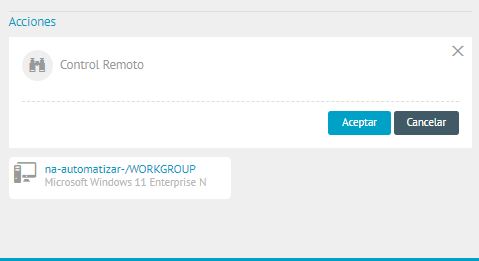
3. When configuring the action click the Accept.
4. In the browser, the Support session, where you can view device information, open the remote control viewer, and transfer files between devices.