


View Updates
1. Enter the Home view of the ADM Management Console and select the module Software from the Header menu, and from the drop-down list, select the Updates. In the information view, you can view the list of detected updates and consult a summary of each update, the date of publication and the date of download.
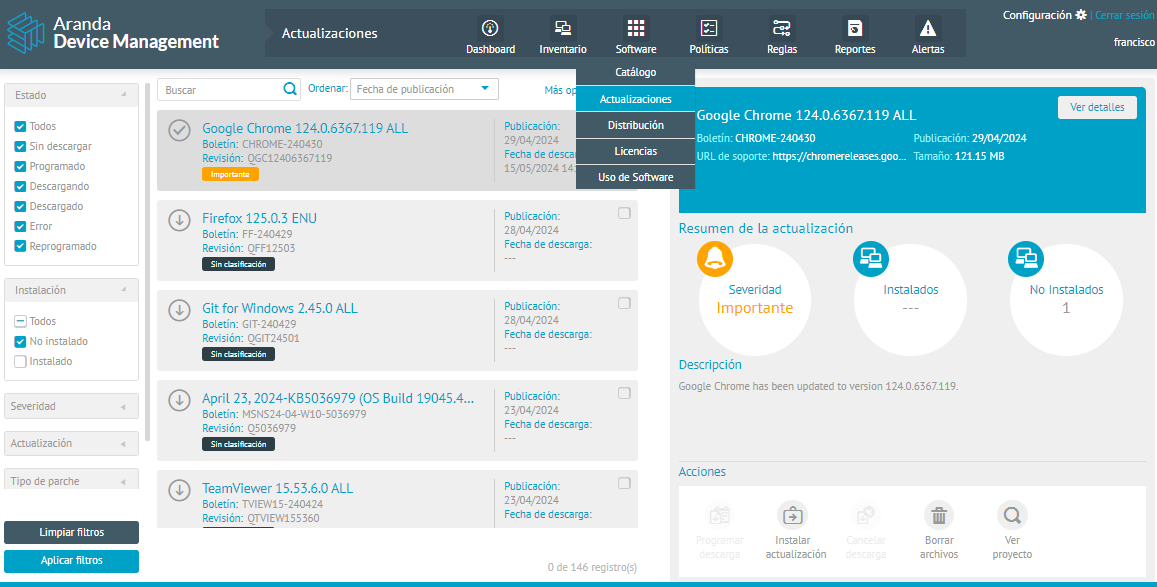
2. In the information view of the updates, you will have available Information management and organization actions and filters.
⚐ Note: Before you run an update distribution, you should consider the Initial ADM Setup.
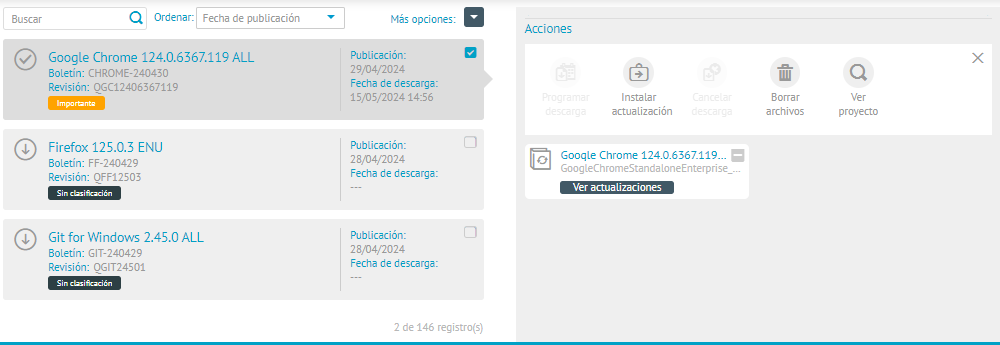
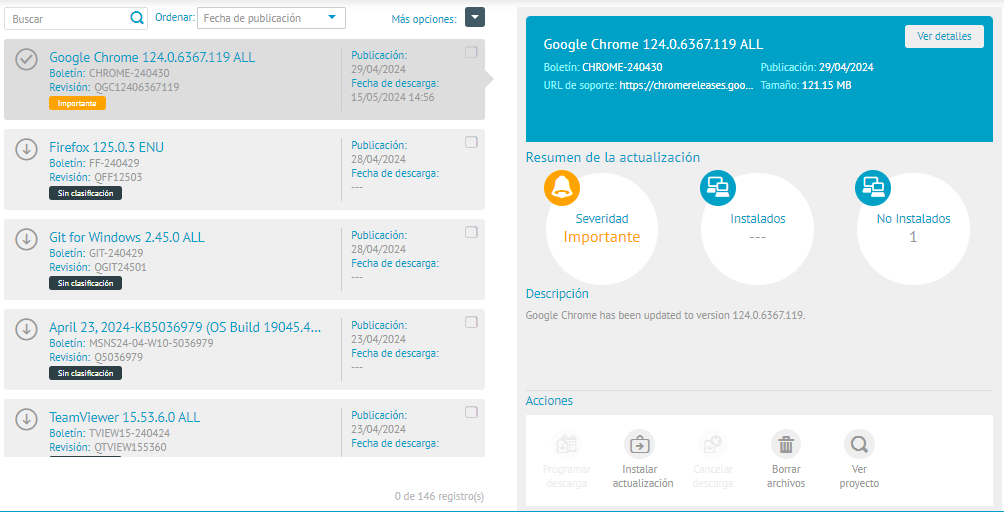
3. In the information view, selecting a software update or patch will display its detail in the right side panel. In this pane, you can see general information about the update, such as the newsletter, publication date, size, Support URL, the Download link, the update summary, description, the number of installed and uninstalled devices, and the actions available for management (Schedule Download, Install Update, Cancel Download, Delete Files and See project). In addition, the action Create/edit software distribution it may be available when the conditions defined for its authorization are met.
⚐ Notes:
- Only patches or updates with the same status type can be selected; whether downloaded or undownloaded updates.
- The countryside Download link corresponds to the address identified by ADM at the time the patch was generated. Its availability depends on the manufacturer, so it may change or cease to be in force later.
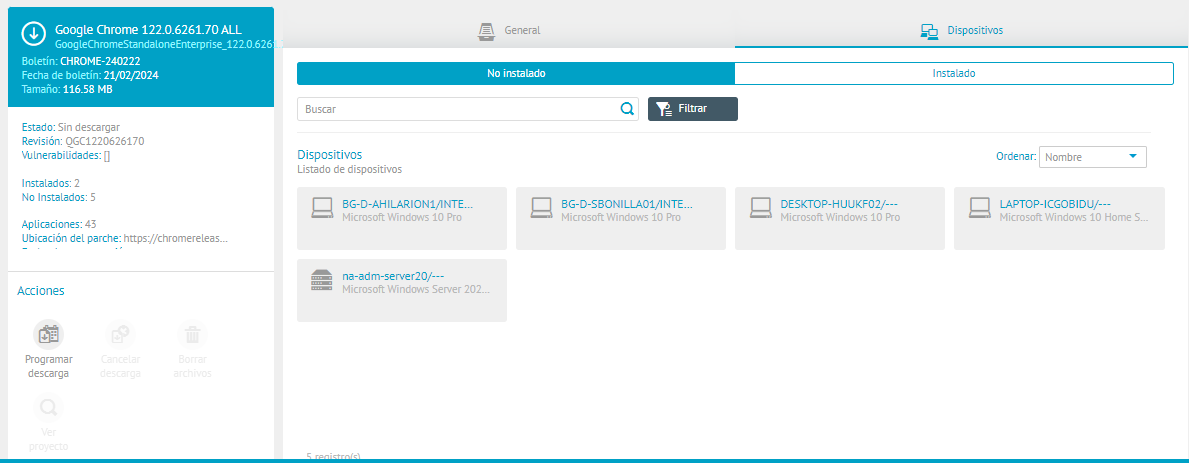
4. In the selected software update detail, click the View Details. The system will enable a window with the expanded update information and the available query options.
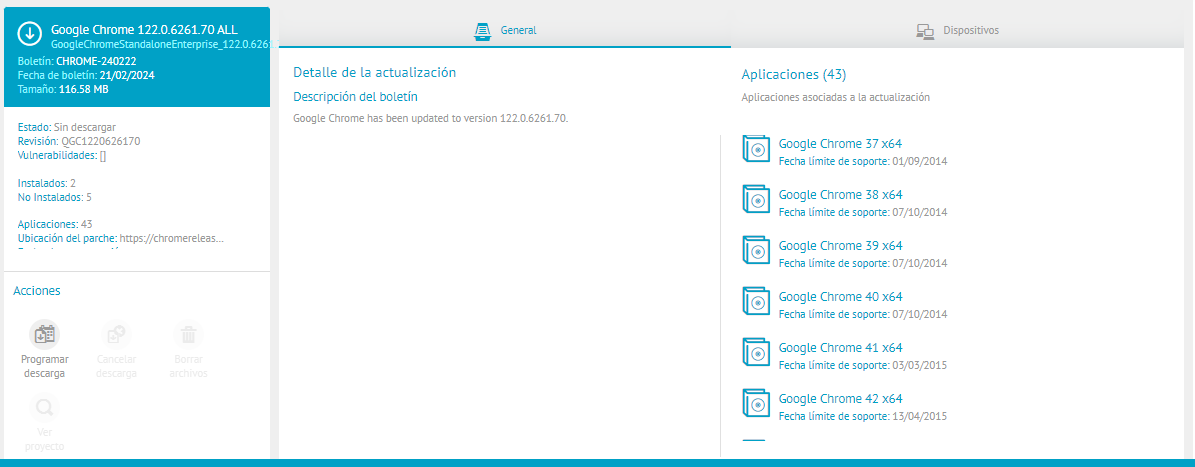
On the General You will be able to consult the details of the update and the summary of the applications associated with it.
On the Devices You will be able to consult the list of devices with updates Not installed and Installed, select the device on which the update will be installed, and export the information presented.
—
Update Actions
Any software updates or security patches detected during ADM inventory management will have available actions such as:
In addition, the action Create/edit software distribution It is displayed for patches that are restricted from being downloaded directly from the manufacturer, if they meet the conditions defined for their enablement.
Schedule Download
This action schedules the download of software updates to the selected devices.
⚐ Note: This action will be enabled only for updates detected without prior download.
When an update or patch supports more than one culture (language), the file download runs only once and is simultaneously associated with all supported cultures, regardless of whether or not they were selected for download.
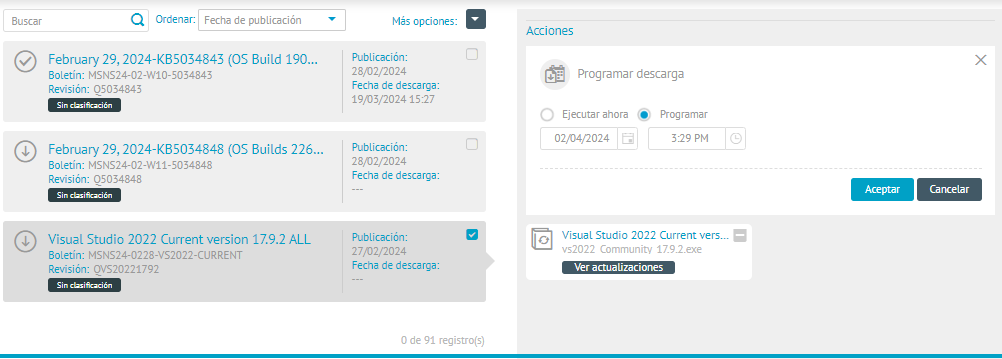
5. In the detail view of a selected software update, in the Actionsicon, click the Schedule download. You will be able to select the Run Now whether you want to run the download immediately or select the Program to set the date and time of the download.
6. You will be able to see a message confirming the successful action when the update download is complete.
Install Update
This action executes the installation automatic software updates on devices that require the previously selected update.
⚐ Note: When executing the action Install Update, the system reschedules the download of the update file, with or without prior download.
This process runs concurrently for all supported cultures (languages).
7. In the detail view of the selected software update, in the Actionsicon, click the Install Update. You will be able to select the Run Now whether you want to run the installation immediately or select the Program to set the date and time of the installation.
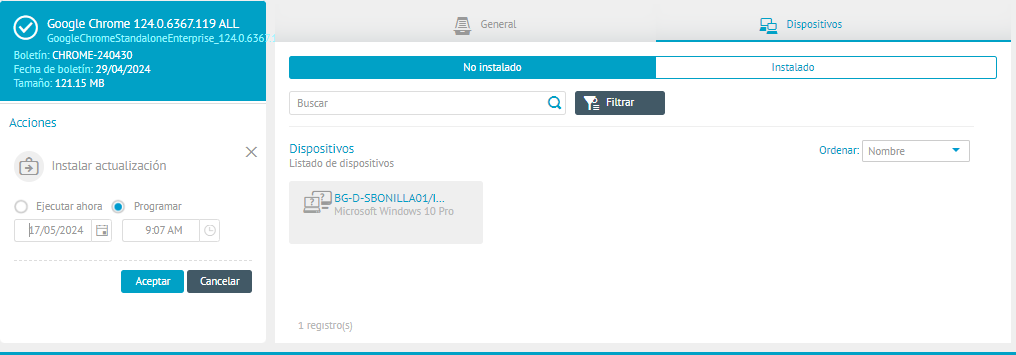
8. You will be able to see a message confirming the successful action when the update installation process is complete.
Cancel Download
9. This action cancels the download of software updates to the selected, pre-scheduled devices.
Delete Files
10. This action deletes the software update files on the selected devices.
⚐ Note: When you delete the file of an update from a specific culture, the file will be automatically deleted for all associated cultures.
If there are distribution projects related to the update file, they will be deleted.
View Project
This action allows access to the ADM Distribution Management module to view and distribute the selected software update on the required devices, for updates detected with pre-download.
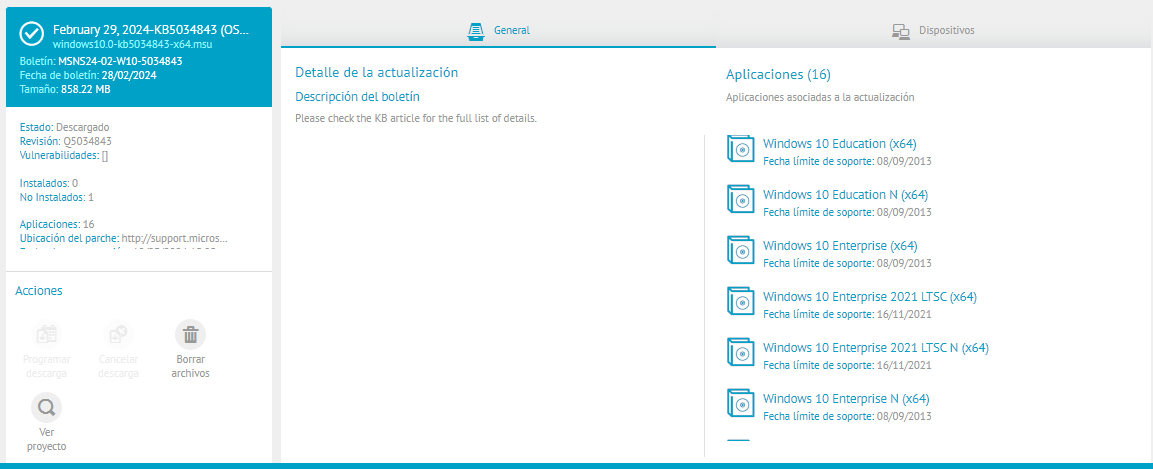
11. In the detail view of a selected software update, in the Actionsicon, click the View Project.
—
Distribute Project Update
12. The system redirects to the Distribution Management of ADM, where you can Configure execution according to the desired schedule and distribute the software update project on the required devices.
⚐ Note: For generated update projects, the management of distribution packages is not allowed, since the content associated with the project corresponds to the update previously identified by ADM.
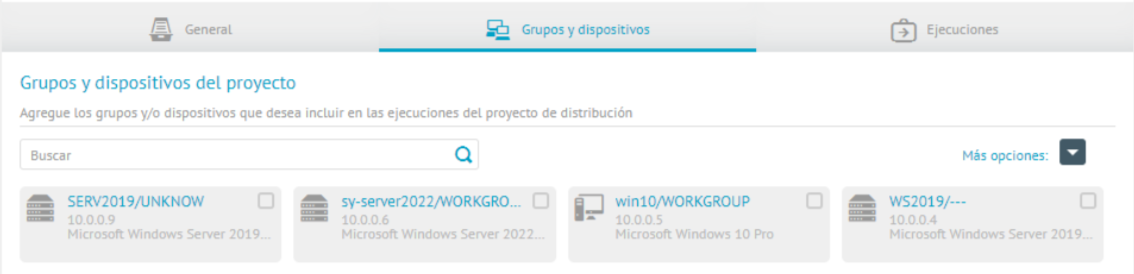
13. In the distribution project settings, select the Groups and Devices; The devices that require the update are displayed and automatically associated.
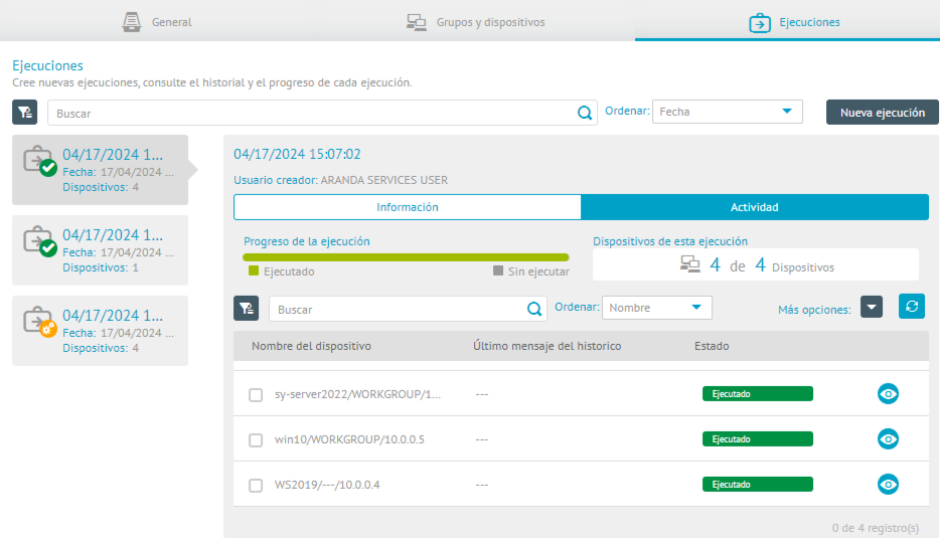
14. On the Executions, you will be able to know the status and time of the execution of the project.
—
Create/edit software distribution
If ADM identifies that an update might be inconvenient for direct download from the manufacturer, it will display the warning Download may not complete due to manufacturer restrictions. This warning will be displayed both in the list of updates and in the patch detail and does not necessarily imply that the download will fail, but that it could present inconveniences during the process.
⚐ Note: The warning Download may not complete due to manufacturer restrictions will be displayed only on patches that are generated by the devices’ patch inventory after the release is deployed 9.25.0.
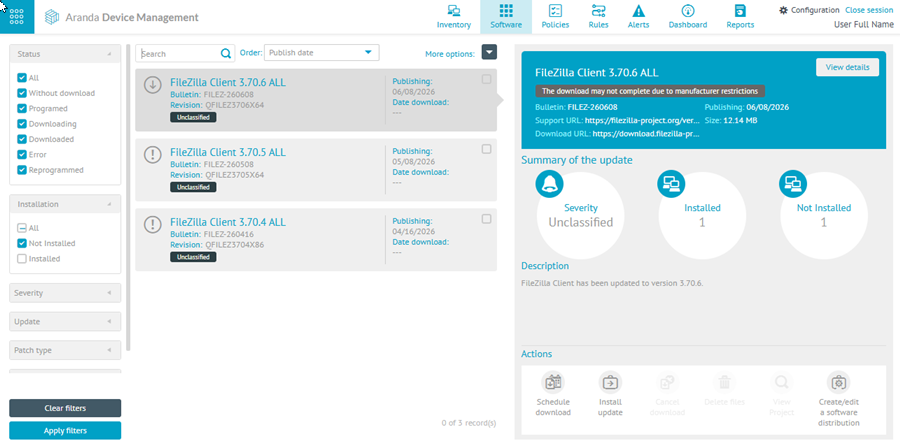
The action Create/edit software distribution Allows you to manage a distribution project from the selected patch to perform it manually.
⚐ Note: This action will be available for updates that present the warning Download may not complete due to manufacturer restrictions or that are in a state Error. In addition, the user must have permissions on the module Distribution Management and the update must have at least one device in the Not installed.
15. In the detail view of the selected update, in the Actionsicon, click the Create/edit software distribution.
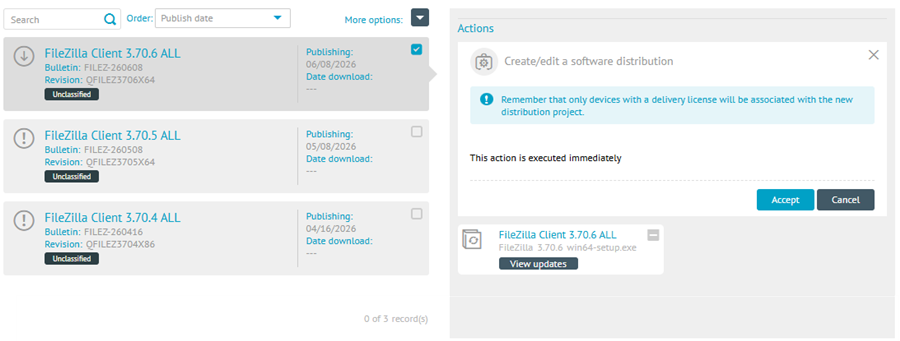
⚐ Note: The action Create/edit software distribution It only allows you to manage one update at a time.
16. When you execute this action, ADM will create a new software distribution project or edit the existing one, as appropriate. The project name will be automatically generated from the installer name, adding the prefix ASD-.
During this management, the system associates only the devices in the state of the Not installed that have a distribution license (ASD). If the devices related to the patch do not have this license, the project will be created without associated devices.
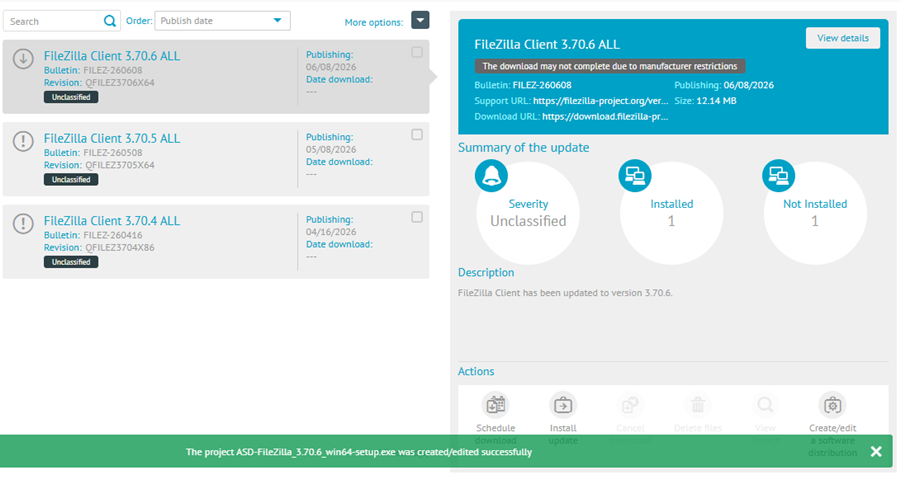
17. When the management is successful, the system will display an alert with the name of the generated or edited project.
To continue with the process, enter the Distribution Management, manage the corresponding package, get the file with the Download link available in the patch detail and run the distribution on the required devices.
⚐ Note: After distributing and installing the patch through an alternate channel, the information visible in ADM about statuses and counters associated with the patch will be updated when the device runs the corresponding inventories again (HW/SW and Updates).