


This module configures the additional fields required to add supplemental information to events. To do this, head to the left side menu and click on Events \Additional >. Then follow the steps outlined in 3.2 Additional.
Creating Additional Fields
1. To create additional fields, log in to the ASMS Admin Console, in the Events from the main menu, select the Additional. Define a project, and in the information view, select the New; In the Detail view, complete the overview of the additional fields. View 3.2 Additional.
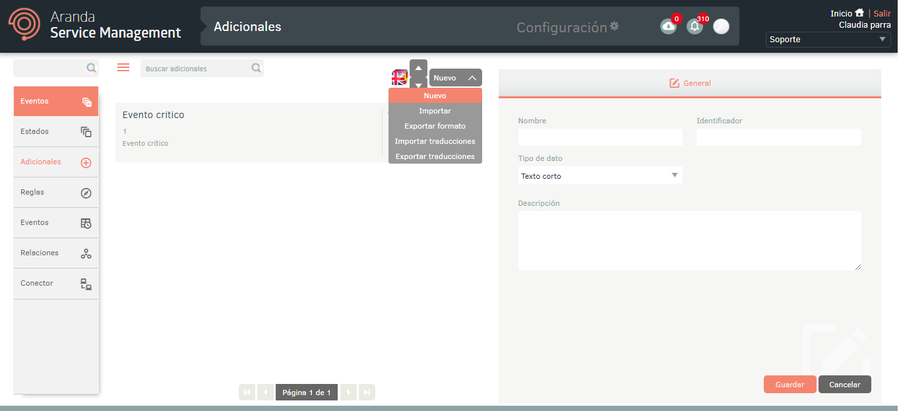
2. When you finish setting up the basic information for the additional fields, click Save to confirm changes made; in the Detail View of the ASMS console, the States.
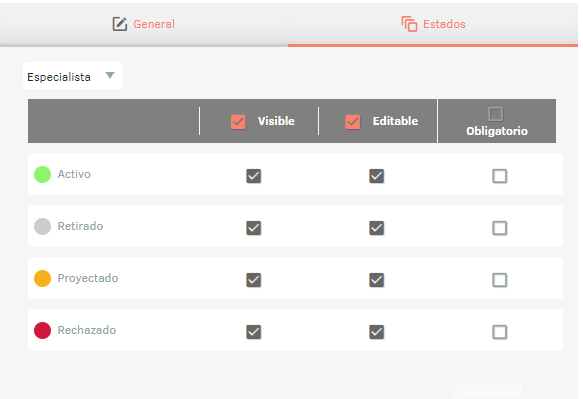
3. In the Additional Fields Detail View in the ASMS Management Console, select the States, where you can define the behavior of the field by specifying whether it is visible, editable, or required for specialists, customers, or administrators in the states defined for the service or agreement.
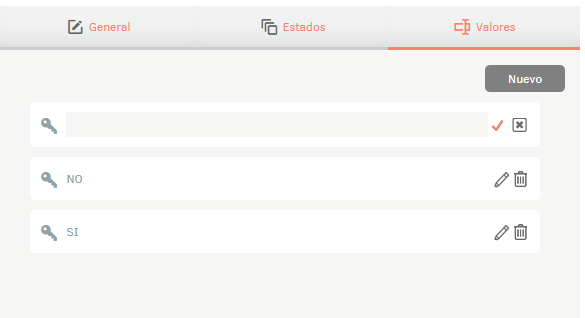
4. If the data type selected in the General It was List, the Values to specify the items in the list.
5. When you finish setting up the additional fields, click Save in the Detail View of the ASMS Management Console to confirm the changes made.
Export Format for Additional Fields
1. To export the additional field information, log in to the ASMS Admin Console in the Events from the main menu, select the Additional. Define a project, and in the information view, select the New/Export Format; This option will allow you to export the information with or without data for updating and/or creating additional fields.
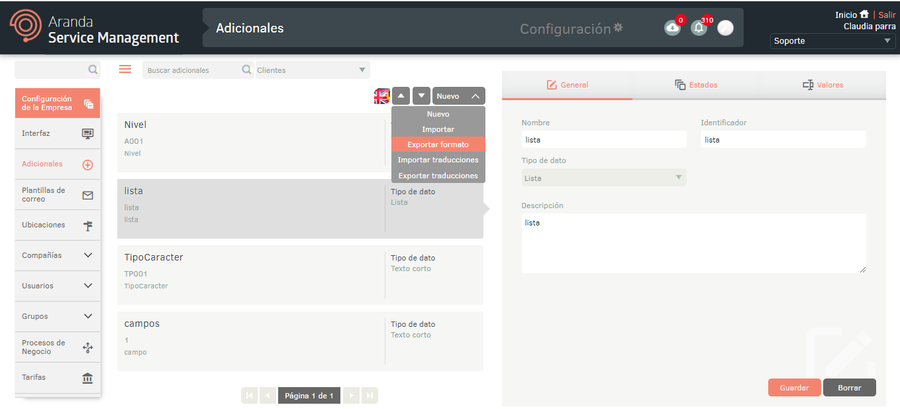
2. The window is enabled Export format where you must select whether you need to export the empty format (creation of additional fields) or with data (update of additional fields). Click Export Format.
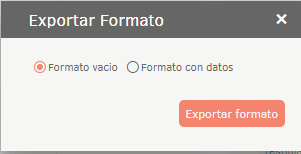
3. If you download the empty format, a file in Excel format is automatically generated. If you download the data form, the file is scheduled for download, generating an informational message at the bottom of the screen.
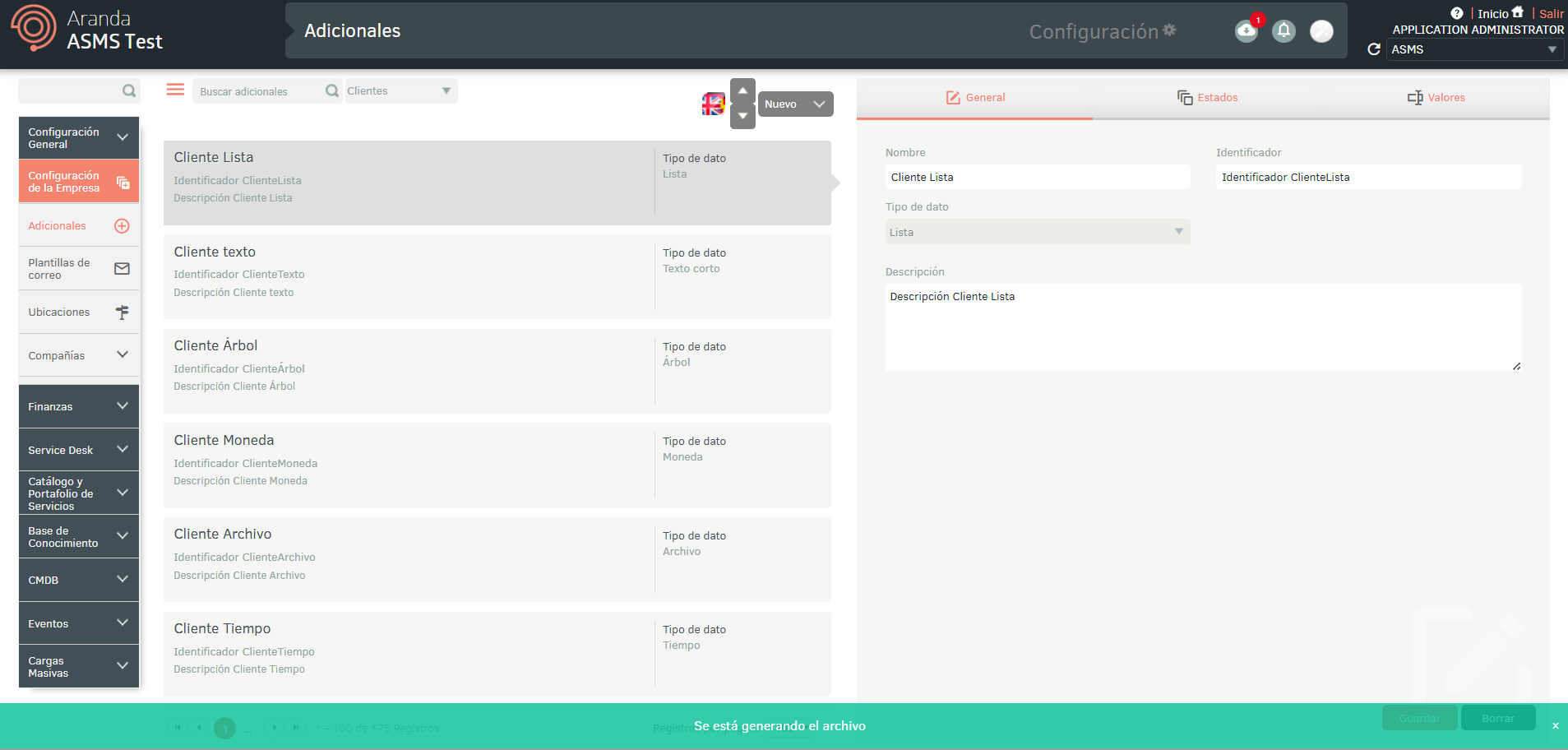
4. From the Admin console header menu, select the Notifications.
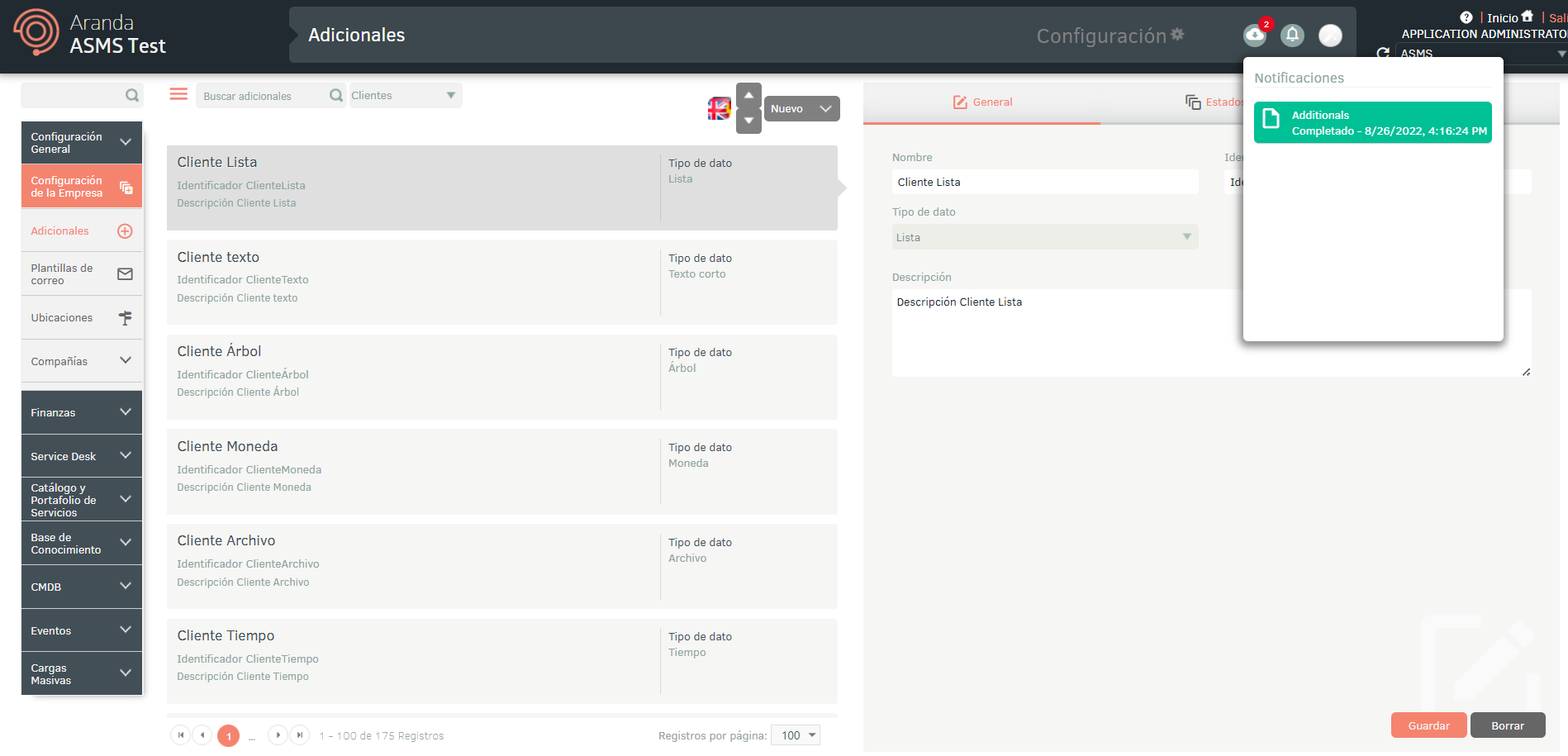
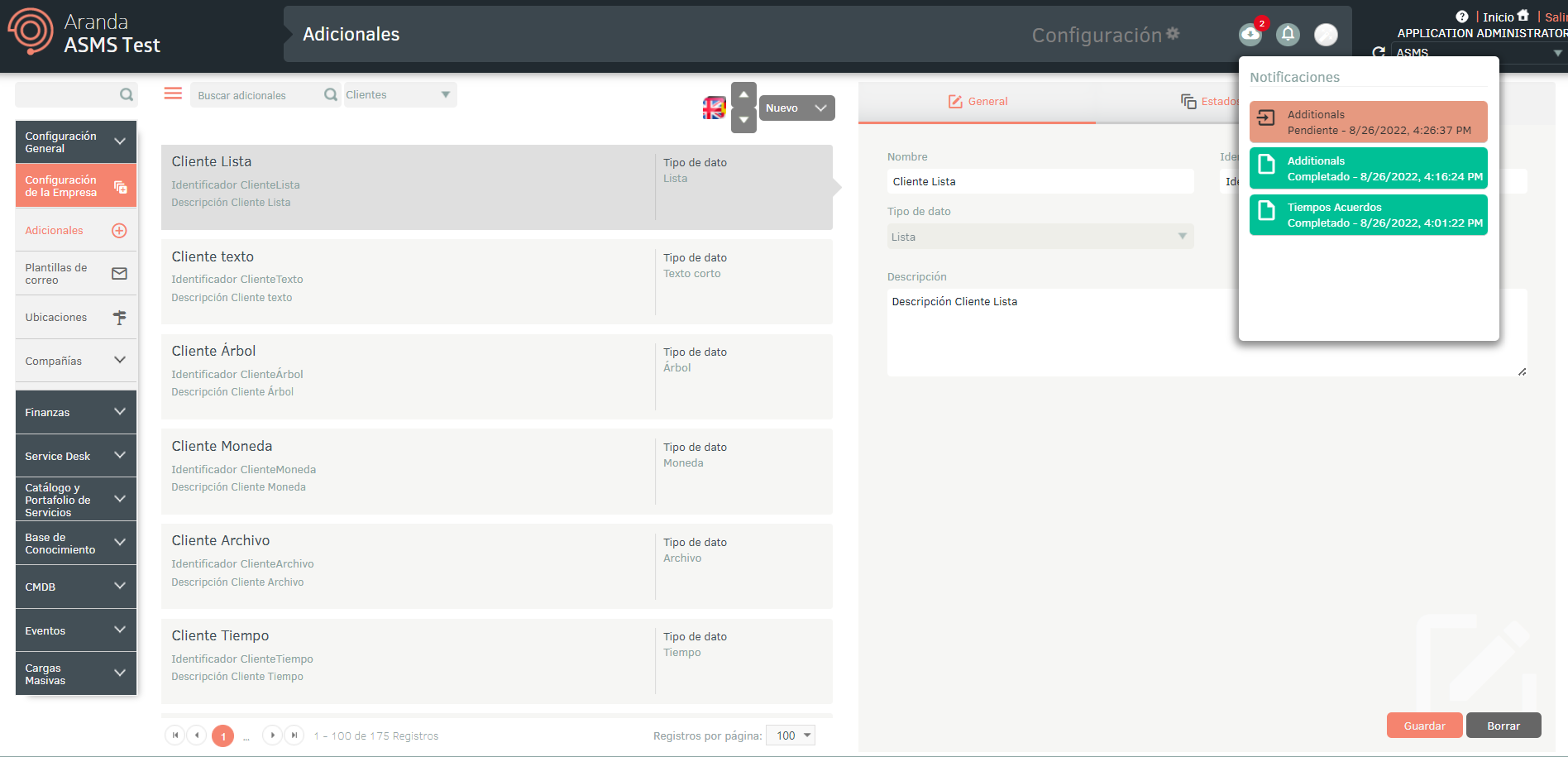
⚐ Note: In the Notifications You will be able to view the generated format in the Earring (orange color) and, once the export process is finished, it will change to state Completed (green color) with the date of discharge.
5. Click on the notification to download the file.
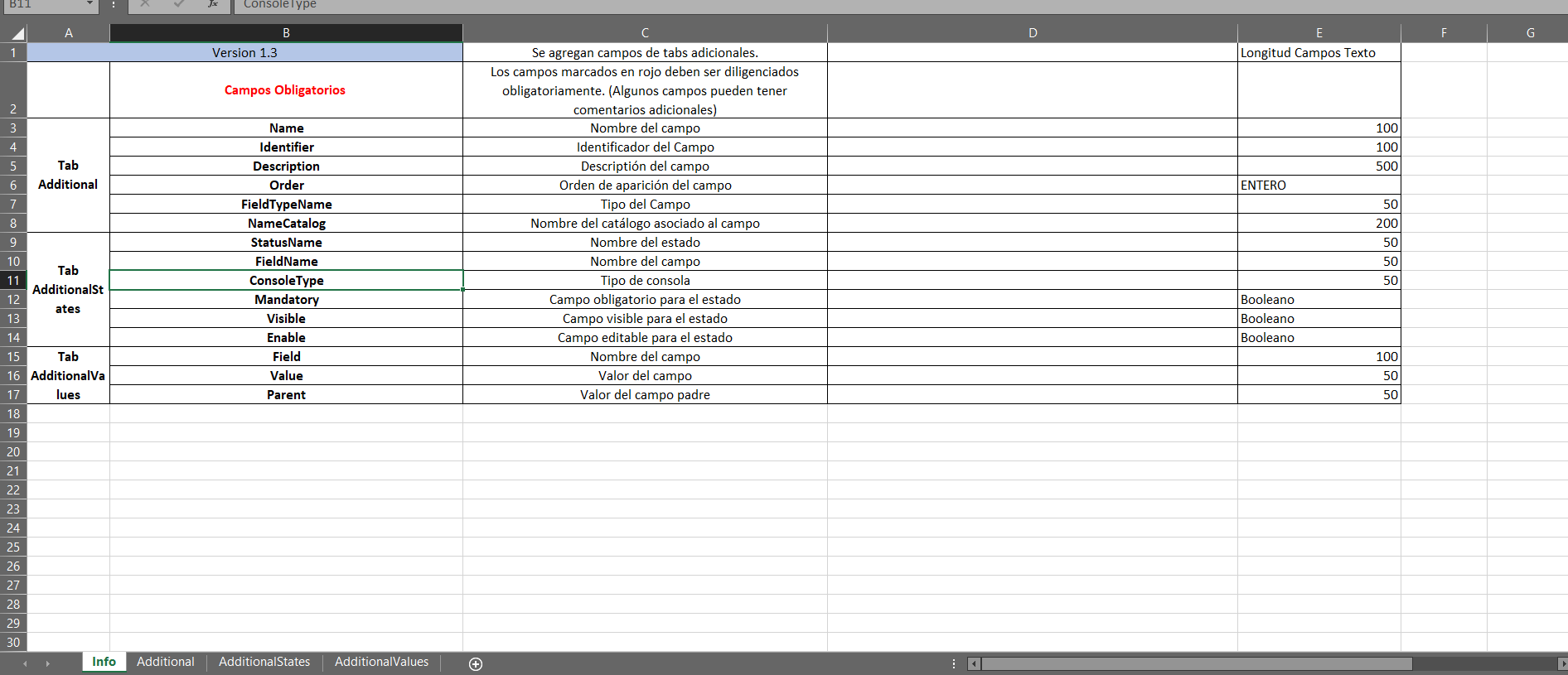
The downloaded file includes all the configuration of the additional fields; You will also find the necessary fields for their creation and/or updating.
On the Info The obligation and information to be filled out on each field are described in detail.
Import Formatting for Additional Fields
1. Once the form has been completed, enter the ASMS administration console, in the Events from the main menu, select the Additional. Define a project, and in the information view, select the New/Import Format.
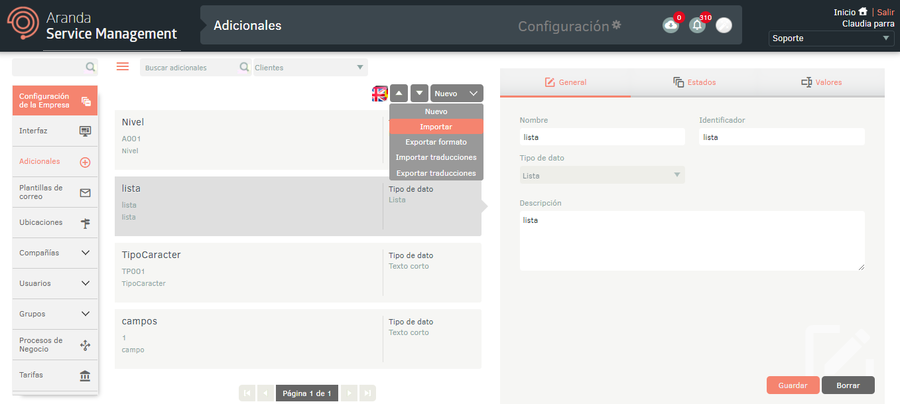
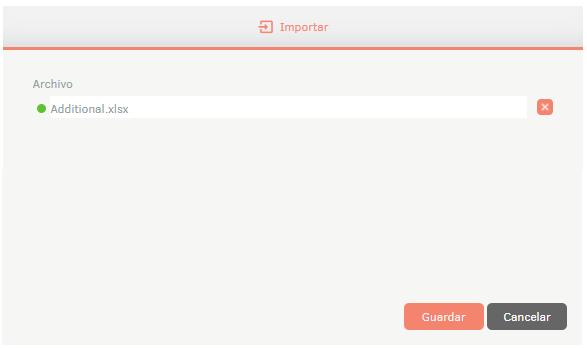
2. In the window Import, upload the file, and click the Save.
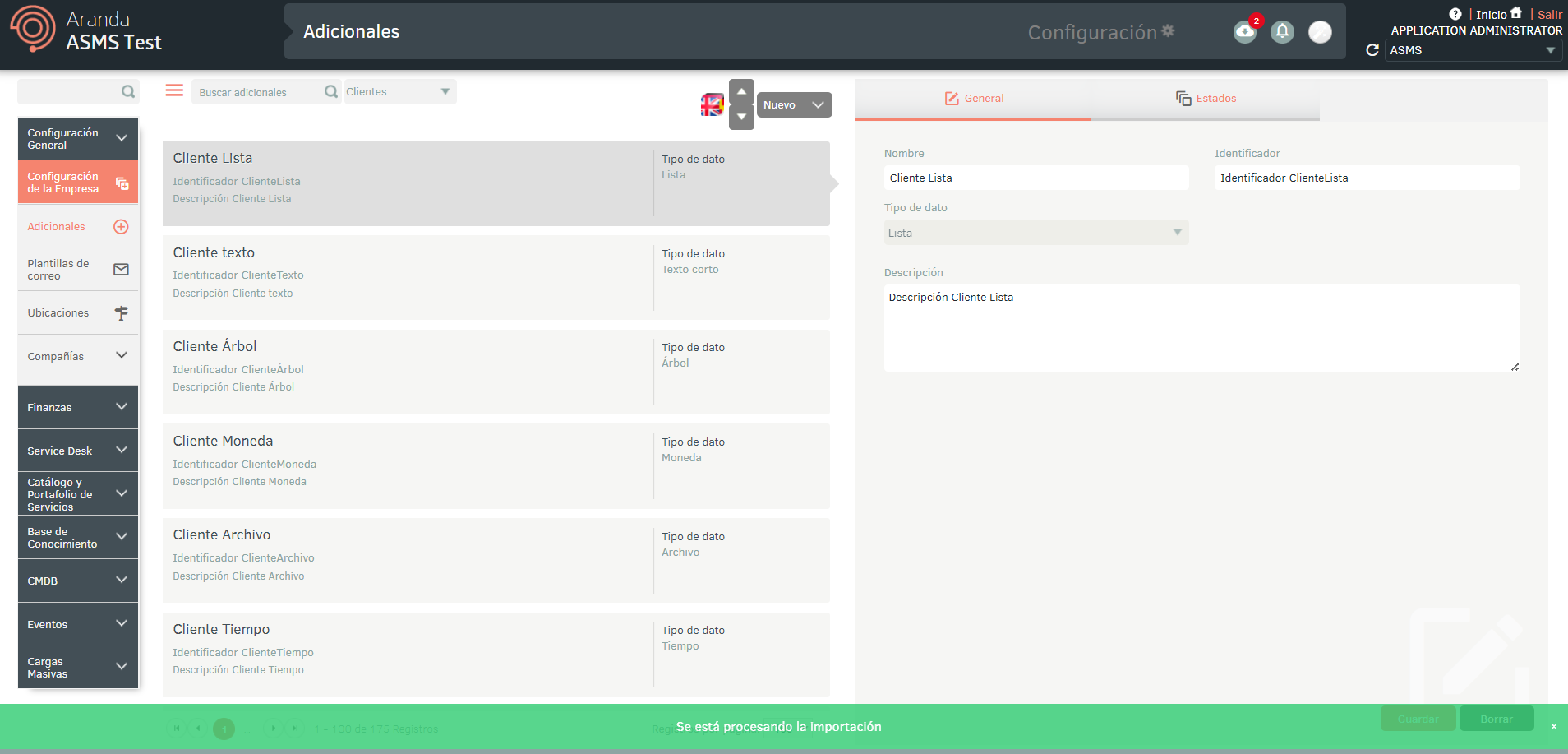
3. Clicking the save button to start importing or updating additional fields will schedule the file for import, prompting with a message at the bottom of the screen and added in the notification panel.
4. When the import is complete, the corresponding notification will change from orange to green, indicating that it has been completed.
5. When you click on the notification, a window will be displayed where you can view the details of the import.
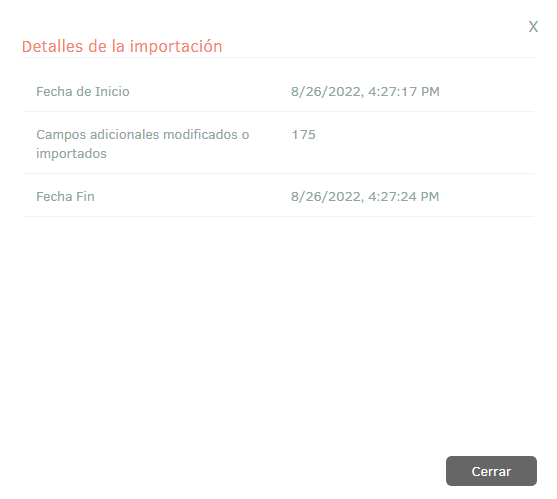
6. If during the import the file generated an error in one or more of its records, when viewing the import details it will be possible to download a file with the details of the records that generated error.
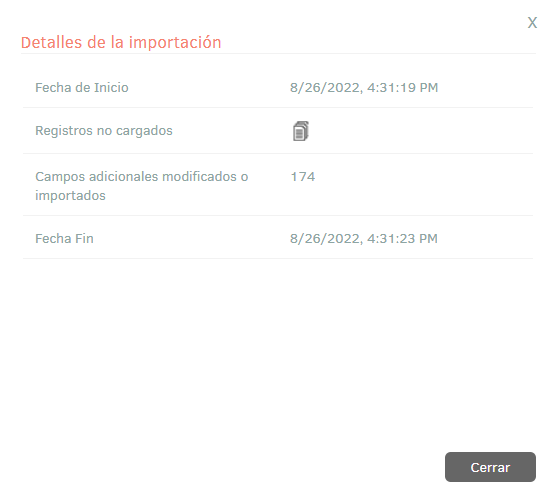
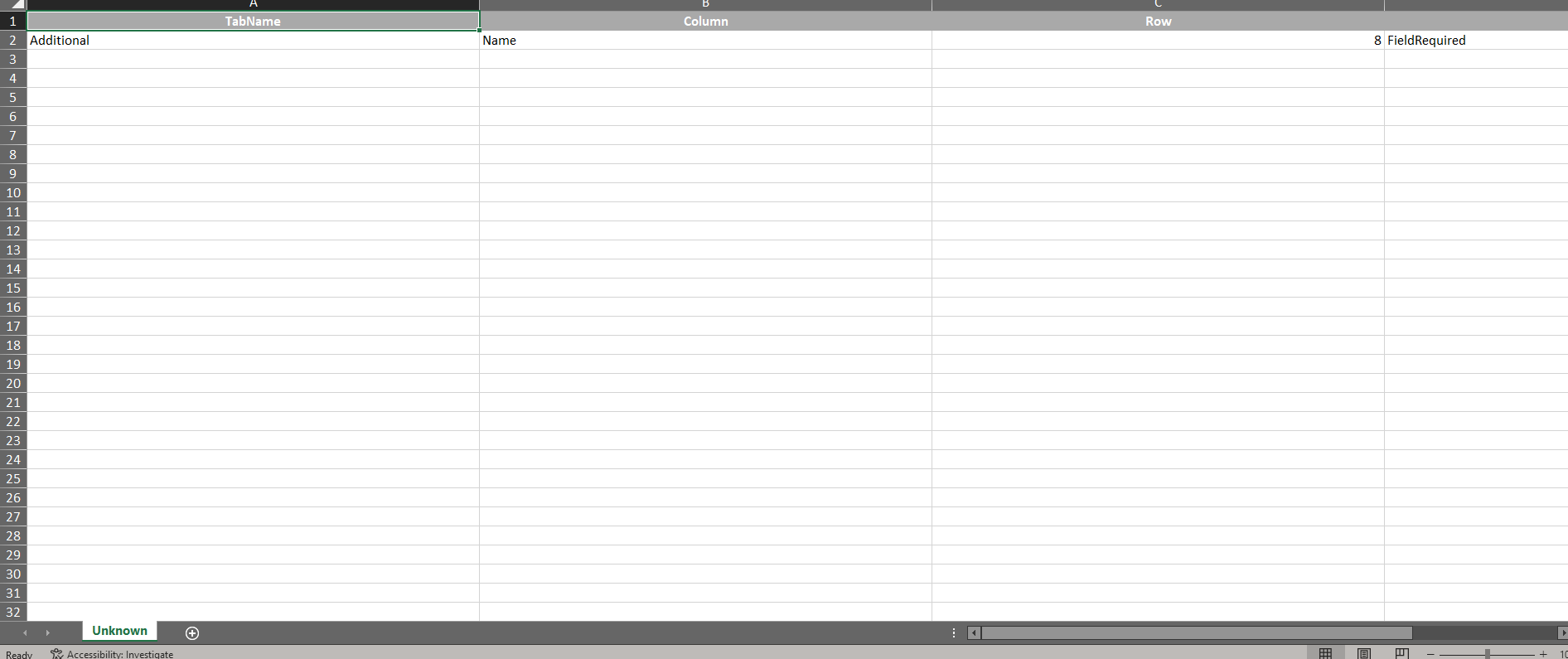
7. In the import details window, by selecting the unloaded records icon, you will be able to download an Excel file with the details of the errors generated during the import.
Multilanguage
To set up the multilanguage option in knowledge base articles, you must consider the documentation for translations. View Multilanguage.