The functionality of Advanced Shifts, applicable at the level of Project, allows you to define the availability of the specialists assigned to a Group, who will be enabled for case assignment in the ASMS Specialist.
⚐ Note: Considerations:
- Gaps without coverage: If shifts are set up from 8:00-11:59 and 14:00-18:00, during the interval 12:00-13:59 (no assigned specialists) the console will display all specialists in the group.
- Groups without an active shift: Groups not included in any shift remain available and show all their specialists.
- Load balancing: If the case type has load balancing configured with the Group Leader, the Advanced Shifts configuration will not be taken into account. In this case, the automatic assignment of cases will always fall on the Group Leader, regardless of the defined shifts. For shifts to be considered in the assignment, balancing must be set to the Specialist with the fewest cases, Specialist with less burden or By turns.
Creating an Advanced Shift
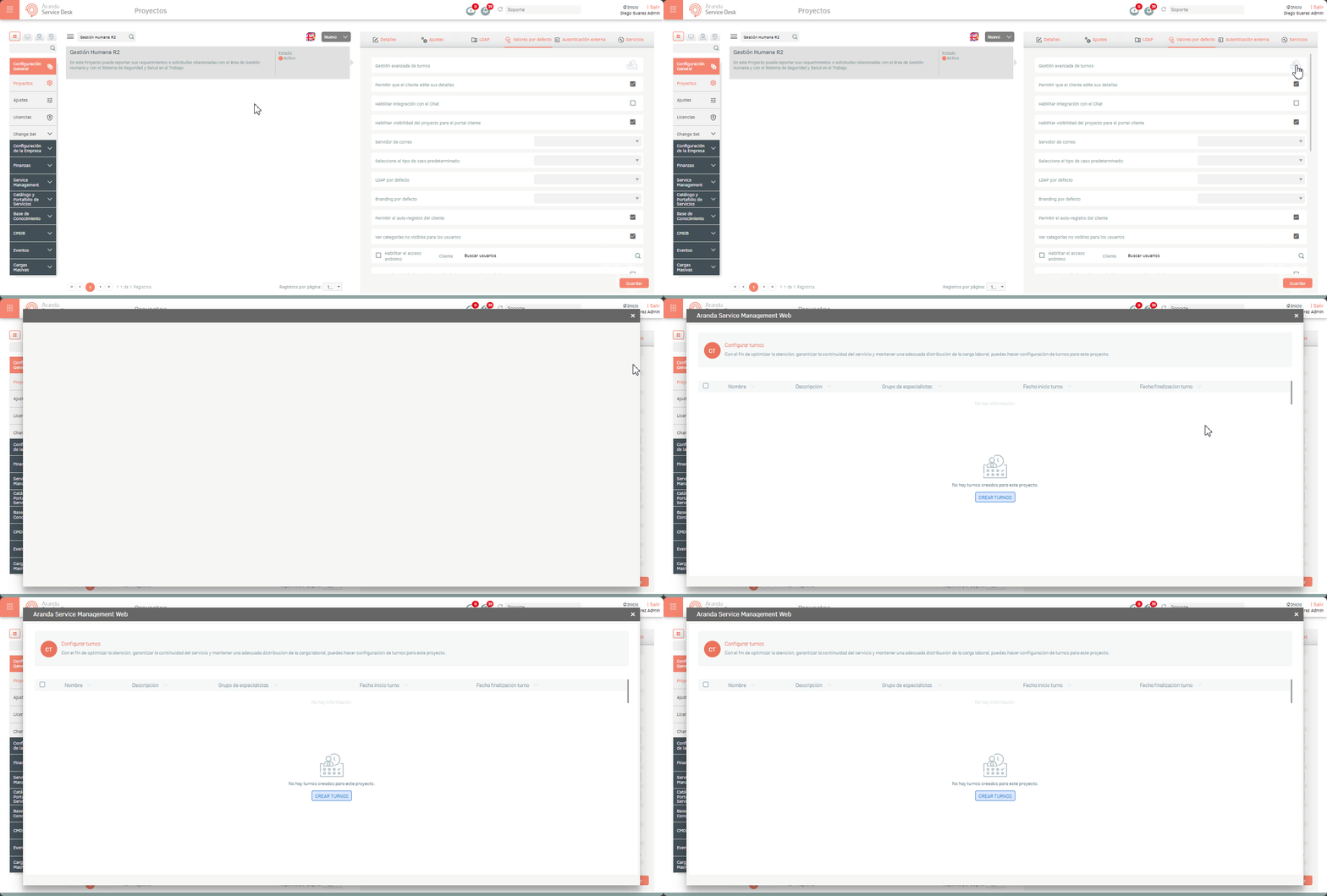
1. To create a shift, go to the ASMS Management Console , and from the main menu, select General Settings > Projects.
In the Project detail view, go to the Defaults and click on the Advanced Shift Management.
In the main window, you will be able to view the list of shifts created. To create the first shift, click Create Shift and in the detail view you can enter the following information:
- Shift Name and Description
- Specialist group
- Start and end date
- Business days
- Time slot
- Users associated with the shift
⚐ Note: The Option Specialist group It will display only the active groups in the project. This field will only be available during the creation of the shift; Once created, it will be locked and prevent the selection of another group in the edit.
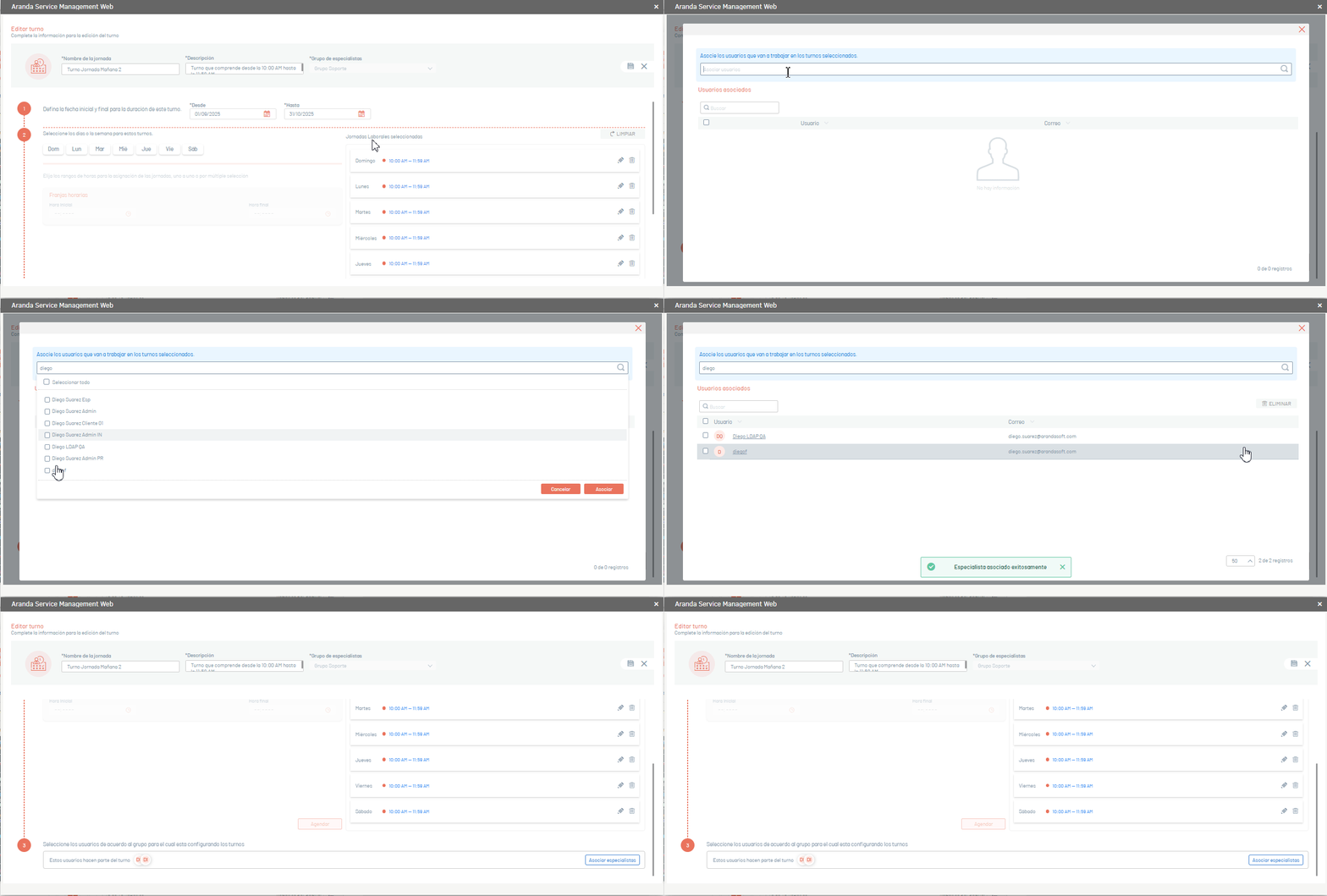
Configuration of the working day
The working day allows the period of validity of the shift to be defined, establishing:
- Start and end date of the shift.
- Days of the week in which it will apply.
- Time slot, selected from the available time ranges.
Once these parameters are defined, click Schedule to save the settings.
2. Once the basic information of the shift is configured, associate the specialists who will be part of the shift.
At the bottom of level 3, click Click to associate them.

3. To confirm the changes made, click the Save.
⚐ Note:
- To edit a matchday, click the Pencil.
- To delete a matchday, click the Trash.
- To remove all settings, use the Clean.
Once the working day is set up, continue with the specialist association.
Specialist Association View
1. In this window you can manage the users who will participate in the selected shift.
The available actions are:
- Predictive Search: It allows users to be located by entering part of the name.
- List of users: Displays available specialists with their name and associated email.
- User selection: You can mark users individually or use the checkbox to select multiple users at the same time.
- Select All: Enables bulk association of all users listed on the current page.
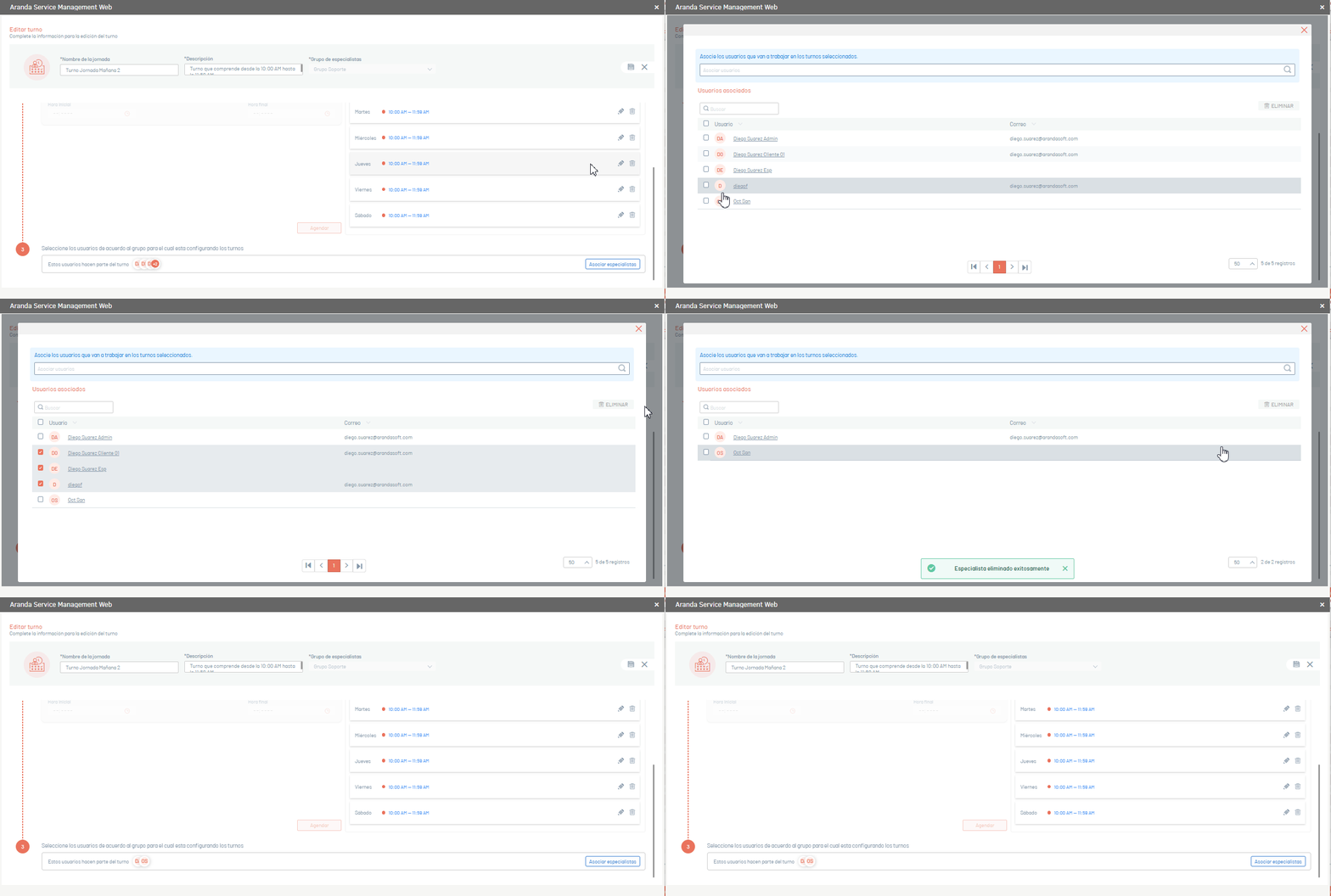
- Elimination: Once associated, you will be able to Eliminate users to remove them from the shift.
- Pagination: It allows you to navigate between pages when the number of users is greater than the configured limit (example: 50 records per page).
2. Once the specialists have been added and the association window is closed, the number of associated specialists will be displayed in the shift configuration view.
The Associate specialists, which allows you to add new users or remove those already associated with the shift.

Delete shifts
1. In the main shift view, select one or more shifts and click the Eliminate. A confirmation pop-up will be displayed.
By clicking Accept, the selected turn(s) will be deleted.