


Math Operations in Additional Fields
This functionality allows you to configure mathematical formulas on additional fields Whole, Decimal or Coin. The result of the operation is automatically calculated and displayed in the Specialist and Customer consoles using the Calculate button.
Settings in the Admin Console
Enable Math Operations
1. Log in to the ASMS Admin Console, in the Service Management from the main menu, select the Additional. Define a project, a case type, and a model, and select or create an additional type field Whole, Decimal or Coin.
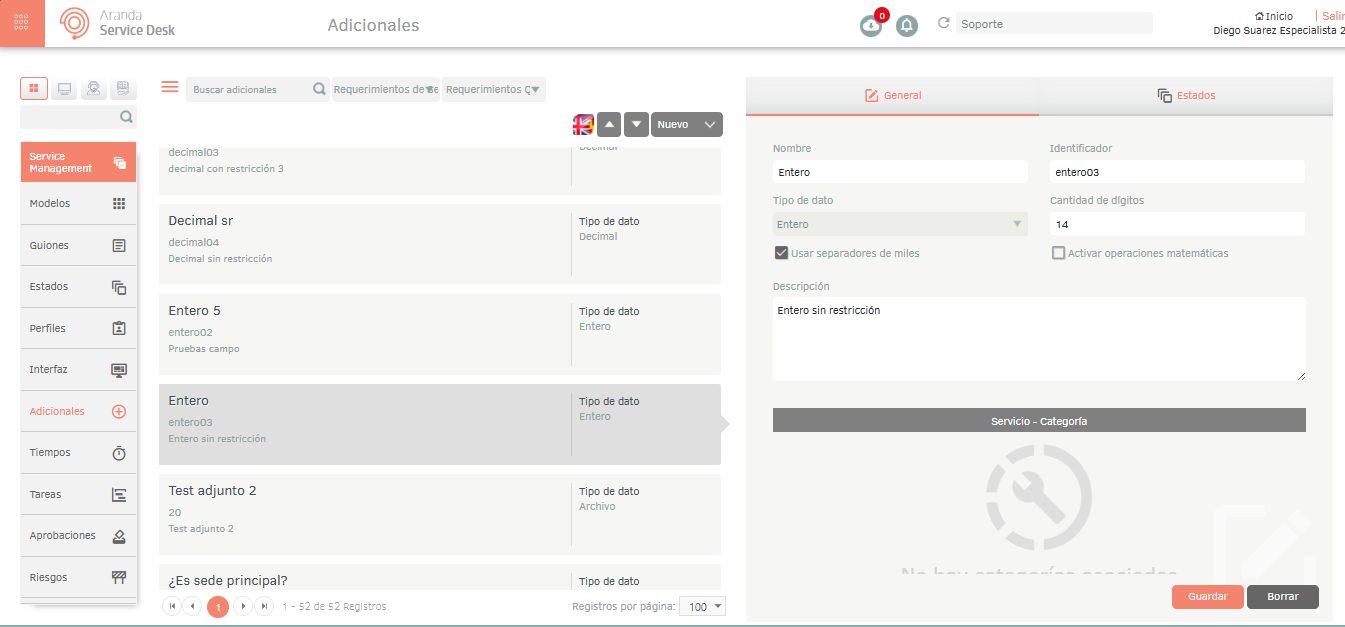
2. In the detail view of the additional field, on the General, you will see the checkbox “Enable field for math operations”. This checkbox is only visible for type fields Whole, Decimal or Coin; for other types of data it will not be available.
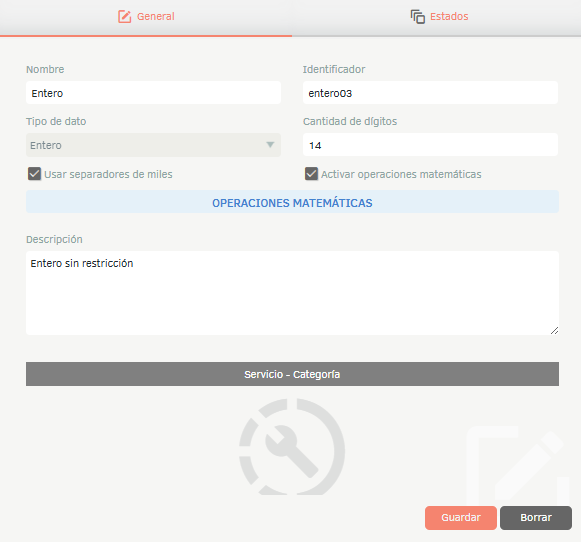
3. When you check the checkbox, the system enables the “MATHEMATICAL OPERATIONS”. Clicking on this option will take you to the formula configuration window.
⚐ Note:
- If the field has the math operations flag active, the Editable Configured by states will be ignored. The field will be kept in Read Only in the Specialist and Customer consoles, regardless of this setting.
- When you uncheck the checkbox, the configured formula is not deleted from the database. The operation will not apply while the checkbox is disabled.
- The restriction of Number of digits The configured in the field will be omitted when you have a mathematical operation active. The result will be displayed and saved in full.
—
Configuration Modal Window
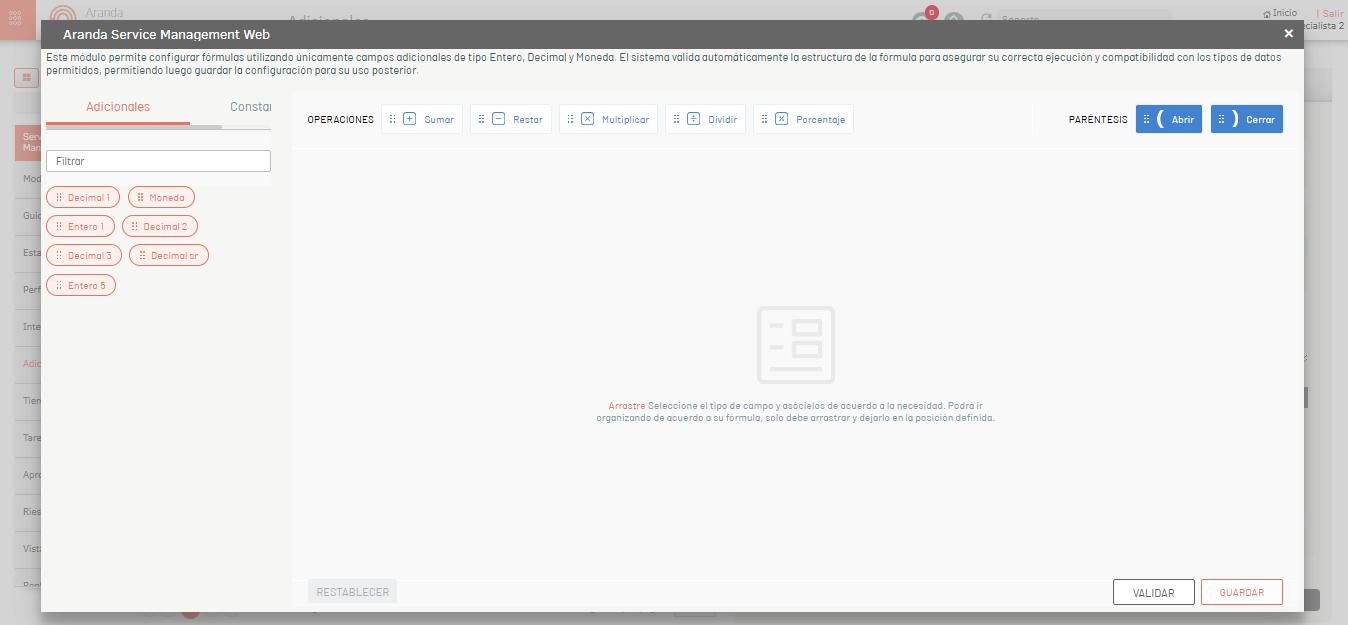
By clicking the “MATHEMATICAL OPERATIONS”, a modal window composed of the following elements is displayed:
| Element | Description |
|---|---|
| Left Panel — Additional | List of additional Integer, Decimal, or Currency fields available to include in the formula. Includes a Filter for real-time search. Only fields of these three types are displayed; any other data type is excluded. |
| Left Panel — Constants | Tab that allows you to add fixed numeric values to the formula using the Number. |
| Operations Panel | Buttons for operators Add, Subtract, Multiply, Split and Percentage. |
| Parenthesis Panel | Bellboy Open ( and Close ) to group expressions. |
| Construction Area (Canvas) | Central space where the blocks of the formula are organized. Each additional field is represented by a numbered block in order of insertion. |
| Action buttons | RESET, VALIDATE and SAVE. |
—
Build a formula
1. On the Additional, drag the fields onto the canvas in the order required by the formula.
2. Between each field, select the appropriate operator from the Operations.
3. Use the Parentheses to group expressions when necessary.
4. To add a constant value, select the Constants, drag the Number to the canvas and enter the desired value.
⚐ Note: For decimal values in the Number tab Constants, use the Period (.) as a decimal separator (e.g.
1.5). The use of the Comma (,) is not recognized as a decimal separator, when saving and reopening the settings, the comma is omitted and the value is left as whole (e.g.1,3is interpreted as13), which can lead to incorrect calculation results.
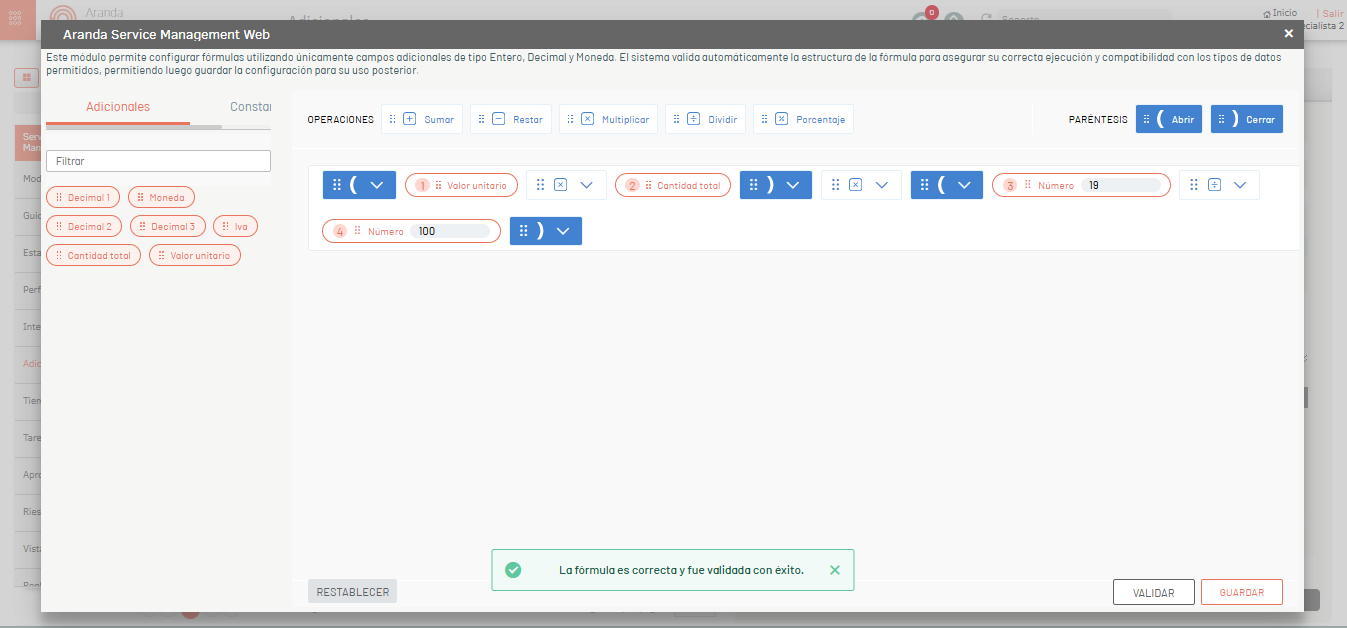
5. Click VALIDATE to verify that the formula syntax is correct. If the formula is valid, the system displays the message: “The formula is correct and was successfully validated” on a green banner.
6. Click SAVE to persist the configuration.
⚐ Note:
- If you try to save without prior validation, the system will run the validation automatically and display an error in case the formula is incorrect.
- If the formula is incomplete (e.g. ends in an operator) or the parentheses are not correctly closed, the system will display the message: “You can’t keep the formula”.
- The obligation to configure the operation applies when saving the additional field: if the checkbox is active but the formula is empty, the system will display the message: “Custom operations is mandatory”.
—
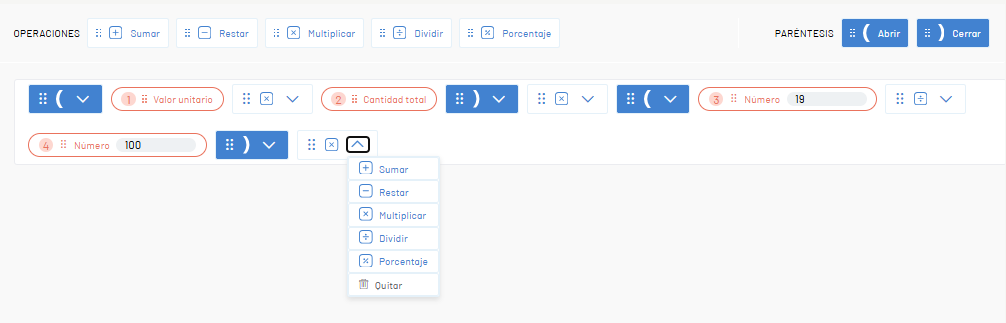
Managing blocks on the canvas
- Each field block displays its Legible name and a Consecutive Number that represents their position in the formula.
- Clicking the drop arrow in a operator, you can switch between the 5 available operators (+, -, *, /, %).
- To delete a specific block, use the Remove from the block drop-down menu. The numbering of the remaining blocks is automatically recalculated.
- If the formula is extensive, the canvas performs Automatic Line Break without cutting blocks. When the content exceeds the height of the canvas, it is enabled Vertical scroll exclusively within the construction area.
- The buttons RESET, VALIDATE, and SAVE remain fixed at the bottom of the modal to always be accessible.
- The console automatically evaluates the configured expression and ignores the Parentheses when it determines that they are not necessary for the result of the operation. Parentheses are maintained only when their presence it alters the order of mathematical evaluation and therefore the final result.
- When you save the math operation and close the configuration window, you must confirm the save in the general detail of the additional field
—
Reset a trade
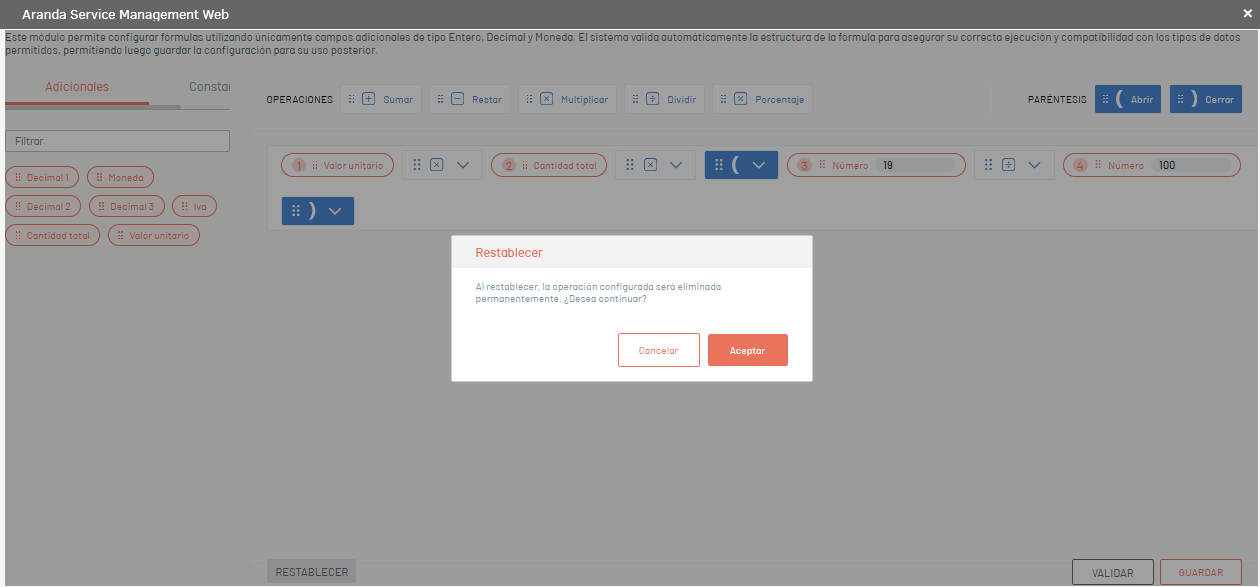
By clicking RESET:
1. If the canvas contains a configured operation, the system displays a confirmation modal with the message: “Upon resetting, the configured operation will be permanently deleted. Do you want to continue?”
2. If the user clicks Accept, the operation is deleted from the database, and the canvas is permanently empty.
3. If the user clicks Cancel, the modal closes and the operation remains intact.
⚐ Note:
- The RESET It is disabled when the canvas is empty and is enabled only when an operation is configured.
- The confirmation message and modal buttons are translated according to the language configured in the console (Spanish, English or Portuguese).
—
Behavior with other configurations
| Configuration | Behaviour |
|---|---|
| Thousands separator | If the field has the thousands separator active, the calculation result respects this visual setting. |
| Number of digits | The constraint is omitted for fields with active mathematical operation. The result is displayed and saved in full. |
| Editable by states | The edit permission is ignored. The field is kept in Read-Only as long as you have an active operation. |
| Required by states | The system prevents saving the case until the user runs the calculation and obtains a value in the field. |
| Visible by states | If the field is set to Not Visible in a state, it will not be displayed in the interface, but the math will still be available for when the field is visible again. |
| Disable the checkbox | The formula is not deleted from the database. The operation does not apply while the checkbox is disabled. |
Homologation of fields with mathematical operations
When you make a service or category change, the homologation behavior for fields with mathematical operations is as follows:
| Scenario | Behaviour |
|---|---|
| Destination field however, Mathematical operation | The calculated value of the source field is homologated to the target field. |
| Destination field with Mathematical operation | The value it is not homologated. The Calculate It is available for the user to run the calculation with the formula of the new model. |
| Destination field Dependent | Homologation is not carried out, regardless of whether or not it has mathematical operation. |