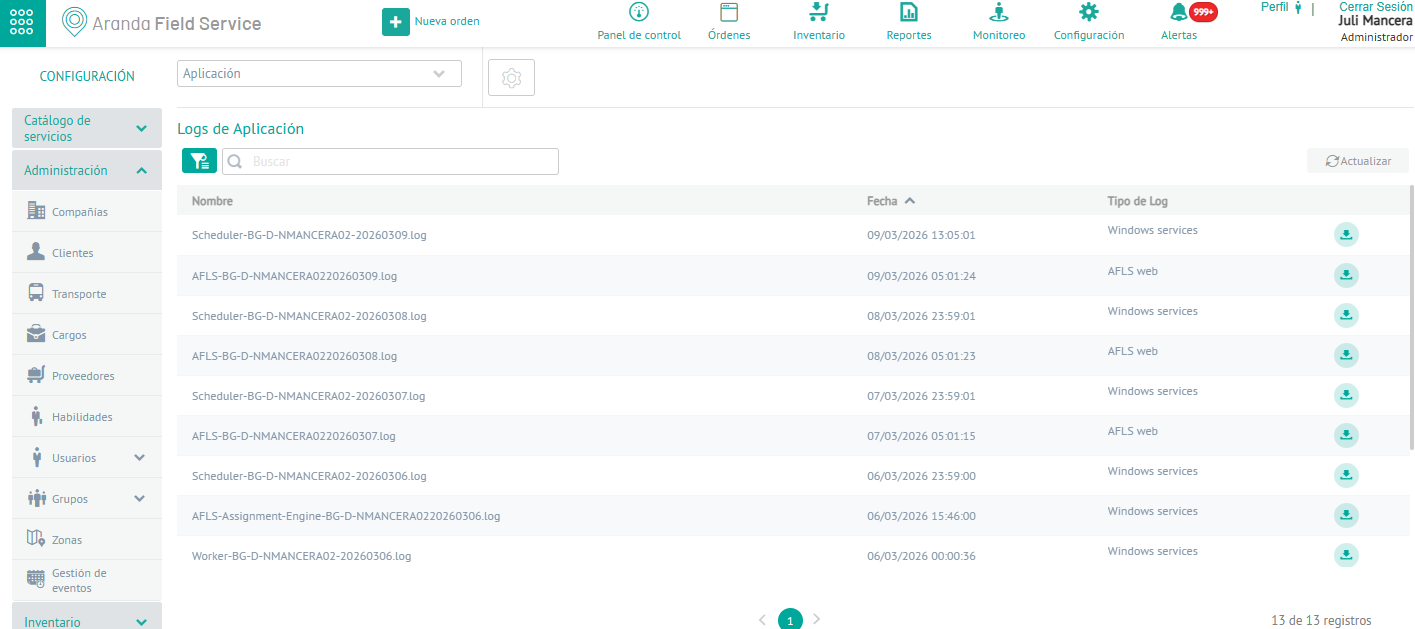
In this module, you can view logs from the AFLS web application, logs from the AssistMe application, logs from Windows services that operate for AFLS, and API logs.
⚐ Note: Application event management does NOT apply to Multitenant environments.
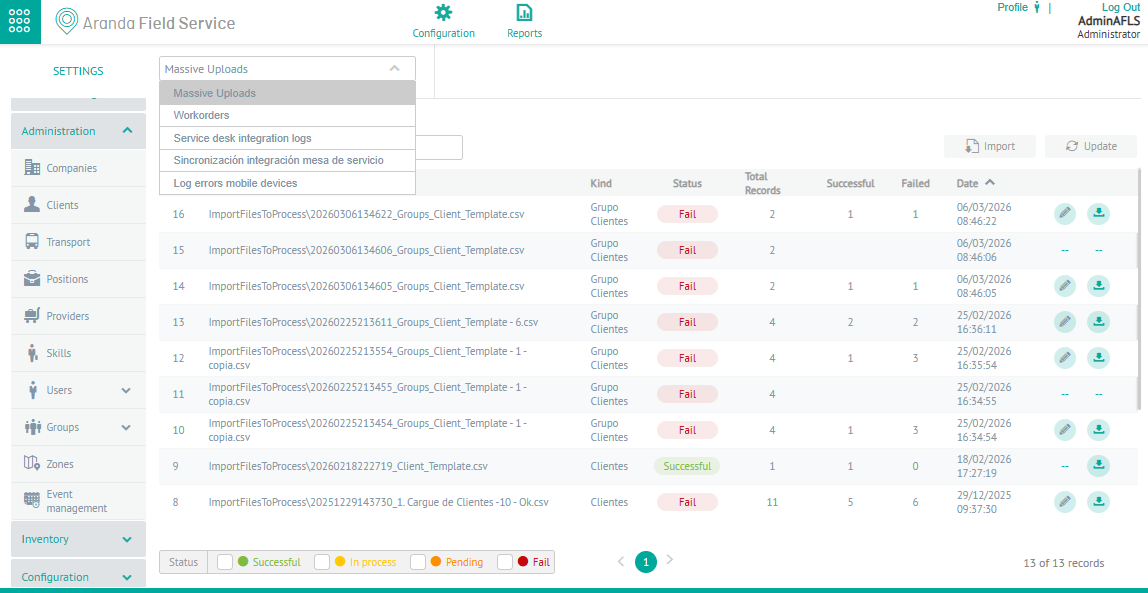
1. To filter and sort the information to be consulted for the events, enter the AFLS configuration console, in the section Administration From the main menu, select: in the Event Management. In the information view, select the option Application
2. In the application event information view, you will have filters, queries, and actions enabled by event type. For more information, please visit Filters by Event Type.
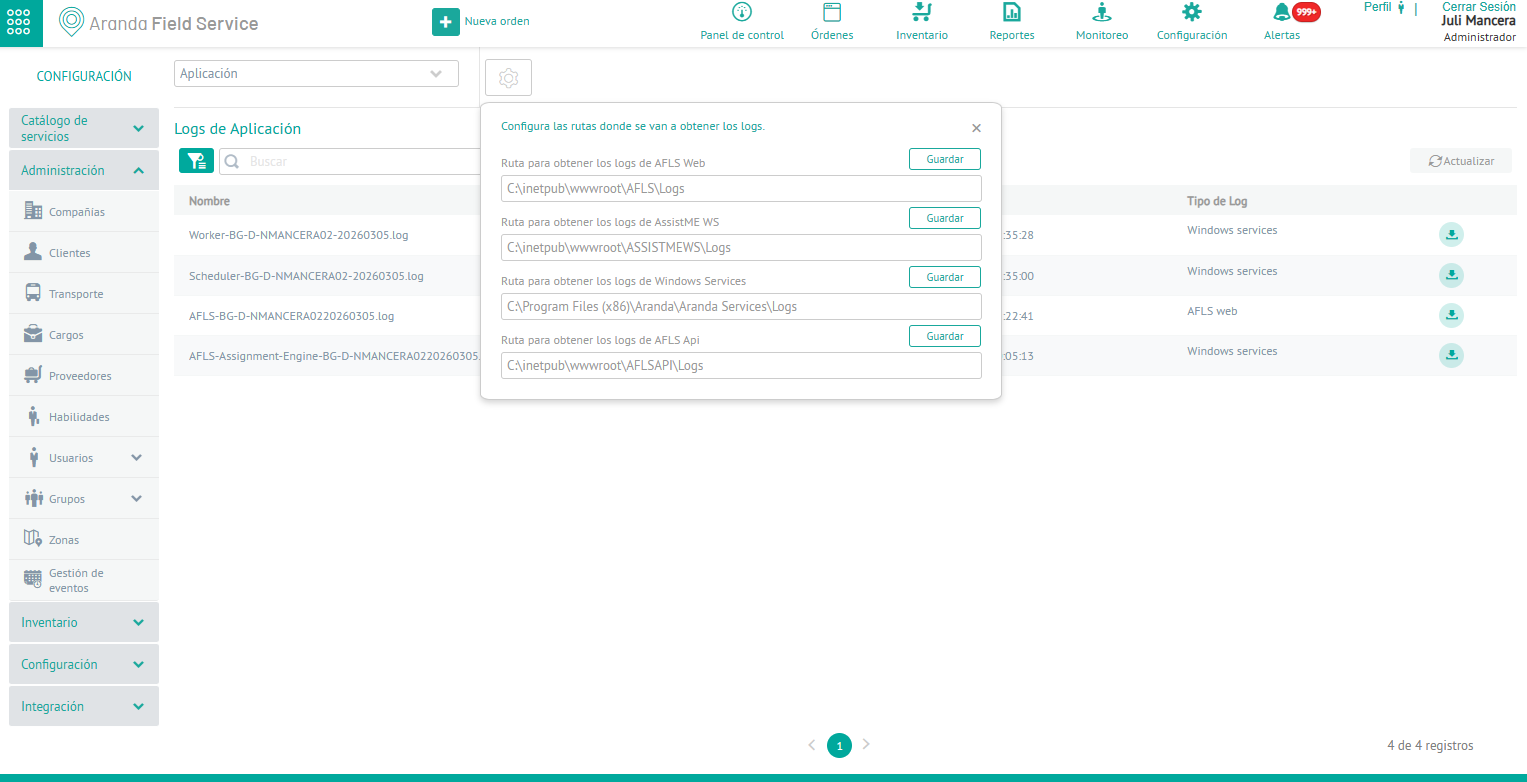
3. In the application event information view, select Settings button  . The window where you can configure the local routes where the logs generated by the web application or services can be viewed is enabled.
| Paths to get logs | Description |
|---|---|
| Path to Obtain AFLS Web Logs: | Corresponds to the local configuration of the application where the AFLS web application logs are hosted. The configured path that you will be able to display is: C:\inetpub\wwwroot\AFLS\Logs. |
| Path to AssistME WS logs: | It corresponds to the local configuration of the application where the logs of the ASSISTMEWS web application are hosted. The configured path that you will be able to display is: C:\inetpub\wwwroot\ASSISTMEWS\Logs. |
| Path to Windows Services logs: | Corresponds to the local configuration of the application where the Windows services logs are hosted. The configured path that you will be able to display is: C:\Program Files (x86)\Aranda\Aranda Services\Logs. |
| Path to get the AFLS Api logs: | It corresponds to the local configuration of the application where the logs of the exposed APIs are hosted. The configured path that you will be able to display is: C:\inetpub\wwwroot\AFLSAPI\Logs. |
| Save button: | This option validates and stores each of the routes in the database |
4. According to the selected filter, you will be able to view a list of the logs recorded in the configured routes, with data such as Name, Date, Log Type and Download Button.
When activating the download button  , the system generates a file with the selected log logs.