


Aranda’s FIELD SERVICE AFLS engine is customizable and allows you to direct the assignment of orders in order to meet the objectives of reducing costs, minimizing travel, maximizing quality and guaranteeing compliance with the agreed service times.
Create Assignment Rules
1. To create an Assignment Rule, go to the AFLS configuration console, in the Configuration from the main menu, select the Assignment Rules . In the information view, you can access configuration options.
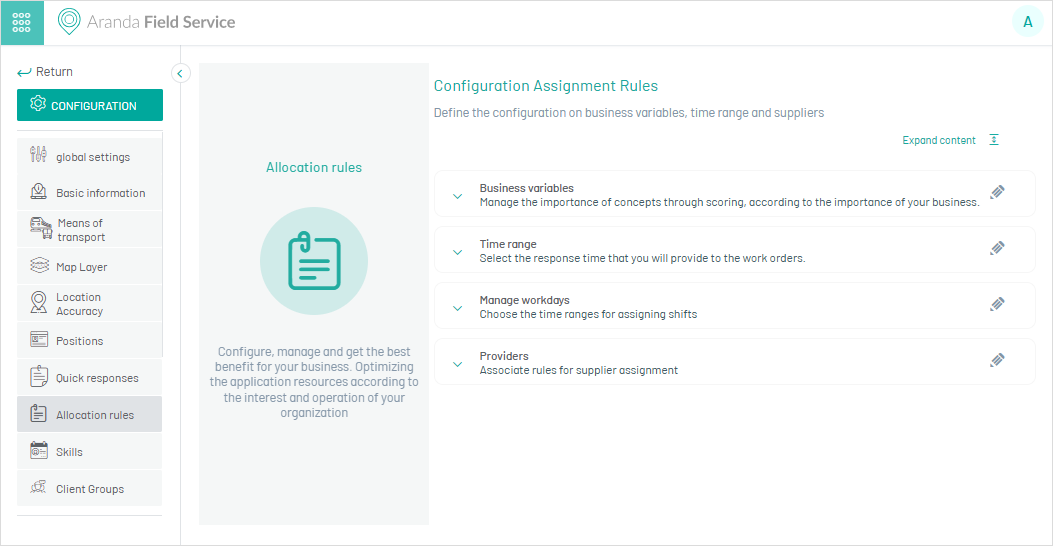
2. When you select the Edit  For each configuration item, the section to update related data is enabled
3. In the Detail View of the Assignment Rules you can customize four operation parameters; The configuration of these variables allows the assignment of orders to be directed for the fulfillment of the service.
Business Variables
4. In the Rule Detail view, display the item Business Variables, where you can assign a rating, determined by the number of stars (out of a total of 40), to the goals you want to optimize the most.
⚐ Note: Targets with a higher number of stars will have more weight in the order assignment, and those with fewer stars will have less influence on the assignment process.
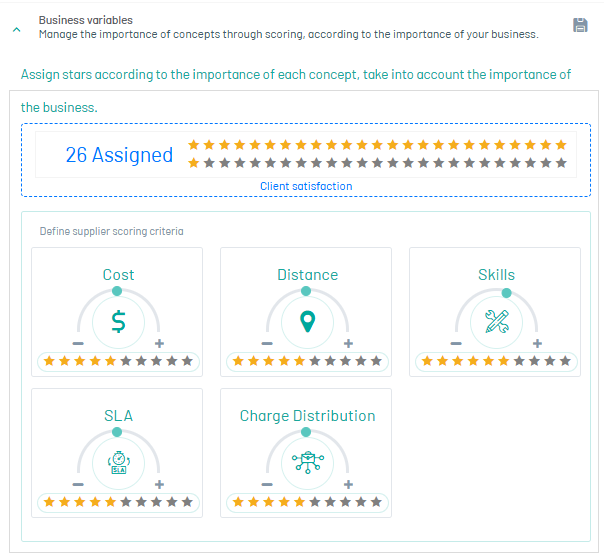
Los objetivos se clasifican así:
Operation
| Cost | Optimizes the cost of the assigned specialist’s fee, the base cost of transportation used, and the cost of specialist downtime. |
| Distance | It optimizes the cost per kilometer and the cost for the time that a specialist spends on traveling; the higher the charge, the higher the cost of traveling. |
Customer satisfaction
| Skills | Optimize service quality assigning the specialists with the best skills. |
| ANS | Optimize compliance with times agreed with the client. |
Distribution
| Load Distribution | It optimizes the equitable allocation of work among specialists. |
By default, all variables come with the same number of stars which generates a balanced assignment and all objectives are tried to be met in the best possible way.
Time Range
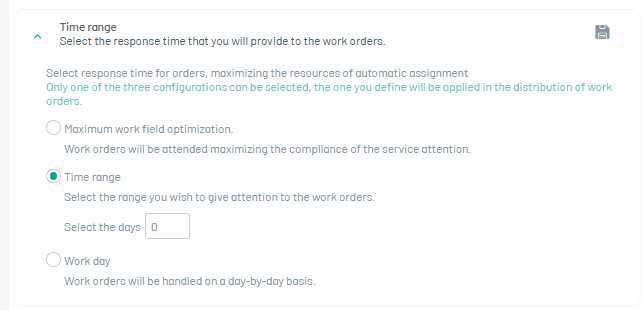
5. In the Rule Detail view, display the item Time Range, where you can configure the response time to be given to work orders optimizing the maximum of resources. You can define the response time according to the following criteria:
| Fields | Description |
|---|---|
| Maximum Optimization of Fieldwork | The attention time is established automatically, taking advantage of the maximum compliance. |
| Time Range | The attention time is established according to a range of days. |
Manage Schedule
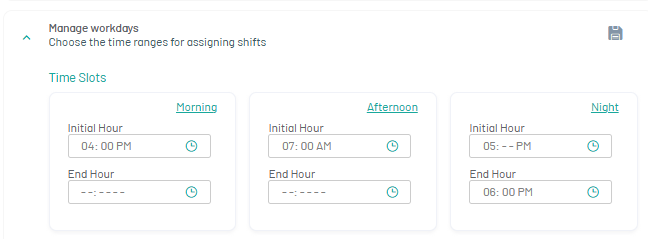
6. In the Rule Detail view, display the item Manage working hours, where you can configure the morning, afternoon and night shifts for the creation of orders with constraint assignment, since the assignment engine will take into account these schedules according to the selected day.
| Fields | Description |
|---|---|
| Day: | The attention time is established for a day of the day (morning or afternoon) |
⚐ Note: The ranges of the hours of each day must be between 12:00 a.m. and 11:59 p.m. You can only set hours on the dot (12:00 a.m., 02:00 a.m., 03:00 p.m.)
Suppliers
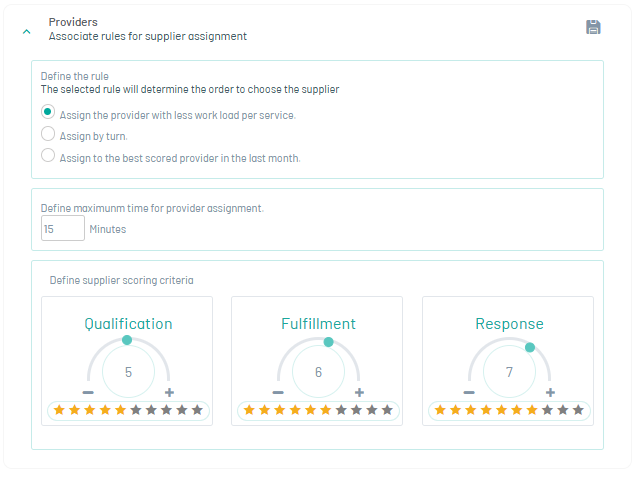
7. In the Rule Detail view, display the item Suppliers, where you can set up the rules that define the order for choosing a vendor. The options are:
| Fields | Description |
|---|---|
| Assign the Least Workload Provider Per Service | A count of open orders is made by supplier, and priority is given to the one with the fewest assigned orders. |
| Assign by Shifts | A round trip algorithm is used to assign orders. Or, it is assigned to the vendor that has the oldest date of the last assignment. |
| Assign the provider with the best score in the last month | Priority is given to the supplier with the highest qualification. Using the three controller disks, the administrator can decide which criteria to give more or less weight to in the suppliers’ score. |
⚐ Note: The supplier with the highest score will receive a benefit that consists of assigning an additional number of orders. This amount is set by default to 3, however, this value is modifiable from the database.
8. When you finish configuring each item in the assignment rules, click Save  to confirm the changes made.