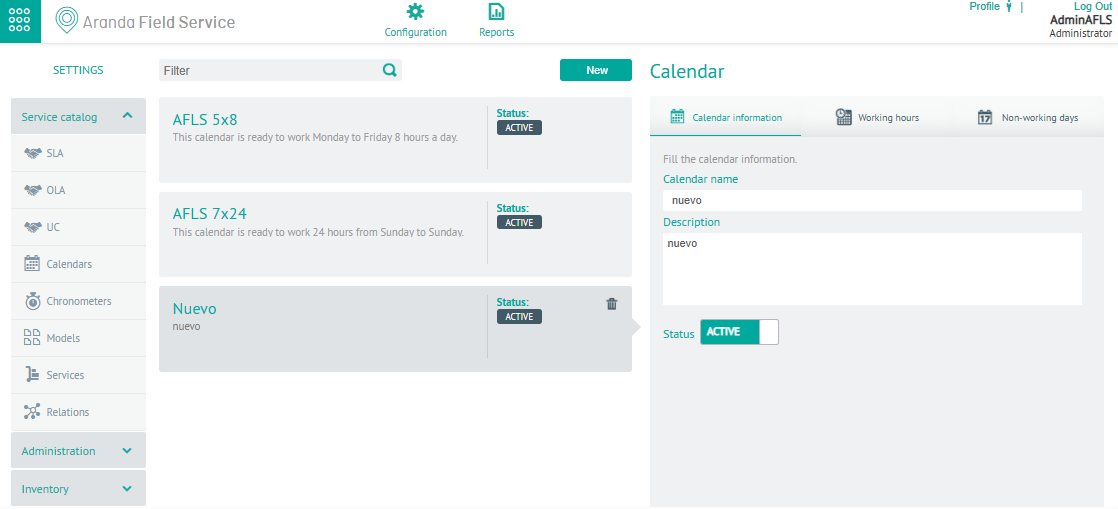
This functionality allows you to define the availability of the provision of services within Aranda FIELD SERVICE. Currently these calendars can be associated with the created services, in their respective configuration.
Create Calendars
⚐ Note: When entering the functionality, you will find 2 calendars set by default, one with availability of 7 days for 24 hours and the other with 5 days for 8 hours of availability.
1. To create a Custom Calendar, log in to the AFLS Settings Console in the Service Catalog from the main menu, select the Calendars. In the information view, select the New.
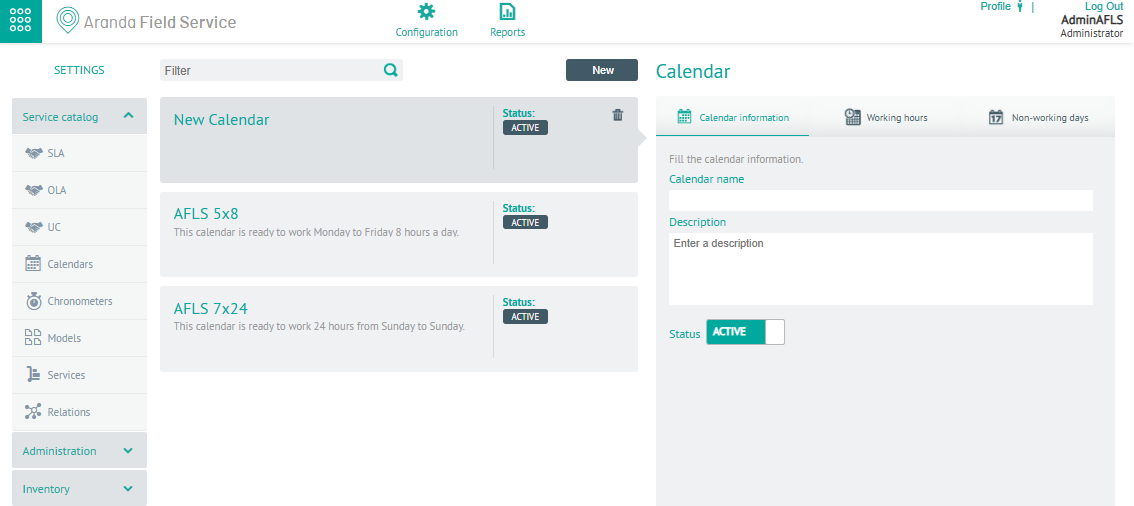
Calendar Information
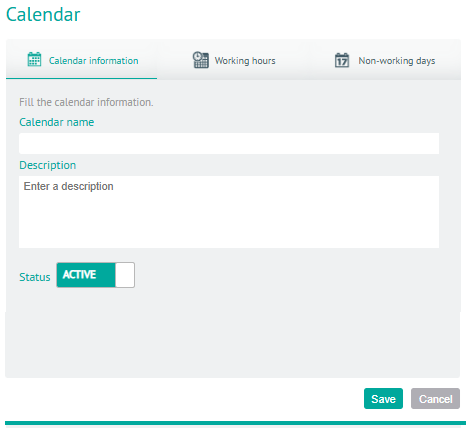
2. In the Calendar Detail View, select the Calendar information, where you can name and describe the calendar and define its status.
Working Hours
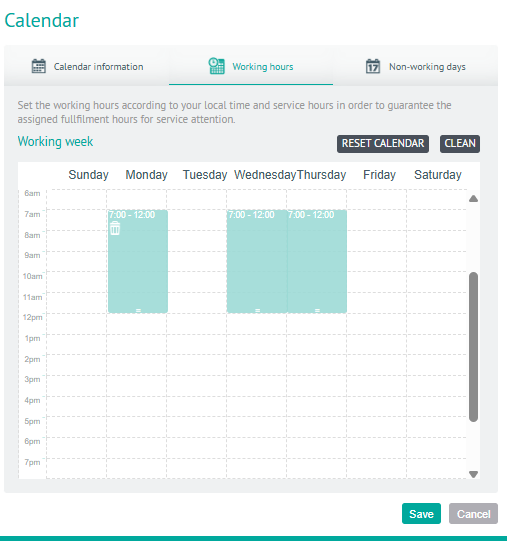
3. In the Calendar Detail View, select the Working hours, where you can configure the working hours according to the local time and service hours to ensure compliance with the times assigned in the attention of the services.
If you edit an unsaved calendar and select the RESET CALENDAR The previous configuration is maintained
If you select the CLEAR The configured information for working hours is cleared.
Non-working days
4. In the Calendar Detail View, select the Non-working days, where you can set up the days when specialists are not working. It applies locally, that is, it will only affect this particular calendar.
If you select the IMPORT CALENDARS you can import calendars from a file type *.ics and upload the non-working days created in the global settings section. The days loaded will be distinguished from those that are created in the module itself (imported and added).
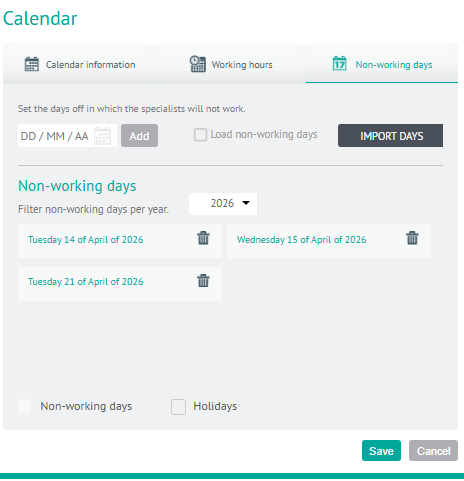
⚐ Note: The user will not be able to remove a single day uploaded to the calendar, to do this, they must uncheck the option, in this way all the loaded days will be removed from the calendar. It will not be possible to add the same date to the calendar, if it is already configured. The system does not allow adding a date that is earlier than the current one. If you already have a work order for the day that the user wants to mark as non-working, the system will present a warning indicating that there is already an order assigned for that day, and it will ask if you want to continue with the marking.
5. When you finish setting up the Calendar, click Save to confirm the changes made.
Edit Calendars
6. To edit a calendar, in the information view of the AFLS website, select a record from the list of existing calendars and in the detail view you can modify the required information (fields)
Delete Calendars
7. To delete a calendar, in the information view, select a record from the list of existing calendars and select the Eliminate to clear the associated information.