


AFLS executes a synchronization of the companies, customers, and specialists that are in the ASDK
View Imported Companies
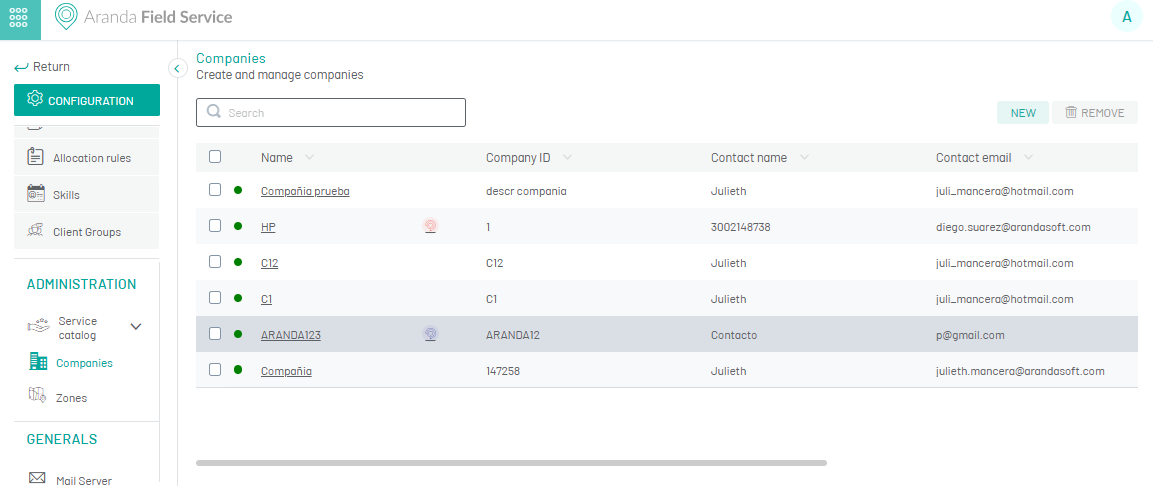
1. To view synchronized companies, go to the AFLS configuration console, in the Administration section of the main menu, select the option Companies.
In the information view, select a record from an ASDK-synced company
2. In the Company Detail View, you can view the company fields that are synchronized:
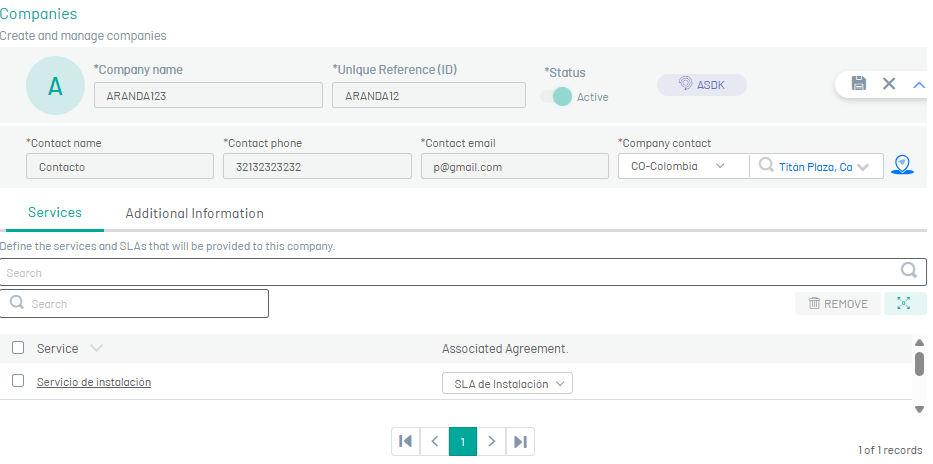
| Fields | Description |
|---|---|
| Company Name: | Company to which the service is provided. |
| Unique code or NIT: | Company NIT. |
| Contact Name: | Name of the company contact. |
| Contact telephone number: | Phone number of the company’s contact. |
| Contact email: | Email from the company’s contact. |
| Address: | Standardized by Google’s address search control. |
| State: | Defines whether the company’s status is active or not. |
⚐ Note: For the import of companies to be successful, you must have at least the following company information in ASDK (name, alias, street address Google and phone)
View Imported Customers
1. To view synchronized clients, go to the AFLS configuration console, in the section Administration from the main menu, select the Clients.
In the information view, select an ASDK-synced customer record.
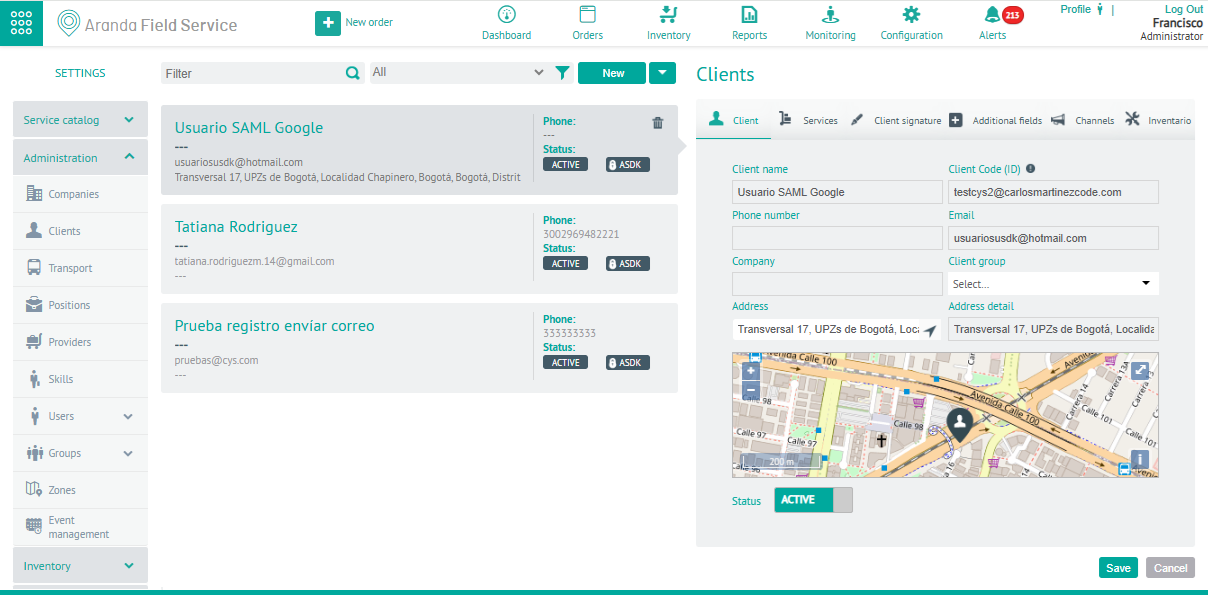
2. In the Detail View, you can view the customer fields that are synchronized:
| Fields | Description |
|---|---|
| Customer Name: | Customer to whom the service is provided. |
| Client Code: | Customer’s identification number, NIT, or (unique) username. |
| Phone Number: | Customer contact phone. |
| Email: | Email from the company’s contact. |
| Address: | Standardized by Google’s address search control. |
| State: | Define whether the status of the active customer or not. |
| Services: | List of services associated with the client. |
⚐ Note: For the client import to be successful, you must have at least the following customer information in the ASDK (name, alias, street address Google, phone and company)
Display ASDK Specialists as Dispatchers to AFLS
1. To view synchronized users, go to the AFLS configuration console, in the section Administration from the main menu, select the Users and the category Web Users.
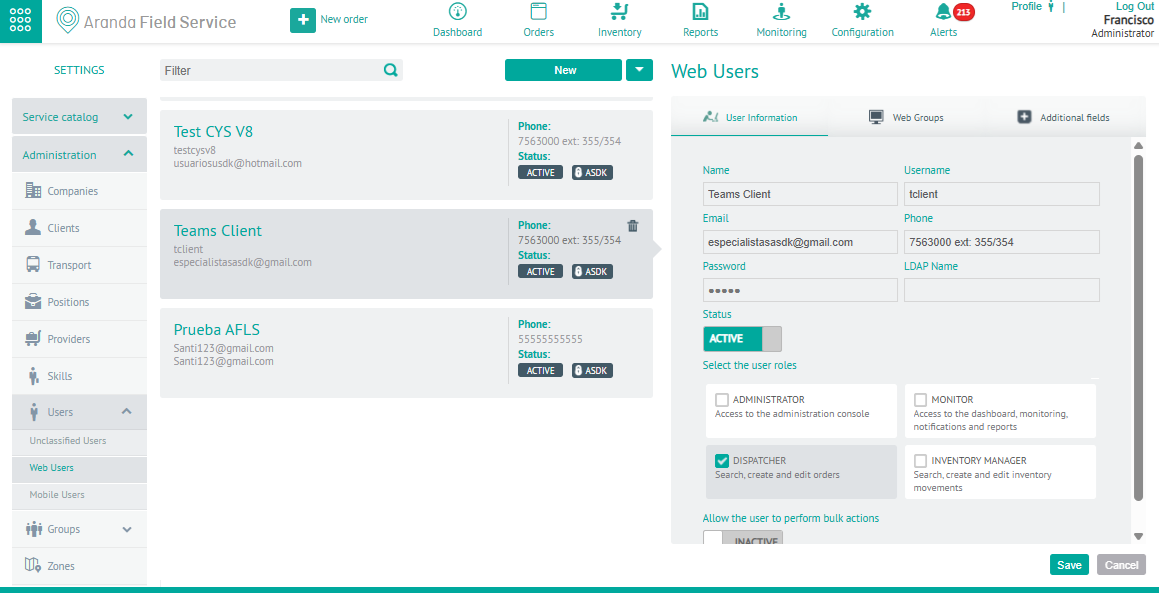
2. In the information view, select a record of users synchronized with the ASDK, and in the Detail view you can display the user information fields:
| Fields | Description |
|---|---|
| Username: | ASDK specialist user. |
| User: | User code in ASDK. |
| Telephone: | Specialist’s telephone number. |
| Email: | Email from the specialist’s contact. |
| Password: | Password of the specialist. |
| State: | Define whether the status of the active specialist or not. |
| Role: | The Dispatcher role is assigned in AFLS. |
⚐ Note: For the specialist import to be successful, you must have at least the following customer information in ASDK (name, alias, street address Google, phone, company, email.)