There are two ways to search for a work order already generated in AFLS:
Simple search
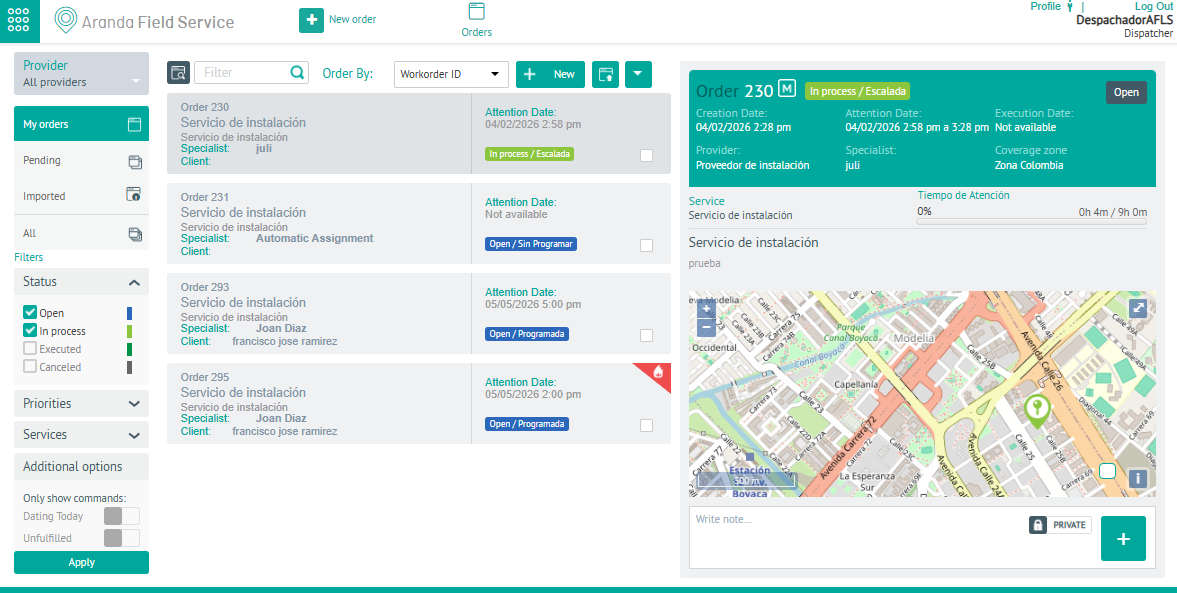
1. To check work orders, with the Dispatcher role, go to the AFLS web console, in the Orders from the main menu, select the Seeker.
2. In the Order Information view, in the Search Engine window, define a search criterion associated with the order (subject, email, contact name (requester), service name, specialist name, user name (customer), company name, order number, or unique reference).
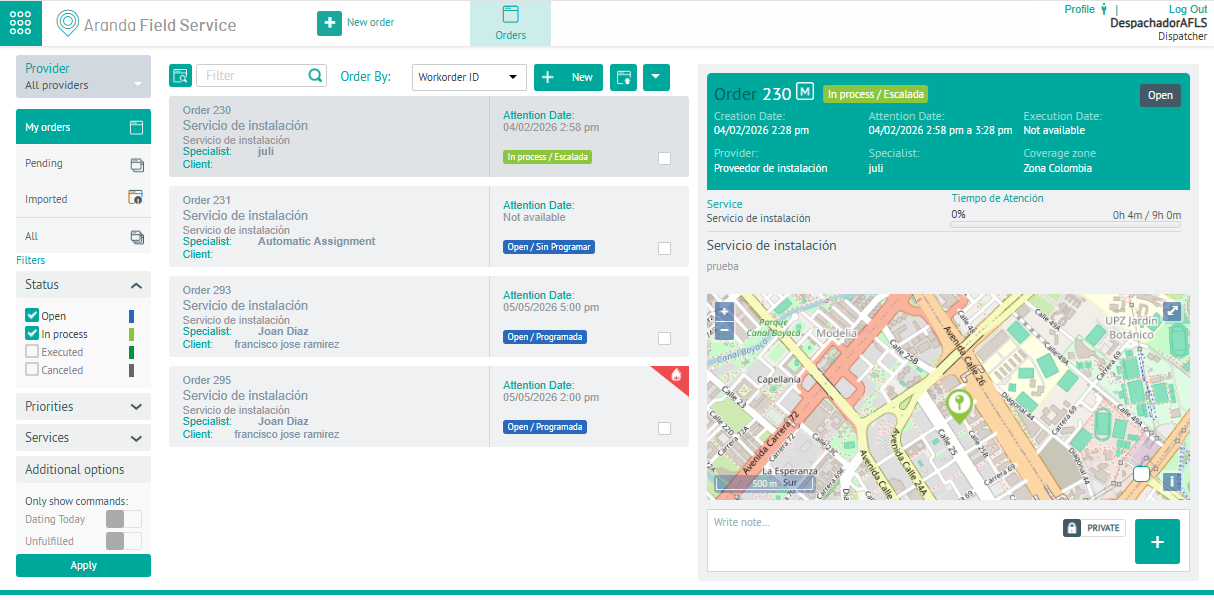
3. In the information view you can view the results of the query, you can validate the basic data of the order, select the order and in the detail view open the work order
Advanced search
An advanced search allows you to combine several criteria to present more accurate results.
1. To check work orders, with the Dispatcher role, go to the AFLS web console, in the Orders from the main menu and in the information view Click the Advanced search 
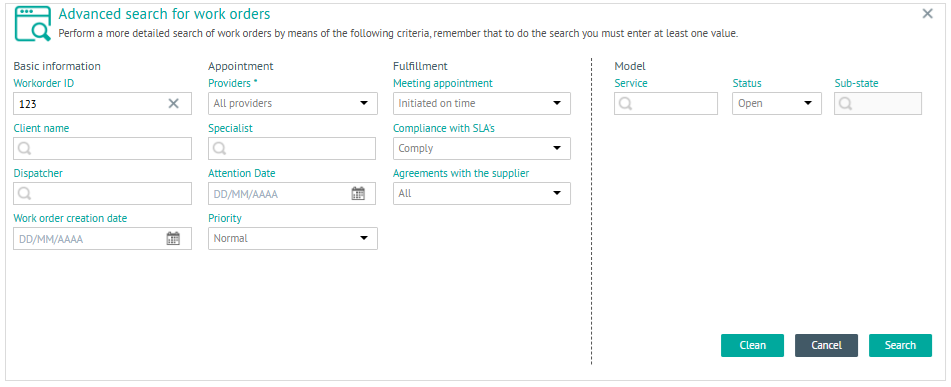
2. In the window Advanced Search enter the query criteria associated with the order as basic information (order ID, customer name, dispatcher, order creation date), appointment (provider, specialist, date of care, priority) compliance (appointment compliance, SLAs, and provider agreements), and service model (service, status, and sub-status).
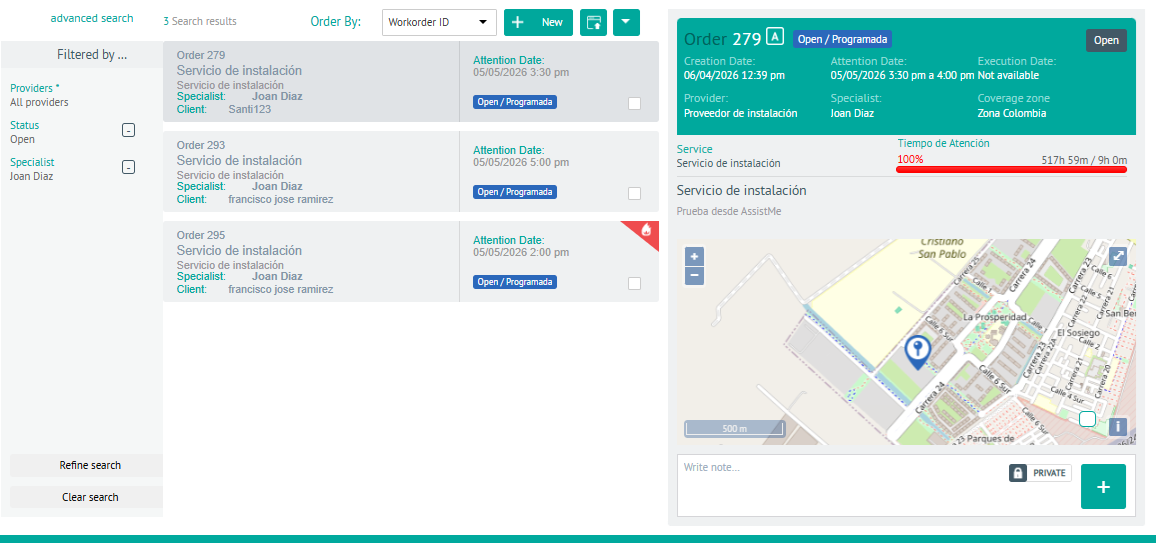
3. In the filter menu of the information view, you can view the results of the query and modify the criteria or activate actions such as Refine search (returns to advanced consultation ) or Clear search.