


View Alerts by Provider
1. To view alerts by vendor, with the Monitor role, log in to the AFLS web console, in the Alerts from the Header menu, select the Suppliers.
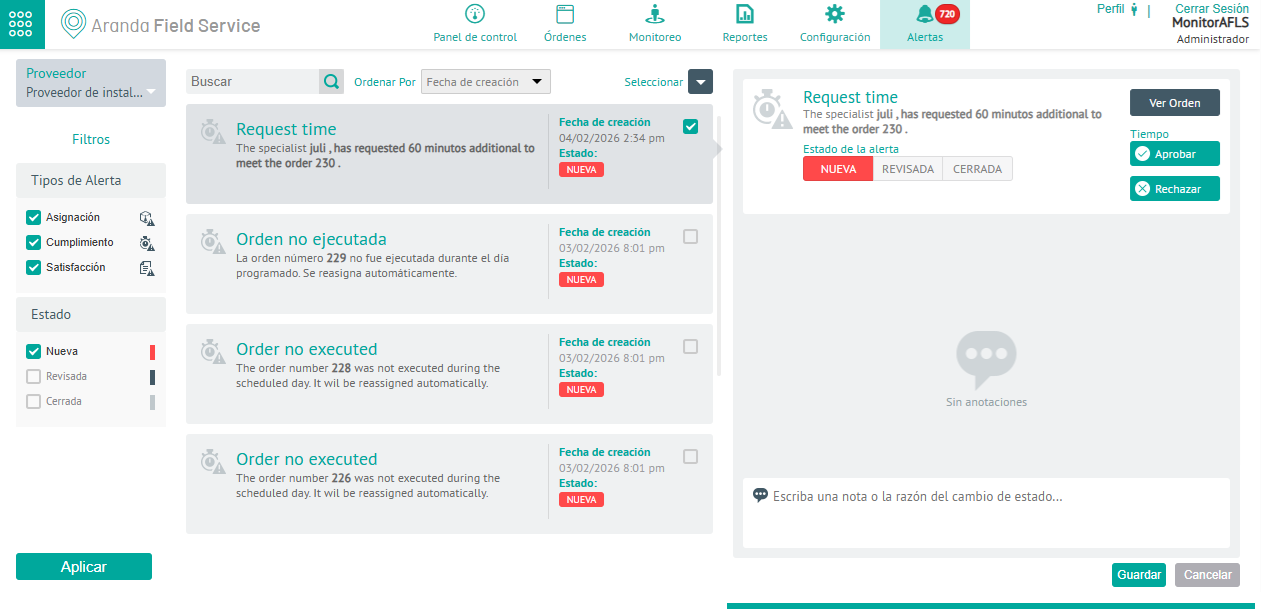
2. In the alert filters in the main menu, select a vendor and enable the options required to generate the order report:
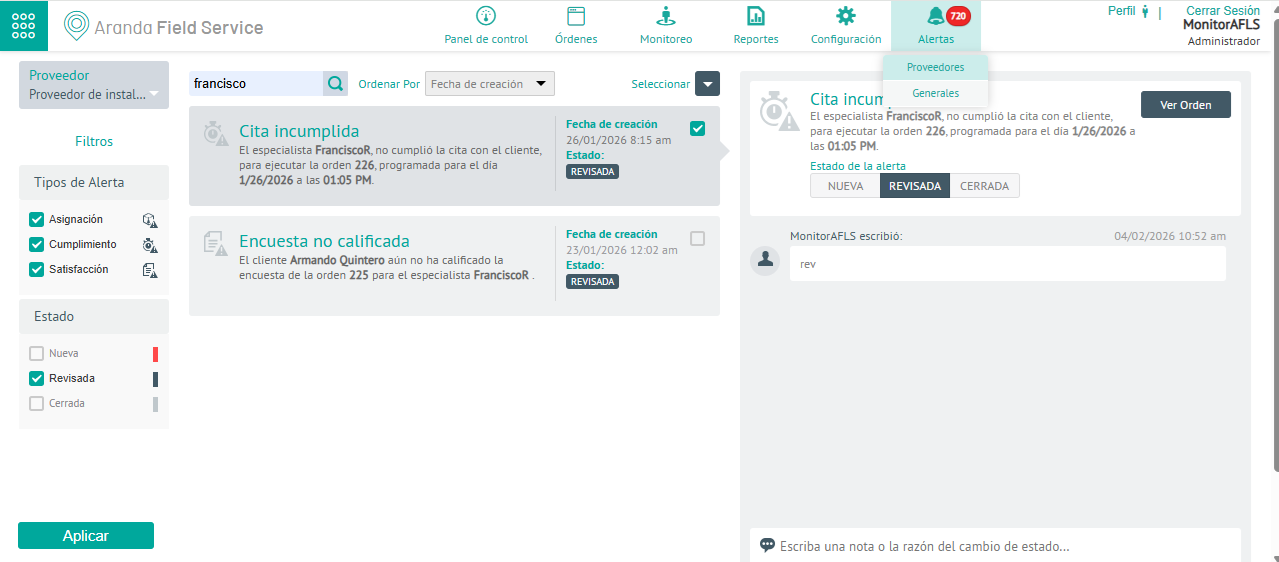
⚐ Note: The monitor role will only be able to view the vendors assigned to it, so you can filter alerts only by those vendors from the selector. When you log in with a Dispatcher + Monitor user profile, the selector will have the option of All Providers.
| Alert filters | Description |
|---|---|
| Allocation | These are the alerts created by the assignment engine when it is not possible to find the right people to execute a work order. For more information, please visit the Assignment Alerts. |
| Compliance | Alerts generated by the operation when work order appointments or service level agreements are breached. For more information, please visit the Compliance Alerts. |
| Satisfaction | Alerts generated by low survey scores by users. For more information, please visit the Satisfaction Alerts. |
3. In the information view of the filtered information, select an alert from the generated list.
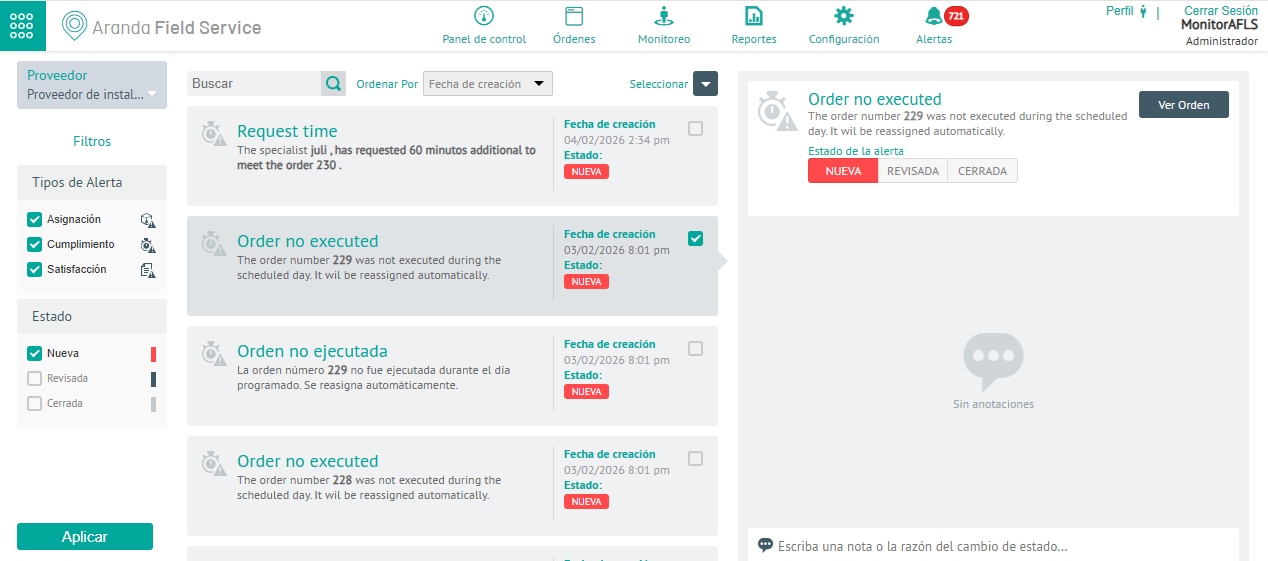
4. In the alert detail view, you can select the View Order, access the selected order, and view the associated information.
Changing Alert Status
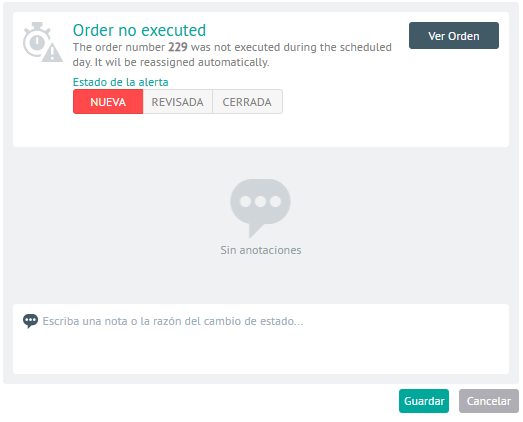
5. Each alert record includes relevant information about the operation. In the detail view you can update the status of the alert (New-Revised-Closed) by adding a message in the respective field. When the update is complete, click Save
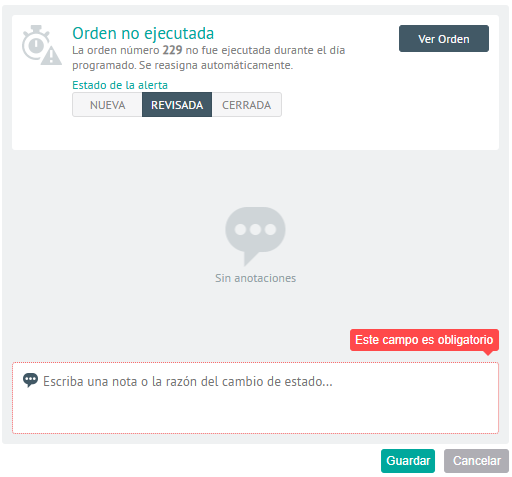
The alert lifecycle moves through three different states:
| Alert Statuses | Description |
|---|---|
| New | System-created alerts that have not been validated. |
| Revised | Alerts that require some type of action on the part of users or monitors. |
| Closed | Validated alerts that don’t matter or that have already been reviewed in the operation. |
⚐ Note: If the status of an order is changed to EXECUTED or CANCELLED, the alert will no longer be displayed in this module, but directly in the work order module, in the status assigned to it.
Time Request Alert
When a field specialist requests more time to attend to the order, the monitor visualizes the generated alert in the console and is responsible for accepting or rejecting the request, allowing work orders to be recalculated (by compliance alert).
6. In the information view, select a type alert Time Request of the generated list. In the alert detail view, select the Approve.
7. In the window Update Time The monitor will be able to make the decision to respond to missed appointments, number of orders to be reassigned and work orders close to expiring.
8. The system proposes an itinerary for the rescheduling of the work order (scheduled time, time of attention and added time). The monitor will be able to take three possible actions:
- Accept the time and keep as many appointments as possible.
- Accept time and reorganize the agenda to optimize the operation.
- Not accepting time.
9. To recalculate the handle time, click Save. Once any of the simulations are accepted, the specialist’s agenda will be updated with the simulated information.
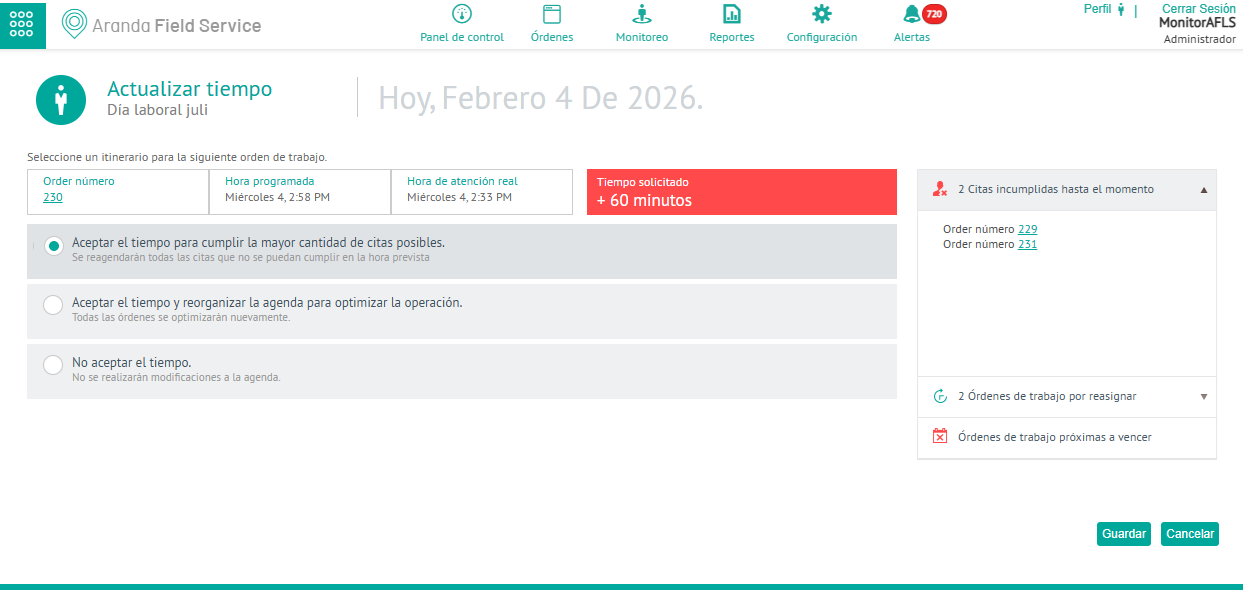
⚐ Note: The first simulation is performed automatically. Each simulation shows the number of orders affected for each case and their respective IDs to be queried. This screen will only be displayed if an order is affected when approving the time requested by the specialist, otherwise a message will be displayed confirming the time approval.
⚐ Note: If the time request does not correspond to the current day, the approve and reject options will be disabled.