


Create Mobile Groups
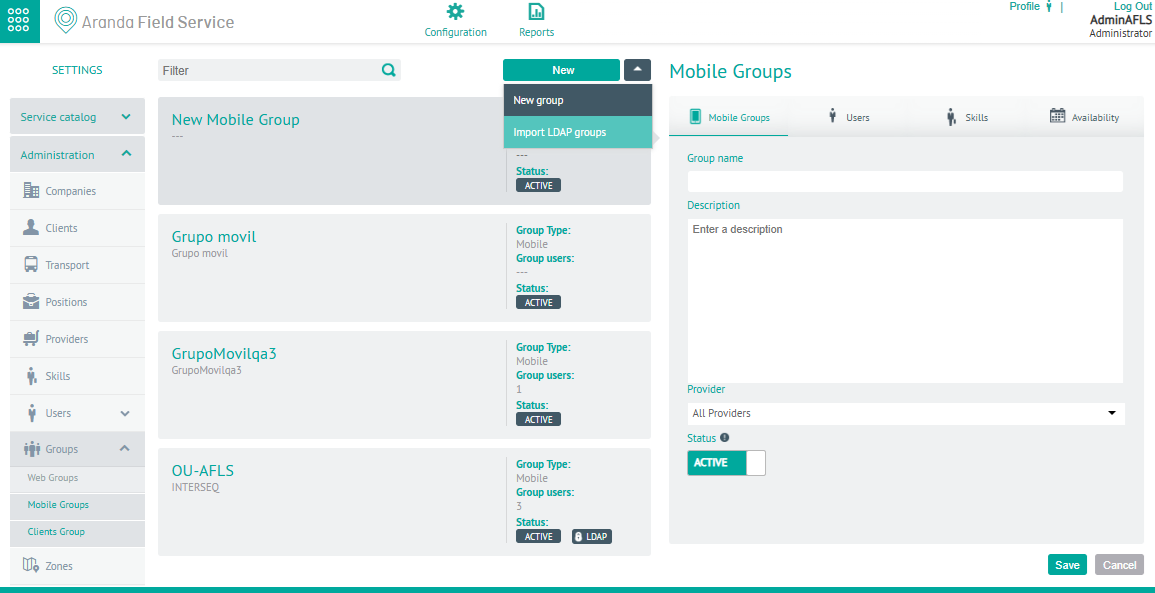
1. To create Mobile Groups, log in to the AFLS Configuration Console in the Administration from the main menu, select the Groups and the category Mobile Groups. In the information view, select the New.
2. In the Mobile Groups Detail View in the AFLS Configuration Console, select the Mobile Groups, where you can fill in information such as group name and description, associate a vendor, and define a status.
Users
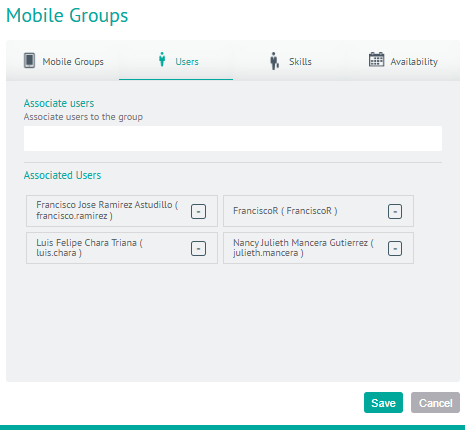
3. In the Mobile Groups Detail View in the AFLS Configuration Console, select the Users, where you can associate users with the mobile group.
Skills
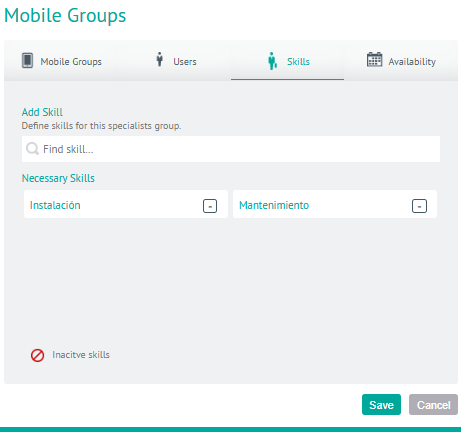
4. In the Mobile Groups Detail View in the AFLS Configuration Console, select the Skills, where you can set up the specific skills for the specialist group in the field.
Availability
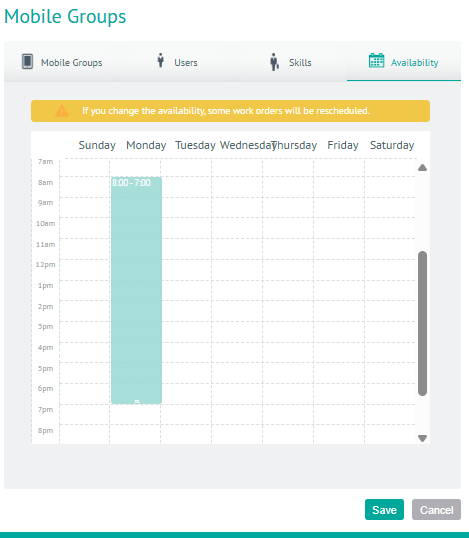
5. In the Mobile Groups Detail View in the AFLS Configuration Console, select the Availability, where you can configure the availability of group time for service attention.
6. When you finish configuring the roaming user groups, in the detail view click Save, to confirm the changes made.
Edit Mobile Groups
7. To edit a Mobile Group, in the information view, select a record from the existing Mobile User Group, and in the detail view you can modify the required information.
Delete Mobile Groups
8. To delete a mobile group in the information view, select a record from the existing Mobile User Group listing and select the icon to delete the associated information.
Check Mobile Group Availability
⚐ Note: When a specialist is associated with a group, he or she inherits the availability characteristics that have been determined for that group.
1. To check the availability of the group (web or mobile), enter the AFLS web console, in the Administration section of the main menu, select the Users option and the category Mobile Users.
2. In the Detail View of a mobile user, select the Availability, where you can view and differentiate between group and user availability.
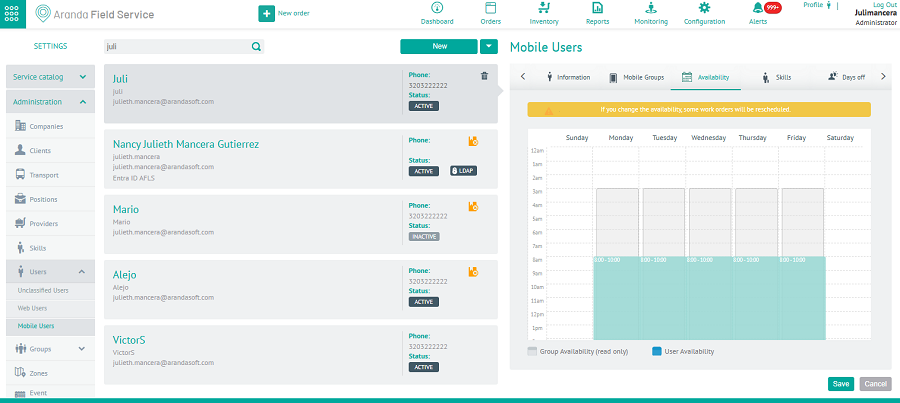
⚐ Note: From this instance you cannot edit the user’s availability.
⚐ Note: The specialist inherits the skills configured for the group and these are added to the skills they have configured as a user.
3. In the Detail View of a Mobile Users, select the Skills, where you can associate skills with the mobile user to be able to relate them to the respective group.
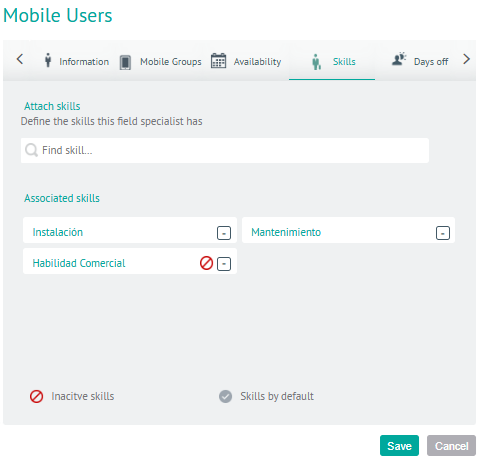
⚐ Note: From this instance you cannot edit the user’s skills.