


⚐ Notes: To enable the Reassign or Cancel In a work order, in the service model configuration, the administrator must define Reassignment as a transition between two sub-states, within the workflow. For more information, see How to create a transition in a workflow
1. To modify work orders (Reassign/Cancel), with the Dispatcher or Monitor role enter the AFLS web console, select the option Orders from the main menu. In the Order Information view, select a record from a generated order, and in the Detail view, click the Open.
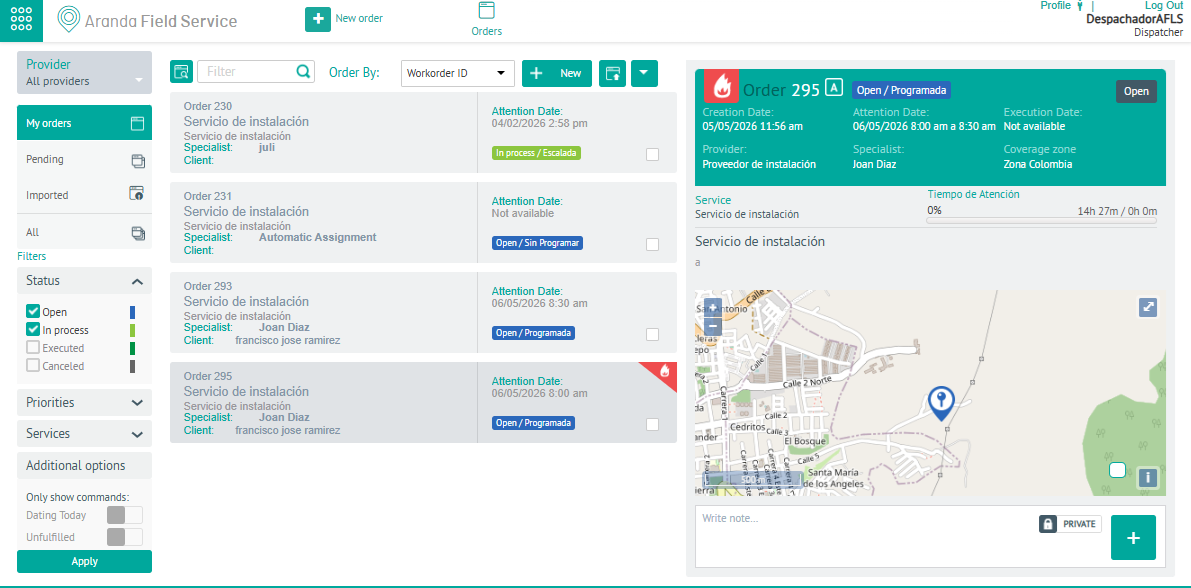
Reassign Order
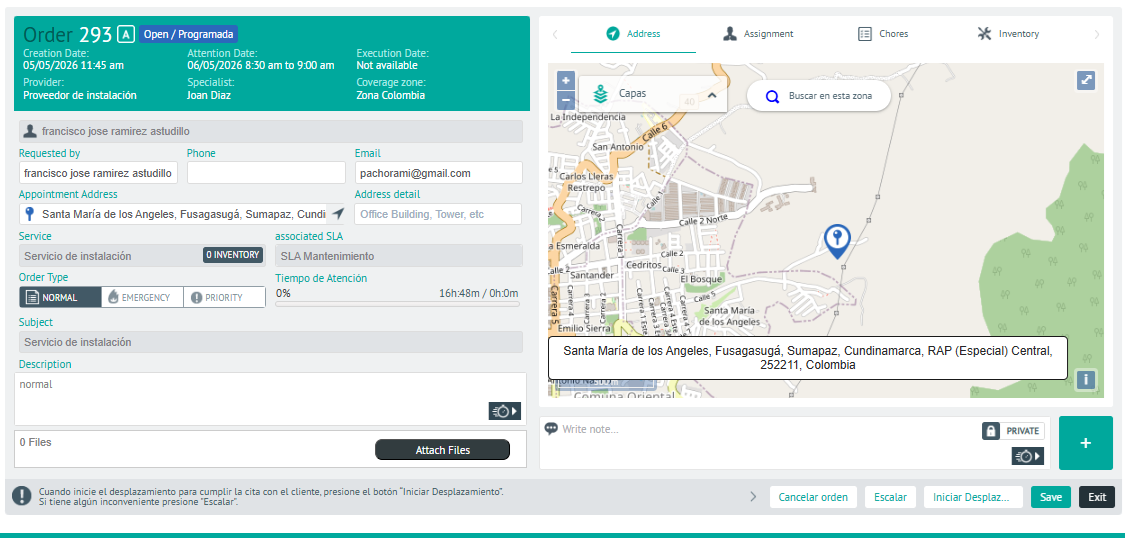
2. In the Work Order Detail view, click the Reassign
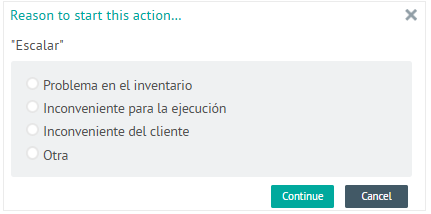
3. If you have configured in the service model, reasons for the reassignment transition between substates, you can display the reasons for the reassignment. Select a reason and click Continue.
Cancel Order
4. In the Work Order Detail view, click the Cancel
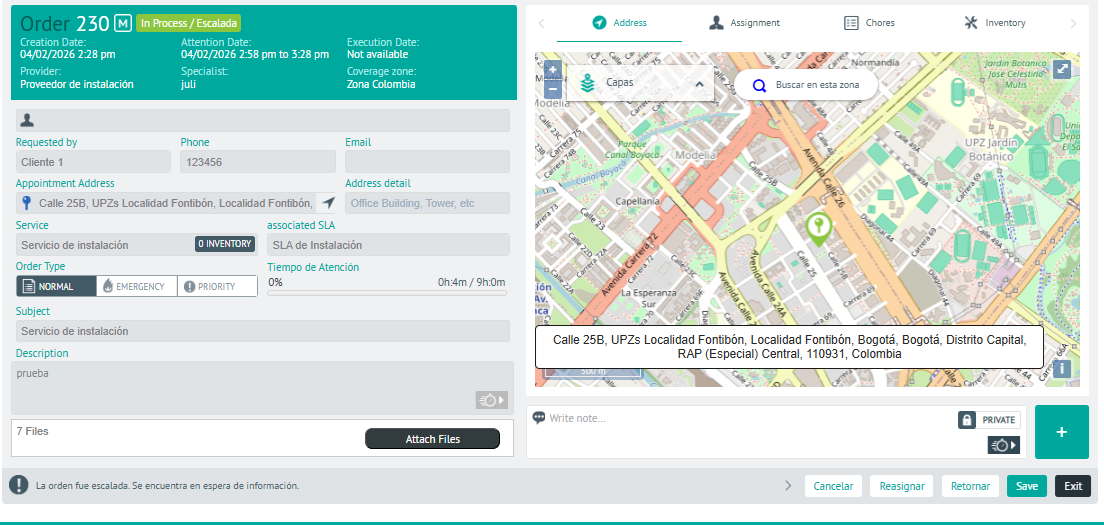
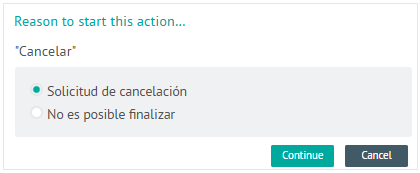
4. If you have configured in the service model, reasons for the Cancellation transition between substates, you will be able to display the reasons for the cancellation. Select a reason and click Continue.
⚐ Notes: After confirming the cancellation of the order, the availability of the originally assigned specialist is released and the dispatcher can assign him to a new order.