


You can import users or groups from the business directory and assign them a role within the application.
⚐ Note: Once the integration of the business directory has been configured and the information has been synchronized with the Aranda FIELD SERVICE AFLS database, the system will allow you to import users into the application.
For more information, see the Vendor Configuration (LDAP, Microsoft Entra ID) for active directory user synchronization processes.
Importing LDAP Groups as Web Groups in AFLS
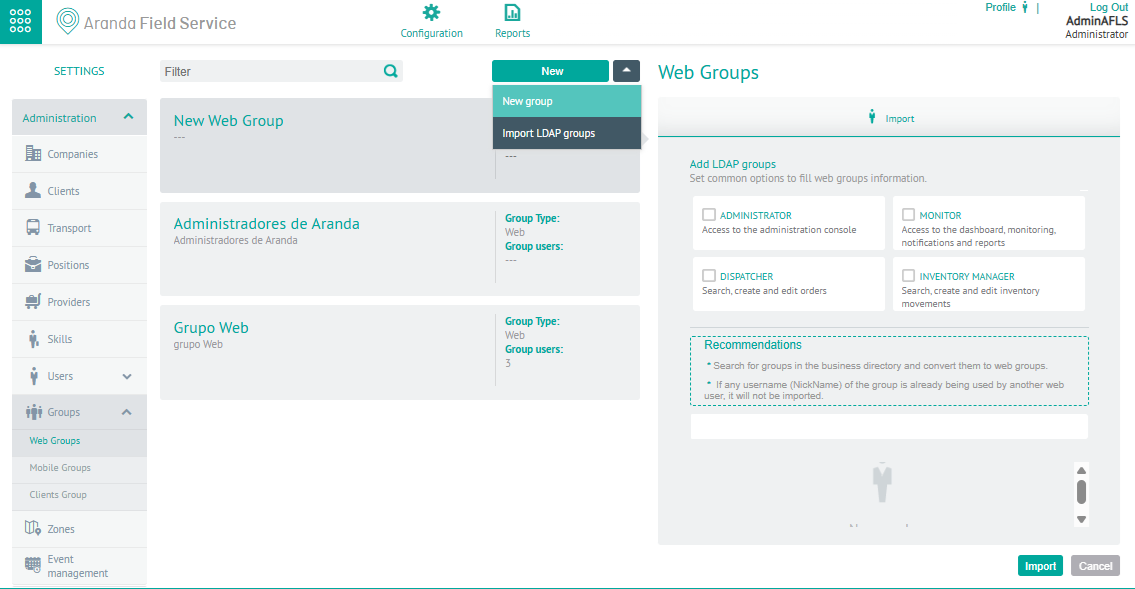
1. To import LDAP Users as Web Groups, log in to the AFLS Web Console, in the Administration from the main menu, select the Groups and the Web Groups category. In the information view, select from the drop-down menu the Import LDAP Groups
Import
⚐ Note: To import LDAP groups, the group filter must be configured in the LDAP module. For more information, see the Import LDAP Provider)
2. In the Web Groups Detail View, select the Import, where the administrator will be able to select the role or roles that the users to import will have (administrator, monitor, dispatcher, inventory manager).
You can also associate the LDAP groups that you are importing. These selected groups will be presented in the Associated Users area and you will have the possibility to remove the groups you do not want from the list. The groups that are in the associated users zone will be imported into the application taking the role or roles that are configured.
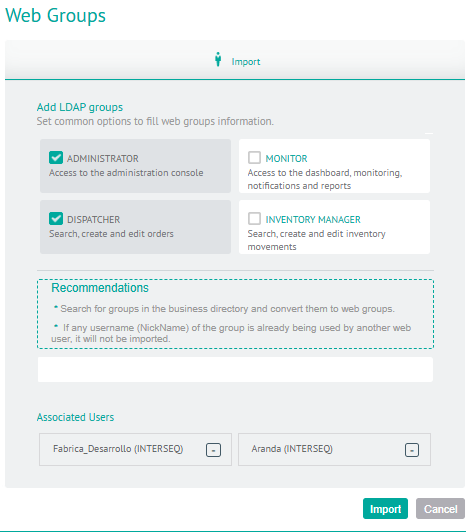
3. When you finish configuring the web groups to import, click Import in the Detail View of the AFLS Configuration Console, to confirm the changes made.
Web Groups
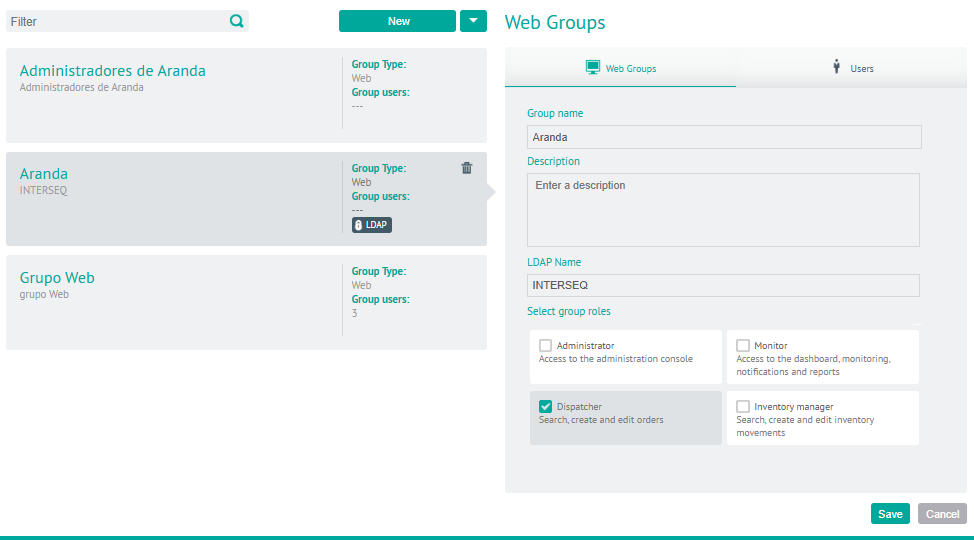
4. After importing the LDAP groups, in the Detail View select the Web Groups where you can update the roles for the imported user groups. The Group Name and Description fields will be locked.
Users
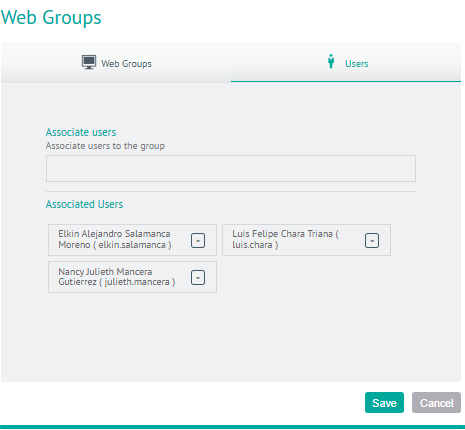
Users imported as role-defined web users who were included in the enterprise directory group.
If the LDAP group to be imported includes users in the Enterprise Directory, these users will be imported with the group and will inherit the configured roles in addition to having the characteristic of being Web users. They will be listed in the Users tab.
Import LDAP Groups as Mobile Groups in AFLS
1. To import LDAP Users as Mobile Groups, log in to the AFLS web console, in the Administration from the main menu, select the Groups and the category Mobile Groups. In the information view, select from the drop-down menu the Import LDAP Groups
2. In the Mobile Groups Detail View, you can define the users to be imported, associate users with mobile groups, and set the availability and skills of the specialist.
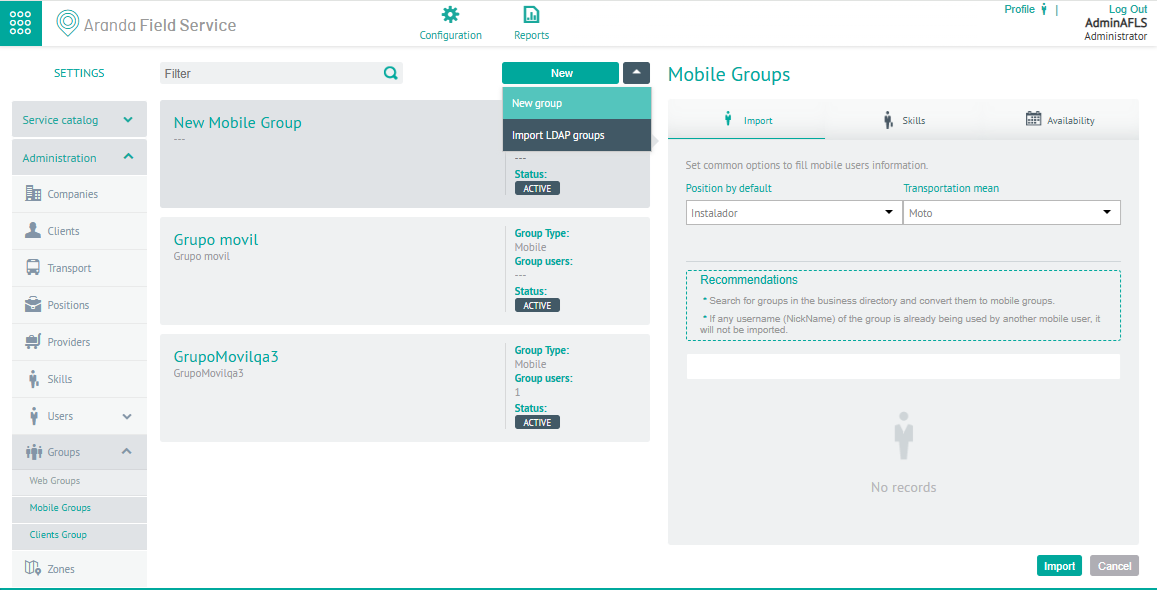
Import
⚐ Note: To import LDAP groups, the group filter must be configured in the LDAP module. For more information, see the Import LDAP Provider)
3. In the Mobile Groups Detail View, select the Import, where the administrator will be able to select positions and means of transport.
You can also associate the LDAP groups that you are importing and that were previously synchronized from the business directory. These selected groups will be presented in the Associated Users area and you will have the possibility to remove the groups you do not want from the list.
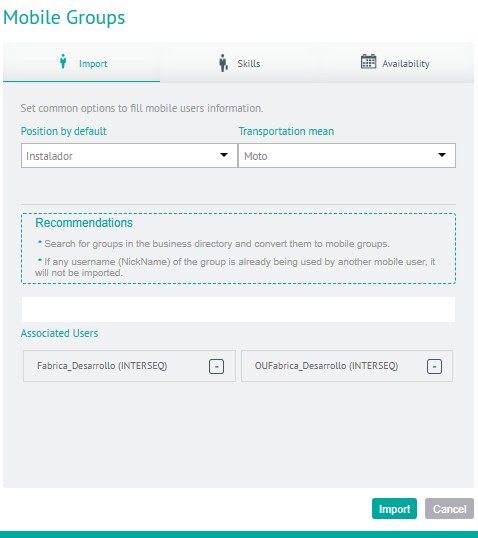
Skills
4. In the Mobile Groups Detail View, select the Skills, where you can configure the specific skills for the imported mobile group.
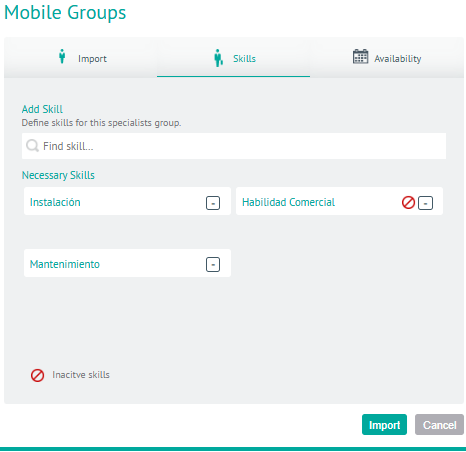
Availability
5. In the Mobile Groups Detail View, select the Availability, where you can configure the time availability of the imported group for the service service.
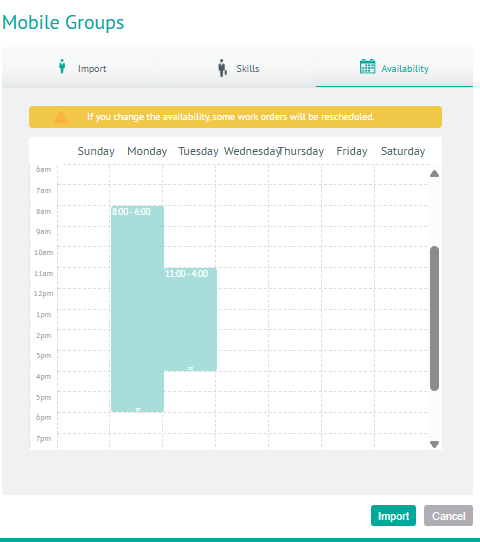
6. When you finish configuring the Mobile Groups to import, click Import in the Detail View of the AFLS Configuration Console, to confirm the changes made.
Check Imported Mobile Groups
1. To view the imported mobile groups, log in to the AFLS web console in the Administration from the main menu, select the Groups and the category Mobile Groups, in the information view you can view the list of groups, the records with the LDAP tag.
The Group Name, Description, Vendor, and LDPA Name fields will be locked.
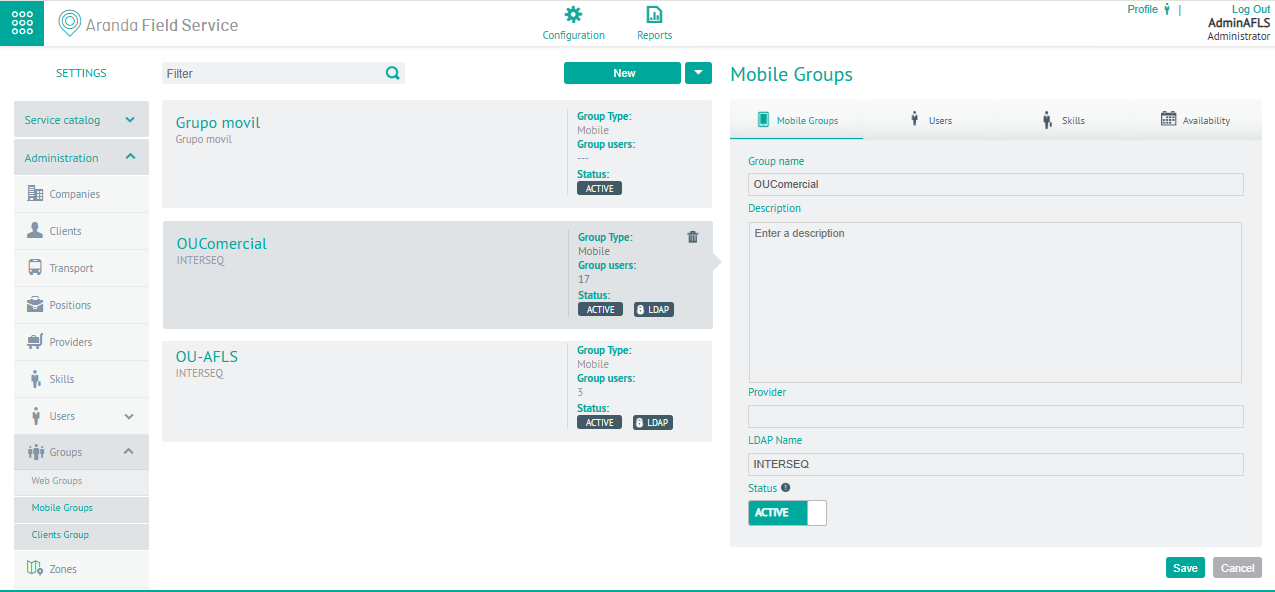
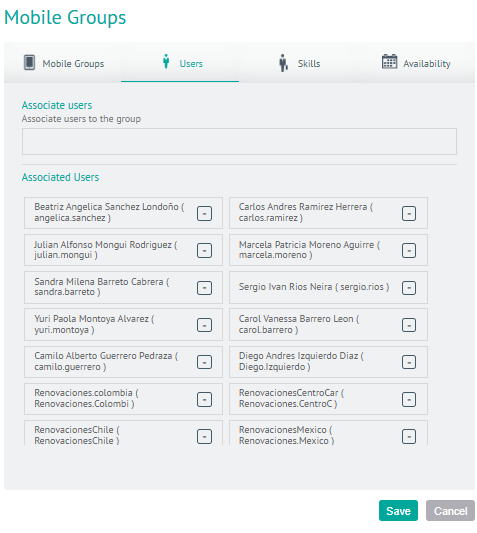
2. In the Mobile Groups Detail View, when you select the Users You will be able to view the imported group users but they will be unable to perform any action.
2. In the Mobile Groups Detail View, when you select the Skills You can add or remove skills from the mobile group.
3. In the Mobile Groups Detail View, when you select the Availability You will be able to change and reschedule the availability of mobile groups.