


⚐ Note: To display and manage orders that are available without any assigned vendor, during service setup, define the Public Distribution as the type of Publication of orders to Suppliers.
1. To view the available work orders, with the Monitor role, log in to the AFLS web console, select the Orders option from the main menu, and click on the Available from the drop-down menu.
2. In the information view you can view the list of available Open/Unscheduled and unscheduled orders without associated vendor, organized by work orders Available and Taken.
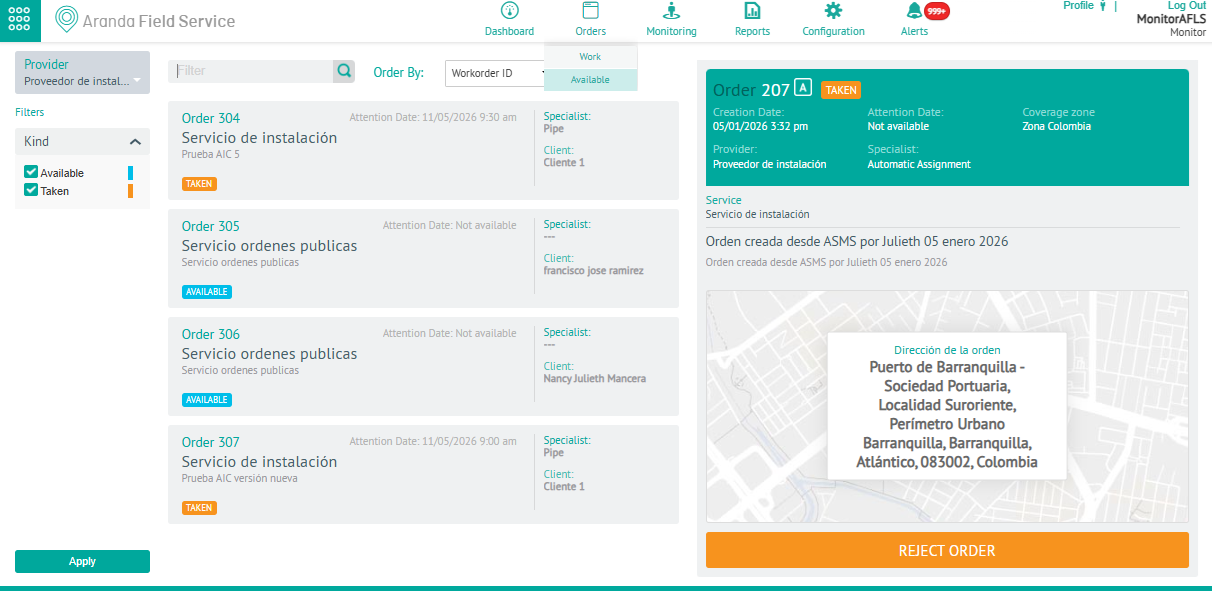
⚐ Notes: The available orders can be taken by the monitor in session and will be assigned to the supplier he represents.
If the vendor representing the monitor has an open/unscheduled order, you can view or reject the order (with direct allocation public distribution service).
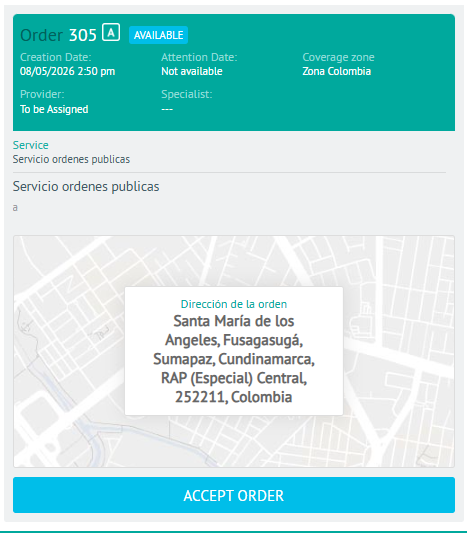
Accept Order Available
3. In the information view, select a work order with the AVAILABLE. In the detail view, the order is grouped by data such as creation and service dates, coverage area, provider (Unassigned) and specialist. Click the TAKE ORDER.
Decline Available Order
4. In the information view, select a work order with the TAKEN. In the detail view, the order is grouped by data such as creation and service dates, coverage area, supplier and assigned specialist. Click the DECLINE ORDER.
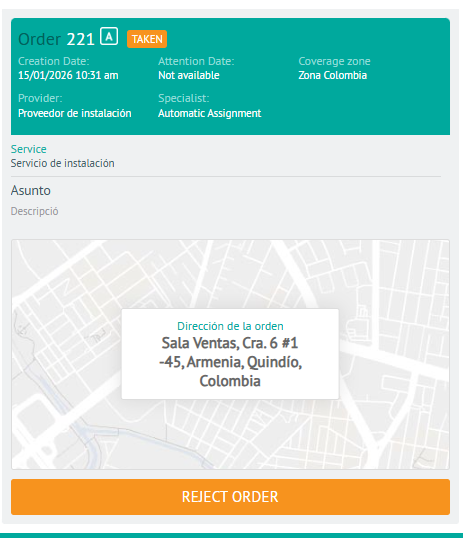
Depending on the nature of the service, the order may be re-placed for public distribution or assigned to the next provider if the configuration is direct allocation.
⚐ Note: The orders in this section only have a detail view and it is not possible to access it for editing.