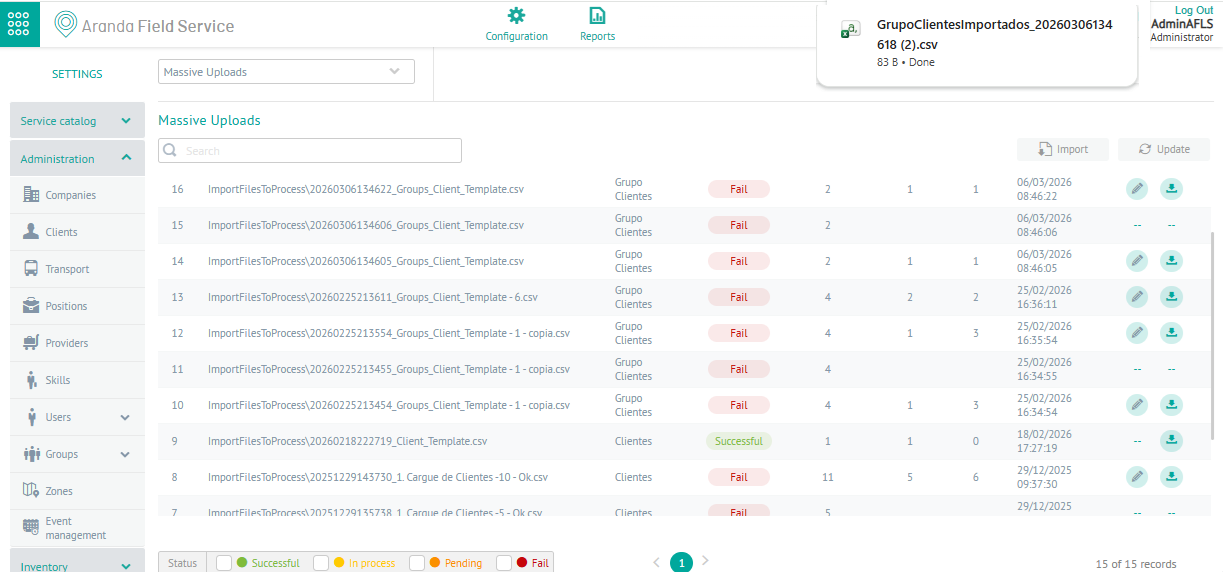
In this module of Aranda FIELD SERVICE AFLS, the event management for associated processes is managed.
1. To filter and sort the information to be consulted for the events, enter the AFLS configuration console, in the section Administration from the main menu, select the Event Management. In the information view, select the option Bulk Uploads
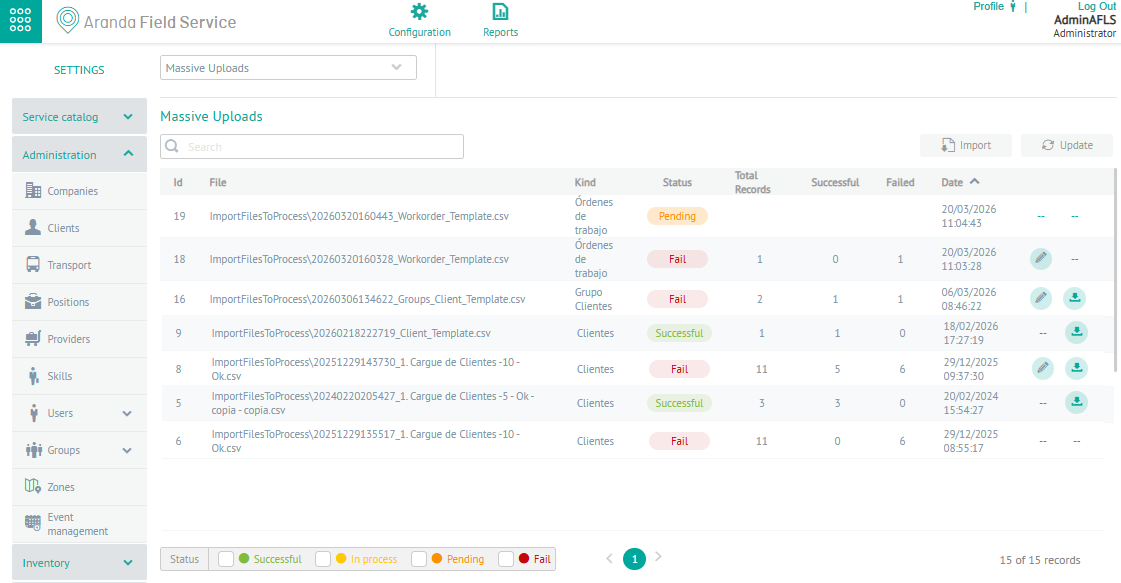
2. In the information view you will be able to view the list of existing records, grouped by data such as Id, File, Type (movement, orders or customers), Status (Successful, In process, Pending or Failure), Total records, Successful, Failed date, data with error and successful file.
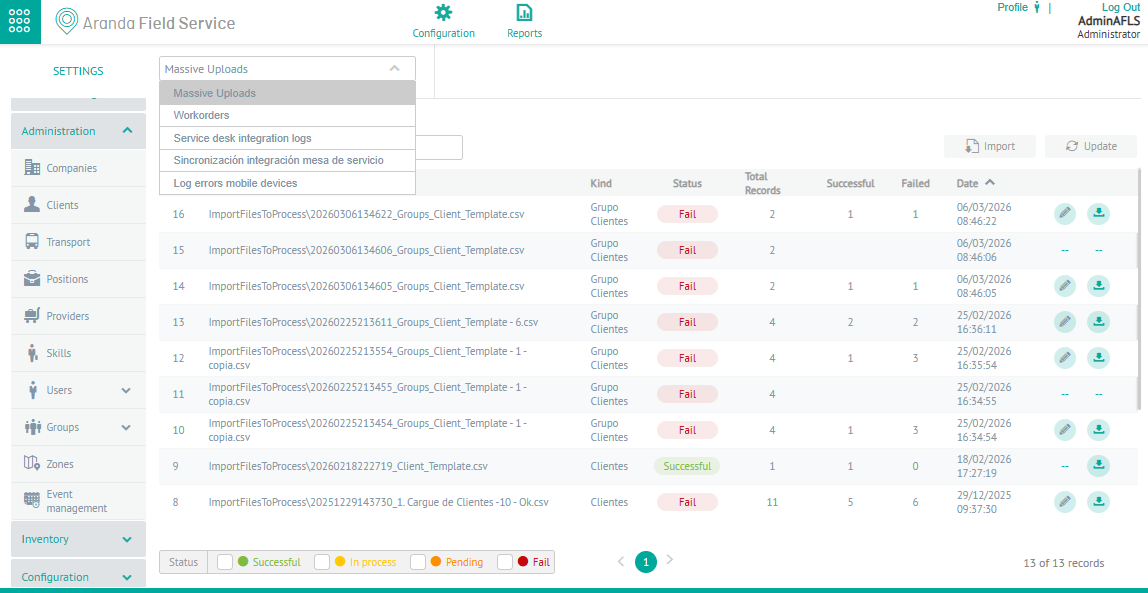
⚐ Note: It is possible to display the bulk import history for the Orders, Customers, Transactions and Customer Groups modules.
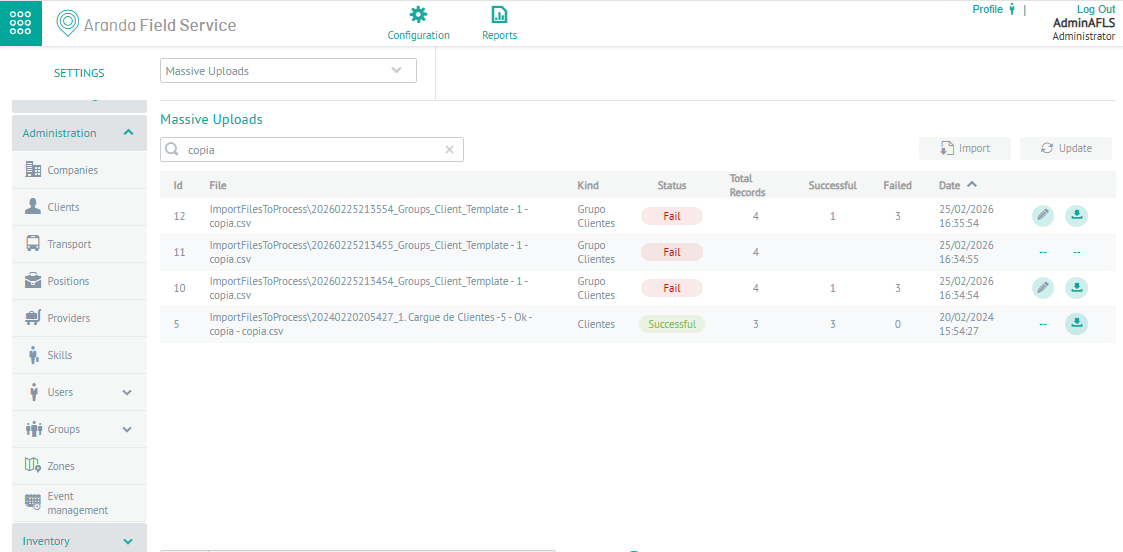
3. In the information view, you will have filters, queries, and actions enabled by event type. For more information, please visit Filters by Event Type.
Import
Import is a functionality that allows you to upload customers, orders, movements and groups in bulk to Aranda FIELD SERVICE, through a .csv Excel file, with a specific format that allows you to manage and create records more efficiently.
4. In the bulk upload event information view, select the 
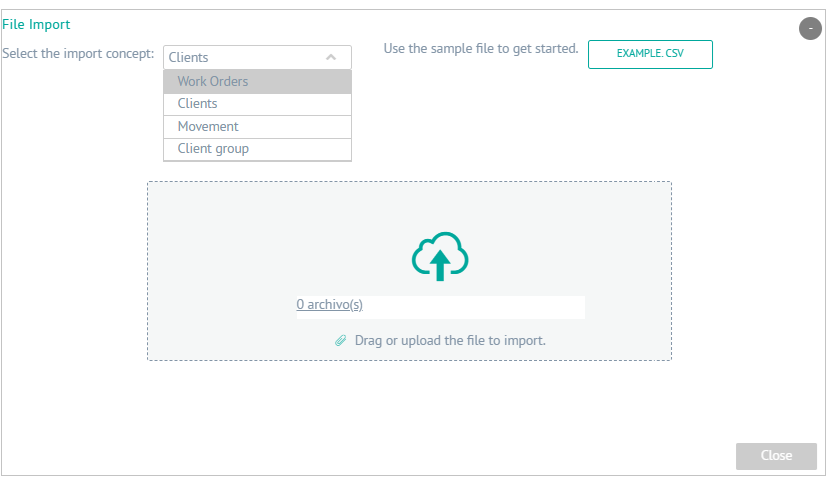
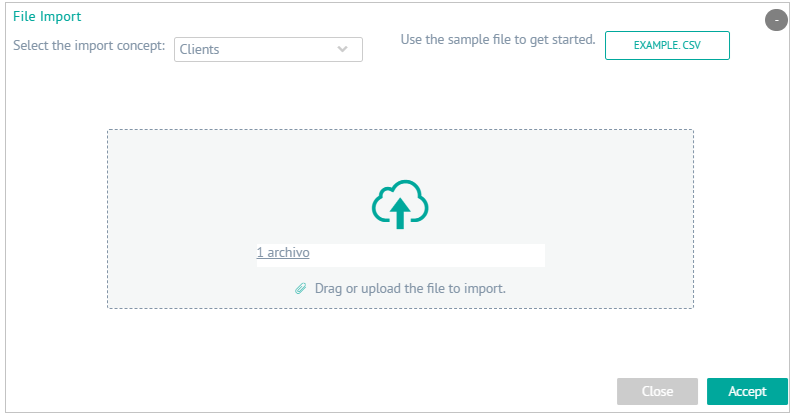
5. The window is enabled Import File where you can select import concept to upload files of work orders, customers, movements or customer groups that you want to add; when selecting the EXAMPLE. CSV You will be able to download a template to import. Select the option Drag or upload the file that you are going to import to access the defined records and upload the information to be imported.
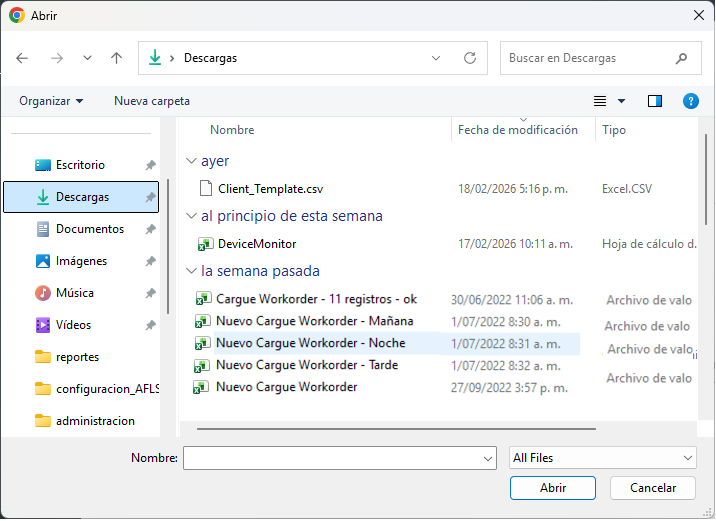
6. The Windows Explorer window drops down where you can browse and select the file .csv.
7. After you select and load the import file for orders, ledgers, customers, or client groups, in the Import File window, click Accept to confirm the changes made and the system will schedule the processing of the file. By updating the information, you will be able to validate the progress of the upload.
Import-Free Records
8. In the list of bulk upload logs, When you click the edit button  to display the incorrectly configured records.
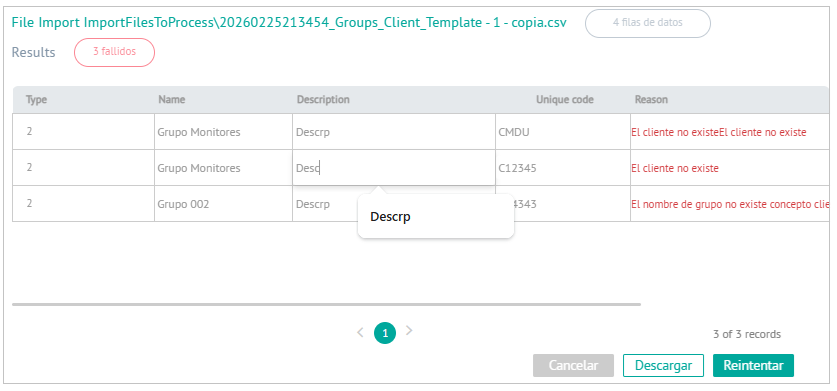
In the results of the failed import you will be able to see the records that were not uploaded and the reason for the failure to import the record. In addition, you can modify and correct erroneous data.
| Actions | Description |
|---|---|
| Cancel button | Perform the cancellation of the editing of the records, closing the view and returning to the detail of bulk uploads. |
| Download button | The system generates a CSV file with a proper name and with the records that were not imported into the application. Pressing the download button will automatically start downloading the file. |
| Retry button | Modifying and correcting erroneous data in the upload validates and retries each record for import. |
Download Successful Logs
9. When activating the download button  , the system generates a file with
CSV with a proper name and with the records that were imported into the application for concepts such as Orders, Customers, Ledger Movements, and Customer Groups.
, the system generates a file with
CSV with a proper name and with the records that were imported into the application for concepts such as Orders, Customers, Ledger Movements, and Customer Groups.
⚐ Note: In the last column of the imported record file, you can display the consecutive ID of the created record.