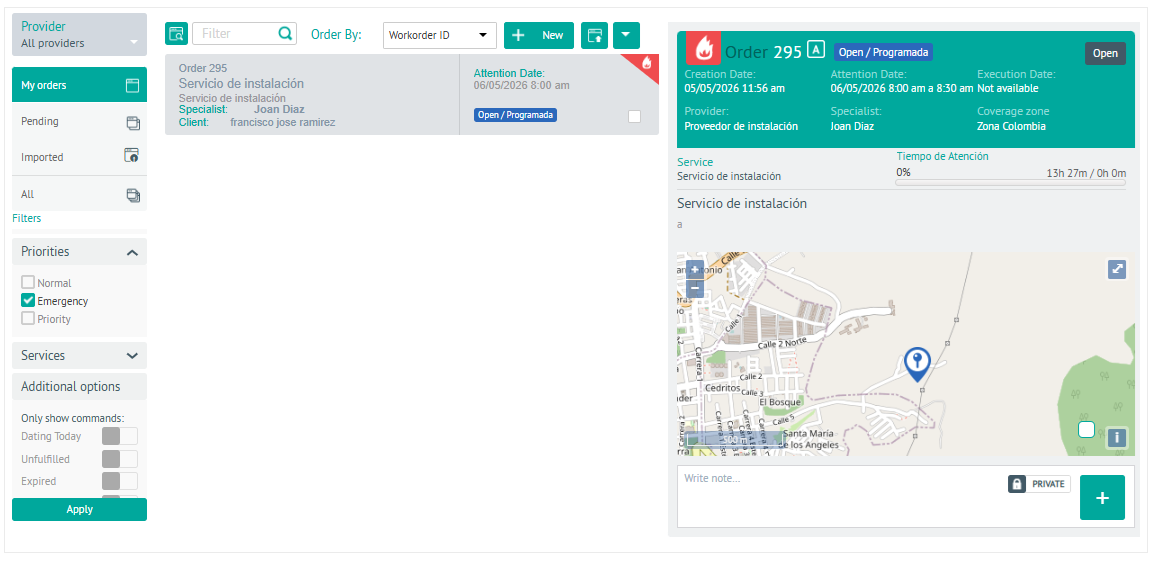
On the screen that displays the list of work orders, you can restrict the work orders displayed by using the following filters in the left pane of the screen:
1. To display the behavior of work orders, with the Dispatcher log in to the AFLS web console, select the option Orders from the main menu,
2. In the order filters in the main menu, select a vendor, activate the required filter, and click the Apply.
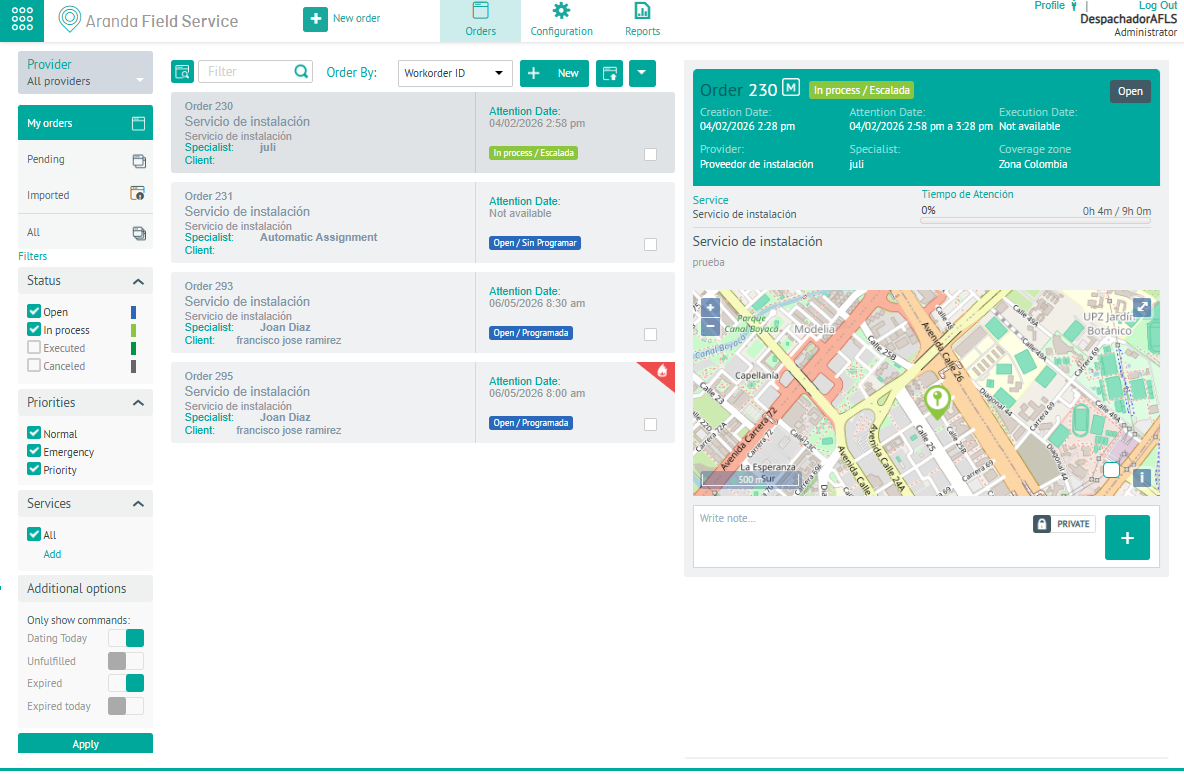
| Order Filter | Description |
|---|---|
| Supplier | The vendor selector allows the dispatcher role to query all vendors (i.e., all orders), and the monitor role only query the vendors it is in charge of. |
| Orders | Grouping of work orders managed in AFLS. The categories that filter orders are: - My orders: This filter is enabled by default and displays only work orders created by the dispatcher who is currently logged in. - Earrings Displays the orders that need to be handled by the dispatcher who is currently logged in. - Imported: Displays orders that were created from the bulk import. - All: Displays all orders created regardless of who created them or must manage them. |
| State | Filter orders according to their execution status: - Open - In process - Executed - Cancelled. |
| Priorities | Filter orders according to the configured order type: - Normal - Emergency - Priority |
| Services | Filter orders according to configured services |
| Additional options: | Filter orders according to the activation of configuration or expiration parameters such as: - Appointments Today - No satisfaction - Expired - Expired today |
3. In the order information view, you can organize the result of the generated work order records by selecting the Sort by and defining one of the following criteria.
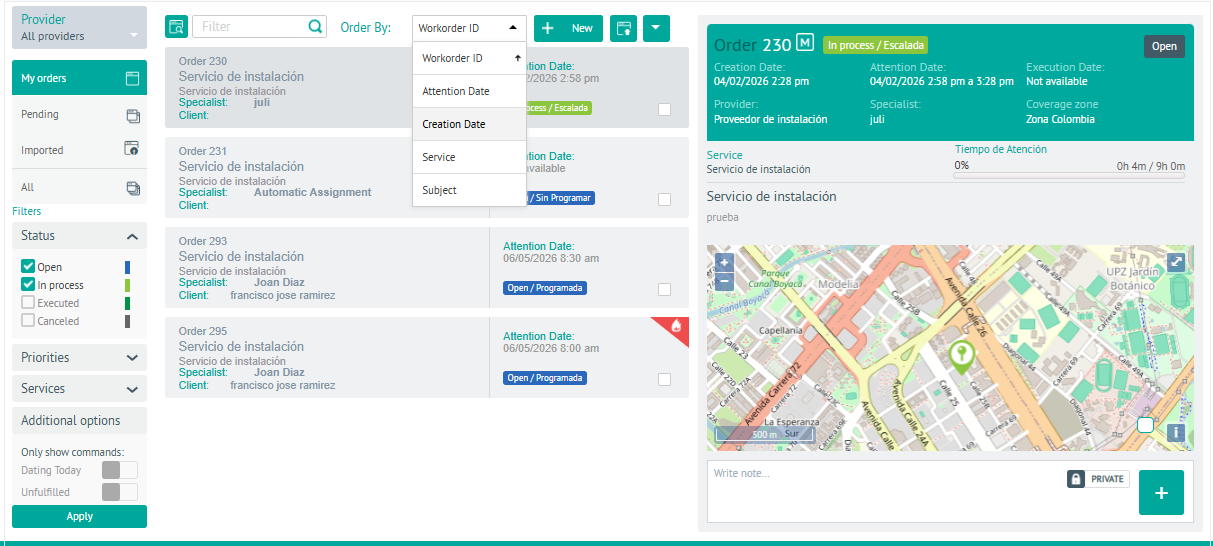
| Order Filter | Description |
|---|---|
| Order Number: | Organize orders in ascending order according to their ticket id. |
| Date of appointment: | Organize orders according to the date of the work order appointment. |
| Date of creation: | Organize orders according to the age of their creation date. |
| Service: | Organize orders in alphabetical order according to the name of the service. |
| Affair: | Organize orders in alphabetical order according to the subject of the order. |
4. In the information view, you can view the results of the query