


The central axis of the business must be the frame of reference and central axis of the business model offered to the customer.
Create a Service
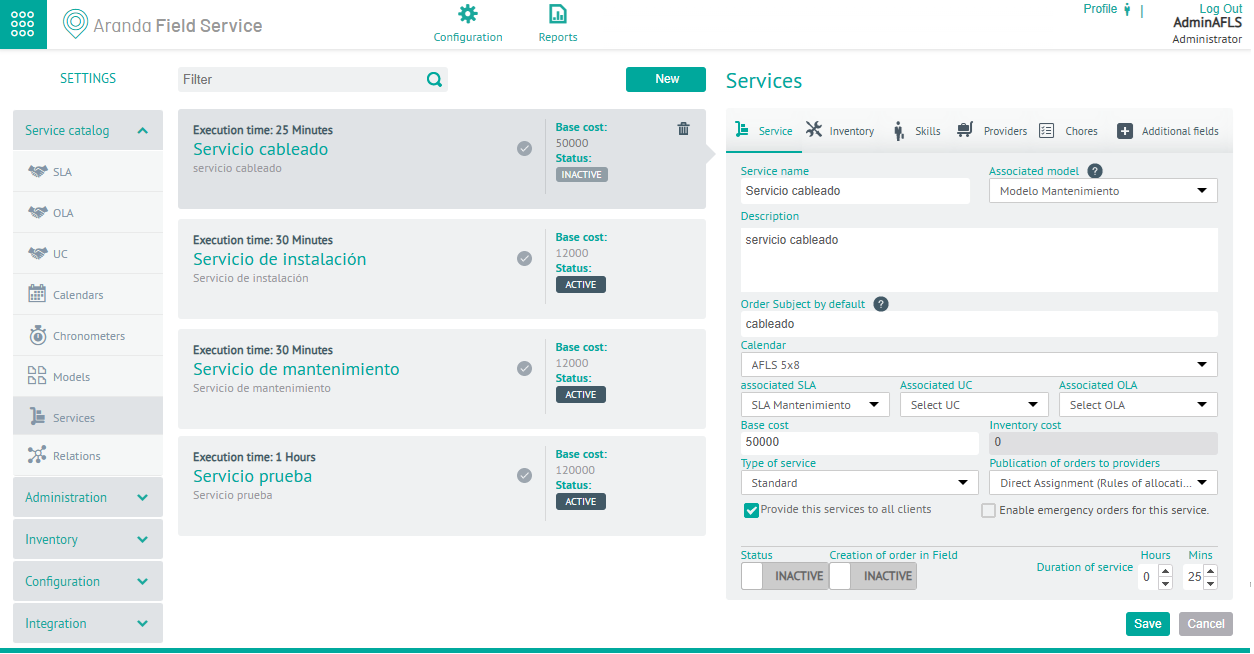
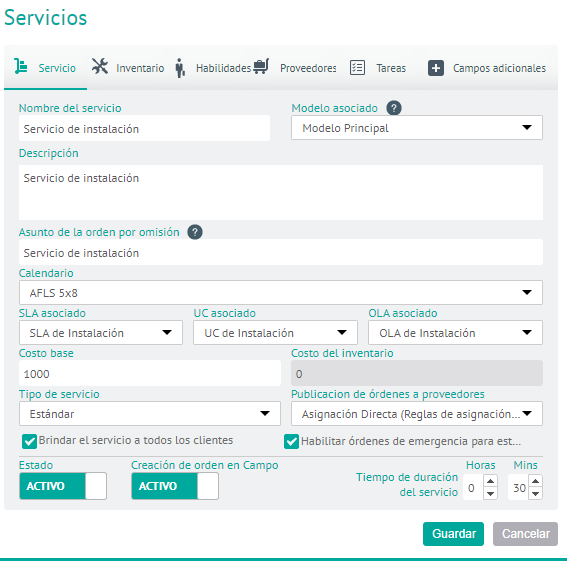
1. To Create a Service, log in to the AFLS Configuration Console; in the Service Catalog from the main menu, select the Services. In the information view, select the New and in the Detail View, you can define basic service information, associate inventory, skills, vendors, tasks, and additional fields.
Service
2. In the Detail View of the AFLS Configuration Console, select the Service, where you can enter information such as service name and description, associate a service model, and the subject of the work order.
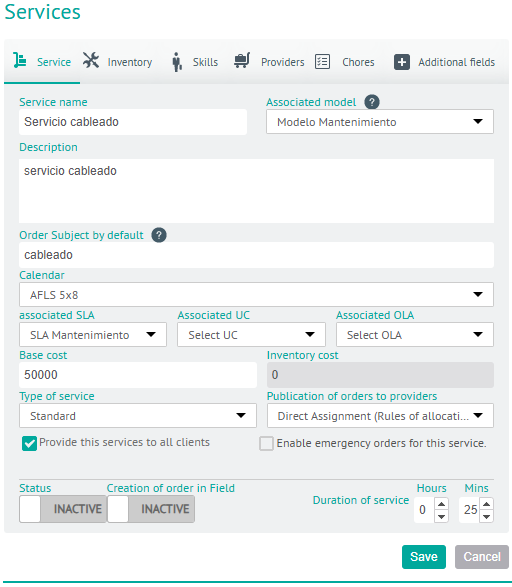
Additionally, you can configure the following fields of the service:
| Fields | Description |
|---|---|
| Calendar | The service must have an associated Schedule, SLA Service Level Agreement, OLA Operational Agreements, and UC Support Contract Agreements. |
| Base Cost | The service must have a base cost. |
| Inventory Cost | This value is defined according to the inventory associated with the service. The inventory cost configured for the service is automatically calculated according to the spare parts included in the service (Inventory Tab). |
| Type of Service | The type of service that can be configured is: - Standard: It indicates that the service will be provided to customers at a specific point that corresponds to the customer’s location. - Displacement: It indicates the field service to customers from a point (A) to a point (B), for example: chosen driver. |
| Posting Orders to Vendors | The service can be provided in two ways: - Direct Assignment: Orders are assigned to a specific vendor, according to the vendor assignment rules that have been configured. - Public Distribution: It refers to orders that have a service with public distribution enabled and will remain on a list of “Available” until any provider decides to take them. |
| Duration of service | It is the time in hours and minutes that it will take to execute the service. |
| Provide this service to all customers | If you enable this check, you allow the service to be available to all customers. |
| Enable emergency orders for service | If you enable this “Check” it allows you to create work orders with the service in emergency and priority (not available for Public Distribution configuration). |
| State | — |
| Creating Order in the Field | Enable this option 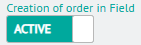 so that the specialist can visualize the service during the creation of the order. so that the specialist can visualize the service during the creation of the order. |
⚐ Note: If the option to Create Order for the Specialist is enabled in the Global Settings settings, a button to Enable or Disable the display of the service for specialists will be displayed in the service detail view.
Inventory
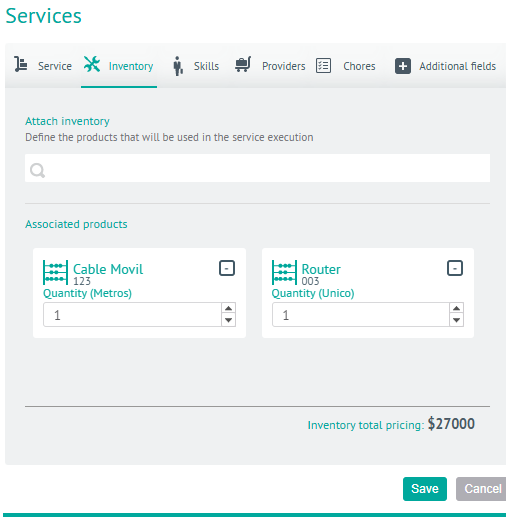
3. In the Detail View of the AFLS Configuration Console, select the Inventory, where you can define the inventory associated with the service.
The number of spare parts associated with the service will be the basic spare parts necessary to serve it, however, this information may vary and be customized according to the requirements defined by the customer in each of the work orders.
Skills
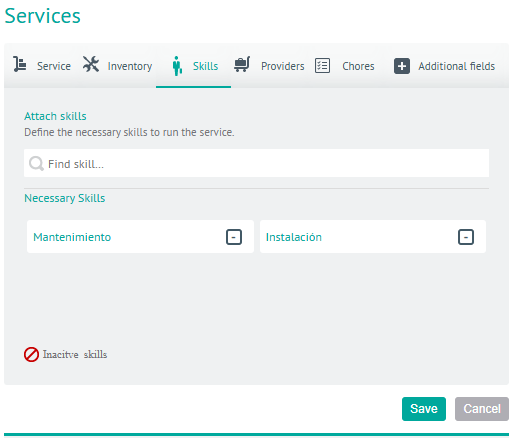
4. In the Detail View of the AFLS Configuration Console, select the Skills, where you can configure the skills required for the execution of an order and then associate them with the respective service.
When a skill is required, it means that the person who is going to attend the service must possess that skill.
Suppliers
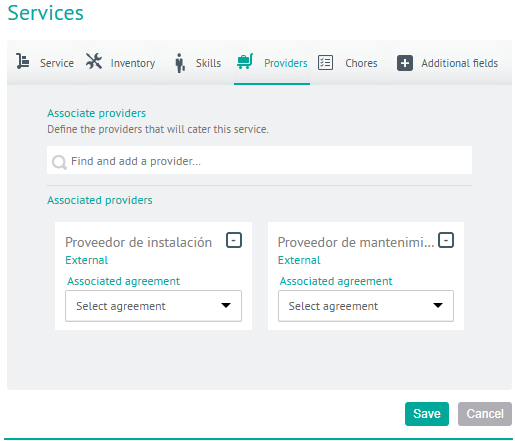
5. In the Detail View of the AFLS Configuration Console, select the Suppliers, where you can configure the providers that are going to provide the service with the respective agreement depending on the type of provider that is associated with the service.
Tasks
A work order relates to a service, and the service may require the execution of a number of tasks.
6. In the Detail View of the AFLS Configuration Console, select the Tasksicon, enter the name of the task, and click Add to create a list of consecutive task templates for the work order related to that service.
Once you have the complete list, you can change the order, dragging with the mouse the task you want to change to the new position; You can also eliminate the tasks you want to exclude.
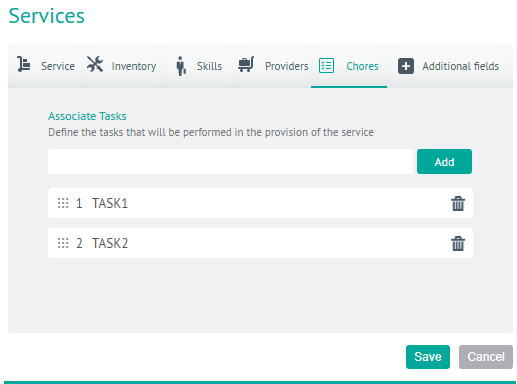
⚐ Note: This task template will be reflected in the creation of a work order that the service has. When you save the work order with the task template, those tasks become tasks to be performed.
Additional Fields
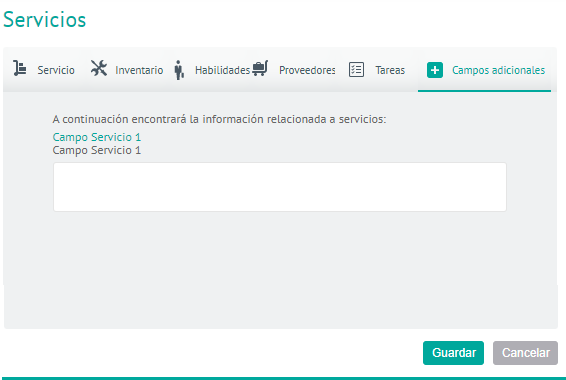
7. In the Detail View of the AFLS Configuration Console, select the Additional Fields, where you can fill in the additional fields that have been configured in the Additional Field Configuration for Services module.
8. When you finish configuring the service, click Save in the Detail View of the AFLS Configuration Console, to confirm the changes made.
Emergency Order Configuration
The administrator of the tool can activate the option of Enable service for emergency or priority orders.
The priority in the attention of a work order can vary depending on the types of priority:
| Priority | Description |
|---|---|
| Normal | It corresponds to the work orders that must be fulfilled according to the priority defined by the assignment engine. The assignment engine optimizes specialist planning, thus preventing breaches of customer agreements and minimizing the operational and travel cost of agents. This is the default priority selected. |
| Priority | This is when the order should be attended to as soon as possible. In this type of priority, the order will be assigned to the nearest specialist, giving them the necessary time to finish the work they are doing at the moment. The specialist should finish the current work and then proceed to the priority order. |
| Emergency | It is the highest level of priority. The specialist should leave the work he is doing and go immediately to solve the emergency. The work order you leave behind will be reassigned to another specialist. |
⚐ Note: These priorities are only available when the service is enabled for priority work. Otherwise, an order can only be in “Normal” priority.