


⚐ Note: The mobile user configuration can be developed by a user with a Monitor in AFLS.
Create Mobile User
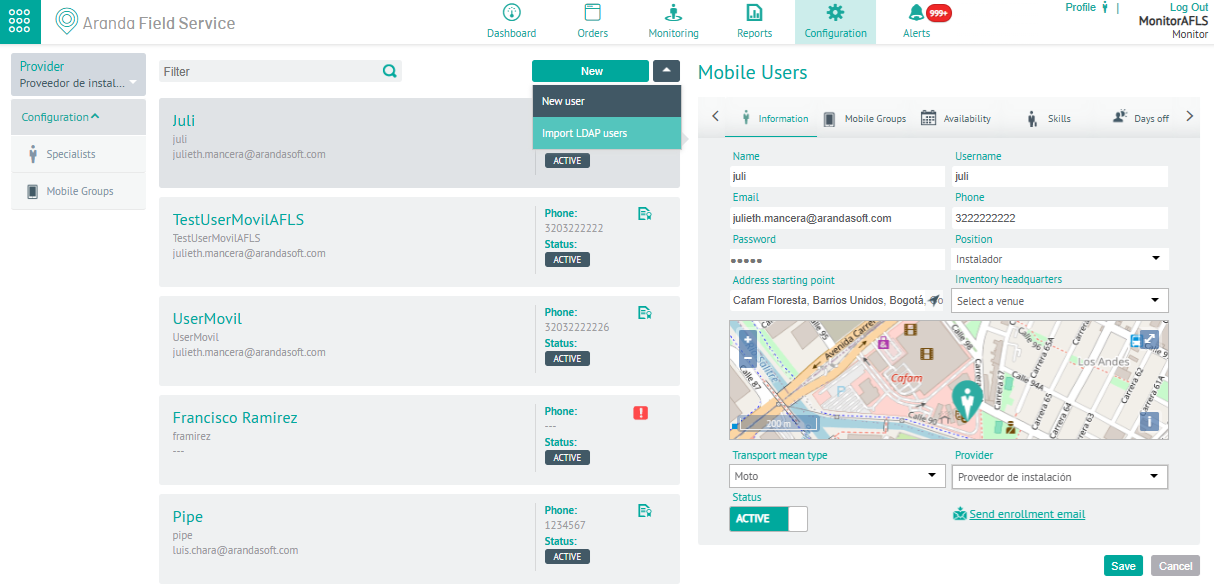
1. To create Mobile users, enter the AFLS configuration console, with Monitor role, in the Settings section of the main menu, select the option Specialists. In the information view, select the New or New User.
⚐ Note: In the main menu you will find the section of providers that have associated the monitor with which you logged into the application.
Information
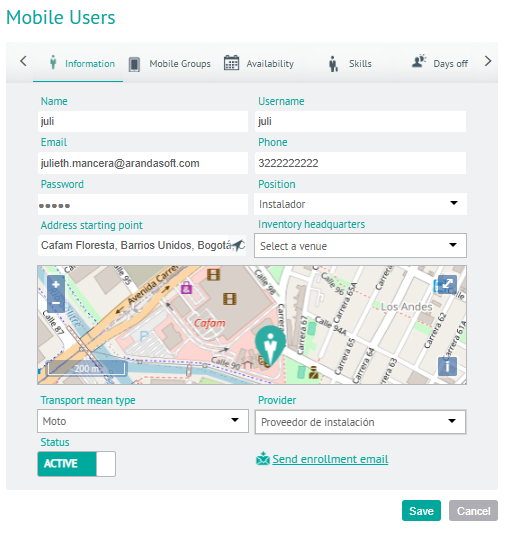
2. In the Mobile User Detail View, select the Information, where you can fill in data such as name, username, email, telephone, password, position, address, starting point, inventory headquarters, type of transport and supplier.
Each user with a field specialist role will be associated with a charge and a supplier that have been previously configured, and also an inventory headquarters (this last field is not mandatory).
Mobile groups
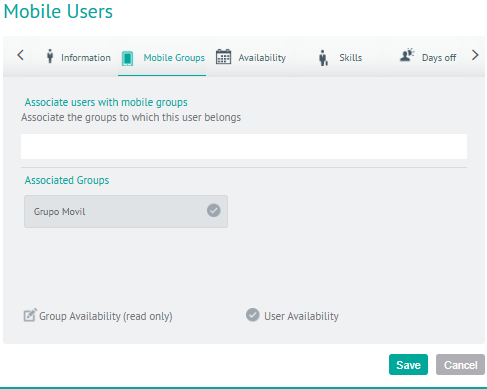
3. In the Mobile User Detail View, select the Mobile Groups, where you can associate, if required, the groups to which the mobile user belongs. Each user with the role of field specialist may be associated with different groups according to their characteristics and conditions for the provision of the service.
Availability
4. In the Mobile Users Detail View, select the Availability, where you can configure the time availability of each specialist for the service care.
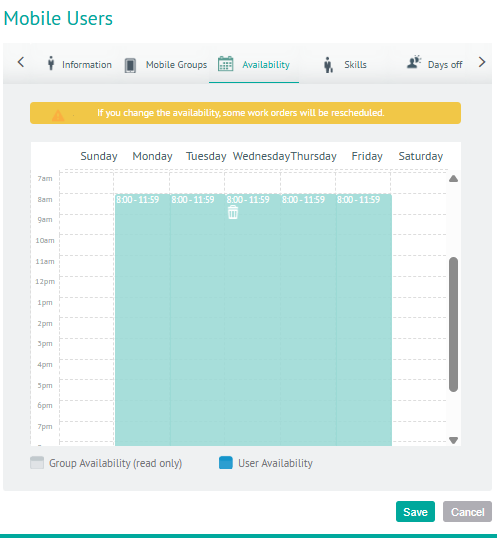
⚐ Note: If the specialist is associated with a mobile group that already has an availability configured, the specialist will inherit that availability. Legacy availability is represented in gray.
Skills
5. In the Mobile User Detail View, select the Skills, where you can configure specific skills for each field specialist or you can also inherit those from the associated mobile groups.
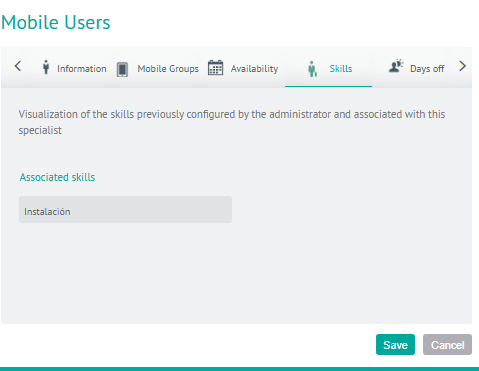
⚐ Note: If the user is associated with a mobile group that already has skills set up, the user will inherit the skills in that group. Inherited skills are viewed differently (see conventions)
Days off
6. In the Mobile User Detail View, select the Days off, where you can set up specific days where the field specialist will not be available to perform their duties.
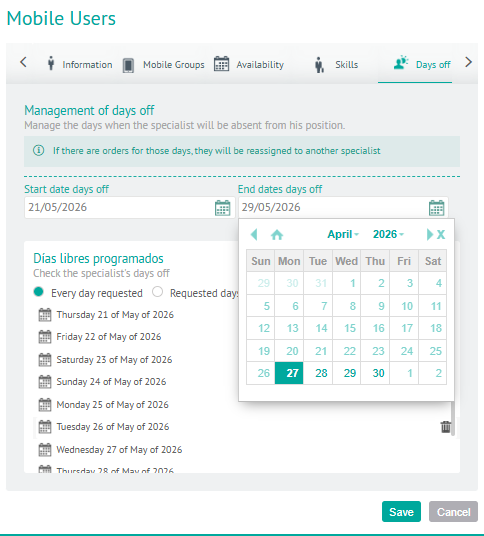
A range of scheduled days off is established according to the following categories:
| Scheduled Days Off | Description |
|---|---|
| Every day requested: | All days that have been set up as days off for the specialist are displayed. |
| Requested days of the current month | The days that have been set as days off for the current month for the specialist are displayed. |
| Business Days Requested | The configured days off equal to or greater than the current day are displayed. |
The days off scheduled for the specialist can be deleted using the respective icon 
⚐ Note: If the specialist user has orders assigned for the days that are going to be configured as free, the orders are reassigned to another specialist or a new date of care is assigned.
Additional Fields
8. In the Mobile Users Detail View, select the Additional Fields, where you can view the additional fields that have been configured in the configuration module for mobile users and are enabled to be used when creating the user.
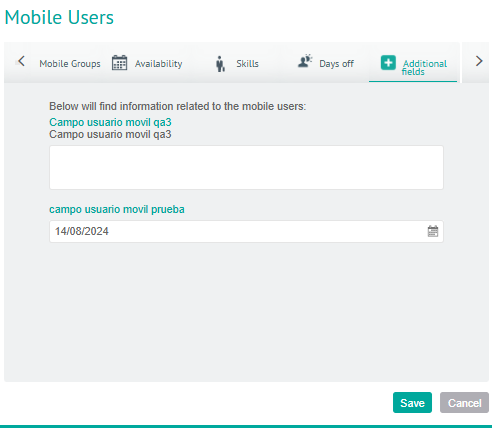
9. When you finish configuring your mobile users, click Save in the Detail View of the AFLS Configuration Console, to confirm the changes made.
Edit Mobile User
9. To edit a mobile user with the monitor role, in the information view, select a record from the list of existing web users, and in the detail view you can modify the required information.
Remove Mobile User
10. To delete a mobile user with the monitor role, in the information view, select a record from the list of existing users and select the icon to delete the associated information.