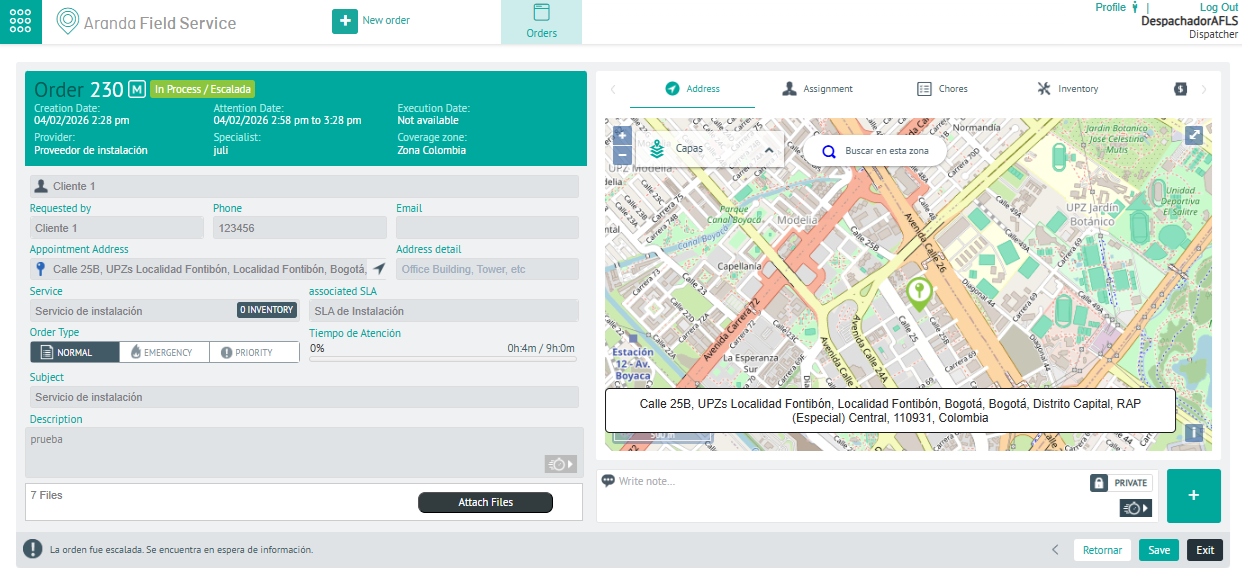
In this module of Aranda FIELD SERVICE AFLS, the event management for associated processes is managed.
1. To filter and sort the information to be consulted for the events, enter the AFLS configuration console, in the section Administration from the main menu, select the Event Management. In the information view, select the option Service Desk Integration Logs
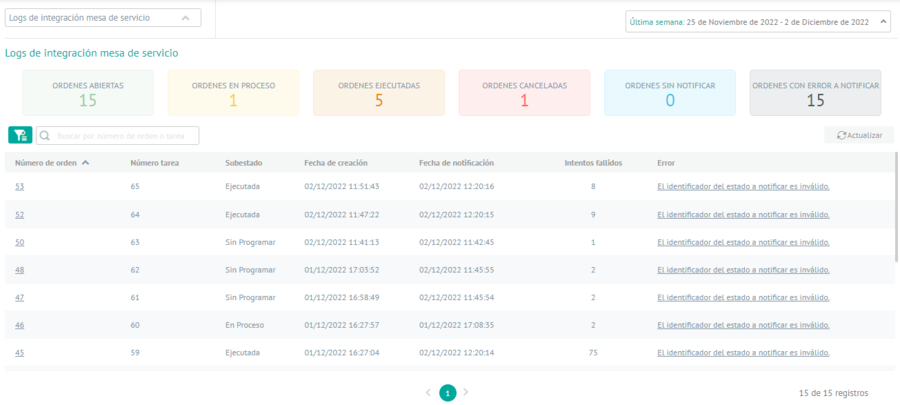
2. In the information view, you can view work order information grouped by data such as Order Number, Task Number, Substatus, Date Created, Date Reported, Failed Attempts, and Failed.
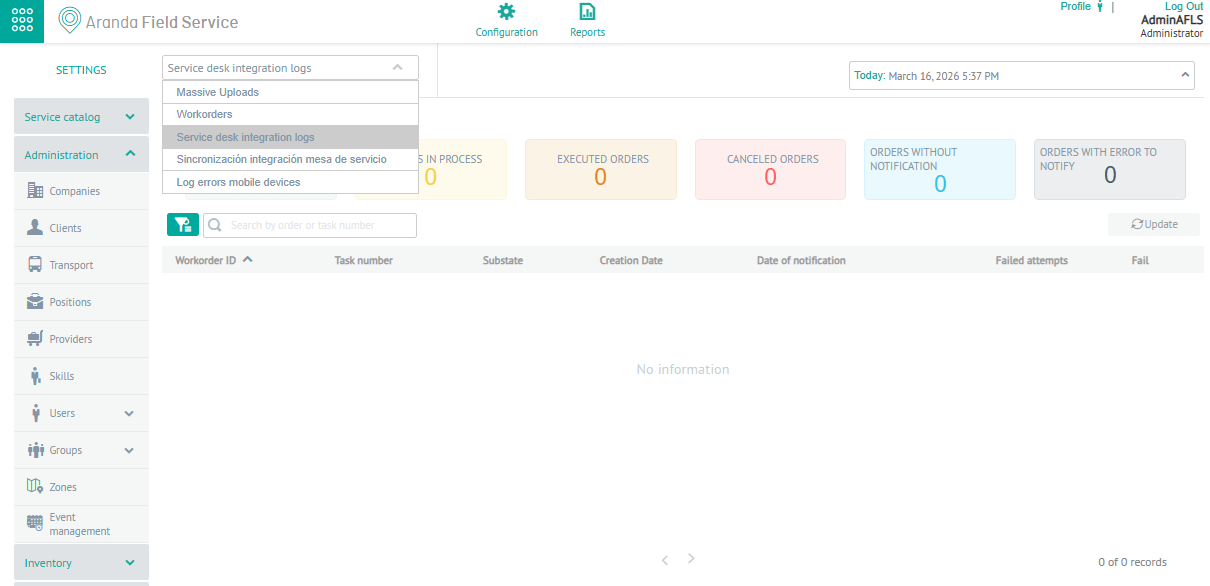
3. In the Service Desk Integration Log Information View, you can view the behavior of work orders created and managed from the Aranda Service Desk (ASDK) or Aranda Service Management (ASMS) application. In the information associated with the orders, you can analyze the following information:
| Orders | Description |
|---|---|
| Open Orders | Field tasks that have been created from the ASDK or ASMS application to AFLS are displayed. |
| Orders in Process | Field tasks that are in the process state are displayed in the AFLS application. |
| Executed Orders | Field tasks that are in the executed state are displayed in the AFLS application. |
| Cancelled Orders | Field tasks that are in a canceled state are displayed in the AFLS application. |
| Unnotified Orders | The field tasks that are pending to be notified to the ASDK or ASMS application are displayed. |
| Failed Orders to Report | The tasks in the field that failed at the time of making the notification to the ASDK or ASMS application are displayed. |
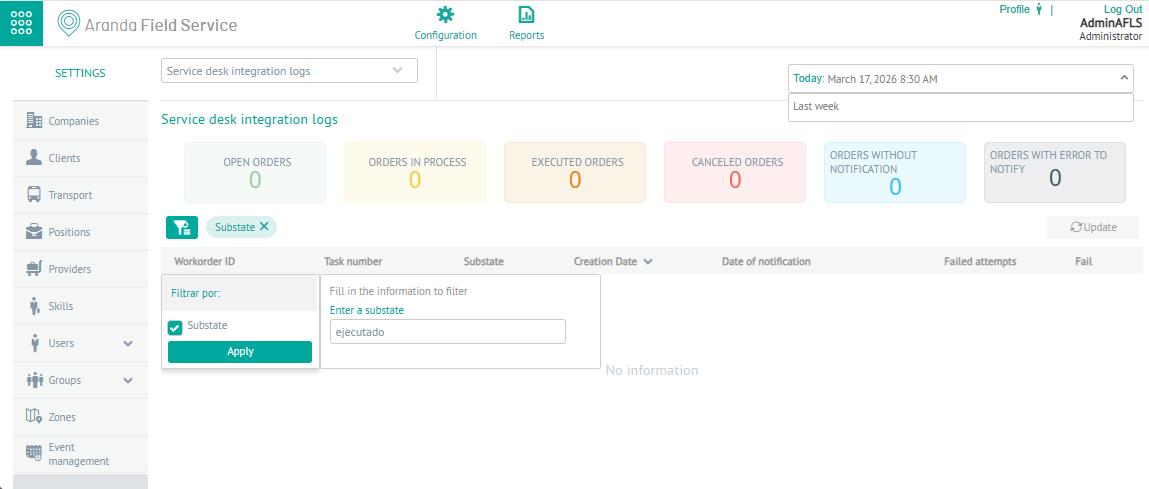
4. In the table integration log information view, you will have filters, queries, and actions enabled by event type. For more information, please visit Filters by Event Type.
When defining the filter by sub-status, the work orders managed from ASMS or ASDK are displayed, according to the established sub-status (open, processed, executed and cancelled)
Error View
5. In the information view, you will be able to view information on orders that failed when attempting to notify the ASDK or ASMS application. Clicking on an error displays the history of the work order sub-statuses that failed when attempting to notify ASDK or ASMS, grouped by data such as Sub-status, Error and Date Created.
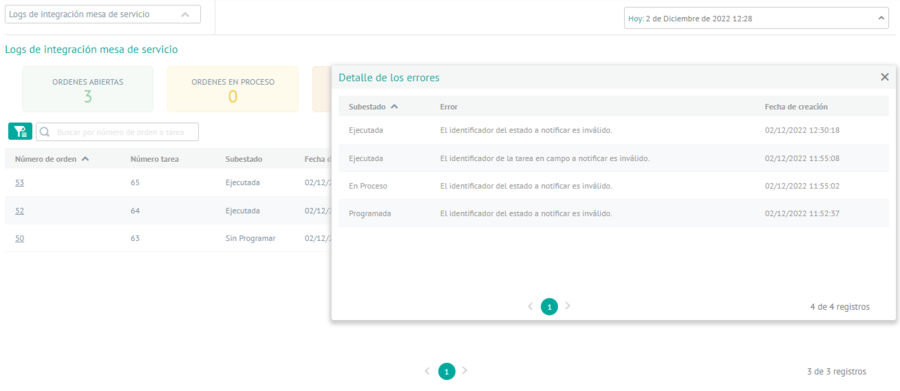
Work Orders
6. Clicking on the ID of a work order record displays a quick view with the most relevant information of the order with data such as Order Number, Status, - Date of creation, Supplier, Service Area, Location, Location details, Service, Time of service, Subject and description of the work order.
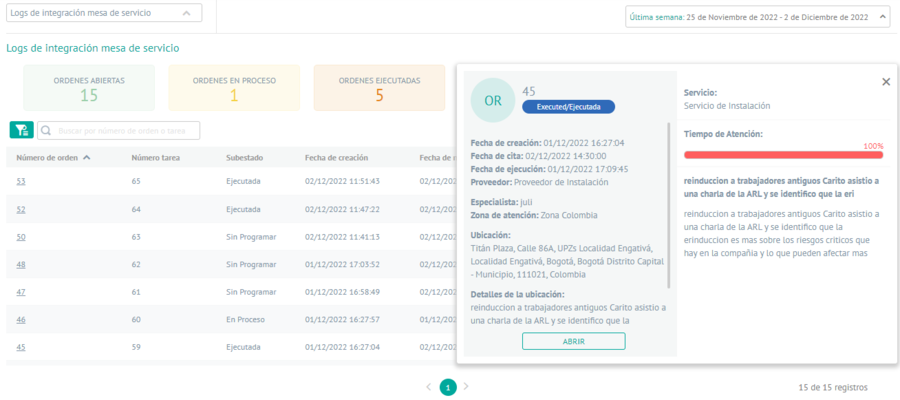
7. By selecting the OPEN, you can redirect the inquiry to the work order detail view.