


Relationships are elements that allow 2 or more work orders to be joined or linked depending on the business.
Building a Relationship
1. To Create a Relationship, go to the AFLS Configuration Console; in the Service Catalog from the main menu, select the Relations. In the information view, select the New.
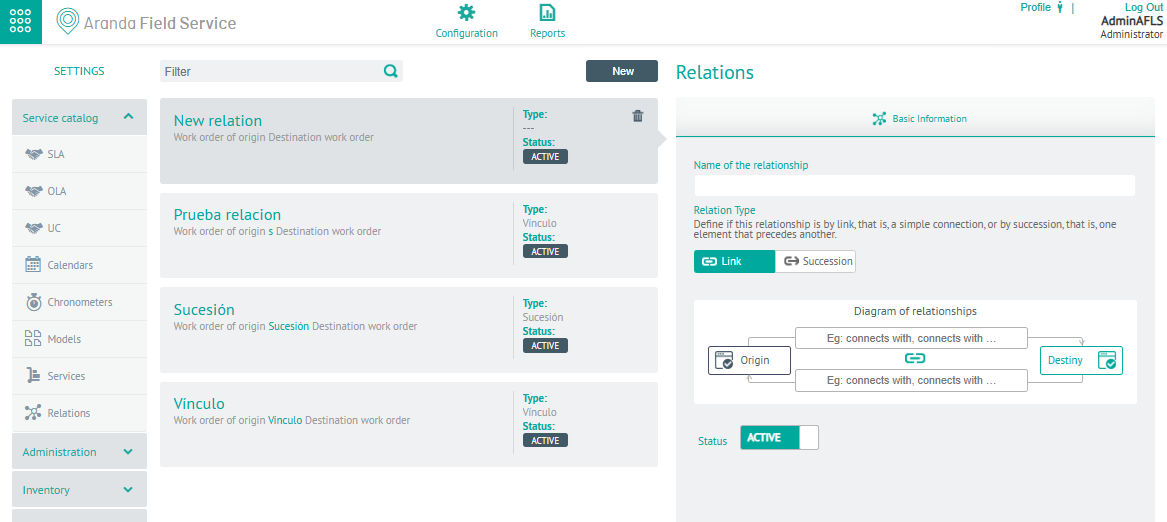
2. In the Detail View, you can define the basic information of the relationship with the following fields:
| Field | Description |
|---|---|
| Name of the relationship | Name assigned to the relationship. |
| Type of Relationship | Define the relationship type: - Link: Relationship between commands by a simple connection. - Succession: Relationship between orders where one element precedes another. |
| Relationship Diagram | The terms that the connectors between the source and destination orders will have are defined |
| State | Defines whether the client’s status is active or not. |
⚐ Note: The relationships created are listed in the Relationships option on work orders. (as long as they are active)
3. When you finish setting up the relationship, in the detail view click the Save to confirm the changes made.
Edit a Relationship
4. To edit a relationship, in the information view, select a record of existing relationships, and in the detail view you can modify the required information
Deleting a Relationship
5. To delete a relationship in the information view, select a record from the list of existing relationships and select the icon to delete the associated information.