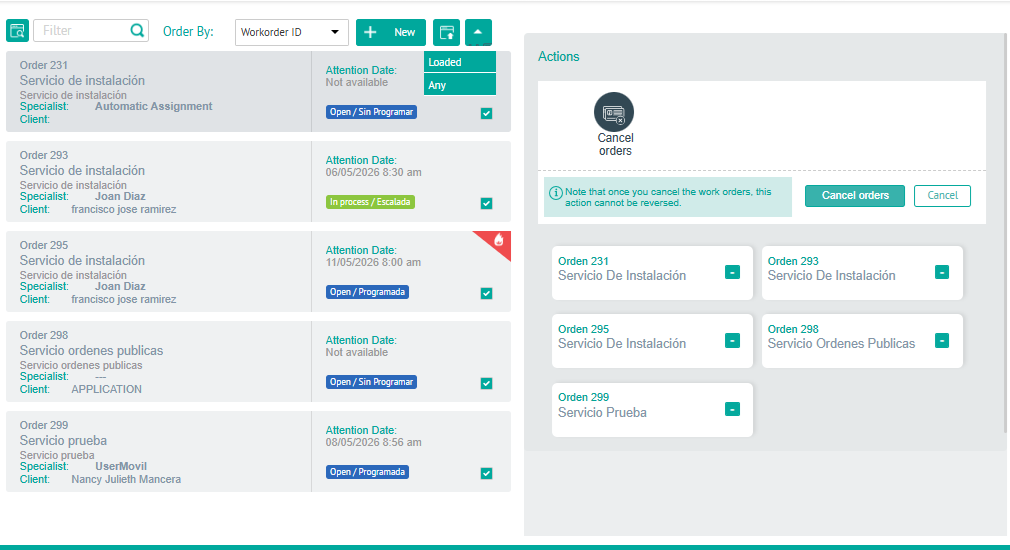
⚐ Note: To display and manage bulk order actions, during the configuration of web users, when defining as user roles the Dispatcher or Monitor, turn on the Allow the user to perform bulk actions. Enable bulk actions on web users
1. To visualize the behavior of work orders and perform bulk actions, with the Dispatcher or Monitor (with permission enabled) log in to the AFLS web console, select the Orders from the main menu,
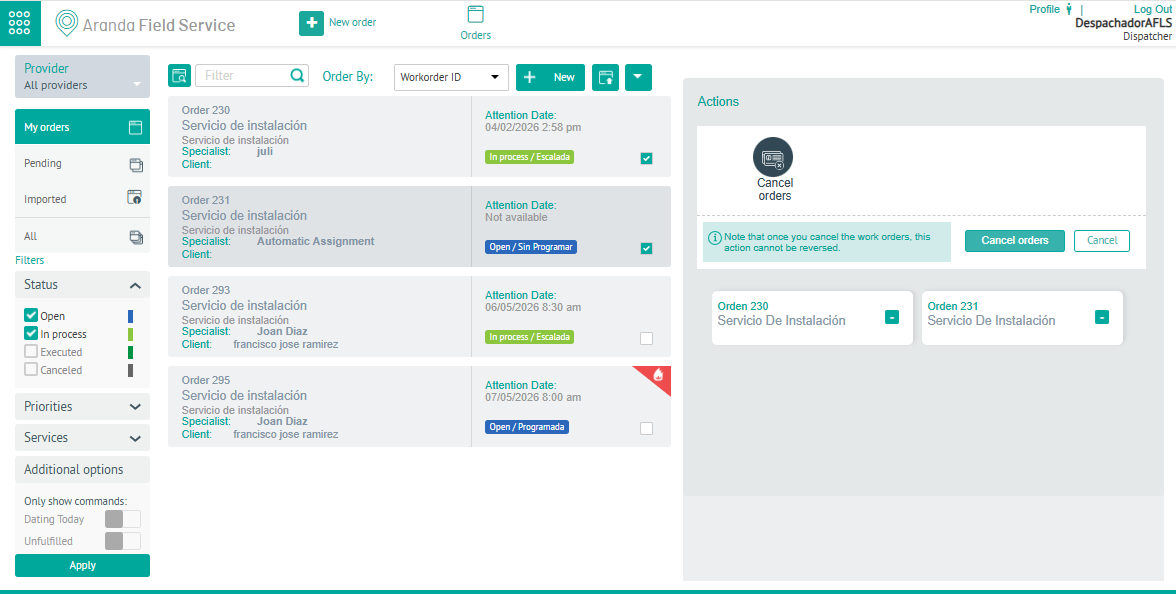
2. In the information view, select one or more records from the order list. In the detail view you can perform two actions:
- Cancel Orders: The bulk cancellation process of the selected work orders is carried out.
- Cancel: Action is canceled and order information is not changed
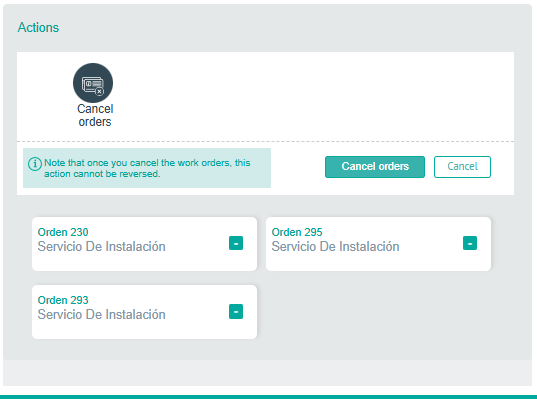
⚐ Note: To cancel work orders, there must be a cancellation transition from the workflow designed in the service model.
3. When you execute the order cancellation action, the warning message is displayed Are you sure about canceling work orders? , this action has no return.
Group selection for Bulk Actions
1. In the Order information view, display the list of options for executing a bulk action. The available options are:
- Loaded: Select all the orders that are listed in the module and you will be able to perform the bulk cancellation process of the selected work orders.
- No: Unchecks all work orders listed in the module.