


View General Alerts
1. To view general alerts, with the Monitor role, go to the AFLS web console, in the Alerts from the Header menu, select the General.
2. In the alert filters in the main menu, enable the options required to generate the order report:
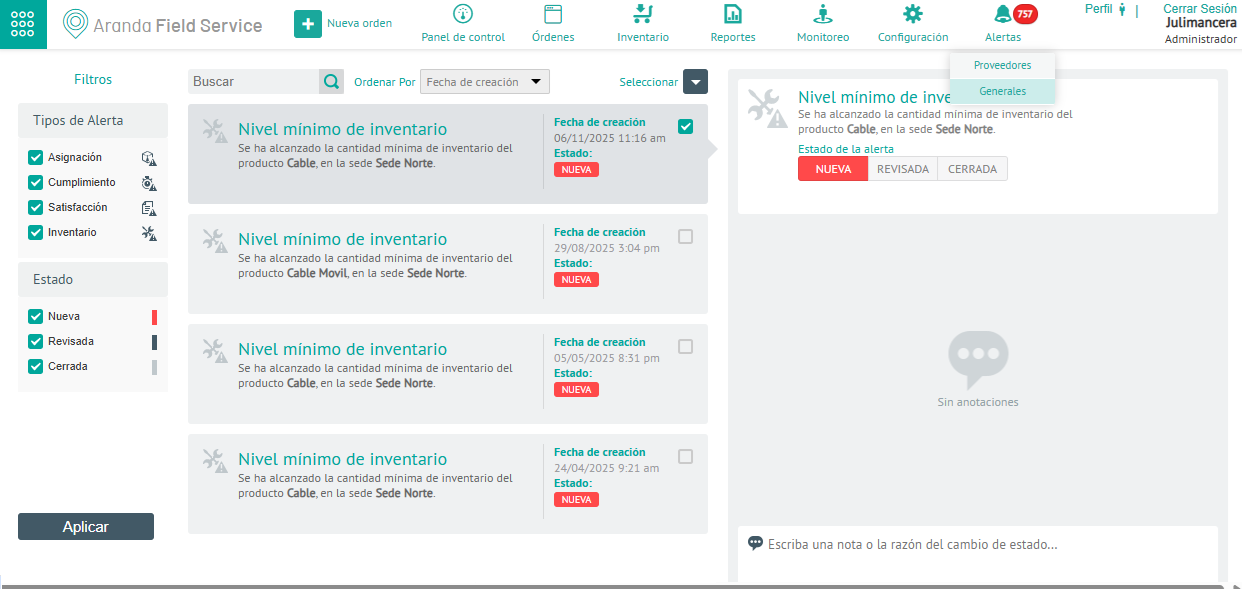
| Alert filters | Description |
|---|---|
| Allocation | These are the alerts created by the assignment engine when it is not possible to find the right people to execute a work order. For more information, please visit the Assignment Alerts. |
| Compliance | Alerts generated by the operation when work order appointments or service level agreements are breached. For more information, please visit the Compliance Alerts. |
| Satisfaction | Alerts generated by low survey scores by users. For more information, please visit the Satisfaction Alerts. |
| Inventory | Alerts that are generated when the quantity of a product is below the levels allowed in the inventory. For more information, please visit the Inventory Alerts. |
3. In the information view of the filtered information, select an alert from the generated list.
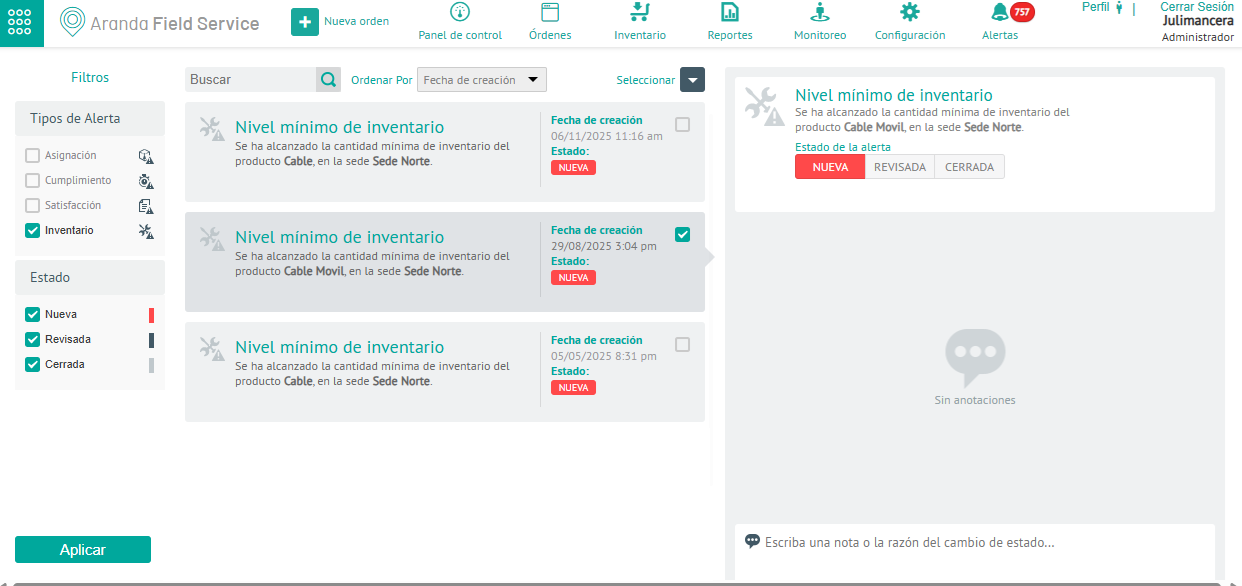
4. In the alert detail view, you can select the View Order, access the selected order, and view the associated information.
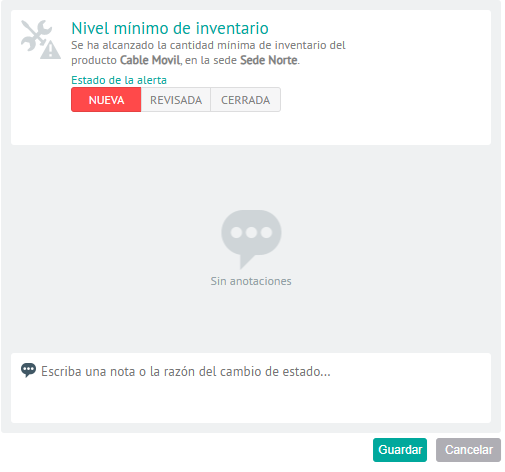
Changing Alert Status
5. Each alert log includes relevant transaction information. In the detail view you can update the status of the alert (New-Revised-Closed) by adding a message in the respective field. When the update is complete, click Save
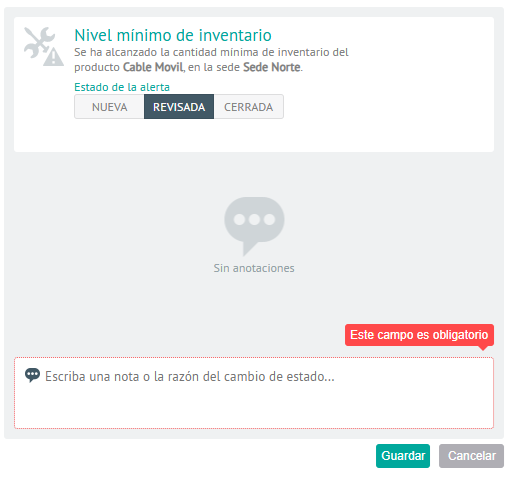
The alert lifecycle moves through three different states:
| Alert Statuses | Description |
|---|---|
| New | System-created alerts that have not been validated. |
| Revised | Alerts that require some type of action on the part of users or monitors. |
| Closed | Validated alerts that don’t matter or that have already been reviewed in the operation. |